
Introduction
Thank you for purchasing the ZWXYVUT G28 Retro Handheld Game Console. This device is designed to provide an immersive gaming experience with its Linux-based system, 4.3-inch IPS screen, and extensive game compatibility. This manual will guide you through the setup, operation, and maintenance of your new console.
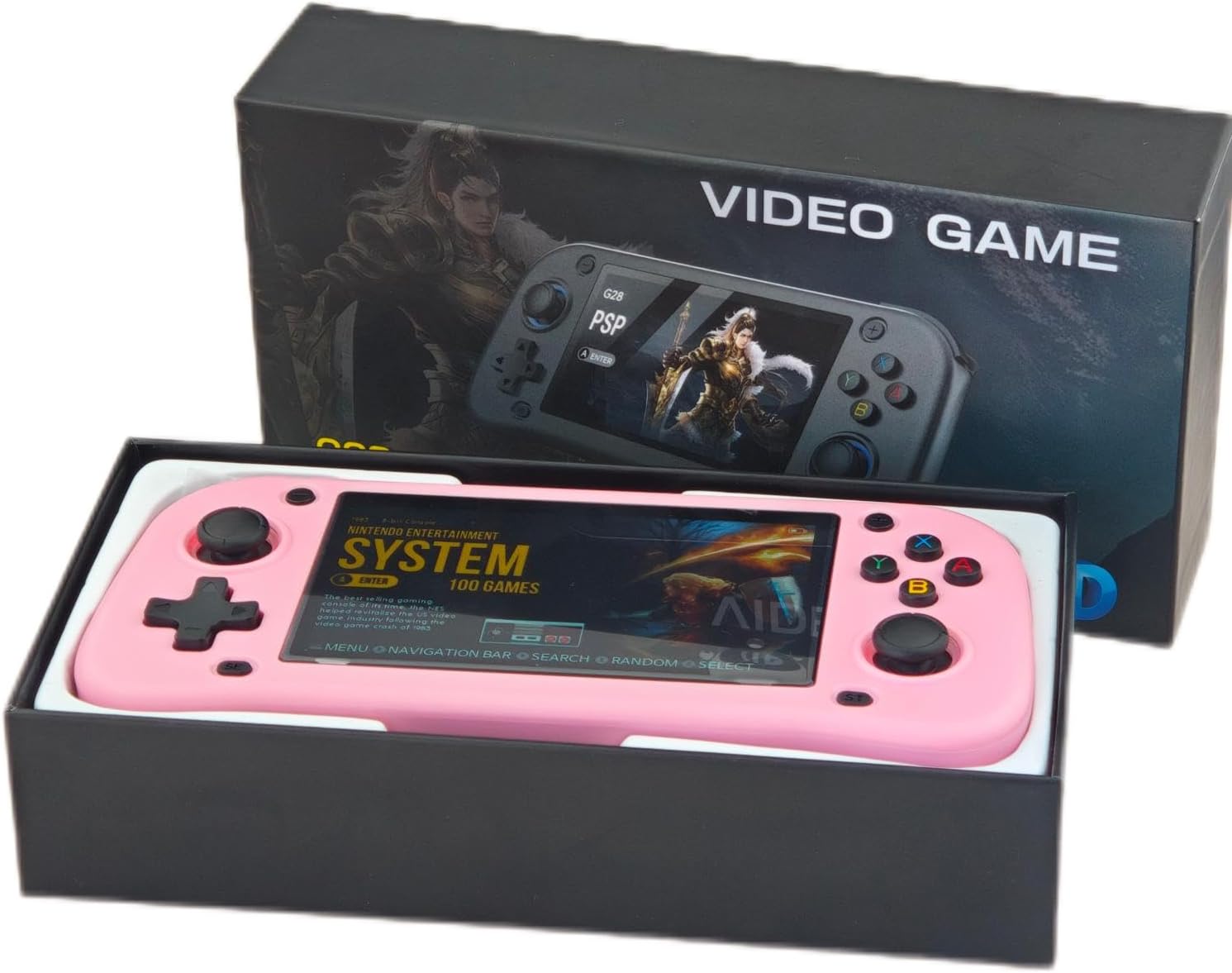
Image: The G28 Retro Handheld Game Console, presented in its retail packaging. The pink console is visible within the box, alongside the "VIDEO GAME" branding on the outer packaging.
What's in the Box
Please check the package contents to ensure all items are present:
- 1 x G28 Game Console
- 1 x Game Pad
- 1 x Micro USB Charging Line
- 1 x HDMI-compatible Cable
- 1 x Packing Box

Image: The G28 console displayed with its included micro USB charging cable and the product packaging box, illustrating the main components of the package.
Product Overview
Familiarize yourself with the console's layout and controls.

Image: A detailed view of the G28 console, highlighting its various ports and buttons. This includes the HDMI output, DC/OTG port, TF card slot, power switch, and the shoulder buttons (L1, L2, R1, R2).
Controls and Ports:
- 4.3-inch IPS Screen: High-definition display for clear visuals.
- Dual 3D Joysticks: For precise control in games.
- Directional Pad (D-Pad): Standard directional input.
- Action Buttons (A, B, X, Y): Standard gaming input buttons.
- Shoulder Buttons (L1, L2, R1, R2): Additional control inputs.
- HDMI Output: Connect to a TV or larger display.
- DC/OTG Port: For charging and On-The-Go (OTG) functions.
- TF Card Slot: For expandable storage and game loading.
- Power Switch: To turn the console on/off.

Image: A close-up view of the console's dual 3D joysticks, highlighting their ergonomic design and anti-skid texture for enhanced gaming precision.
Specifications
| Feature | Detail |
|---|---|
| Operating System | LINUX/Emelec 4.7 |
| CPU | 1.5GHz 64-bit RK3128 Quad-core cortex-A7 |
| GPU | Mali-G31MP dual-core |
| System Memory | 4GB |
| Display | 4.3-inch IPS Screen, 480*272 resolution |
| Storage Capacity | 64GB / 128GB TF Card (pre-installed) |
| Expandable Storage | Supports up to 256GB TF card |
| Battery | 2100mAh rechargeable battery |
| Battery Life | Approx. 4-5 hours |
| Power Supply | 5V 2A |
| HDMI Support | HDMI 1.4 compatible |
| Connectivity | External WIFI, 2.4G wireless controller, wired controller, Bluetooth controller |
| Product Dimensions | 7.5 x 3.1 x 1.3 inches |
| Supported Simulators | PSP, PS1, N64, and 20+ other game formats |
Setup
1. Initial Charging:
Before first use, fully charge the console. Connect the provided Micro USB charging cable to the DC/OTG port on the console and the other end to a 5V 2A USB power adapter (not included) or a computer USB port.
- The charging indicator light will illuminate during charging.
- A full charge typically takes approximately 2-3 hours.
2. Powering On/Off:
Locate the power switch on the console. Slide it to the "ON" position to power on the device. To power off, slide it to the "OFF" position.
3. Inserting/Removing TF Card:
The console comes with a pre-installed TF card containing games. If you wish to use a different card or upgrade, gently insert the TF card into the TF card slot until it clicks into place. To remove, push the card in slightly until it springs out.
Note: Always power off the console before inserting or removing the TF card to prevent data corruption.
4. Connecting to TV (HDMI Output):
To play games on a larger screen, connect the provided HDMI-compatible cable from the console's HDMI port to an HDMI input on your television or monitor. Select the correct HDMI input on your TV.

Image: The G28 console held in hands, showcasing its vibrant 4.3-inch IPS screen displaying game content, set against a dynamic background.
Operating Instructions
1. Navigating the Menu:
- Use the Directional Pad (D-Pad) or Left 3D Joystick to navigate through menu options.
- Press the 'A' button (or indicated action button) to select an option or enter a game.
- Press the 'B' button (or indicated action button) to go back to the previous menu.
2. Playing Games:
- From the main menu, select the desired emulator or game category.
- Browse the list of available games.
- Select a game and press 'A' to start.
- During gameplay, use the joysticks, D-pad, and action buttons as required by the specific game.
3. Connecting External Controllers:
The G28 supports external 2.4G wireless, wired, and Bluetooth controllers for multiplayer or alternative control methods. Refer to the specific controller's manual for pairing instructions. For wired controllers, connect them to the appropriate USB port (via OTG adapter if necessary).
4. Wi-Fi Connectivity:
The console supports external Wi-Fi. Access the system settings to configure Wi-Fi connection for online multiplayer or streaming functions, if supported by the installed firmware.
Maintenance
- Cleaning: Use a soft, dry cloth to clean the console's surface. Do not use liquid cleaners or abrasive materials.
- Storage: Store the console in a cool, dry place away from direct sunlight and extreme temperatures.
- Battery Care: To prolong battery life, avoid fully discharging the battery frequently. Charge the console regularly, even if not in use for extended periods.
- Avoid Drops: Protect the console from drops and impacts, which can damage internal components or the screen.
Troubleshooting
- Console does not power on:
- Ensure the battery is charged. Connect the console to the charger and try again. Verify the power switch is in the "ON" position.
- Screen is blank or flickering:
- Reboot the console. If connected to a TV, ensure the HDMI cable is securely connected and the correct input is selected on the TV.
- Games are not loading or freezing:
- Ensure the TF card is properly inserted. The game file might be corrupted; try another game. Ensure the console's firmware is up to date (check manufacturer's website for updates).
- Controls are unresponsive:
- Reboot the console. If using an external controller, ensure it is properly paired or connected and has sufficient battery.
- No sound:
- Check the volume settings on the console. If connected to a TV, check the TV's volume and mute settings.
Official Product Videos
No official product videos from the seller are available for this product at this time.
Warranty and Support
For warranty information and technical support, please refer to the documentation provided with your purchase or contact the manufacturer, ZWXYVUT, directly through their official channels. Keep your proof of purchase for warranty claims.
Manufacturer: ZWXYVUT
Recommended Age: 4 years and up