
1. Introduction
Thank you for choosing the Becindy Mini Smartphone. This compact device offers a full smartphone experience in a miniature form factor, designed for portability and ease of use. This manual provides essential information for setting up, operating, maintaining, and troubleshooting your new device.

Image: The Becindy Mini Smartphone, highlighting its small size and user interface.
2. What's in the Box
Please check the contents of your package to ensure all items are present:
- 1 x 3.88-inch Mini Phone
- 1 x Transparent Cell Phone Case
- 1 x Cell Phone Film (Screen Protector)
- 1 x Card Removal Pin
- 1 x USB-TYPE-C Data Cable
- 1 x Product Manual (this document)

Image: All items included in the product package, neatly arranged.
3. Setup
3.1. Inserting SIM Cards and TF Card
- Locate the SIM card tray on the side of the phone.
- Insert the provided card removal pin into the small hole next to the tray to eject it.
- Place your Nano-SIM cards (supports dual SIM) and/or a TF (microSD) card (up to 128GB) into the designated slots on the tray. Ensure they are correctly oriented.
- Gently push the tray back into the phone until it clicks into place.
3.2. Initial Charging
Before first use, fully charge your smartphone. Use the provided USB-TYPE-C data cable to connect the phone to a compatible power adapter (not included) or a computer's USB port.
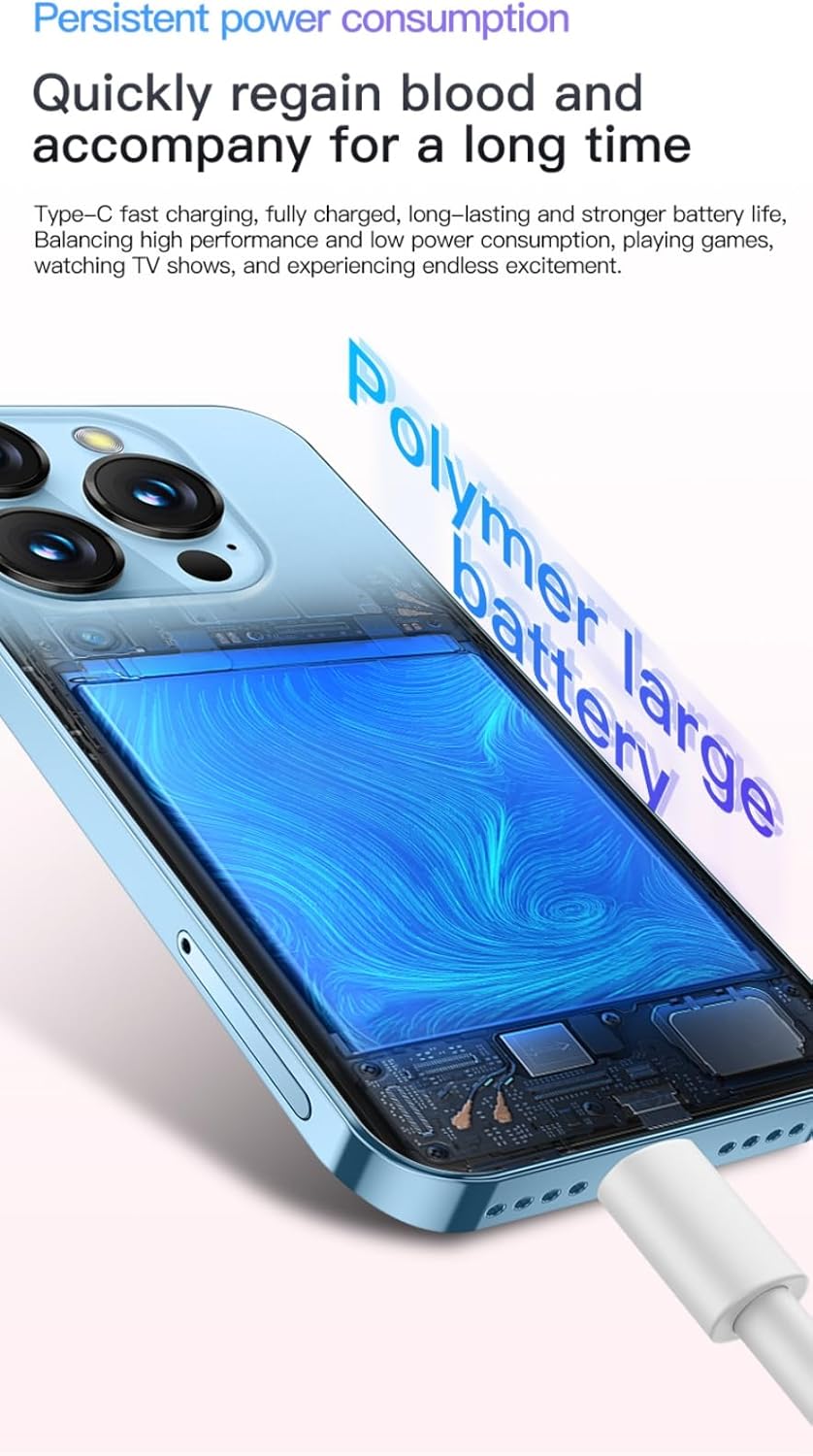
Image: The phone connected to a USB-C charging cable, illustrating the charging port.
The phone features a 2000 mAh battery and supports fast charging. A full charge typically takes about one hour. Note that dual-head TYPE-C cables may not be compatible for charging.
4. Operating Instructions
4.1. Power On/Off
- To power on: Press and hold the Power button until the screen lights up.
- To power off: Press and hold the Power button, then select 'Power off' from the options.
4.2. Face Recognition Unlock
The device supports face recognition for quick and secure unlocking. To set up:
- Go to Settings > Security > Face Unlock.
- Follow the on-screen prompts to register your face.
- Ensure good lighting conditions during registration for optimal performance.

Image: A visual representation of the phone's face recognition feature in action.
4.3. Display and Navigation
The phone features a 3.88-inch HD perforated screen, providing a clear visual experience. Navigate the interface using touch gestures.

Image: A detailed view of the phone's 3.88-inch high-definition screen.
The device also supports Dynamic Island features, which provide interactive notifications and status updates around the front camera cutout.

Image: Examples of the Dynamic Island feature displaying charging status and incoming call information.
4.4. Camera Functions
Capture moments with the integrated HD cameras. The phone includes both a rear and an under-screen front camera.
- Open the Camera app from the home screen.
- Tap the shutter button to take photos.
- Switch between front and rear cameras as needed.

Image: The phone screen showing a collection of photos, indicating its camera capabilities.
4.5. Media and Storage
The phone comes with 16GB of internal storage and supports up to 128GB TF cards for expanded memory. This allows for ample space for photos, videos, and applications.

Image: The phone screen showing multiple applications and media, illustrating its storage and app handling.
Enjoy high-fidelity sound quality for music playback and other audio. The phone supports various media formats.

Image: A graphic depicting sound output from the phone, highlighting its audio capabilities.
4.6. Connectivity
The phone supports Wi-Fi, Bluetooth, and USB connectivity. It operates on Android 10.0 and allows downloading popular apps from the Google Play Store.
The phone supports 3G/2G networks. Please verify your operator supports the following frequency bands before purchase: GSM: 850/900/1800/1900, WCDMA: B1/B2/B5/B8.
4.7. GPS Navigation
The device supports GPS navigation for location services and mapping applications.
Video: An overview of the Becindy Mini Smartphone's features, including its compact size, face recognition, screen, sound quality, media playback, charging, dynamic island, camera, and GPS navigation. This video demonstrates the phone's various functionalities in a concise manner.
5. Maintenance
- Cleaning: Use a soft, lint-free cloth to clean the screen and body. Avoid abrasive materials or harsh chemicals.
- Protection: Always use the provided protective case and screen film to prevent scratches and damage.
- Temperature: Avoid exposing the phone to extreme temperatures (hot or cold) or direct sunlight for prolonged periods.
- Water Exposure: This device is not waterproof. Avoid contact with water or excessive moisture.
6. Troubleshooting
6.1. Battery Drains Quickly
- Check for background apps consuming power. Close unnecessary applications.
- Reduce screen brightness.
- Disable Wi-Fi, Bluetooth, or GPS when not in use.
- Ensure you are using the provided USB-TYPE-C data cable for charging.
6.2. Network Connectivity Issues
- Verify your SIM card is properly inserted and active.
- Check if your mobile operator supports the phone's 3G/2G frequency bands.
- Restart the phone.
- Reset network settings via Settings > System > Reset options > Reset Wi-Fi, mobile & Bluetooth.
6.3. Device Sluggishness
- Clear cache and data of frequently used apps.
- Free up storage space by deleting unnecessary files or apps.
- Restart the device regularly.
7. Specifications
| Feature | Specification |
|---|---|
| Model Number | XS19 |
| Operating System | Android 10.0 |
| Screen Size | 3.88 Inches |
| Resolution | 384 x 854 |
| CPU Model | Mediatek Dimensity 900 (Quad Core) |
| Memory (RAM + ROM) | 2GB + 16GB |
| Expandable Memory | Up to 128GB (TF Card) |
| Battery Capacity | 2000 mAh |
| Phone Talk Time | 6 Hours |
| Connectivity | Bluetooth, USB, Wi-Fi |
| Cellular Technology | 3G (GSM: 850/900/1800/1900, WCDMA: B1/B2/B5/B8) |
| Special Features | Dual SIM, Expandable Memory, Face ID, Dynamic Island Features |
| Item Weight | 7.1 ounces |
| Dimensions | 3.78 × 1.79 × 0.39 inches (approximate) |
8. Warranty and Support
For warranty information and customer support, please refer to the contact details provided on the product packaging or the official Becindy website. Keep your purchase receipt as proof of purchase for any warranty claims.