
1. Introduction
This manual provides comprehensive instructions for the installation, operation, and maintenance of your RAINPOT 4 Channel FHD Dash Cam, Model EC89825-25US. Please read this manual thoroughly before using the device to ensure proper functionality and safety.
2. Product Overview
The RAINPOT 4 Channel FHD Dash Cam is designed to provide 360° coverage of your vehicle, recording video from the front, rear, left, and right simultaneously. It features 1080P HD recording, superior night vision, G-sensor for collision detection, and seamless loop recording.

Image 2.1: Overview of the RAINPOT 4 Channel FHD Dash Cam, showing the main unit with front, left, and right cameras, a suction cup mount, and a separate rear camera. Arrows indicate the adjustable nature of the side cameras.
Key Features:
- 4-Channel Recording: Simultaneous 1080P FHD recording from front, rear, left, and right cameras for 360° coverage.
- Adjustable Front Lens: Allows for capturing more details with clarity.
- Superior Night Vision: Equipped with 8 infrared LED lights and WDR technology for clear footage in low-light conditions.
- G-Sensor: Automatically detects sudden collisions and locks critical footage to prevent overwriting.
- Seamless Loop Recording: Automatically replaces the oldest files when the memory card is full, ensuring continuous recording.
- Parking Monitoring: Automatically records when motion is detected (requires hardwire kit or external battery for continuous power).
- Easy Installation: Suction mount for quick setup.

Image 2.2: Diagram highlighting the dash cam's features including wide angle, FH 1080P, audio recording, 64G Micro Card support, G-Sensor lock, parking monitor, loop recording, 3-inch screen, and 4-channel cameras.
3. Setup
3.1 What's in the Box
Please check the contents of your package against the list below:
- 1 x RAINPOT Dash Cam
- 1 x Rear Camera Extension Cable (18ft / 5.5 meters)
- 1 x Car Charger with 11.48ft Cable (3.5 meters)
- 1 x Bracket (Suction Mount)
- 1 x User Manual
- 1 x Adhesive Tape
- 2 x Screws
- Note: A TF Memory Card is not included with this 'No Card' variant.

Image 3.1: Visual representation of the items included in the product package, such as the dash cam, cables, mount, and user manual.
3.2 Installing the Dash Cam
- Clean the windshield thoroughly where you intend to mount the dash cam.
- Remove the protective film from the suction cup mount.
- Attach the suction mount to the windshield and twist the bracket to lock it securely.
- Adjust the dash cam's angle for optimal front, left, and right camera views.
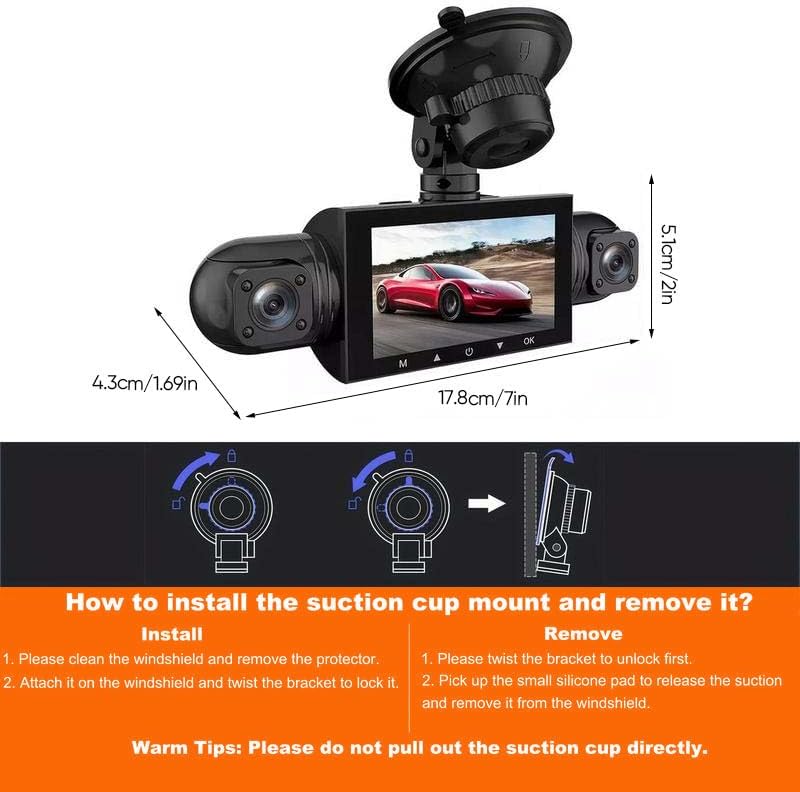
Image 3.2: Instructions for installing and removing the suction cup mount, showing the twist-to-lock mechanism.
3.3 Installing the Rear Camera
The rear camera can be installed either inside the vehicle or outside. Choose the position that best suits your needs.
- Position A (Inside): Mount the rear camera on the inside of the rear windshield.
- Position B (Outside): Mount the rear camera on the exterior of the vehicle, typically above the license plate.
- Connect the rear camera's red cable to the positive wire of your vehicle's reversing lamp. This enables the parking assist function.
- Connect the rear camera cable to the AV-IN port on the main dash cam unit.
Warning: Due to variations in vehicle models, professional assistance may be required for rear camera installation, especially for external mounting and wiring to the reversing lamp. This method is for reference only.

Image 3.3: Diagram illustrating two possible rear camera installation positions (inside and outside) and the wiring connection to the reversing lamp.
3.4 Power Connection
Connect the car charger to your vehicle's cigarette lighter socket and then to the dash cam's power input port. Ensure the connection is secure to provide continuous power to the device.
3.5 Memory Card Installation
The dash cam supports 16-64GB C10 high-speed TF memory cards. Insert the memory card into the designated slot on the dash cam. Ensure it is inserted correctly until it clicks into place.
4. Operating Instructions
4.1 Powering On/Off
- Power On: The dash cam will automatically power on and begin recording when connected to power and your vehicle starts.
- Power Off: The dash cam will automatically power off when the vehicle is turned off and power supply is disconnected. You can also manually power off by pressing and holding the power button.
4.2 Basic Recording (Loop Recording)
The dash cam features seamless loop recording. Once the memory card reaches its full capacity, the oldest files will automatically be overwritten by new recordings, ensuring continuous operation without manual intervention.

Image 4.1: Illustration of the auto loop recording function, where new files overwrite the oldest ones when the SD card is full.
4.3 G-Sensor and Collision Detection
The built-in G-sensor detects sudden impacts or collisions. In such an event, the current video footage will be automatically locked and saved to a protected folder, preventing it from being overwritten by loop recording. This ensures critical evidence is preserved.

Image 4.2: Visual explanation of the G-sensor feature, which automatically records and locks video during an emergency shock or collision.
4.4 Parking Monitoring
When the parking mode is activated, the dash cam will automatically begin recording if it detects motion or a collision while your vehicle is parked. For continuous parking monitoring, a hardwire kit or an external battery pack is required to provide constant power to the dash cam.
4.5 Time Setting
In video standby mode, press the "OK" button to enter the time setting menu. Select "date/time" to adjust the current date and time. This ensures accurate timestamps on your recordings.
4.6 Video Playback
Video playback can be accessed directly on the dash cam's screen through its menu system. Alternatively, you can remove the memory card, insert it into a card reader, and view the footage on a computer.

Image 4.3: Important information regarding time setting, reset hole, memory card tips, and battery usage.
5. Maintenance
5.1 Formatting the Memory Card
If the gravity sensing function is enabled, it is recommended to format the memory card approximately every 15 days. This helps maintain optimal recording performance and prevents potential issues. To format, navigate to the system settings menu and select "Format".
5.2 Resetting the Device
If the dash cam freezes, the buttons become unresponsive, or it otherwise malfunctions, you can perform a reset. Press and hold the power button for 10 seconds, or use a pointed object to press the reset hole. After resetting, the device should function normally.
5.3 Cleaning
Use a soft, dry cloth to clean the dash cam's screen and lens. Avoid using abrasive cleaners or solvents, as they may damage the device.
6. Troubleshooting
If you encounter issues with your RAINPOT Dash Cam, please refer to the following common problems and solutions:
- Device not powering on: Ensure the car charger is securely connected and the vehicle's power outlet is functioning.
- Recording stops unexpectedly: Check if the memory card is full (loop recording should prevent this, but a faulty card can cause issues). Format the memory card or try a new one.
- Buttons unresponsive/device frozen: Perform a reset using the reset hole or by holding the power button for 10 seconds.
- Poor video quality: Ensure the lenses are clean and free from obstructions. Check video resolution settings.
- Parking monitor not working: Verify that a hardwire kit or external battery is providing continuous power to the dash cam when the vehicle is off.
- No video playback on device: Ensure you are in the correct menu mode for playback. If issues persist, view footage on a computer using a card reader.
7. Specifications
| Feature | Specification |
|---|---|
| Model Name | EC89825-25US |
| Product Dimensions | 8 x 7.13 x 4.72 inches |
| Video Capture Resolution | 1080p (FHD) |
| Number of Channels | 4 (Front, Rear, Left, Right) |
| Special Features | Loop Recording, Night Vision, Parking Monitor, G-Sensor |
| Connectivity Technology | HDMI, USB, Wireless |
| Mounting Type | Windshield Mount (Suction Cup) |
| Memory Card Support | 16-64GB C10 TF Card (not included) |
| Built-in Battery | 150mAh (for time/settings, use original charger for operation) |
| Color | Black |
8. Warranty and Support
For warranty information or technical support, please contact the manufacturer, RAINPOT, through your purchase platform or their official website. Please have your model number (EC89825-25US) and purchase details ready when contacting support.