
Introduction
This manual provides detailed instructions for the installation, operation, and maintenance of your SIXTOP 7-inch Double Din Car Stereo. Please read this manual thoroughly before using the product to ensure proper function and to prevent damage. Keep this manual for future reference.
Package Contents
Verify that all items listed below are included in your package:
- 1 x Double Din Radio
- 1 x Power Cable
- 1 x Horn Cable
- 2 x Disassembly Tools
- 1 x User Manual

Figure 1: Package contents and unit dimensions. The image displays the 7-inch head unit, its rear connections, and the included cables, disassembly tools, and user manual.
Setup and Installation
Professional installation is recommended for this car stereo. Ensure the vehicle's power is disconnected before beginning installation.
Dimensions and Fit
The unit is a standard 7-inch double din size. Installation dimensions are approximately 180mm (L) x 103mm (H) / 7.0 inches (L) x 4.0 inches (H). Please verify your vehicle's dashboard opening before installation.
Wiring Connections
Connect the power cable, horn cable, and other necessary audio/video cables (RCA, 3.5mm Jack, ISO) to the corresponding ports on the back of the unit and your vehicle's wiring harness. Refer to the wiring diagram provided in the separate wiring guide (if applicable) or consult a professional installer.
Mounting
Use the provided disassembly tools and mounting brackets to secure the unit into your vehicle's double din slot.
Operating Instructions
Basic Operation
- Power On/Off: Press the power button (usually a rotary knob or dedicated button) to turn the unit on or off.
- Volume Control: Rotate the volume knob or use the volume buttons to adjust the audio level.
- Menu Navigation: Use the touchscreen or physical buttons to navigate through menus and select functions.
Bluetooth Hands-Free Calls and Music Streaming
Pair your smartphone with the car stereo via Bluetooth for hands-free calling and wireless music streaming.
- Enable Bluetooth on your smartphone.
- On the car stereo, navigate to the Bluetooth menu.
- Search for available devices on your phone and select "SIXTOP Car Stereo" (or similar name).
- Confirm pairing on both devices.
- Once paired, you can make/receive calls and stream audio from your phone.
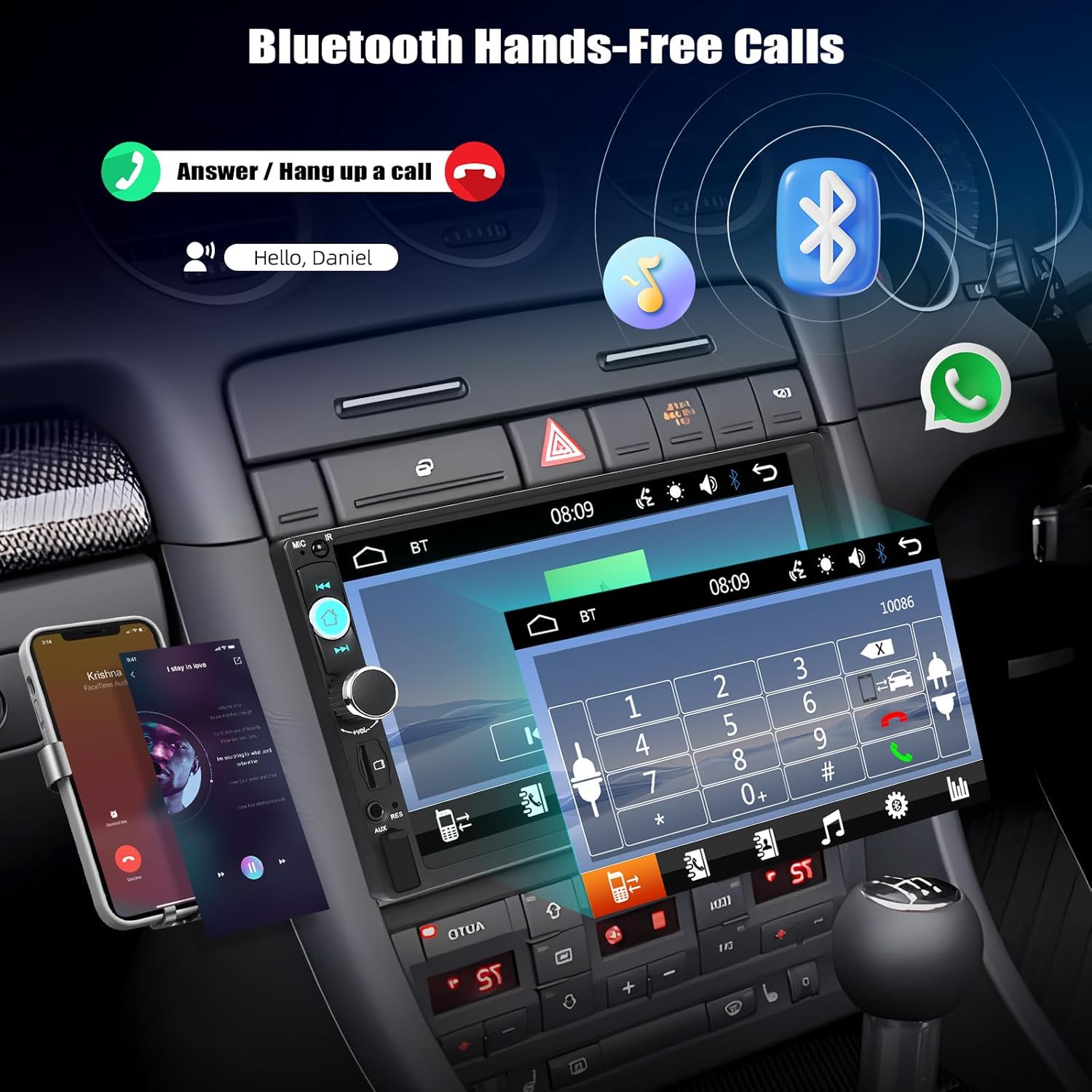
Figure 2: Bluetooth hands-free calling interface. The image illustrates how to answer or hang up calls and stream music via Bluetooth.
Mirror Link Function
The Mirror Link feature allows you to display your smartphone's screen on the car stereo's display. This unit supports wired Mirror Link for both iOS and Android devices.
- Connect your smartphone to the car stereo using an original USB data cable.
- Follow the on-screen prompts on both your phone and the car stereo to establish the connection.
- Once connected, your phone's screen content will be mirrored on the stereo display.

Figure 3: Mirror Link for iOS and Android. This image demonstrates how a smartphone's display is replicated on the car stereo screen via USB connection.
FM Radio Operation
Access and tune into FM radio stations.
- Navigate to the FM Radio mode.
- Use the scan function for automatic station search or manually tune to desired frequencies (87.5-108MHz).
- Save your favorite stations to preset buttons for quick access.

Figure 4: FM Radio interface. The image shows the radio frequency display and preset station buttons.
Multimedia Playback (USB/TF Card/AUX)
Play audio and video files from various sources.
- USB: Insert a USB drive into the USB port. The unit will automatically detect and play compatible media files.
- TF Card: Insert a TF (MicroSD) card into the TF card slot. The unit will detect and play compatible media files.
- AUX-in: Connect an external audio device using a 3.5mm AUX cable to the AUX input. Select AUX mode on the stereo.
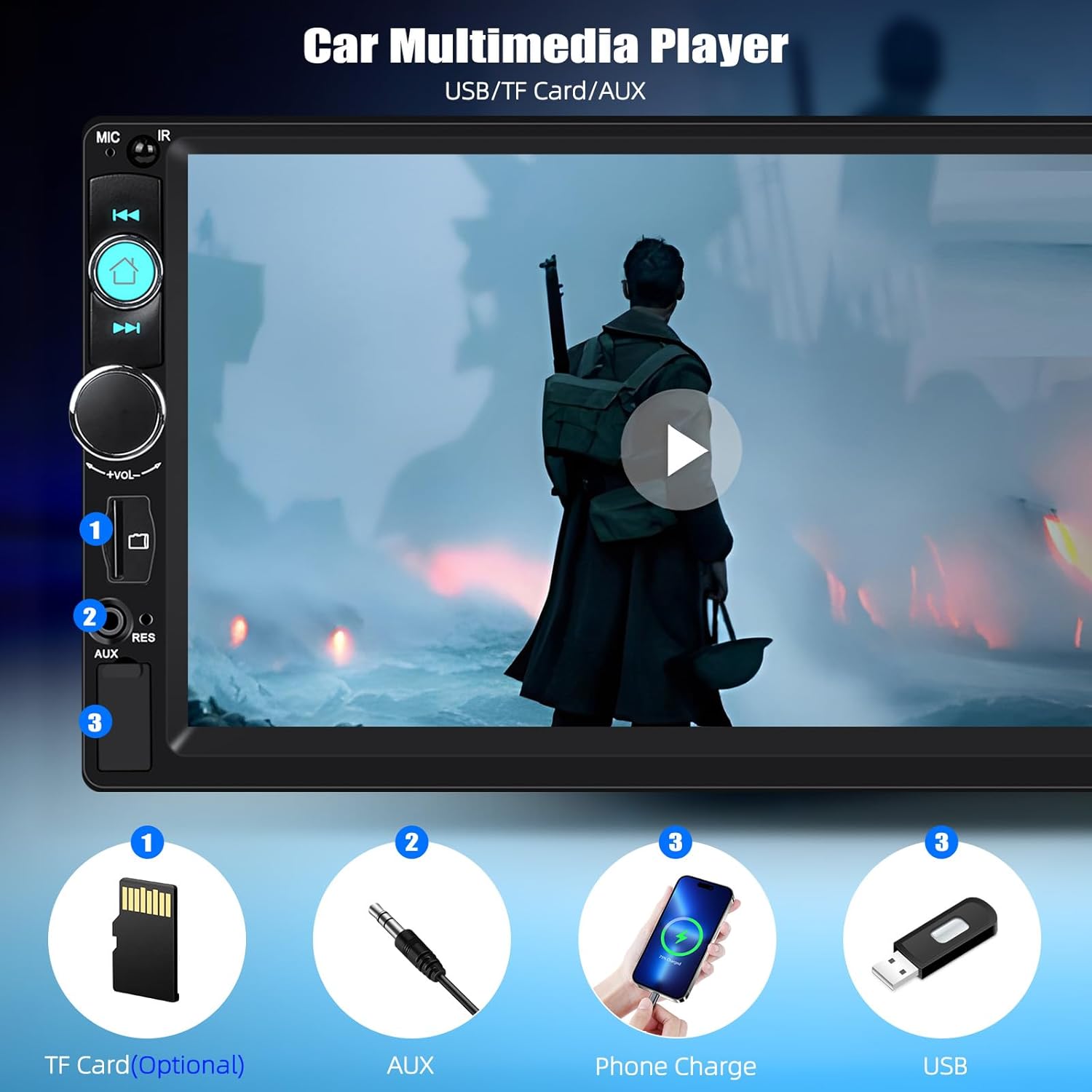
Figure 5: Multimedia input options. This image highlights the TF Card slot, AUX input, and USB port for media playback and phone charging.
Steering Wheel Control (SWC)
The unit supports original steering wheel button control. Connect the SWC wires from your vehicle to the stereo's SWC input. Configuration may be required in the stereo's settings menu.
Equalizer (EQ) Settings
Customize your audio experience with the multi-band EQ settings. Access the EQ menu to select preset sound modes or adjust individual frequency bands.
Key Backlight Color Adjustment
Personalize the appearance of your stereo by changing the key backlight color. The unit offers a cycle of 7 colors: red, green, blue, yellow, cyan, purple, and white.

Figure 6: Customizable key backlight colors. The image displays the stereo with different button illumination options.
Multiple Wallpaper Options
Change the background wallpaper of the stereo display to suit your preference. Access the settings menu to select from various pre-installed wallpapers or potentially upload your own (if supported).

Figure 7: Multiple wallpaper options. This image illustrates various background designs available for the stereo display.
Maintenance
To ensure the longevity and optimal performance of your car stereo, follow these maintenance guidelines:
- Cleaning: Use a soft, dry cloth to clean the screen and exterior. For stubborn marks, slightly dampen the cloth with water. Avoid harsh chemicals or abrasive cleaners.
- Temperature: Avoid exposing the unit to extreme temperatures, direct sunlight for prolonged periods, or high humidity.
- Connections: Periodically check all wiring connections to ensure they are secure.
Troubleshooting
If you encounter issues with your car stereo, refer to the following common problems and solutions:
- No Power:
Check power cable connections. Ensure the vehicle's ignition is on. Check vehicle fuses. - No Sound:
Verify speaker connections. Check volume level and mute settings. Ensure the correct audio source is selected. - Bluetooth Not Connecting:
Ensure Bluetooth is enabled on both devices. Delete previous pairings and try pairing again. Restart both the stereo and your phone. - Mirror Link Not Working:
Ensure you are using an original USB data cable. Check for any required app installations on your phone. Verify phone settings allow USB debugging or file transfer. - Poor Radio Reception:
Check antenna connection. Ensure the antenna is fully extended (if applicable). Try scanning for stations again.
If the problem persists after trying these solutions, please contact customer support.
Specifications
| Brand | SIXTOP |
| Model Number | 92dead35-1a95-4b1f-b1dd-135857655b8b |
| System | 8600 |
| Voltage | 12 V |
| Screen Resolution | 800 x 480 |
| Screen Type | Resistive Touch Screen |
| Maximum Power Output | 4*45W (180 Watts total) |
| Mirror Link | Supports wired only (iOS/Android) |
| Radio Band | FM |
| Radio Frequency | 87.5-108MHz |
| Audio Formats | MP3/AAC/OGG/FLAC/APE |
| Video Formats | AVI/3GP/MP4/MOV/MPG/MKV/VOB/RMVB/RM |
| Connectivity Technology | Bluetooth, USB, TF Card, AUX-in, RCA, ISO |
| Controller Type | Touch Screen, Original Steering Wheel Control |
| Product Dimensions | 8D x 18W x 10.3H Centimeters |
| Supported Languages | English, Chinese, Japanese, Portuguese, Russian, German, Spanish, Turkish, Italian, French, Polish, Hebrew, Slovenia |
Warranty and Support
For warranty information or technical support, please refer to the documentation included with your purchase or contact SIXTOP customer service directly. Keep your purchase receipt as proof of purchase.

