
CAMECHO 4G+64G Carplay
CAMECHO Android 13 Car Stereo User Manual
For Fiat 500 (2007-2015) - Model: 4G+64G Carplay
1. Product Overview
The CAMECHO Android 13 Car Stereo is a dual-DIN head unit designed specifically for Fiat 500 models manufactured between 2007 and 2015. It features a 7-inch HD touchscreen display, 2GB RAM, and 64GB ROM, providing a fast and responsive user experience. This system integrates advanced connectivity options such as Wireless CarPlay and Android Auto, GPS navigation, FM/RDS radio, Bluetooth hands-free calling, and Mirror Link functionality.
Important Note:
- Verify compatibility if the original audio system has been modified.
- This unit does not support Samsung smartphones for certain features.

Figure 1: Front view of the CAMECHO Android 13 Car Stereo, showing the 7-inch touchscreen display with Carplay, Android Auto, and Mirror Link icons.
2. Package Contents
Please ensure all components are present in the package before proceeding with installation:
- 1 x Android Car Stereo Unit
- 1 x Power Wiring Harness
- 1 x GPS Antenna
- 1 x RCA Cable
- 2 x USB Cables

Figure 2: Diagram showing the dimensions of the car stereo and the various cables included in the package, such as power cable, RCA cable, USB cables, and GPS antenna.
3. Installation Guide
3.1 Pre-Installation Checks
- Ensure the vehicle's ignition is off and the battery is disconnected before starting installation.
- Confirm the compatibility of the car stereo with your Fiat 500 model (2007-2015).
- Identify the original wiring harness and dashboard opening.
3.2 Wiring Connections
Refer to the wiring diagram provided with your unit for precise connections. General connections include:
- Power Harness: Connect to the vehicle's power supply (ACC, B+, GND).
- RCA Cables: For audio output to external amplifiers or subwoofers, and video input for rear cameras.
- USB Cables: For connecting USB devices, charging, and wired CarPlay/Android Auto.
- GPS Antenna: Mount in a location with clear sky view for optimal signal reception.
- Radio Antenna: Connect the vehicle's radio antenna.
- CANBUS (if applicable): For integrating with vehicle's steering wheel controls and other systems.
Figure 3: Detailed view of the rear connections of the car stereo, illustrating ports for power, RCA, USB, GPS antenna, and CANBUS. Also shows the various cables included for connection.
3.3 Mounting the Unit
- Carefully remove the original car stereo and trim.
- Connect all necessary cables to the new CAMECHO unit.
- Slide the new unit into the dashboard opening, ensuring a secure fit.
- Reassemble the dashboard trim and reconnect the vehicle battery.
Figure 4: Comparison image showing the car dashboard before and after the installation of the CAMECHO car stereo, highlighting the integrated look.
4. Operating Instructions
4.1 Initial Setup
Upon first power-on, the system may guide you through initial setup steps, including language selection, time zone, and Wi-Fi connection.
4.2 Wireless CarPlay & Android Auto
The unit supports both Wireless CarPlay (for iPhone) and Wireless Android Auto (for Android phones) via Bluetooth/USB connection. This allows for seamless integration of your smartphone's navigation, calls, music, and other apps directly on the car stereo display.
- For Wireless CarPlay: Enable Bluetooth on your iPhone and pair with the car radio. Open the "Zlink" app on the car stereo. If connection fails, connect your phone to the car radio's hotspot, then retry "Zlink" while maintaining Bluetooth and Hotspot connection.
- For Wireless Android Auto: Ensure "Android Auto" app is installed on your phone. Enable Bluetooth on your Android phone and pair with the car radio. Open the "Zlink" app on the car stereo.

Figure 5: Screenshots demonstrating the user interface for Wireless CarPlay and Android Auto, showing various compatible applications like YouTube Music, Spotify, and Waze.
4.3 GPS Navigation
The unit features integrated GPS with support for both online and offline maps. Connect to Wi-Fi for real-time traffic updates and voice search. You can download maps for offline use.
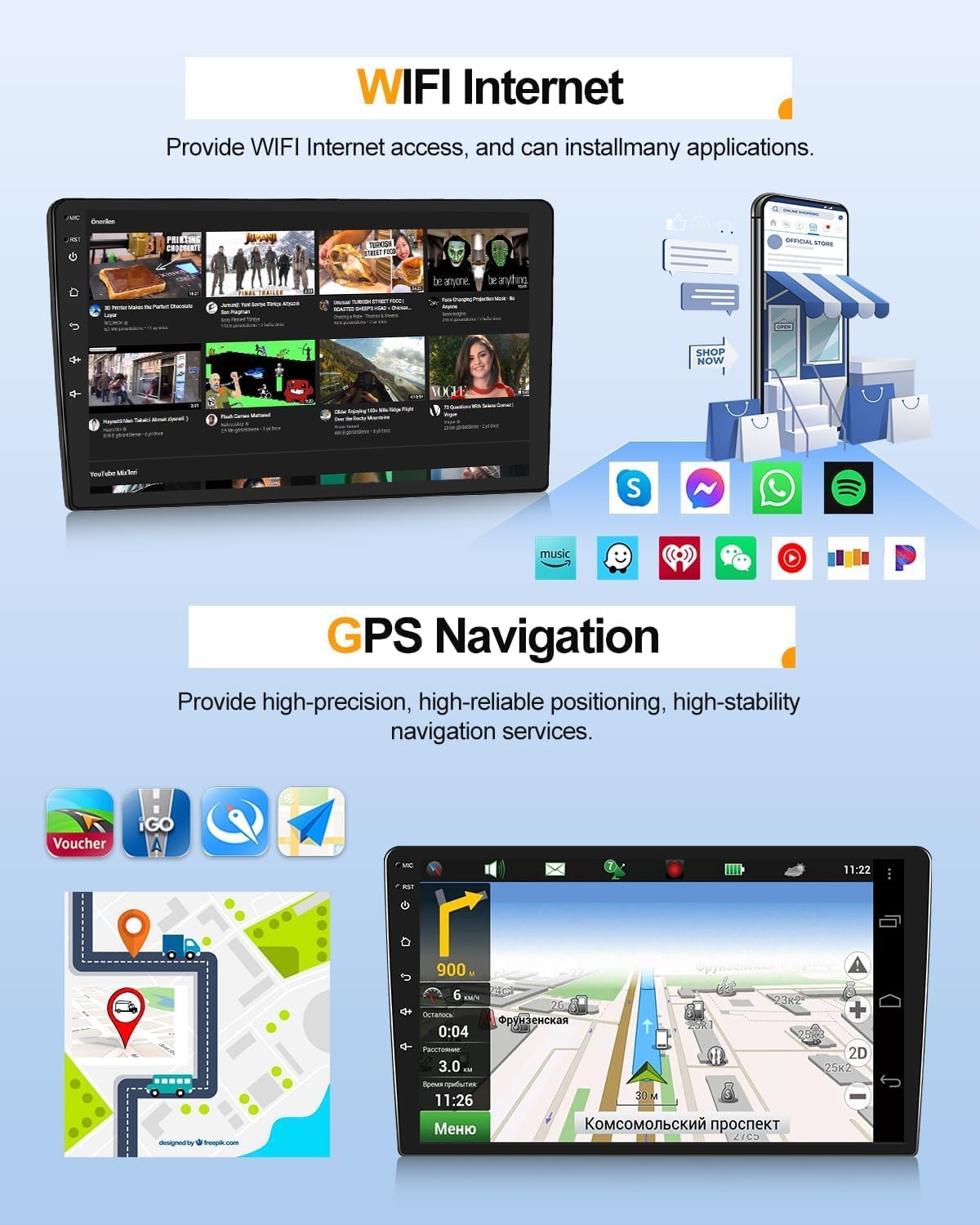
Figure 6: Display of the GPS navigation interface, showing a map with route information and various navigation icons.
4.4 FM/RDS Radio
Tune into your favorite radio stations with the built-in FM/RDS tuner. The RDS (Radio Data System) provides additional information like station name and song title where available.

Figure 7: Screenshot of the FM/RDS radio interface, showing frequency display and station presets.
4.5 Bluetooth Hands-Free Calling
Connect your smartphone via Bluetooth for hands-free calling and audio streaming. This feature enhances safety by allowing you to manage calls without distraction.
Figure 8: Image depicting the Bluetooth calling interface on the car stereo, showing a dial pad and contact list, alongside a phone icon indicating a call.
4.6 Mirror Link Functionality
Project your smartphone screen onto the car stereo display using Mirror Link. This feature supports both Android (via USB/WiFi) and iOS (via WiFi) devices, providing real-time mirroring of your phone's content.
- For iOS/WiFi: Connect the car radio's WiFi hotspot to your phone. Open the "Link phone" app on the unit and follow instructions. Method 1: Use AirPlay on iPhone to select the car radio for mirroring. Method 2: Scan the QR code to download the app and use it for connection.
- For Android/USB/WiFi: Click "PhoneLink" and scan the QR code to download the app. Follow instructions to choose USB cable or WiFi connection. For USB, enable developer options and USB debugging on your Android phone, then set USB configuration to data transfer.

Figure 9: Image showing a smartphone screen being mirrored onto the car stereo display, illustrating the Mirror Link feature.
4.7 Split Screen Function
Utilize the split-screen mode to run two applications simultaneously, such as navigation on one side and music playback on the other. This enhances multitasking capabilities.
Figure 10: Screenshot demonstrating the split-screen feature, with a navigation map on one side and a music player on the other.
4.8 Steering Wheel Controls
The unit supports learning custom functions for your original car's steering wheel controls, allowing you to manage volume, tracks, and calls without taking your hands off the wheel.

Figure 11: Image showing a steering wheel with control buttons and a corresponding screen interface for programming these controls.
4.9 Rear View Camera Support (Optional)
The system supports rear view cameras (sold separately). When connected, the display automatically switches to the camera feed when the vehicle is in reverse gear, aiding in safe parking.
Figure 12: Screenshot of the car stereo display showing the view from a rear camera, with parking guidelines.
4.10 External Device Support (Optional)
The unit can be expanded with various optional external devices:
- OBD2: For vehicle diagnostics and real-time data monitoring.
- DAB+: For digital audio broadcasting reception (adapter B0B3D7P1GY).
- DVR: For dash camera recording.
- TPMS: For tire pressure monitoring system.
- External Microphone: For improved call quality.

Figure 13: Visual representation of various optional external devices that can be connected to the car stereo, including OBD2, DAB+, and DVR.
5. Maintenance
- Screen Cleaning: Use a soft, lint-free cloth to clean the touchscreen. Do not use abrasive cleaners or solvents.
- Software Updates: Periodically check for software updates from CAMECHO to ensure optimal performance and access to new features.
- General Care: Avoid exposing the unit to extreme temperatures, direct sunlight for prolonged periods, or excessive moisture.
6. Troubleshooting
| Problem | Possible Cause | Solution |
|---|---|---|
| Unit does not power on. | Loose power connection, blown fuse, vehicle battery issue. | Check power wiring harness connections. Inspect vehicle fuses. Ensure car battery is charged. |
| No sound. | Volume too low, incorrect audio source, speaker wiring issue. | Increase volume. Select correct audio source (e.g., FM, Bluetooth). Check speaker connections. |
| GPS signal weak/lost. | GPS antenna not properly installed or obstructed. | Ensure GPS antenna is mounted in a clear, unobstructed location. |
| CarPlay/Android Auto not connecting. | Bluetooth/Wi-Fi issues, incorrect app usage, phone compatibility. | Ensure Bluetooth/Wi-Fi is enabled on both devices. Restart "Zlink" app. Check phone compatibility (Samsung phones may have issues). |
| Steering wheel controls not working. | Controls not programmed, CANBUS connection issue. | Go to steering wheel control settings and re-program buttons. Check CANBUS connection. |
7. Specifications
| Feature | Detail |
|---|---|
| Brand | CAMECHO |
| Model | 4G+64G Carplay |
| Operating System | Android 13 |
| RAM | 2GB |
| ROM | 64GB |
| Display Size | 7 inches |
| Display Resolution | 1024*600 pixels |
| Connectivity | Bluetooth, Wi-Fi, Ethernet |
| Wireless Features | Wireless CarPlay, Wireless Android Auto |
| Navigation | Integrated GPS (online/offline maps) |
| Radio | FM/RDS |
| Audio Output Mode | Stereo, Surround (4.0 configuration) |
| Output Power | 180 Watts |
| Compatible Vehicles | Fiat 500 (2007-2015) |
| Weight | 1 Kilogram |
| Dimensions | 42 x 33 x 10 cm |
8. Warranty and Support
For warranty information and technical support, please contact CAMECHO customer service. You can typically find support details on the product packaging or the seller's official website.
Based on available information, the seller "Icamecho" fulfills orders via Amazon. For direct support, you may contact them via the Amazon platform or the provided email address:
- Seller Name: Icamecho
- Company Name: Hongkong ShunXinDa Technology Limited
- Email: icamecho@hotmail.com
For returns, Amazon's policy allows returns within 14 days of receipt. Please refer to Amazon's return policy for detailed instructions.

Figure 14: Image showing steps to contact online customer service, including a contact email address.
Related Documents - 4G+64G Carplay
 |
Audi A3 S3 RS3 Android Car Stereo User Manual Install and operate your Audi A3 S3 RS3 Android car stereo with this comprehensive user manual. Covers installation, wiring, Carplay, Android Auto, basic functions, and troubleshooting. |
 |
Android Car Stereo Instruction Manual for Volkswagen Tiguan (2009-2017) Comprehensive user manual for the CAMECHO Android 11 car stereo system designed for Volkswagen Tiguan vehicles from 2009 to 2017. Includes installation guides, wiring diagrams, feature explanations, and troubleshooting tips. |
 |
CAMECHO Android 11 Car Stereo for Ford Mustang (2010-2014) - Instruction Manual Comprehensive instruction manual for the CAMECHO Android 11 car stereo system, designed for Ford Mustang models (2010-2014). Features include a 10.1-inch touchscreen, 2GB RAM, 32GB ROM, GPS, WiFi, Bluetooth, HiFi audio, Carplay, Android Auto, and backup camera support. Covers installation, wiring, safety, and troubleshooting. |
 |
CAMECHO Universal Double Din Android Car Stereo User Manual & Installation Guide This user manual provides comprehensive instructions for installing and operating the CAMECHO Universal Double Din Android Car Stereo. It covers safety guidelines, wiring diagrams, connectivity features like Carplay and Android Auto, basic functions, and troubleshooting tips. |
 |
CAMECHO Android Car Stereo for Skoda Octavia 2007-2014: User Manual & Installation Guide Comprehensive user manual and installation guide for the CAMECHO Android Car Stereo system designed for Skoda Octavia 2007-2014. Covers installation, wiring, functions, Carplay, Android Auto, and troubleshooting. |
 |
Android Car Stereo Installation Guide for BMW X1 E84 (2009-2015) Comprehensive user manual for the CAMECHO Android car stereo system, specifically designed for the BMW X1 E84 model range manufactured between 2009 and 2015. It details installation procedures, wiring diagrams, essential safety precautions, and operational instructions to ensure a smooth setup and optimal user experience. |
Ask a question about this manual
Ask about setup, troubleshooting, compatibility, parts, safety, or missing instructions. Manuals+ will review the question and use this page’s manual context to help answer it.