
1. Introduction
This manual provides essential information for setting up, operating, maintaining, and troubleshooting your abytespark Prebuilt Gaming PC Desktop Computer, Model AOV590. Please read this manual thoroughly before using the product to ensure optimal performance and longevity.
2. Package Contents
Verify that all items are present in the package:
- abytespark Prebuilt Gaming PC Desktop Computer (Model AOV590)
- Gaming Keyboard
- Gaming Mouse
- Mouse Pad
- Power Cord
- Wi-Fi Antennas (2x)
- Instruction Manual (this document)

Image: The abytespark Gaming PC desktop tower, accompanied by a gaming keyboard and mouse, illustrating the main components included in the package.
3. Setup Guide
3.1 Unpacking and Placement
- Carefully remove the PC and all accessories from the packaging.
- Place the PC on a stable, flat surface with adequate ventilation. Ensure no vents are obstructed.
3.2 Connecting Peripherals
Refer to the rear panel diagram for port identification.

Image: Rear view of the abytespark Gaming PC, detailing the various input/output ports including USB, HDMI, DisplayPort, DVI, RJ45, and audio jacks.
- Monitor Connection: Connect your monitor to the graphics card (AMD Radeon RX 590) using an HDMI, DisplayPort, or DVI cable. The graphics card ports are typically located lower on the rear panel.
- Keyboard and Mouse: Connect the gaming keyboard and mouse to any available USB ports.
- Wi-Fi Antennas: Screw the two Wi-Fi antennas onto the designated connectors on the rear panel for wireless network connectivity.
- Power: Connect the power cord to the PC's power supply unit (PSU) and then to a wall outlet.
3.3 Initial Power On
- Ensure all connections are secure.
- Press the power button located on the front of the PC.
- Follow the on-screen instructions to complete the Windows 11 Home setup.
4. Operating Instructions
4.1 Windows 11 Home
Your PC comes pre-installed with Windows 11 Home 64-Bit. For detailed operating instructions, refer to the official Microsoft Windows 11 documentation.
4.2 RGB Lighting Control
The PC features RGB chassis lighting and RGB fans. Control options for these lights may vary. Typically, they are controlled via a dedicated button on the chassis, a remote control (if included), or software installed on the PC. Consult the manufacturer's website for specific software if a physical control is not apparent.

Image: The abytespark Gaming PC tower with its internal RGB fans and lighting illuminated, showcasing the aesthetic design.
4.3 Gaming and Performance
This system is designed for gaming and demanding applications. Ensure your graphics drivers are up to date for optimal performance. You can download the latest drivers from the AMD official website for the RX 590 graphics card.
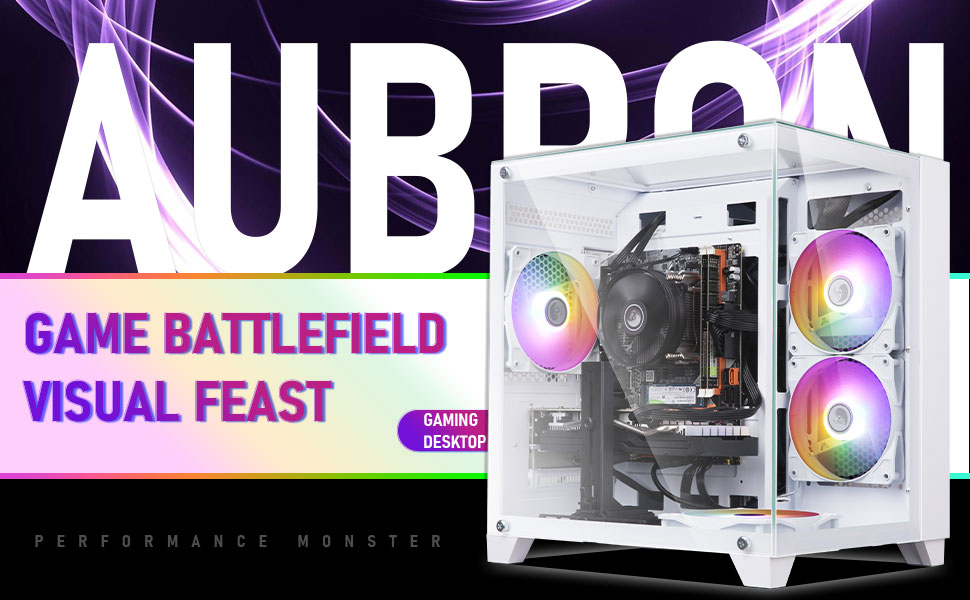
Image: A gaming setup featuring the abytespark PC connected to multiple monitors, demonstrating its capability for immersive gaming and multitasking environments.
5. Maintenance
5.1 Cleaning
- Exterior: Use a soft, dry cloth to clean the exterior surfaces. Avoid abrasive cleaners.
- Interior: Periodically clean dust from the internal components, especially fans and heatsinks, using compressed air. Ensure the PC is powered off and unplugged before cleaning the interior.
5.2 Software Updates
- Regularly update Windows 11 through the operating system settings.
- Keep graphics drivers updated by downloading the latest versions from the AMD website.
- Ensure all other drivers (chipset, audio, network) are up to date for optimal system stability and performance.
6. Troubleshooting
| Problem | Possible Cause | Solution |
|---|---|---|
| PC does not power on. | Power cable loose, power supply issue. | Check power cable connections. Ensure wall outlet is functional. |
| No display on monitor. | Monitor cable loose, incorrect input selected on monitor, graphics card issue. | Ensure monitor cable is securely connected to the graphics card. Select correct input on monitor. Try a different cable or monitor if possible. |
| No internet connection (Wi-Fi). | Wi-Fi antennas not connected, driver issue, incorrect network settings. | Ensure Wi-Fi antennas are securely attached. Check Wi-Fi drivers in Device Manager. Verify network settings in Windows. |
| System is slow or freezing. | Overheating, insufficient RAM, full storage, malware, outdated drivers. | Check for proper ventilation. Close unnecessary programs. Run antivirus scan. Update drivers. |
If you encounter issues not listed here or if the suggested solutions do not resolve the problem, please contact customer support.
7. Specifications
| Component | Detail |
|---|---|
| Model Number | AOV590 |
| Processor | Intel Core i7-4770 (3.4 GHz, up to 3.9 GHz) |
| RAM | 16GB DDR3 SDRAM |
| Storage | 1TB NVME SSD |
| Graphics Card | AMD Radeon RX 590 8GB GDDR5 |
| Operating System | Windows 11 Home 64-Bit |
| Wireless Connectivity | Wi-Fi 5.0 (2.4 GHz Radio Frequency) |
| USB Ports | 3x USB 3.0, 5x USB 2.0 |
| Video Outputs | 1x HDMI, 1x DisplayPort, 1x DVI |
| Max Screen Resolution | 3840x2160 |
| Dimensions (LxWxH) | 13.43 x 10.6 x 14.76 inches |
| Item Weight | 13 pounds |
8. Warranty and Support
This abytespark product comes with a standard manufacturer's warranty. Please refer to the warranty card included in your package or visit the official abytespark website for detailed warranty terms and conditions.
For technical assistance, troubleshooting, or any product-related inquiries, please contact abytespark customer support. Contact information can typically be found on the manufacturer's website or on the product packaging.
Note: The product includes lifetime free technical staff support as per product description.


