
1. Introduction
Thank you for choosing the BOUWOIMA Single Din Car Stereo. This head unit is designed to enhance your driving experience with its advanced features, including wireless Apple CarPlay, Android Auto, a responsive 5-inch IPS touchscreen, Bluetooth 5.0, FM radio, USB media playback, and rearview camera support. This manual provides essential information for proper installation, operation, and maintenance to ensure optimal performance and longevity of your device.

Image: The BOUWOIMA 5.5-inch Single Din Car Radio, showcasing its sleek design and user interface with various app icons, integrated into a car's dashboard.
2. Package Contents
Before installation, please verify that all items listed below are included in your package:
- BOUWOIMA Single Din Car Stereo Head Unit
- Wire Harness (Power Cord and Speaker Cable)
- Rear Camera (if included in package)
- Remote Control
- User Manual
- Release Keys

Image: A visual representation of the items included in the product box, such as the head unit, wiring, remote, camera, and tools.
3. Setup and Installation
Proper installation is crucial for the performance and safety of your car stereo. It is recommended to have this unit installed by a professional. Ensure the vehicle's battery is disconnected before beginning installation.
3.1 Wiring Connections
Refer to the wiring diagram provided in the included user manual for specific connections. Key connections include:
- Power Cord: Connect to the vehicle's power supply (constant 12V, accessory 12V, and ground).
- Speaker Cable: Connect to your vehicle's speakers. Ensure correct polarity.
- Rear Camera Input: Connect the rearview camera's video output to the designated input on the head unit.
- Radio Antenna: Connect your vehicle's radio antenna.
- AUX Audio/Video Input: For external audio/video sources.
- Audio/Video Output: For connecting to external displays or amplifiers.
Video: This video demonstrates the various connection points on the rear of the BOUWOIMA Single Din Car Stereo, including speaker cable, power cord, audio/video outputs, camera input, radio antenna, and AUX inputs.
3.2 Mounting the Head Unit
The unit is designed for US standard Single Din size. Carefully slide the head unit into the dashboard opening until it clicks into place. Ensure all cables are properly routed and secured to prevent interference or damage.

Image: A visual comparison showing a car dashboard before and after the installation of the BOUWOIMA Single Din Car Stereo, highlighting the integrated rearview camera display.
4. Operating Instructions
Familiarize yourself with the main functions and controls of your new car stereo.
4.1 Basic Controls
- Power Button: Press to turn the unit on/off.
- Volume Knob: Rotate to adjust volume. Press to mute/unmute.
- Touchscreen: Navigate menus and select functions by touching the 5.5-inch IPS display.
- USB Ports: Two USB ports are available for media playback and phone charging.
- Reset Button (RST): Use a thin object to press the reset button if the unit malfunctions.
4.2 Wireless Apple CarPlay & Android Auto
Connect your smartphone wirelessly to access navigation, music, messages, and voice assistants (Siri/Google Assistant) directly from the stereo's display.
- Ensure Bluetooth and Wi-Fi are enabled on your smartphone.
- On the car stereo, select the CarPlay or Android Auto icon.
- Follow the on-screen prompts to pair your device.
- Once connected, your phone's compatible apps will appear on the stereo screen.
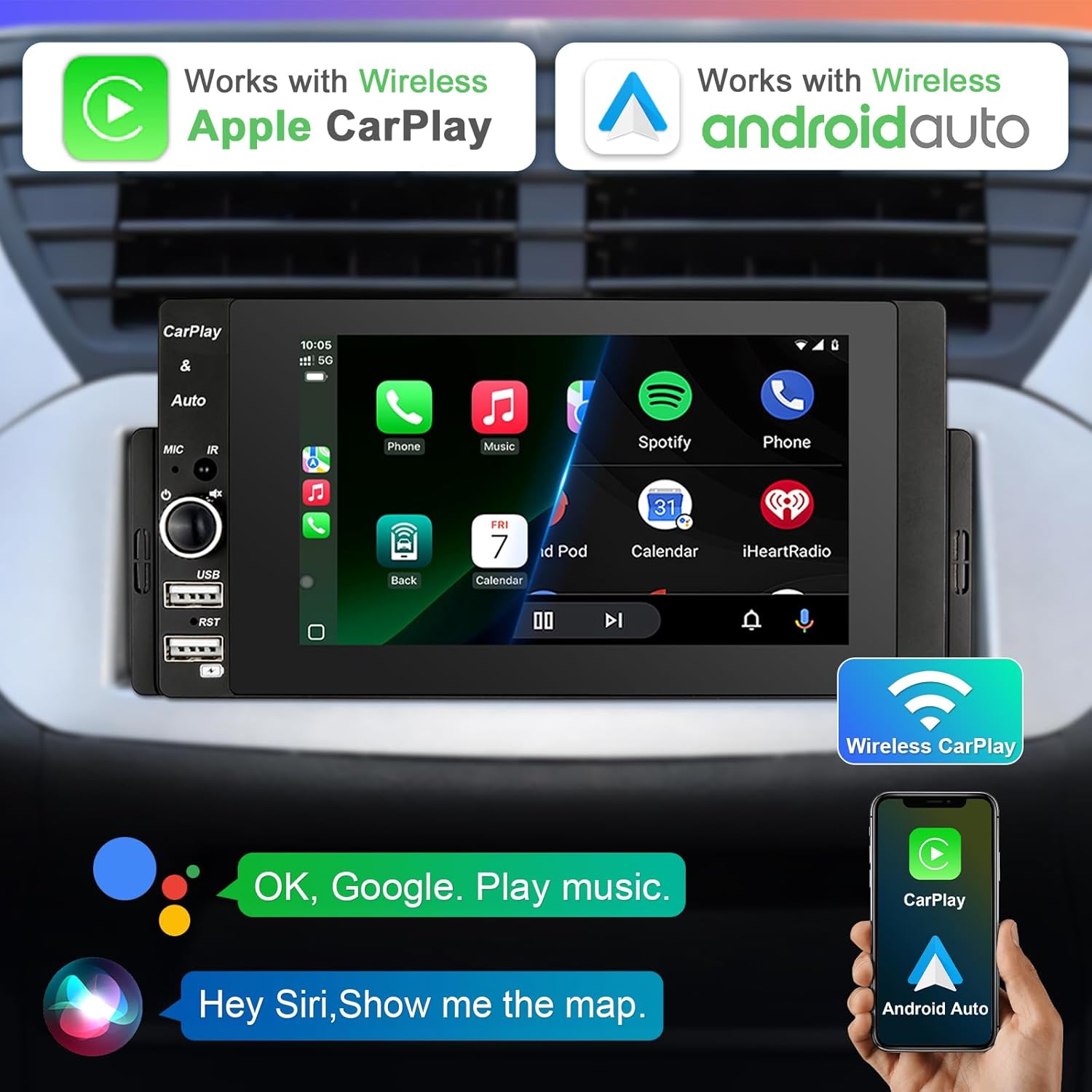
Image: The car stereo displaying the wireless Apple CarPlay and Android Auto interfaces, illustrating seamless smartphone integration.
4.3 Mirror Link Function
Mirror Link allows you to cast your smartphone's screen directly onto the car stereo's display. This is ideal for viewing videos, photos, or other content not natively supported by CarPlay/Android Auto.
- On the car stereo, select the 'Mirror' option for either iPhone or Android.
- Connect your phone to the stereo using a USB cable.
- Follow any prompts on your phone to allow screen mirroring.
Video: This video demonstrates how to set up and use the MirrorLink function for both iPhone and Android devices, showing the phone screen being mirrored onto the car stereo display.
4.4 Bluetooth Connectivity
Enjoy hands-free calling and wireless audio streaming via Bluetooth 5.0.
- On the car stereo, go to the Bluetooth menu.
- Enable Bluetooth on your smartphone and search for available devices.
- Select "CAR BT" from the list on your phone and confirm pairing.
- Once paired, you can make/receive calls and play music wirelessly.
Video: This video illustrates the Bluetooth connection process, showing how to pair a smartphone with the car stereo for hands-free calls and music streaming.
4.5 FM Radio
Access your favorite radio stations with the built-in FM tuner.
- Select the 'Radio' icon from the main menu.
- Use the on-screen controls to scan for stations or manually tune to a frequency.
- Save your preferred stations as presets for quick access.
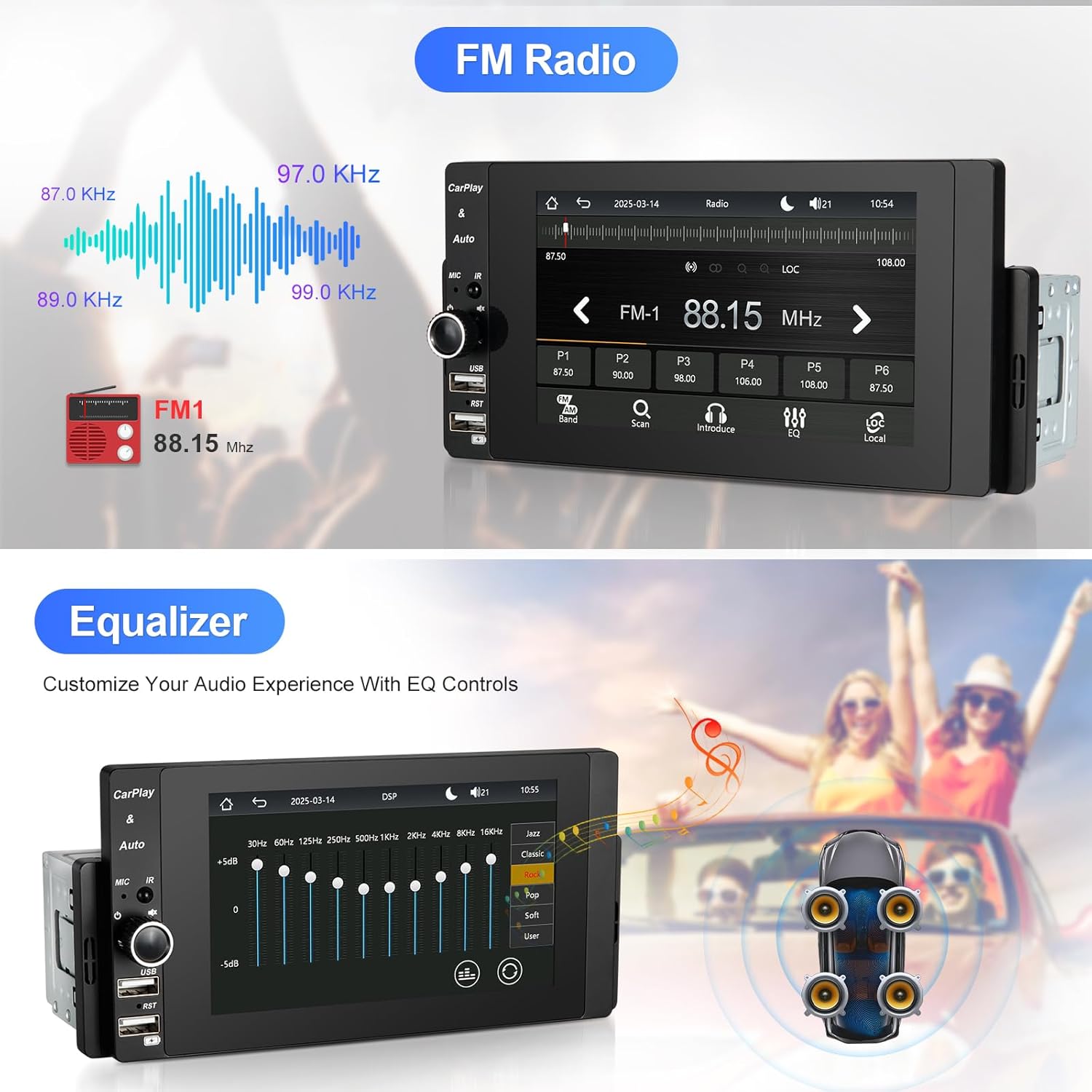
Image: The car stereo interface showing the FM radio tuner with frequency display and an equalizer screen for sound customization.
4.6 Equalizer (EQ) Adjustment
Customize your audio experience with the 10-band EQ and 7 presets.
- Access the 'DSP' or 'EQ' settings from the main menu.
- Choose from preset modes (e.g., Jazz, Rock, Pop) or adjust individual frequency bands to create a custom sound profile.
Video: This video demonstrates the Equalizer (EQ) adjustment feature, showing how to select different sound presets like Jazz, Rock, and Pop to customize the audio output.
4.7 USB Media Playback
Play music, videos, and view pictures from a USB drive.
- Insert a USB drive into one of the USB ports.
- Select the 'USB' icon from the main menu.
- Browse and select your desired media files.
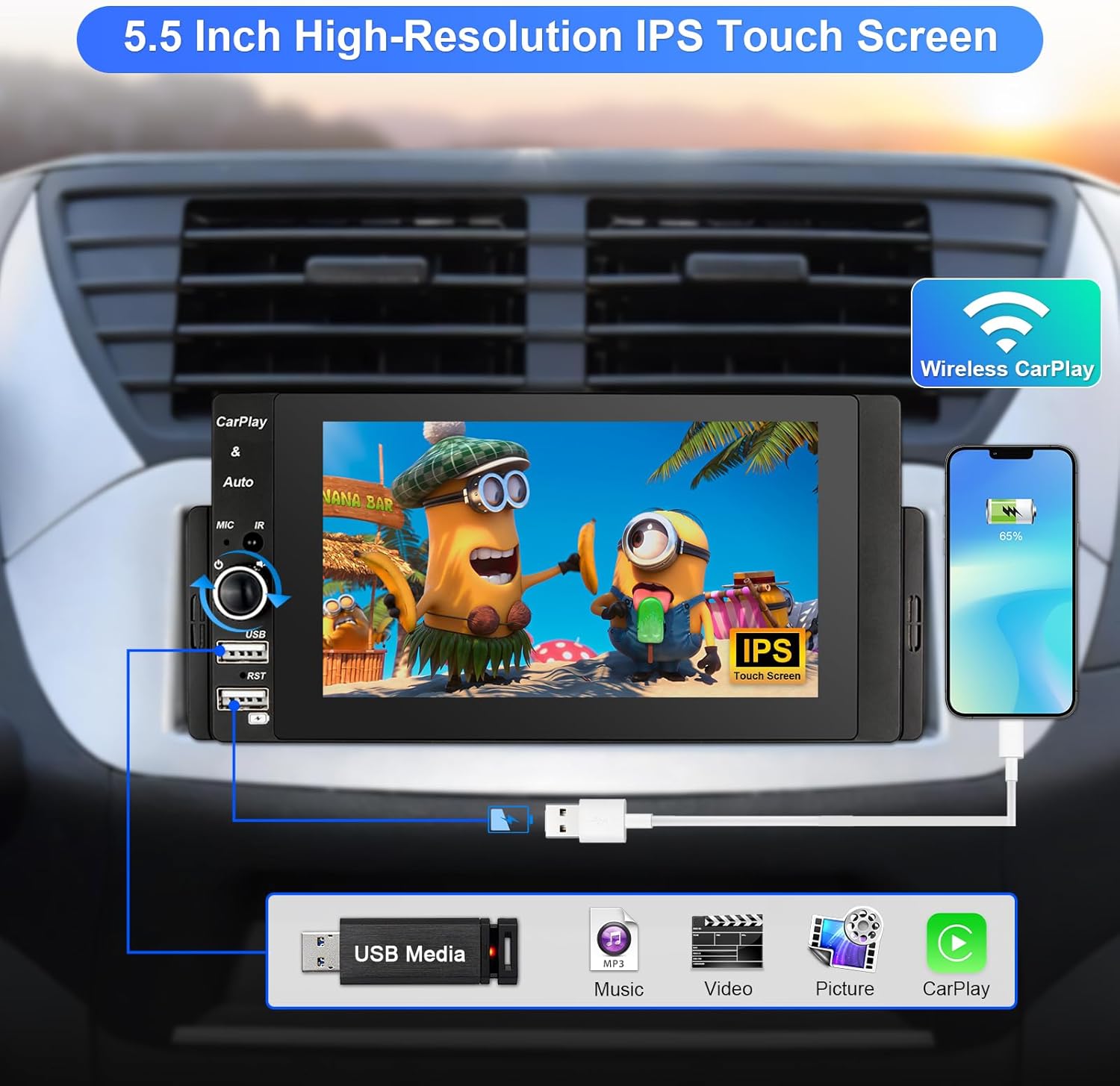
Image: The car stereo displaying options for USB media playback, including music, video, and picture files, with a USB drive connected.
Video: This video demonstrates playing music and video files directly from a USB drive connected to the car stereo.
4.8 Rearview Camera
The unit automatically displays the rearview image when the vehicle is shifted into reverse gear, aiding in safer parking.
4.9 Steering Wheel Controls
If your vehicle supports steering wheel controls, you can configure them to manage basic stereo functions like volume, track changes, and mode selection for convenience and safety.

Image: A view of a car's steering wheel with controls, demonstrating how the car stereo can be integrated to allow for safe and convenient operation of media and navigation functions directly from the steering wheel.
4.10 GPS Navigation
Utilize GPS navigation through connected Apple CarPlay or Android Auto, accessing maps and real-time traffic information on the stereo's display.

Image: The car stereo screen showing a detailed GPS navigation map, indicating the integration of navigation services through CarPlay or Android Auto.
5. Maintenance
To ensure the longevity and optimal performance of your BOUWOIMA car stereo, follow these maintenance guidelines:
- Screen Cleaning: Use a soft, lint-free cloth to gently wipe the touchscreen. Avoid abrasive cleaners or solvents that could damage the display.
- Software Updates: Periodically check the manufacturer's website for any available firmware updates. Keeping your software up-to-date can improve performance and add new features.
- General Care: Avoid exposing the unit to extreme temperatures, direct sunlight for prolonged periods, or excessive moisture.
6. Troubleshooting
If you encounter issues with your car stereo, refer to the following common troubleshooting steps:
- No Power:
- Check all power connections and ensure they are secure.
- Verify the vehicle's fuse for the stereo is not blown.
- Press the RST (Reset) button with a thin object.
- No Sound:
- Check speaker connections and ensure they are correctly wired.
- Verify the volume is not muted or set too low.
- Ensure the correct audio source is selected.
- Bluetooth Connection Issues:
- Ensure Bluetooth is enabled on both the stereo and your phone.
- Delete previous pairings on both devices and attempt to re-pair.
- Move your phone closer to the stereo.
- CarPlay/Android Auto Not Connecting or Intermittent:
- Ensure your phone's operating system is up to date.
- For wired connections, try a different USB cable, as faulty cables can cause intermittent connections.
- For wireless connections, ensure Wi-Fi is also enabled on your phone.
- Restart both your phone and the car stereo.
- Mirror Link Not Working:
- Ensure you have selected the correct 'Mirror' mode (iPhone or Android) on the stereo.
- Use the original USB cable for connection.
- Confirm that you have granted necessary permissions on your smartphone for screen mirroring.
- Rearview Camera Not Displaying:
- Check the camera's video input connection to the stereo.
- Ensure the camera is receiving power.
- Verify the reverse trigger wire is correctly connected to the vehicle's reverse light circuit.
If these steps do not resolve the issue, please contact BOUWOIMA customer support for further assistance.
7. Specifications
| Feature | Specification |
|---|---|
| Brand | BOUWOIMA |
| Model Number | 958ed6da-e04e-4f8e-ad19-7f72cda67124 |
| Package Dimensions | 8.35 x 4.45 x 4.02 inches |
| Item Weight | 1.37 pounds |
| Connectivity Technology | Bluetooth |
| Special Features | Android Auto, Apple CarPlay |
| Compatible Devices | Smartphone, Rearview Camera |
| Total HDMI Ports | 1 |
| Connector Type | HDMI |
| Audio Output Mode | Stereo, Surround |
| Surround Sound Channel Configuration | 5.1 |
| Video Encoding | H.264, H.265/HEVC |
| Number of Channels | 2 |
8. Warranty and Support
BOUWOIMA products come with a standard manufacturer's warranty. Please refer to the warranty card included in your package or visit the official BOUWOIMA website for detailed warranty terms and conditions.
For technical support, installation queries, or any other assistance, please contact BOUWOIMA customer service. Contact information can typically be found in the included user manual or on the manufacturer's website.