
SHELIKI D60S
SHELIKI D60S Robot Vacuum and Mop User Manual
Model: D60S-Laser Style
Introduction
The SHELIKI D60S Robot Vacuum and Mop is an advanced cleaning device designed to efficiently maintain the cleanliness of your home. Featuring 360° LiDAR Smart Navigation, powerful 4000Pa suction, and versatile cleaning modes, it offers a comprehensive solution for various floor types and cleaning needs. This manual provides essential information for setup, operation, maintenance, and troubleshooting to ensure optimal performance of your device.
Key features include:
- 360° LiDAR Smart Navigation for precise mapping and efficient cleaning paths.
- Smart Cleaning Customization with 6 specialized modes and exclusion zones.
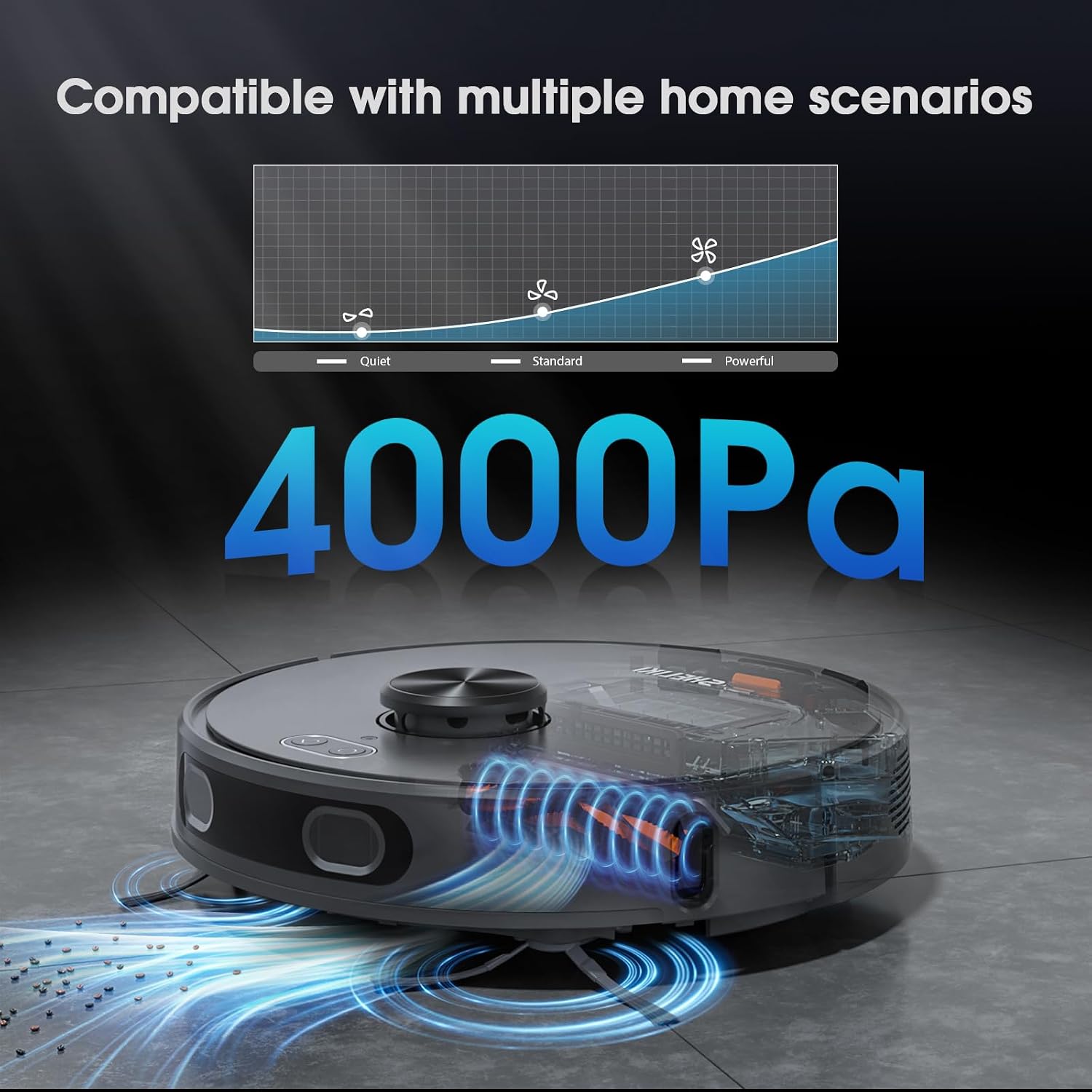
- Powerful 4000Pa Suction with Quiet, Standard, and Max modes.
- Ultra-Quiet 45dB Night Mode and adaptive navigation over thresholds.
- Smart App/Voice/Remote Control compatibility (2.4G Wi-Fi required).
Package Contents
Before starting, please ensure all items are present in the package:
- Robot Vacuum
- Charging Station
- 2-in-1 Dust & Water Bin
- User Manual
- Mop Board & Cloth
- Side Brush (4 pieces)
- HEPA Filter (2 pieces)
- Cleaning Brush

Setup
1. Charging Station Placement
Place the charging station against a wall in an open, uncluttered area. Ensure there is at least 0.5 meters (1.6 feet) of clear space on both sides and 1.5 meters (4.9 feet) in front of the station for the robot to easily dock.

2. Initial Charge
Before first use, fully charge the robot vacuum. Place the robot on the charging station, ensuring the charging contacts align. The indicator lights on the robot will show charging status. A full charge typically takes several hours.

3. App Connection (2.4G Wi-Fi Required)
Download the Tuya Smart App from your mobile app store. Follow the in-app instructions to connect your SHELIKI D60S to your home's 2.4G Wi-Fi network. This enables smart control features, including scheduling, mode selection, and map management.

Operating Instructions
1. Cleaning Modes
The D60S offers multiple cleaning modes to suit different needs:
- Zigzag: Standard systematic cleaning.
- Auto: Automatically adjusts cleaning based on environment.
- Edge: Cleans along walls and furniture edges.
- Spot: Concentrated cleaning in a specific small area.
- Scheduled: Set specific times for cleaning via the app.
- Manual: Control the robot's movement directly via the app.

2. Suction Power Adjustment
Adjust suction power via the app:
- Quiet (1300Pa): For light cleaning and minimal noise, ideal for nighttime.
- Standard (2500Pa): For daily maintenance.
- Max (4000Pa): For deep cleaning high-traffic areas or stubborn debris.

3. Mopping Function
The D60S features a mopping function. Fill the water tank and attach the mop cloth. Adjust water flow volume via the Tuya Smart App for different floor types and cleaning intensity.

4. LiDAR Navigation and Mapping
The robot uses LiDAR technology to scan and create precise 2D floor plans of your home. It can save up to 5 maps, allowing for multi-floor use. Use the app to define specific cleaning areas, no-go zones, and virtual walls.

Maintenance
Regular maintenance ensures optimal performance and extends the lifespan of your robot vacuum.
1. Emptying the Dust Bin
Empty the 250ml dust bin after each cleaning cycle, especially if you have pets or high traffic. Press the release button to remove the bin, open it, and discard collected debris. Clean the interior of the bin with a dry cloth.
2. Cleaning Filters
The HEPA filter should be cleaned regularly (e.g., weekly) using the provided cleaning brush. Replace filters every 3-6 months, or more frequently depending on usage. Do not wash the HEPA filter with water.
3. Cleaning Side Brushes and Main Brush
Remove any tangled hair or debris from the side brushes and main brush. Use the cleaning tool with the razor blade to cut and remove hair from the main brush. Reinstall brushes securely.
4. Cleaning Sensors and Charging Contacts
Wipe the anti-drop sensors, anti-collision sensors, and charging contacts on both the robot and the charging station with a clean, dry cloth to ensure proper function.
5. Mopping Cloth and Water Tank
After mopping, remove and wash the mop cloth. Empty any remaining water from the water tank and allow it to air dry to prevent mold or odors.
Troubleshooting
If you encounter issues with your SHELIKI D60S, refer to the common problems and solutions below:
| Problem | Possible Cause | Solution |
|---|---|---|
| Robot does not turn on or charge. | Battery not connected, charging contacts dirty, power adapter not connected. | Ensure battery is properly installed. Clean charging contacts on robot and station. Verify power adapter is securely plugged in. |
| Robot cannot connect to Wi-Fi/App. | Incorrect Wi-Fi band (only 2.4G supported), incorrect password, weak signal. | Ensure your router is broadcasting a 2.4G Wi-Fi signal. Double-check Wi-Fi password. Move robot closer to the router during setup. Restart robot and router. |
| Poor cleaning performance. | Dust bin full, filters clogged, brushes tangled, suction mode too low. | Empty dust bin. Clean or replace filters. Remove tangled hair from brushes. Increase suction power via the app. |
| Robot gets stuck frequently. | Obstacles (cords, small items), dark surfaces (false drops), uneven terrain. | Clear obstacles from the cleaning path. Use no-go zones for problematic areas. Ensure sufficient lighting for navigation on dark floors. |
| Robot makes unusual noises. | Debris caught in brushes or wheels, fan obstruction. | Inspect and clean main brush, side brushes, and wheels for foreign objects. Check for any obstructions in the suction path. |
Specifications
| Feature | Detail |
|---|---|
| Brand | SHELIKI |
| Model Name | D60S |
| Item Model Number | D60S-Laser Style |
| Color | Gray |
| Product Dimensions | 13"L x 17.5"W x 5.11"H |
| Item Weight | 10.41 pounds |
| Suction Power | Up to 4000Pa |
| Navigation Type | 360° LiDAR Smart Navigation |
| Dust Bin Capacity | 250ml (from image) |
| Water Tank Capacity | 350ml (from image) |
| Battery Life | 150 minutes |
| Connectivity | 2.4G Wi-Fi, App Control, Alexa, Google Assistant |
| Noise Level | 45dB (Quiet Mode) |
Warranty and Support
For warranty information, technical support, or service inquiries, please refer to the contact details provided in your product packaging or visit the official SHELIKI website. Keep your purchase receipt as proof of purchase for warranty claims.
You may also find additional support and FAQs on the SHELIKI store page on Amazon: SHELIKI Store
Related Documents - D60S
 |
V8PRO Robot Vacuum: Smart Life App Connection Guide Connect your V8PRO robot vacuum to the Smart Life app using Bluetooth or AP mode with this comprehensive guide. Includes step-by-step instructions for setup and troubleshooting. |
 |
DOOSAN Forklift Operation & Maintenance Manual for D50S-5 to G70S-5 Models Comprehensive operation and maintenance manual for DOOSAN forklifts, covering models D50S-5, D60S-5, D70S-5, D80S-5, D90S-5, G50S-5, G60S-5, and G70S-5. Includes essential safety guidelines, operating procedures, and maintenance schedules. |
 |
Hikvision Digital Signage Quick Start Guide A comprehensive quick start guide for Hikvision Digital Signage systems, detailing product introduction, typical application scenarios, device activation and registration procedures, terminal software configuration, and remote control operations. |
 |
TEENDO Robot Vacuum Cleaner Certificate of Compliance Official Certificate of Compliance for TEENDO Robot Vacuum Cleaner models, including D10S MAX and T-series, issued by Shenzhen ZKT Technology Co., Ltd., confirming adherence to EMC Directive 2014/30/EU and relevant EN standards. |
 |
Honeywell Dolphin 60s Rugged Mobile Computer - Specifications and Features Explore the Honeywell Dolphin 60s, a rugged mobile computer designed for business-critical data access, real-time communication, and versatile data collection. Features include Windows Embedded Handheld 6.5, durable construction, and extensive wireless connectivity. |