
1. Product Overview
The FQuanmap 8K HDMI Splitter is designed to duplicate a single HDMI input signal to two display devices simultaneously. This device supports high-resolution video up to 8K@60Hz and 4K@120Hz, making it suitable for various applications including home entertainment, gaming, and professional presentations. It features EDID management for optimal display compatibility and supports HDCP 2.3 and HDR10.

Image 1.1: The FQuanmap 8K HDMI Splitter, showcasing its compact design and connectivity ports (IN, OUT1, OUT2) along with connected HDMI cables.
Key features include:
- HDMI Splitter 1 in 2 out: Copies one HDMI input signal to two monitors, displaying identical content. Does not support extended mode or 2 in 1 out configurations.
- 8K 60Hz Ultra High Definition Resolution: Supports 8K@60Hz, 4K@144Hz, 4K@60Hz, and 1080P resolutions. Features HDR10 for enhanced visual effects.
- High Bandwidth: Supports up to 48 Gbps data transmission for high-quality image and audio.
- EDID Management: Offers Auto EDID and Copy EDID modes for display compatibility.
- Wide Compatibility: Compatible with devices such as laptops, PCs, game consoles (PS5/PS4/PS3, Xbox), TV boxes, DVD players, HDTVs, monitors, and projectors.
- Durable Construction: Made with aluminum metal for long-lasting use.

Image 1.2: Close-up view highlighting the 5V USB power input, LED indicators for power and signal, and the durable aluminum metal construction of the splitter.
2. Package Contents
Please verify that all items are present in the package:
- 1x2 HDMI Splitter HDR Device
- Micro USB Power Cable
- User Manual (this document)

Image 2.1: The package contents, showing the HDMI splitter, a Micro USB power cable, and the user manual. The dimensions of the splitter are approximately 2.4in × 2.2in × 0.8in.
3. Setup Instructions
Follow these steps to set up your HDMI splitter:
- Connect HDMI Source: Connect your HDMI source device (e.g., laptop, PC, game console) to the 'IN' port of the HDMI splitter using an HDMI cable.
- Connect HDMI Displays: Connect your two HDMI display devices (e.g., HDTVs, monitors, projectors) to the 'OUT1' and 'OUT2' ports of the HDMI splitter using HDMI cables.
- Connect Power: Connect the provided Micro USB power cable to the splitter's USB port and then to a 5V USB power adapter (not included) or a USB port on your source device. Note: The device must be connected to a power source to function correctly.
- Power On Devices: Power on your HDMI source device and both display devices.
- Select Display Mode: Adjust the EDID management switch (MODE button) on the splitter if necessary (refer to Section 4.2 for details).
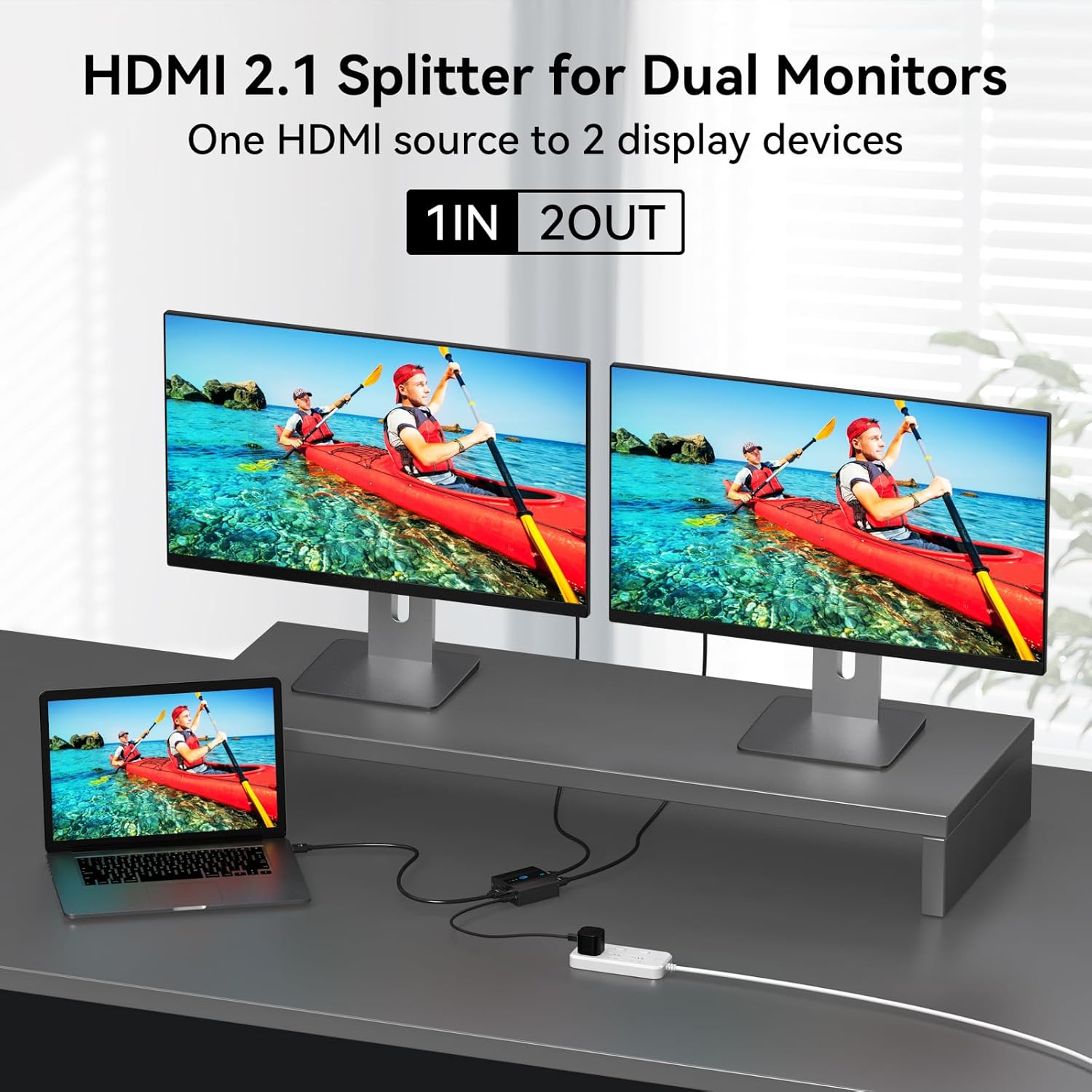
Image 3.1: An example setup demonstrating a laptop connected to the FQuanmap HDMI splitter, which then outputs the signal to two identical external monitors, illustrating the 1-in-2-out mirroring functionality.
4. Operating Instructions
4.1. 1-in-2-out Functionality
The FQuanmap 8K HDMI Splitter is designed to duplicate a single HDMI input to two output displays. Both connected displays will show the exact same content. This device does not support extended desktop mode, where each monitor displays different content, nor does it support connecting two input signals to one display (2 in 1 out).

Image 4.1: Functional diagram showing that the splitter supports mirroring one HDMI source to two display devices. It explicitly indicates that extended display mode and 2-in-1-out switching are not supported. Note: ARC/eARC functionality is not supported.
4.2. EDID Management
The splitter features an EDID (Extended Display Identification Data) management switch to ensure compatibility with various display devices. Use the 'MODE' button on the splitter to switch between modes.
- Auto EDID Mode: In this mode, the HDMI splitter automatically detects and copies the display settings (resolution, refresh rate, etc.) of the lowest resolution monitor connected to ensure both displays are compatible. This is the recommended mode for most setups.
- Copy EDID Mode: In this mode, the resolution of the OUT2 output is automatically copied or reduced to match the display setting of the 'OUT1' monitor. If you encounter abnormal output, switch to Copy Mode. It is recommended to connect the monitor with the lower resolution to the OUT1 port when using this mode.
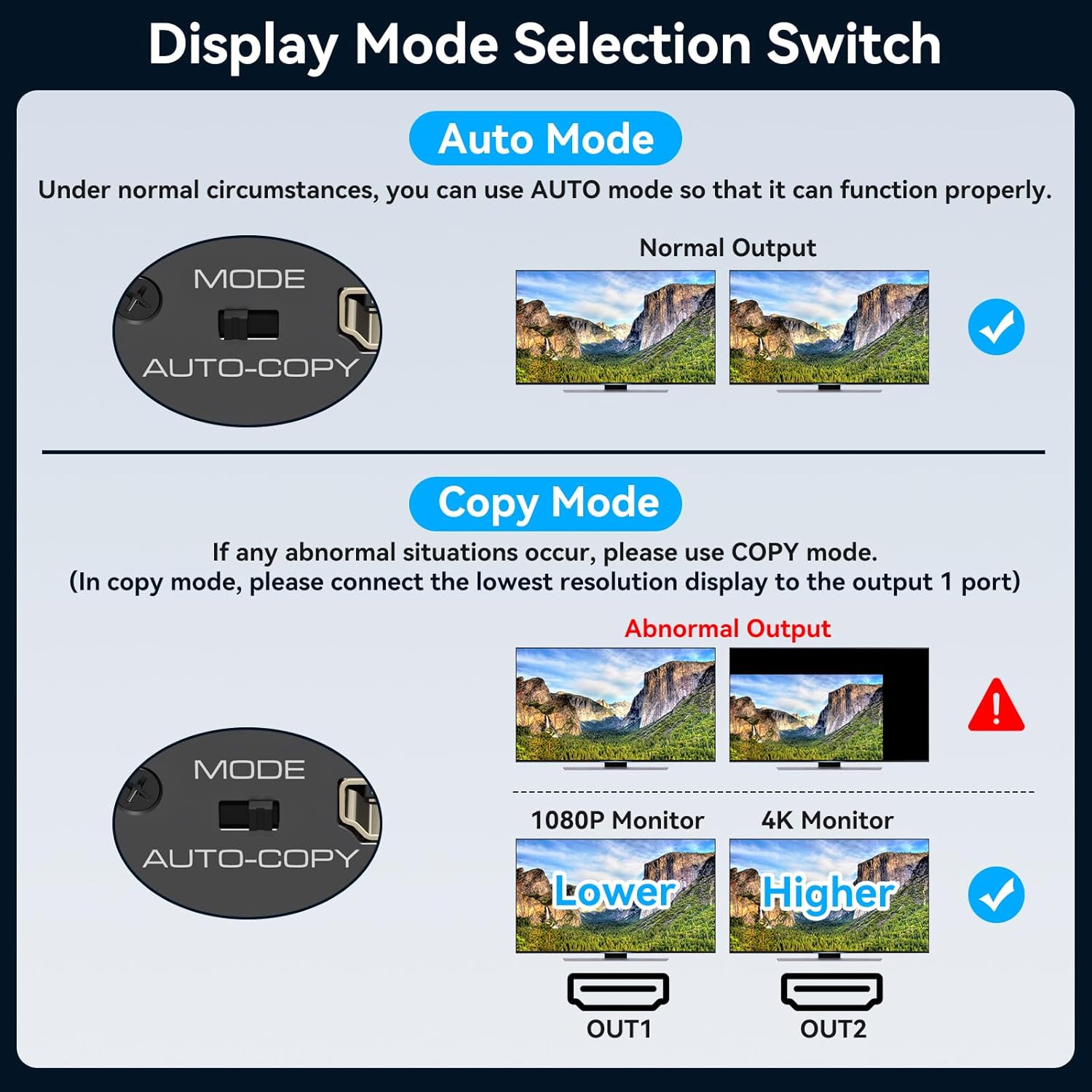
Image 4.2: Explanation of the Display Mode Selection Switch. 'Auto Mode' provides normal output to two displays. 'Copy Mode' is used for abnormal output situations, where the lowest resolution display should be connected to OUT1 to ensure compatibility for both outputs.
5. Specifications
| Feature | Specification |
|---|---|
| Model Number | FQUS-SP907 |
| HDMI Version | HDMI 2.1 |
| Input Ports | 1 x HDMI |
| Output Ports | 2 x HDMI |
| Max Resolution Support | 8K@60Hz, 4K@144Hz, 4K@120Hz, 4K@60Hz, 1080P |
| Bandwidth | 48 Gbps |
| HDCP Support | HDCP 2.3 |
| HDR Support | HDR10 |
| EDID Management | Auto EDID, Copy EDID |
| Power Supply | 5V USB (Micro USB cable included) |
| Housing Material | Aluminum Metal |
| Dimensions | 7.76 x 5.24 x 1.26 inches (approx. 2.4 x 2.2 x 0.8 inches for the unit itself) |
| Item Weight | 3.52 ounces |
Note on 8K 60Hz Experience: For optimal 8K 60Hz performance, it is recommended to use HDMI 2.1 cables with a length of less than 3 meters, an 8K HDMI source device, and an 8K HDMI display.

Image 5.1: A graphic illustrating the high-resolution capabilities of the splitter, supporting up to 8K@60Hz and 4K@144Hz, with a visual comparison of frame rates.
5.1. Compatibility
The splitter is compatible with a wide range of devices:
- HDMI Input Devices: Laptops, PCs, game consoles (PS5, PS4, PS3, Xbox), TV boxes, DVD players, Blu-ray players.
- HDMI Output Devices: HDTVs, monitors, projectors.
Note: This device is not an audio extractor and does not support connecting to audio-only devices such as speakers or soundbars. ARC/eARC/VRR functions are not supported.

Image 5.2: A visual guide to the splitter's wide compatibility, listing common input devices like laptops, TV boxes, game consoles, and PCs, and output devices such as TVs, monitors, and projectors.
6. Troubleshooting
If you encounter issues, please refer to the following common problems and solutions:
- No Display on Monitors:
- Ensure the splitter is properly powered via the Micro USB cable. The power LED indicator should be on.
- Check all HDMI cable connections. Ensure they are securely plugged into the correct 'IN' and 'OUT' ports.
- Verify that your HDMI source device and display devices are powered on and set to the correct HDMI input.
- Try switching the EDID management mode (Auto/Copy) on the splitter. If using Copy Mode, ensure the lowest resolution monitor is connected to OUT1.
- Test with different HDMI cables, especially if experiencing 8K or 4K 120Hz issues, as cable quality can affect performance.
- Flickering or Unstable Display:
- Ensure all HDMI cables are of high quality and support the desired resolution and refresh rate (e.g., HDMI 2.1 for 8K 60Hz).
- Reduce the length of HDMI cables if possible, especially for high-resolution signals.
- Try switching the EDID management mode.
- Resolution Issues (e.g., lower than expected):
- In Auto EDID mode, the splitter will output the lowest common resolution supported by both connected displays. Ensure both displays support your desired resolution.
- In Copy EDID mode, connect the display with the lowest resolution to OUT1.
- Verify that your source device is configured to output the desired resolution.
- Audio Not Working:
- Confirm that your display devices have built-in speakers or are connected to external audio systems.
- Remember that this splitter is not an audio extractor. Audio is passed through the HDMI signal to the displays.
7. Maintenance
To ensure the longevity and optimal performance of your FQuanmap HDMI Splitter, please follow these maintenance guidelines:
- Cleaning: Use a soft, dry cloth to clean the device. Do not use liquid cleaners or aerosol sprays, as they may damage the unit.
- Storage: Store the device in a cool, dry place away from direct sunlight and extreme temperatures.
- Handling: Avoid dropping or subjecting the device to strong impacts.
- Ventilation: Ensure the device has adequate ventilation and is not covered, to prevent overheating.
- Power: Always disconnect the power cable when the device is not in use for extended periods.
8. Warranty and Support
The FQuanmap 8K HDMI Splitter comes with a one-year warranty service from the date of purchase. If you encounter any problems after receiving the package or during use, please do not hesitate to contact our customer support team.
We are committed to providing 24-hour after-sales service to assist you with any inquiries or issues you may have.
For support, please refer to the contact information provided on your purchase platform or the FQuanmap official website.