
1. Introduction
This manual provides detailed instructions for the installation, operation, maintenance, and troubleshooting of your Hikity Android 15 Car Stereo. This unit is specifically designed for Suzuki Swift models manufactured between 2011 and 2017. Please read this manual thoroughly before installation and use to ensure proper functionality and safety.
2. Product Overview
Key Features
- Operating System: Latest Android 15
- Memory: 4GB RAM + 64GB ROM
- Display: 9-inch HD IPS Touchscreen (1280*720P resolution)
- Connectivity: Wireless CarPlay, Android Auto, 5G WiFi, Bluetooth 5.0, USB
- Audio: AI DSP with 32-band EQ, FM/RDS Radio
- Navigation: Built-in GPS module (supports online and offline maps)
- Additional Functions: Hands-free Calling, Split Screen, Mirror Link, Steering Wheel Control (SWC), Video Out, AHD Backup Camera support, External Microphone
Included Components
The package includes the following items:
- Hikity Android Car Stereo Unit for Suzuki Swift
- Power Cable
- GPS Antenna
- Rear Camera Input Cable
- RCA Cable
- USB Cables (2)
- Mounting Brackets
- Screws
- Installation Tool
- AHD Backup Camera
- External Microphone

Image 2.1: Hikity Android 15 Car Stereo for Suzuki Swift (2011-2017) with key features highlighted.

Image 2.2: Comparison of the Suzuki Swift dashboard before and after installing the Hikity car stereo, showcasing the integrated 9-inch display.
3. Setup and Installation
Compatibility
This car stereo is designed to be compatible with Suzuki Swift models from the years 2011, 2012, 2013, 2014, 2015, 2016, and 2017. Ensure your vehicle falls within this range for proper fitment.
Installation Steps (General Guide)
- Preparation: Disconnect the vehicle's battery before starting any electrical work.
- Remove Old Unit: Carefully remove the existing car stereo and dashboard trim.
- Connect Wiring: Connect the provided power cable, GPS antenna, RCA cables, USB cables, and rear camera input cable to the corresponding ports on the new Hikity unit. Refer to the wiring diagram provided in the package.
- Mounting: Use the included mounting brackets and screws to secure the new stereo unit into the dashboard opening.
- Backup Camera Installation: Install the AHD backup camera at the rear of the vehicle and route its cable to the stereo unit. Connect it to the 'Rear Camera Input' port.
- External Microphone: Connect the external microphone for improved call quality and voice command recognition. Position it optimally for clear audio capture.
- Test Connections: Before fully reassembling the dashboard, reconnect the vehicle battery and perform a basic test of the stereo's functions (power, audio, display).
- Reassemble: Once all functions are verified, carefully reassemble the dashboard trim.
Warning: Professional installation is recommended for optimal performance and to avoid damage to your vehicle or the stereo unit. Incorrect wiring can cause serious damage.
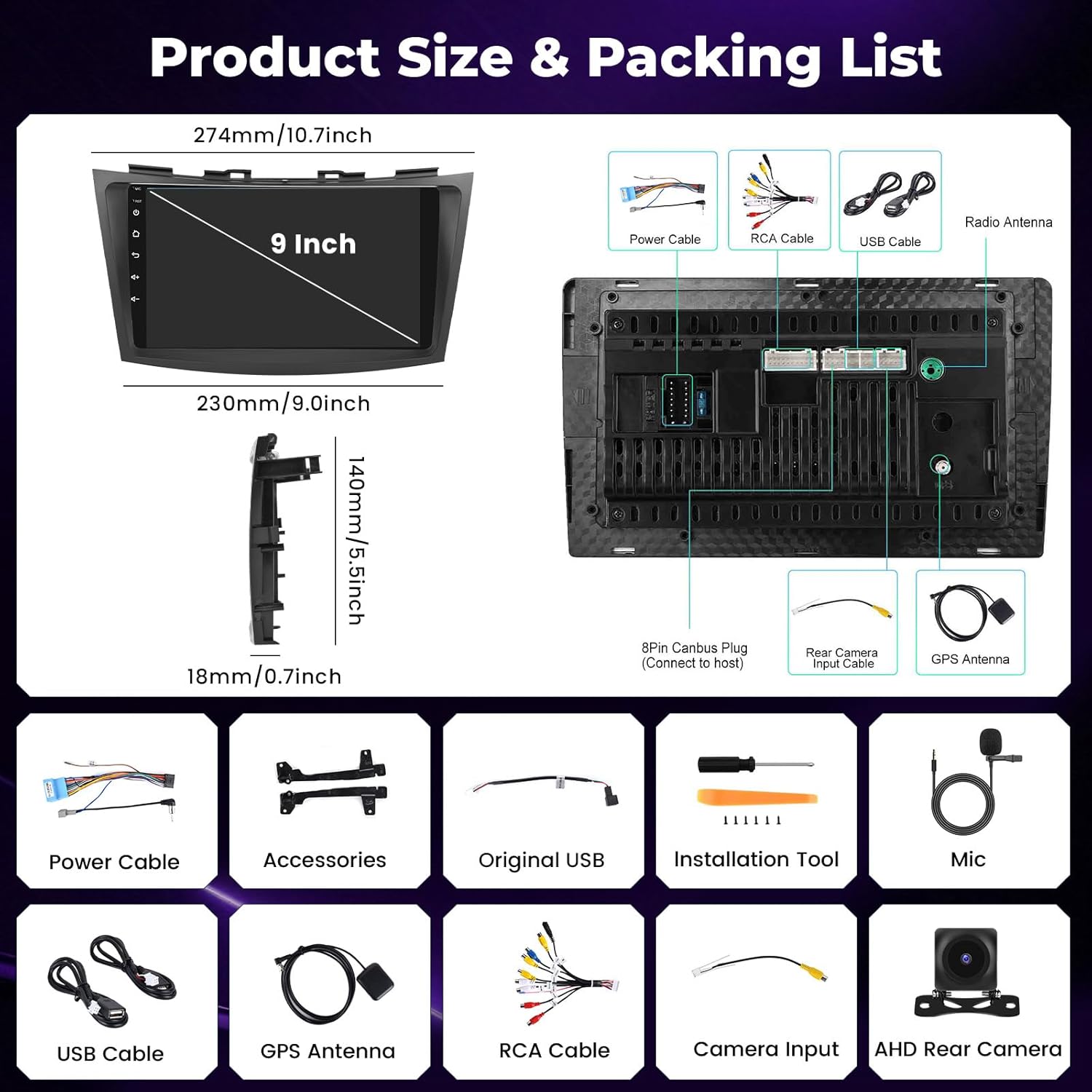
Image 3.1: Product dimensions and a detailed view of the rear connections and included accessories for installation.
4. Operating Instructions
Basic Operation
- Power On/Off: Press and hold the power button (usually located on the front panel or as a soft button on the screen) to turn the unit on or off.
- Touchscreen: Navigate the interface by tapping, swiping, and pinching on the 9-inch IPS touchscreen.
- Volume Control: Adjust volume using the physical buttons (if available) or on-screen controls.
Wireless CarPlay & Android Auto
Connect your smartphone wirelessly for seamless access to navigation, music, calls, and messages.
- Ensure Bluetooth and Wi-Fi are enabled on your smartphone.
- On the car stereo, open the CarPlay or Android Auto application.
- Follow the on-screen prompts to pair your phone via Bluetooth. Once paired, the system will automatically establish a Wi-Fi connection for CarPlay/Android Auto.

Image 4.1: Wireless CarPlay and Android Auto interfaces, demonstrating app integration and wireless mirror link.
Voice Control
Utilize voice commands for hands-free operation. Activate by saying "Hey Siri" (for CarPlay) or "OK Google" (for Android Auto) or by pressing the voice command button on the steering wheel (if configured).
GPS Navigation
The unit features a built-in GPS module. You can use pre-installed navigation apps or download others from the Google Play Store. Supports both online and offline maps (after downloading map data via Wi-Fi).

Image 4.2: GPS navigation interface, 5G WiFi indicator, steering wheel control settings, and backup camera display.
5G WiFi & Hotspot
Connect to a Wi-Fi network or use your phone's hotspot to browse the internet, download apps, and receive real-time traffic updates.
Bluetooth 5.0
Pair your phone via Bluetooth for hands-free calling and audio streaming. Access your phone's contacts and call history directly from the stereo.

Image 4.3: Bluetooth 5.0 functionality for calls and music, FM/RDS radio, 32-band equalizer, and AI DSP settings.
FM/RDS Radio
Tune into your favorite radio stations. The RDS (Radio Data System) feature displays station information, song titles, and other data where available.
AI DSP & 32-Band EQ
Customize your audio experience with the built-in Digital Sound Processor (DSP) and 32-band equalizer. Choose from various sound effects like 3D optimized, 5.1 Panorama, and HiFi for enhanced sound quality. Note: AI DSP features may require optional activation.
Split Screen Function
Multitask by running two applications simultaneously on the screen, such as navigation and music playback. To activate, long-press an app icon and drag it to one side of the screen, then select another app for the other side.

Image 4.4: User interface designs and the split-screen feature in action, showing two apps running concurrently.
Steering Wheel Control (SWC)
The unit supports the original steering wheel learning function. Access the SWC settings in the system menu to program your steering wheel buttons to control stereo functions like volume, track skipping, and answering calls.
Backup Camera
When the vehicle is shifted into reverse, the display automatically switches to the view from the AHD backup camera, providing a clear image to assist with parking and maneuvering.
5. Maintenance
- Screen Cleaning: Use a soft, lint-free cloth to gently wipe the touchscreen. Avoid abrasive cleaners or solvents that could damage the screen.
- Software Updates: Periodically check for system updates via the settings menu to ensure optimal performance and access to the latest features. Connect to a stable Wi-Fi network for updates.
- General Care: Keep the unit free from dust and extreme temperatures. Ensure proper ventilation around the unit.
6. Troubleshooting
| Problem | Possible Cause | Solution |
|---|---|---|
| Unit does not power on. | Loose power connection, blown fuse, vehicle battery disconnected. | Check power cable connections. Inspect vehicle fuses. Ensure car battery is connected. |
| No sound. | Volume too low, mute activated, speaker wires disconnected. | Increase volume. Check if mute is active. Verify speaker wire connections. |
| Touchscreen unresponsive or inaccurate. | Screen calibration issue, temporary software glitch. | Restart the unit. If issue persists, perform a screen calibration (refer to system settings). |
| Wireless CarPlay/Android Auto not connecting. | Bluetooth/Wi-Fi off on phone, incorrect pairing, phone not supported. | Ensure phone's Bluetooth and Wi-Fi are on. Delete previous pairings and re-pair. Check phone compatibility. |
| GPS signal weak or inaccurate. | GPS antenna obstructed or improperly installed. | Ensure GPS antenna has a clear view of the sky and is securely connected. |
| Unit is slow or lagging. | Too many apps running, low storage, software issue. | Close unnecessary apps. Clear cache. Consider a factory reset if persistent (backup data first). |
| Backup camera not displaying. | Camera cable loose, incorrect wiring, camera faulty. | Check the rear camera input cable connection. Verify the camera's power supply. |
7. Specifications
| Feature | Detail |
|---|---|
| Brand | Hikity |
| Operating System | Android 15 |
| RAM | 4GB |
| ROM (Storage) | 64GB |
| Screen Size | 9 Inches |
| Display Type | IPS LCD Capacitive Touch Screen |
| Resolution | 1280*720P |
| Connectivity | Bluetooth 5.0, USB, 5G Wi-Fi |
| Special Features | Wireless Carplay, Android Auto, AI DSP/FM/RDS/32EQ, GPS Navigation, SWC, Reversing Camera, Microphone, Split Screen |
| Supported Satellite Navigation System | BeiDou, GLONASS, GPS, Galileo |
| Audio Output Mode | Stereo |
| Compatible Devices | Smartphone, Suzuki Swift 2011-2017 |
| Control Method | App, Touch, Voice |
8. Warranty and Support
Warranty Information
Your Hikity Android 15 Car Stereo comes with the following warranty:
- 30-Days Money-Back Guarantee: If you are not satisfied with your purchase.
- 2-Years Replacement: For manufacturing defects or malfunctions.
Technical Support
Hikity provides life-time technical support for this product. For any installation or usage issues, please contact the Hikity Flagship Store directly via the product page on Amazon. Support inquiries are typically answered within 24 hours.
Contact Email: hikityoffice@163.com