
1. Introduction
This manual provides detailed instructions for the setup, operation, maintenance, and troubleshooting of your ZCGIOBN WiFi Bluetooth Movie Projector Indoor 4K. Please read this manual thoroughly before using the projector to ensure proper operation and to maximize its lifespan. Keep this manual for future reference.
2. What's in the Box
Verify that all items are present upon unpacking:
- ZCGIOBN Smart 4K Projector
- Remote Control
- Power Cord
- User Manual (this document)
3. Product Overview
Familiarize yourself with the projector's components and connection ports.
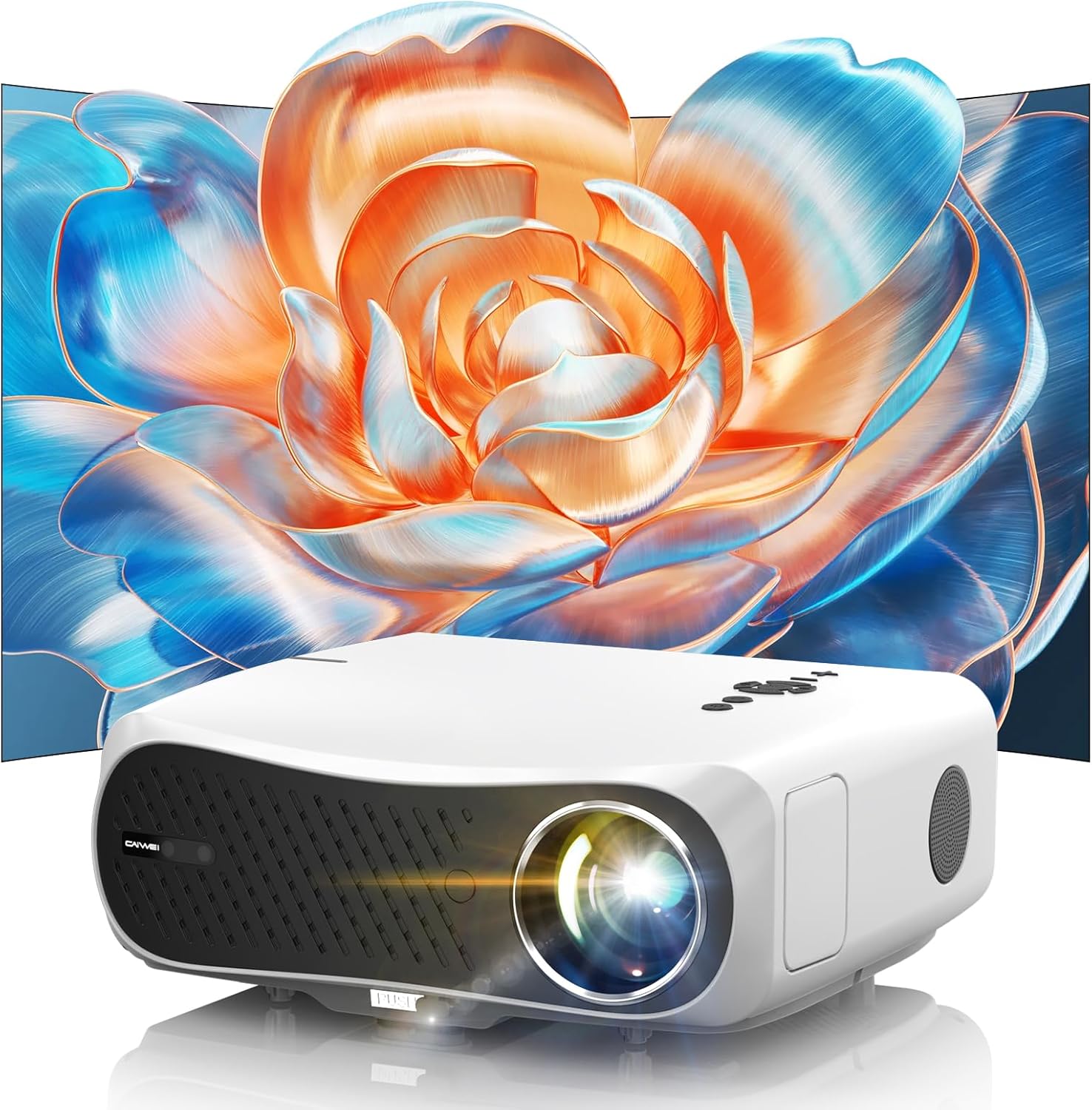
Image 3.1: Front view of the ZCGIOBN Smart 4K Projector, showcasing its lens and a vibrant projected image of a flower.
3.1 Front and Side Components
- Projection Lens: Emits the image.
- Ventilation Grilles: Ensures proper airflow for cooling.
- Control Panel: Buttons for basic navigation and power.
3.2 Rear Connection Ports
- HDMI ARC Ports (x2): Connect to Blu-ray players, gaming consoles, laptops, etc. One port supports Audio Return Channel (ARC).
- USB Ports (x2): Connect USB drives for media playback or external devices.
- VGA Port: Connect to older computers or monitors.
- AV Port: Connect to legacy audio/video devices.
- Power Input: Connect the power cord.
4. Setup
4.1 Placement
Position the projector on a stable, flat surface or mount it to the ceiling. Ensure there is adequate space around the projector for ventilation. The projection distance will determine the screen size, ranging from 50 inches to 300 inches diagonally.

Image 4.1: Illustration of projection distances and corresponding screen sizes (50", 100", 200", 300") for immersive viewing.
4.2 Power Connection
- Connect the power cord to the projector's power input port.
- Plug the other end of the power cord into a suitable electrical outlet.
4.3 Initial Power On
Press the power button on the projector or the remote control to turn on the device. The projector will boot up and perform automatic adjustments.
4.4 Automatic Adjustments
The ZCGIOBN Smart 4K Projector features advanced AI-powered automatic setup for optimal image quality.

Image 4.2: Visual representation of the projector's automatic setup features: Auto Focus, Auto Screen Fit, Auto Obstacles Avoidance, and Auto Keystone correction.
- Auto Focus: The projector automatically adjusts the lens to achieve a sharp image.
- Auto Keystone Correction: Automatically corrects trapezoidal distortion to ensure a rectangular image.
- Auto Screen Fit: Adjusts the image size to fit the projection surface.
- Auto Obstacle Avoidance: Detects and adjusts the image to avoid obstacles on the projection surface.
5. Operating Instructions
5.1 Remote Control
Use the included remote control to navigate the projector's interface and control playback. Ensure the remote has fresh batteries and is pointed towards the projector's IR receiver.
5.2 User Interface and Apps
The projector runs on a Smart Android operating system, providing access to over 8000 streaming applications. Navigate the home screen using the remote control to select desired apps or settings.

Image 5.1: The projector in a living room setting, demonstrating its 1600 ANSI Lumens brightness for clear daytime viewing.
5.3 Connectivity
5.3.1 WiFi Connection
The projector supports 2.4G/5G dual-band WiFi 6 for stable and fast internet access.
- Go to Settings > Network > WiFi.
- Select your desired WiFi network from the list.
- Enter the password and connect.
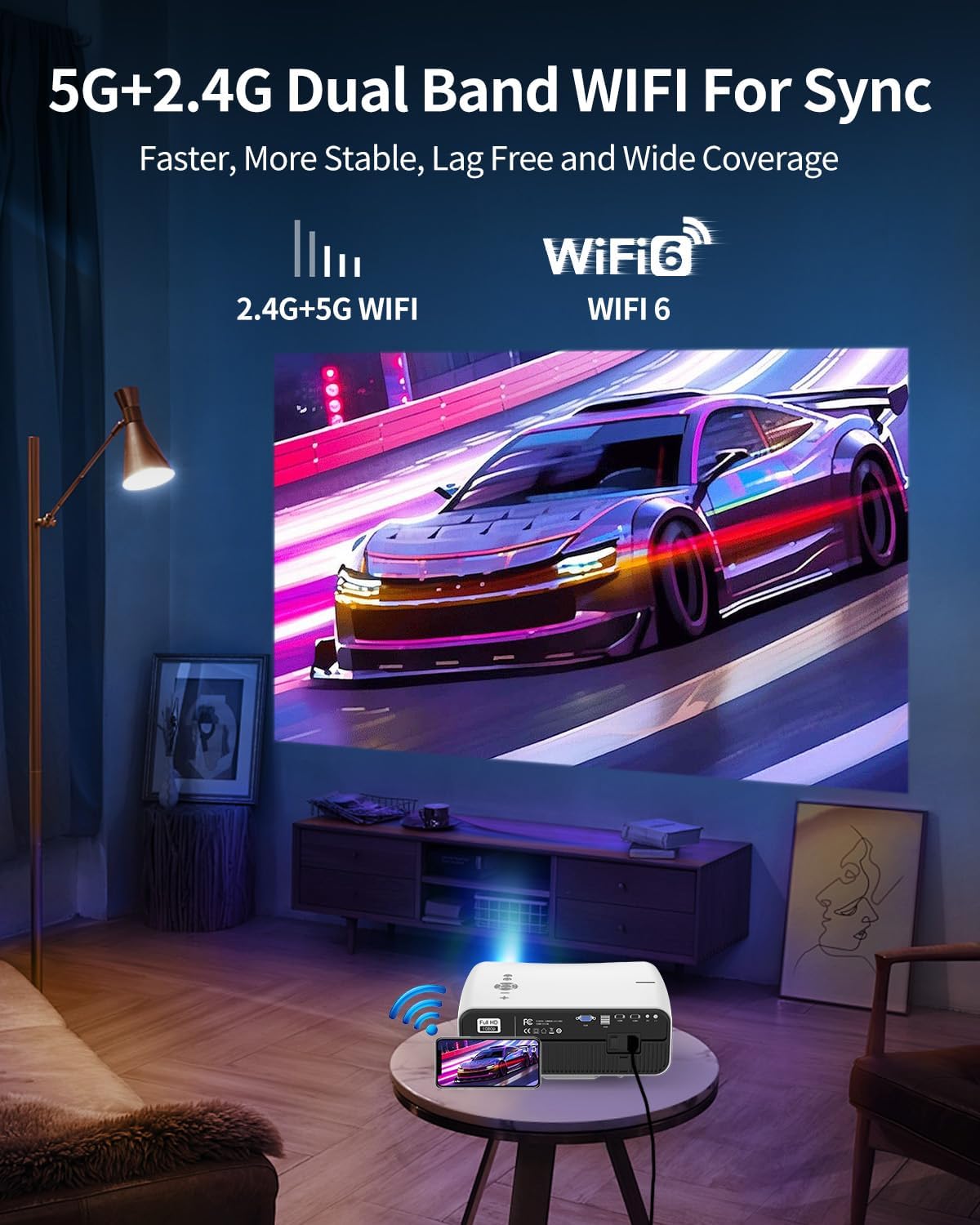
Image 5.2: The projector demonstrating 5G+2.4G Dual Band WiFi connectivity, allowing seamless content streaming from a smartphone.
5.3.2 Bluetooth Connection
The projector features two-way Bluetooth 5.2, allowing connection to external audio devices or functioning as a Bluetooth speaker itself.
- Go to Settings > Bluetooth.
- Enable Bluetooth and search for devices.
- Select your Bluetooth speaker or headphones to pair.

Image 5.3: The projector establishing a two-way Bluetooth connection with a soundbar, enhancing the audio experience.
5.3.3 Wired Connections (HDMI, USB, VGA, AV)
Connect external devices such as laptops, gaming consoles, or USB drives to the corresponding ports on the projector. Select the correct input source from the projector's menu.
5.4 Screen Mirroring
The projector supports screen mirroring from compatible iOS and Android devices. Refer to the projector's on-screen instructions for specific steps to initiate screen mirroring.
5.5 Audio Output
The projector includes built-in 2*15W speakers for HIFI surround sound. For enhanced audio, connect external speakers via Bluetooth or the audio output port.
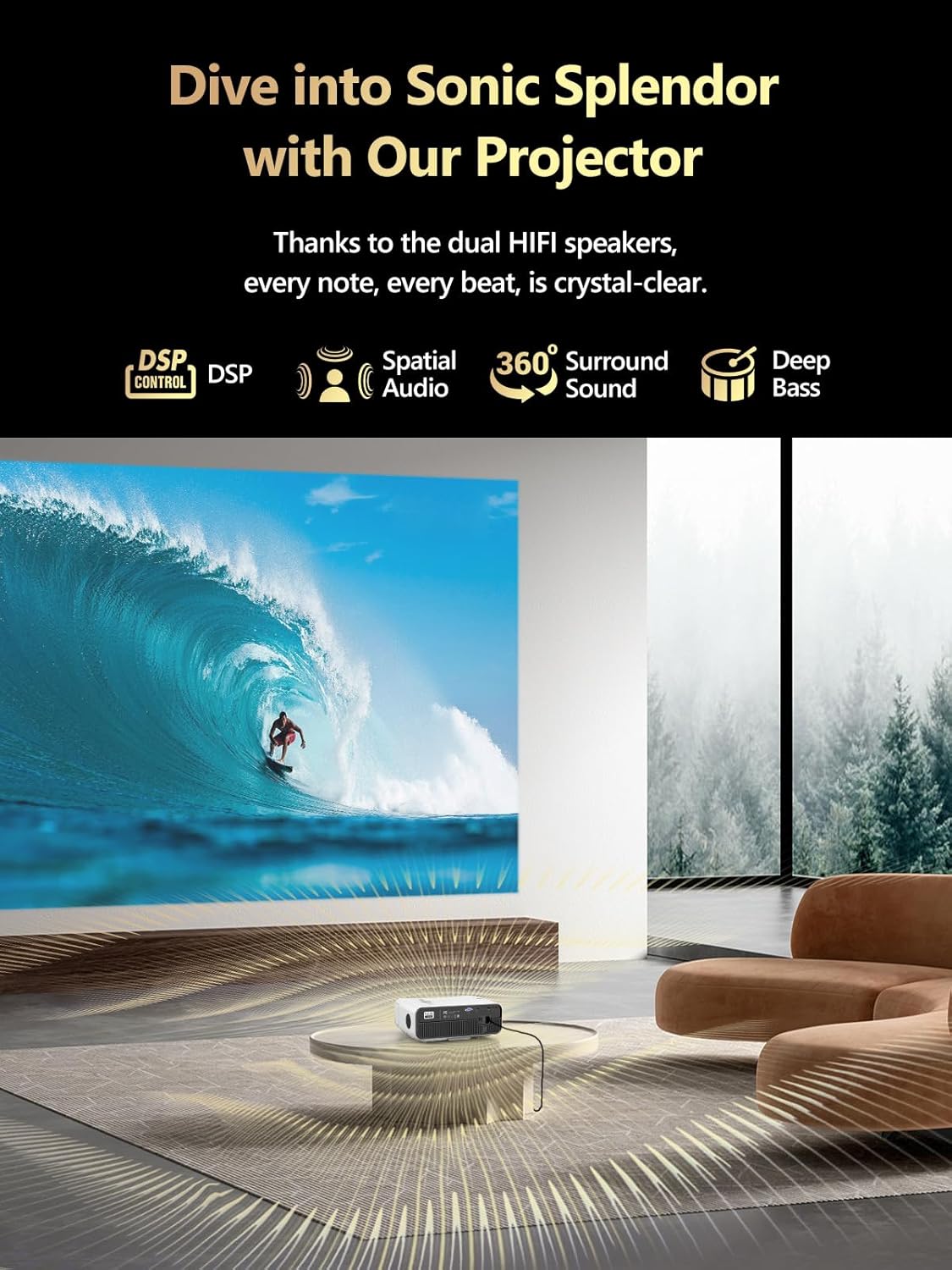
Image 5.4: A projected image of a surfer, highlighting the projector's sonic capabilities with DSP control, spatial audio, 360-degree surround sound, and deep bass.
5.6 Image Adjustments
In addition to automatic adjustments, the projector offers a flexible digital zoom function from 100% to 50% to fine-tune the image size.

Image 5.5: A comparison image demonstrating the projector's 4K brilliance and rich color reproduction, featuring HDR10+, DCI P3, and 100% sRGB color gamut.
6. Maintenance
6.1 Cleaning
- Lens: Use a soft, lint-free cloth specifically designed for optical lenses. Do not use abrasive cleaners.
- Exterior: Wipe the projector's exterior with a soft, dry cloth. For stubborn marks, lightly dampen the cloth with water.
- Ventilation: Ensure ventilation grilles are free from dust and obstructions. Use a soft brush or compressed air to gently clean them.
6.2 Storage
When not in use for extended periods, store the projector in a cool, dry place, away from direct sunlight and extreme temperatures. Cover the lens to protect it from dust.
7. Troubleshooting
If you encounter issues, refer to the following common problems and solutions:
| Problem | Possible Cause | Solution |
|---|---|---|
| No Power | Power cord disconnected; Power outlet fault; Projector power button not pressed. | Check power cord connection; Test outlet with another device; Press power button firmly. |
| No Image | Incorrect input source selected; Source device not connected or powered on; Lens cap on. | Select correct input source; Ensure source device is connected and on; Remove lens cap. |
| Blurry Image | Auto focus issue; Projector too close/far; Lens dirty. | Allow auto focus to complete; Adjust projector distance; Clean the lens. |
| No Sound | Volume too low; Muted; External audio device not connected or selected. | Increase volume; Unmute; Check external audio connections/settings. |
| Remote Not Working | Batteries low/dead; Obstruction between remote and projector; Remote out of range. | Replace batteries; Remove obstructions; Ensure remote is within range and pointed at IR receiver. |
8. Specifications
| Feature | Detail |
|---|---|
| Brand | ZCGIOBN |
| Model | ZCGIOBN Smart 4K Projector |
| Brightness | 1600 ANSI Lumens |
| Native Resolution | 1920 x 1080 (Full HD) |
| Decoding Support | 4K |
| Contrast Ratio | 16000:1 |
| Color Gamut | 99% sRGB, HDR10+ |
| Operating System | Smart Android (with 8000+ apps) |
| Connectivity | 2.4G/5G Dual-Band WiFi 6, Two-way Bluetooth 5.2 |
| Input Ports | 2x HDMI ARC, 2x USB, VGA, AV |
| Audio | Built-in 2*15W Speakers |
| Projection Size | 50" - 300" |
| Special Features | Auto Focus, Auto Keystone, Auto Screen Fit, Auto Obstacle Avoidance, 100%-50% Digital Zoom |
| Dimensions | 12.64 x 9.92 x 5.12 inches |
| Weight | 10.87 pounds |
9. Warranty and Support
For warranty information and technical support, please refer to the contact details provided with your purchase documentation or visit the official ZCGIOBN website. Keep your proof of purchase for warranty claims.
