1. Introduction
This manual provides comprehensive instructions for the installation, operation, and maintenance of your Trotwei Blue Marvell 88SE9215 4-Port PCIe SATA III Expansion Card. This card is designed to expand your system's storage capabilities by adding four SATA III 6Gbps ports, suitable for various applications including 4K video editing, data storage, and server environments. It supports a wide range of operating systems including Windows, Linux, macOS, and NAS systems.
2. Package Contents
Please verify that all items listed below are present in your package. If any items are missing or damaged, please contact customer support.
- 1x Trotwei Blue Marvell 88SE9215 PCIe SATA Expansion Card
- 1x Low-Profile Bracket
- 1x 4-Port SATA Data Cable
- 1x User Manual (this document)
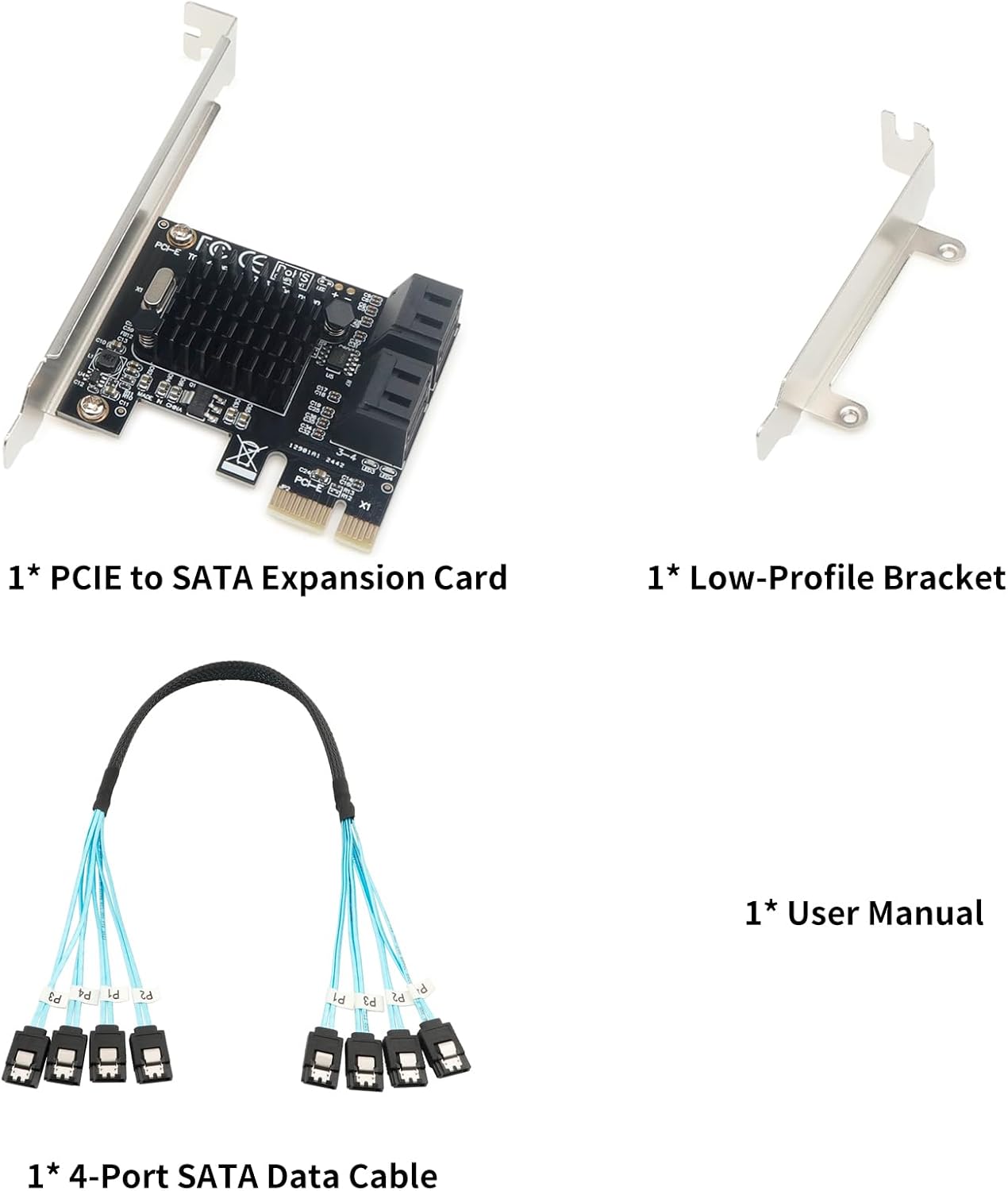
Figure 2.1: Package Contents. This image displays the Trotwei Blue Marvell 88SE9215 PCIe SATA Expansion Card, a separate low-profile bracket for smaller computer cases, and a 4-port SATA data cable with blue connectors.
3. Key Features
- 4x SATA III 6Gbps Ports: Expands storage with four high-speed SATA III ports, each supporting up to 6Gbps (400MB/s). Backward compatible with SATA II/I devices.
- Marvell 88SE9215 Chipset: Utilizes the Marvell 88SE9215 controller for reliable performance.
- Integrated Heatsink: Features an oversized aluminum heatsink and a 4-layer PCB design for efficient heat dissipation and enhanced stability during continuous operation.
- Wide Compatibility: Supports Windows XP/7/8/10, Linux, macOS, and NAS systems. Compatible with PCIe x1/x4/x8/x16 slots.
- AHCI/NCQ Support: Fully supports Advanced Host Controller Interface (AHCI) and Native Command Queuing (NCQ) for optimized performance.
- Hot-Swap Functionality: Allows for the replacement of drives without system shutdown, enhancing convenience and uptime.
- Low-Profile Bracket Included: Provides flexibility for installation in standard and compact computer cases.

Figure 3.1: Trotwei Blue Marvell 88SE9215 PCIe SATA III Expansion Card. This image shows the main component, the PCIe expansion card, alongside its standard and low-profile brackets, and the included 4-port SATA data cable. The card features a black PCB with a prominent heatsink over the Marvell chipset.
4. Setup and Installation
Before proceeding with the installation, ensure your computer is powered off and disconnected from the power source. It is recommended to wear an anti-static wrist strap to prevent electrostatic discharge (ESD) damage to components.
4.1. Physical Installation
- Open Computer Case: Carefully open your computer's case to access the motherboard and PCIe slots.
- Select PCIe Slot: Identify an available PCIe x1, x4, x8, or x16 slot on your motherboard. The card is compatible with any of these slot types.

Figure 4.1: PCIe Slot Compatibility. This diagram illustrates the various PCIe slot sizes (x1, x4, x8, x16) and indicates that the expansion card is compatible with all of them.
- Remove Slot Cover: Remove the corresponding metal slot cover from the back of your computer case.
- Install Low-Profile Bracket (Optional): If installing into a compact or small form factor case, remove the pre-installed standard bracket from the card and attach the included low-profile bracket using the provided screws.
- Insert Card: Align the PCIe SATA card with the chosen PCIe slot and gently press it down until it is firmly seated. Secure the card with a screw to the case.

Figure 4.2: Card Installation and Cable Connection. This image shows the Trotwei Blue PCIe SATA card securely installed in a motherboard's PCIe slot. Four blue SATA data cables are connected to the card's ports, leading to storage drives.
- Connect SATA Drives: Use the included 4-port SATA data cable (or your own SATA cables) to connect your SATA SSDs or HDDs to the ports on the expansion card. Ensure a secure connection for each drive.
- Close Case: Once all connections are made, close your computer case and reconnect the power source.
4.2. Driver Installation
The Marvell 88SE9215 chipset typically supports plug-and-play functionality with modern operating systems (Windows 7/8/10, Linux, macOS). In most cases, drivers will be automatically detected and installed upon system boot.
- Windows: The operating system should automatically install the necessary AHCI drivers. If drives are not detected, check Device Manager for any unknown devices or driver conflicts.
- Linux/macOS/NAS: These systems generally have built-in support for the Marvell 88SE9215 chipset. No manual driver installation is usually required.
If manual driver installation is required for specific older operating systems or custom configurations, please refer to the Marvell official website or your operating system's support documentation for the latest drivers.
5. Operating Instructions
5.1. Drive Detection and Formatting
After successful installation and system boot, your connected SATA drives should be detected by the operating system.
- New Drives: For new SSDs or HDDs, you will need to initialize, partition, and format them before they can be used. This process is typically done through Disk Management in Windows, Disk Utility in macOS, or command-line tools in Linux/NAS.
- Existing Drives: Existing drives with data should be recognized automatically. Ensure proper drive letter assignment or mounting points.
5.2. Hot-Swap Functionality
The Trotwei Blue Marvell 88SE9215 card supports hot-swapping of SATA drives. This means you can connect or disconnect drives while the system is running, without needing to power down.
- Before Disconnecting: Always safely eject or unmount the drive from your operating system before physically disconnecting it to prevent data corruption.
- Connecting Drives: When connecting a new drive, the operating system should detect it automatically. You may need to refresh Disk Management or similar utilities to see the new drive.
6. Maintenance
The Trotwei Blue Marvell 88SE9215 PCIe SATA card is designed for reliable, long-term operation with minimal maintenance.
- Dust Removal: Periodically inspect your computer's interior for dust accumulation, especially around the heatsink of the SATA card. Use compressed air to gently remove dust to ensure optimal cooling.
- Firmware Updates: While not frequently required, check the manufacturer's website for any available firmware updates for the Marvell 88SE9215 chipset. Follow the provided instructions carefully if an update is deemed necessary.
- Physical Inspection: Ensure all SATA cables and the PCIe card itself remain securely seated in their respective slots.
7. Troubleshooting
If you encounter issues with your PCIe SATA card, refer to the following troubleshooting steps:
- Card Not Detected:
- Ensure the card is fully seated in the PCIe slot.
- Try a different PCIe slot (x1, x4, x8, or x16).
- Verify that your motherboard's BIOS/UEFI settings are configured to recognize PCIe devices.
- Check Device Manager (Windows) or system information (Linux/macOS) for the card.
- Drives Not Recognized:
- Ensure SATA data cables are securely connected to both the card and the drives.
- Verify that the drives are receiving power from your power supply.
- For new drives, ensure they are initialized, partitioned, and formatted in your operating system's disk management utility.
- Test drives with direct motherboard SATA ports to rule out drive issues.
- Slow Performance:
- Ensure you are using SATA III (6Gbps) compatible drives and cables.
- Verify that AHCI mode is enabled in your system's BIOS/UEFI.
- Check for background processes or other system bottlenecks.
- Ensure the PCIe slot is operating at its full speed (e.g., not downgraded due to other PCIe devices).
- System Instability/Crashes:
- Ensure your power supply has sufficient wattage for all components, including new drives.
- Check for overheating. The integrated heatsink helps, but proper case airflow is crucial.
- Update motherboard BIOS/UEFI to the latest version.
8. Specifications
| Feature | Detail |
|---|---|
| Model Number | TZ40 |
| Brand | Trotwei Blue |
| Chipset | Marvell 88SE9215 |
| Interface | PCIe x1 (compatible with x4, x8, x16 slots) |
| SATA Ports | 4x SATA III 6Gbps |
| Data Transfer Rate | Up to 6Gbps per port |
| Compatibility | Windows XP/7/8/10, Linux, macOS, NAS |
| Features | AHCI, NCQ, Hot-Swap, Heatsink |
| Dimensions (LxWxH) | 5.1 x 5.1 x 1.1 inches (approximate) |
| Item Weight | 4.8 ounces |

Figure 8.1: Product Dimensions. This image provides a visual representation of the physical dimensions of the Trotwei Blue PCIe SATA card, indicating its length, width, and height.
9. Warranty and Support
For warranty information, technical support, or further assistance, please refer to the retailer where the product was purchased or contact Trotwei Blue customer service directly. Keep your purchase receipt as proof of purchase.