
Cozyla Mate B0F1F9XKJM
Digital Calendar 15.6'' Wall Touch Screen Instruction Manual
Brand: Cozyla Mate | Model: B0F1F9XKJM
Introduction
This manual provides comprehensive instructions for the setup, operation, and maintenance of your Cozyla Mate 15.6'' Digital Calendar. Please read this manual thoroughly before using the device to ensure proper functionality and longevity.
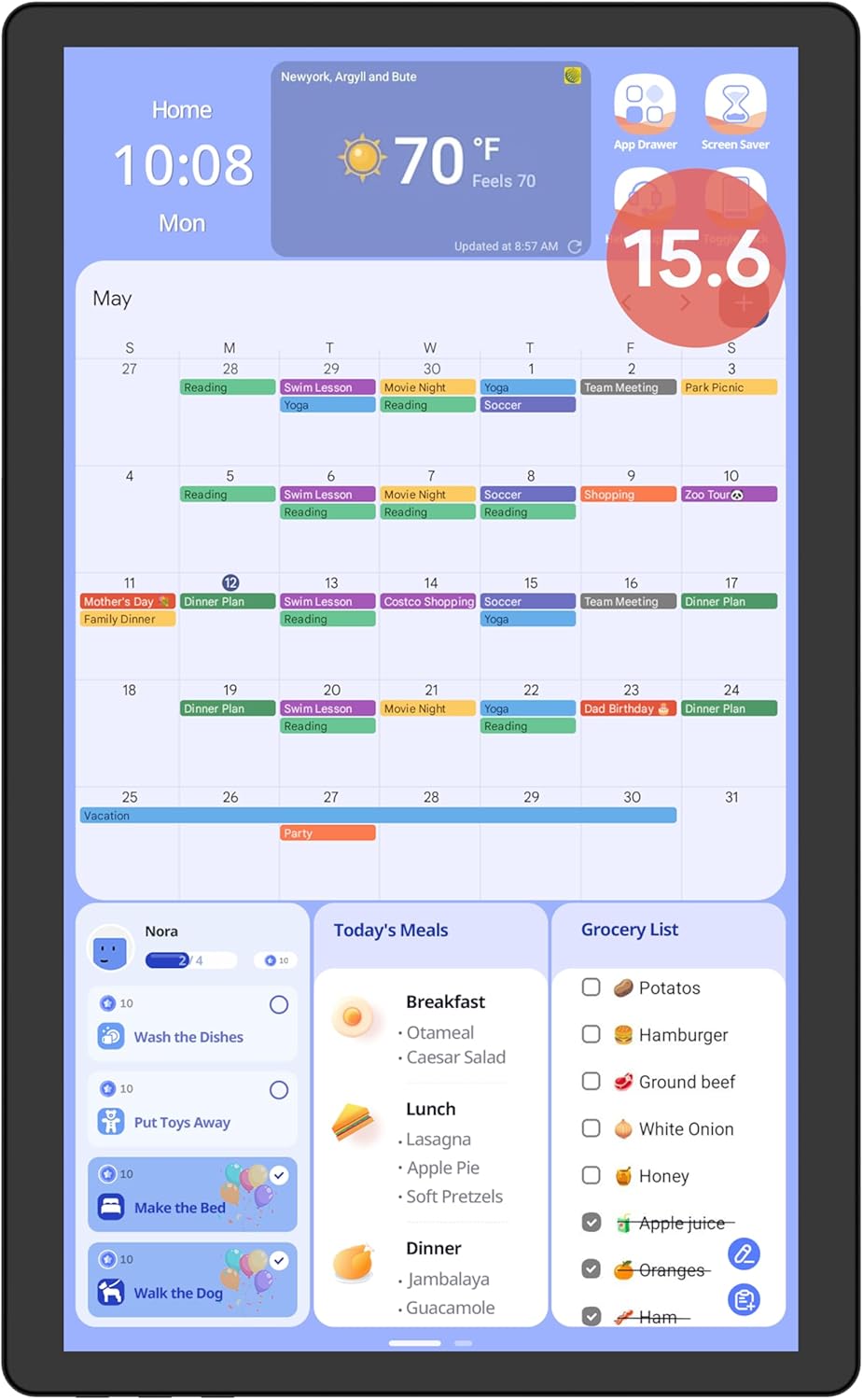
Figure 1: The Cozyla Mate Digital Calendar with its intuitive dashboard.
Setup
1. Unboxing and Initial Inspection
Carefully remove all components from the packaging. Verify that all items listed in the packing list are present and undamaged. If any items are missing or damaged, please contact customer support immediately.
2. Power Connection
Connect the provided power adapter to the DC input port on the back of the digital calendar. Plug the adapter into a standard electrical outlet. The device will automatically power on.
3. Placement Options: Stand or Wall Mount
Your Cozyla Mate Digital Calendar offers versatile placement options to suit your home environment.
- Using the Stand: The included stand provides a stable base for tabletop or countertop placement. Simply insert the calendar into the stand's slot. The stand is designed for both vertical (portrait) and horizontal (landscape) orientations.
- Wall Mounting: For a sleek, integrated look, the calendar can be mounted directly to a wall. Use the provided wall mount bracket and hardware. Ensure the mounting surface is suitable and capable of supporting the device's weight. Refer to the separate wall mounting guide for detailed instructions.
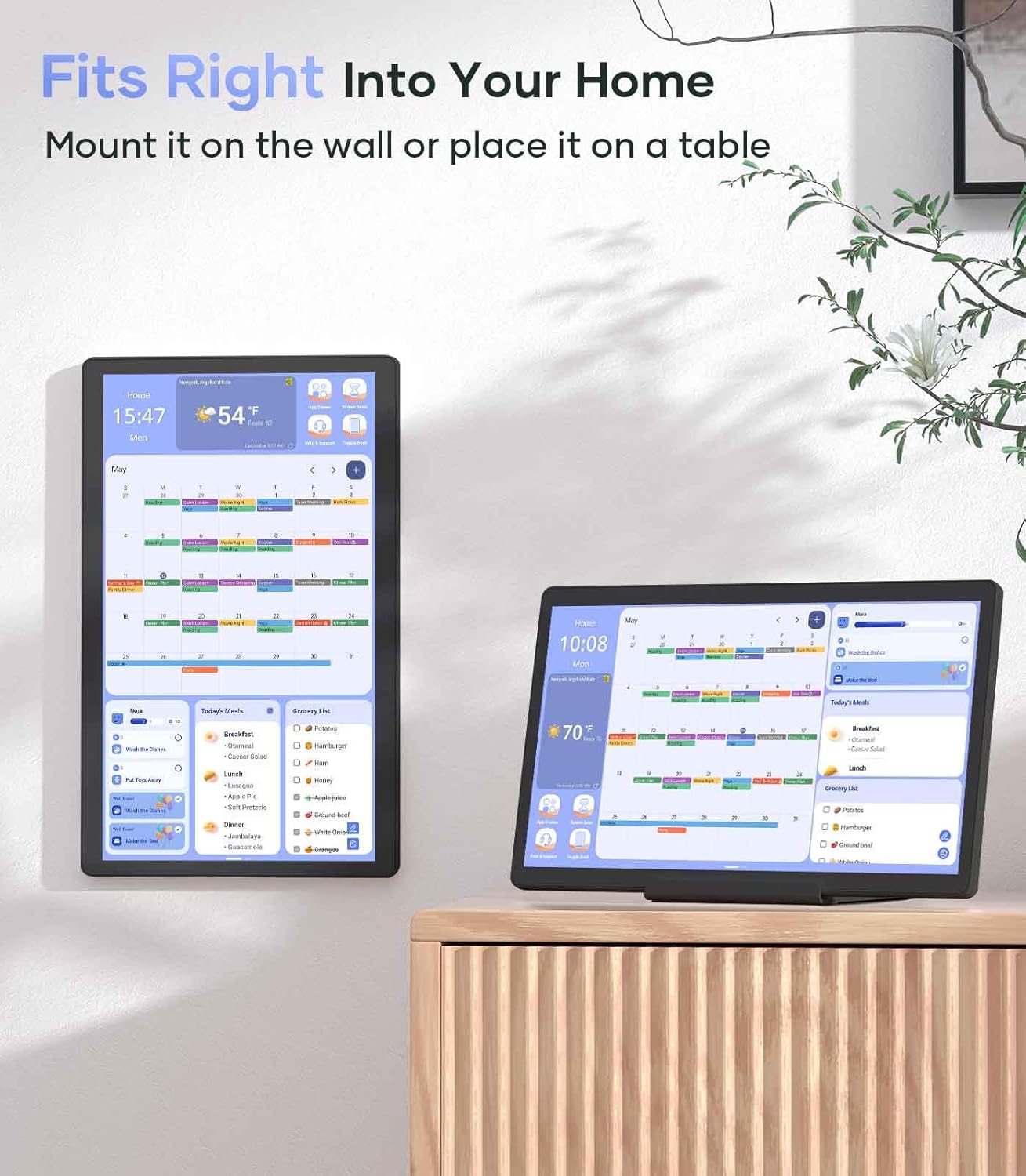
Figure 2: Flexible placement options: wall-mounted or tabletop with stand.

Figure 3: Transform your space from cluttered to organized with the digital calendar.
4. Initial Software Setup
Upon first power-on, follow the on-screen prompts to connect to your Wi-Fi network and complete the initial Android 14 setup. This includes setting your language, time zone, and logging into your Google account to access the Google Play Store.
Operating Instructions
1. Navigating the Dashboard
The Cozyla Mate Digital Calendar features a customizable dashboard. You can personalize your home screen with various widgets such as calendar, chore chart, meal planner, media, and weather. The device supports both portrait and landscape modes, and the display dynamically updates to fit the orientation.

Figure 4: Customize your dashboard by dragging and dropping widgets.
2. Customizing Widgets
To customize your dashboard, tap and hold on an empty space or an existing widget. Options will appear to edit, remove, or add new widgets. Select the desired widget and adjust its size and position as needed.
3. Accessing Google Play Apps
As an Android 14 device, the Cozyla Mate Digital Calendar supports all Google Play Apps. You can download and install your favorite applications for media, productivity, and more, turning your calendar into an all-in-one smart tablet.

Figure 5: The device functions as an all-in-one tablet, supporting various apps.
Key Features
1. Family Shared Calendar
The built-in Cozyla Calendar App facilitates easy management and sharing of schedules among family members. It seamlessly syncs with popular calendar applications such as Google Calendar, Apple Calendar, and Outlook, allowing your family to view, edit, and stay updated on all events in one centralized location.
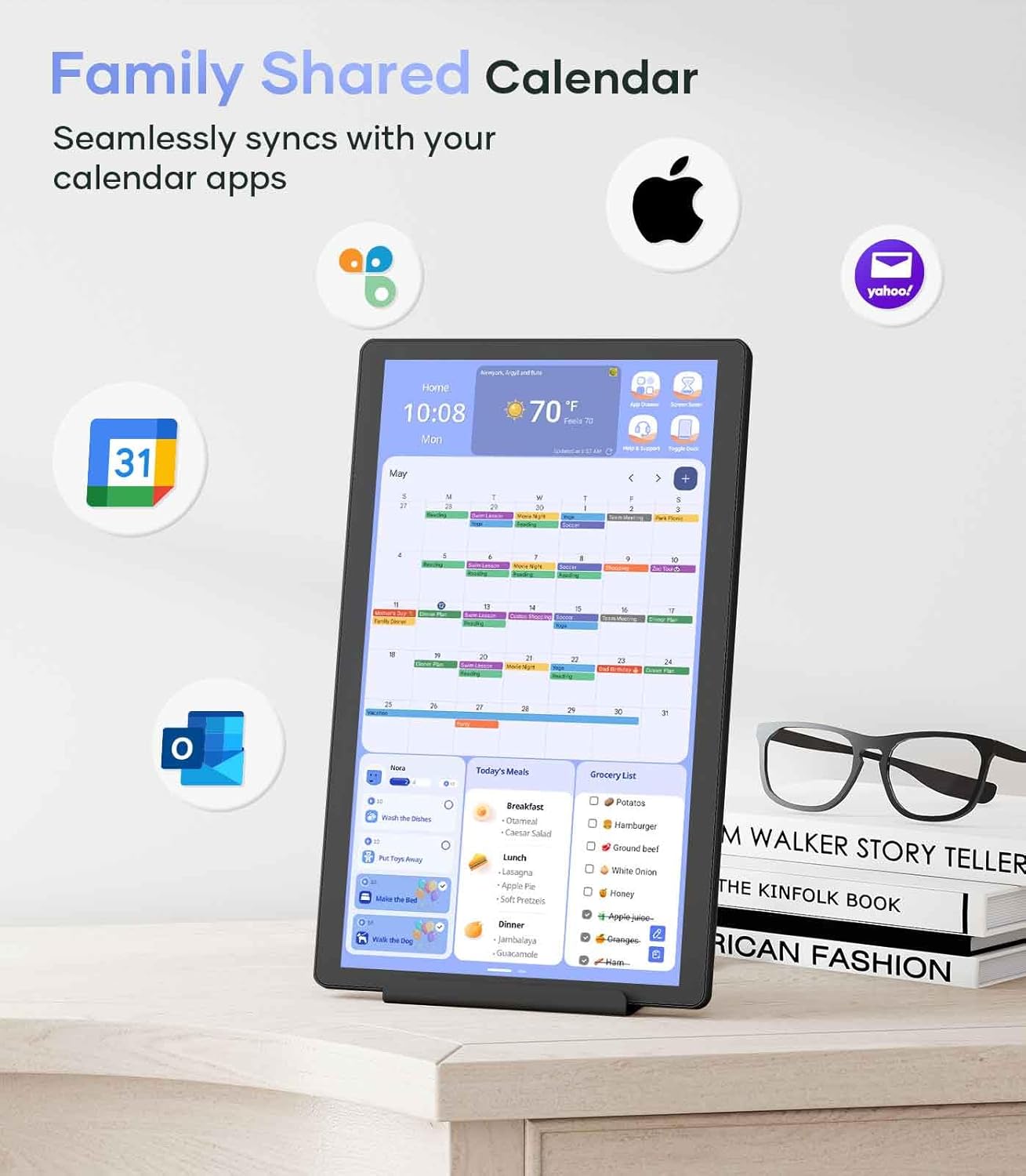
Figure 6: Seamless synchronization with your existing calendar apps.
2. Chore Chart with Reward System
Assign chores with set times and reminders to keep the entire family synchronized. The integrated reward system is designed to motivate children and foster a sense of responsibility by allowing them to earn points for completed tasks.
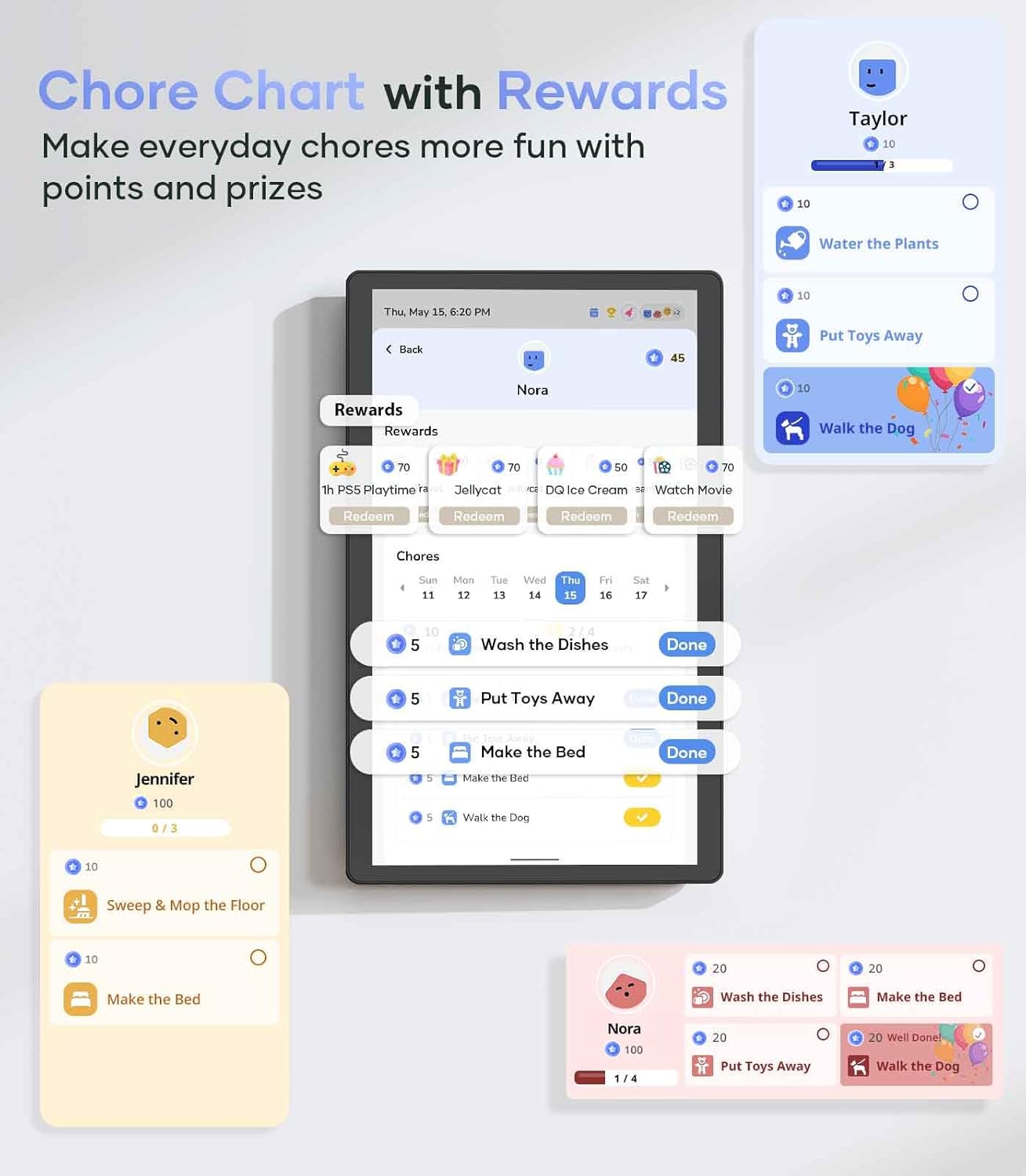
Figure 7: An example of the interactive chore chart with rewards.

Figure 8: The chore system makes responsibility fun and rewarding.
You can also create personalized chores and manage family profiles, including avatars, to make the experience tailored to your household.

Figure 9: Design personalized chores that fit your family perfectly.

Figure 10: Invite family and personalize their avatars and profiles.
3. Family Meal Planner
Plan daily or weekly meals with ease using the Cozyla Calendar. You can customize your menu, and the system can automatically generate recipes and grocery lists, reducing planning time and enhancing shared meal experiences.

Figure 11: Easily plan, prep, and share meals with the whole family.

Figure 12: Simplify family meal planning while keeping everyone informed.
The meal planner also supports step-by-step cooking instructions and can generate grocery lists with a single click.

Figure 13: Easy recipes, effortless cooking with step-by-step instructions.

Figure 14: Create your shopping list instantly from your meal plan.
4. Notes and Reminders
Utilize the notes feature to keep track of plans, thoughts, and to-do lists. This provides a single, organized place for all your important information.

Figure 15: One place for plans, thoughts, and to-dos.
Maintenance
1. Cleaning the Screen
To clean the 15.6-inch touch screen, use a soft, lint-free cloth. For stubborn smudges, slightly dampen the cloth with water or a screen-safe cleaning solution. Avoid using harsh chemicals, abrasive materials, or excessive moisture, as these can damage the screen.
2. Software Updates
Ensure your device is connected to Wi-Fi to receive automatic software updates. Regular updates provide new features, performance improvements, and security enhancements. You can check for updates manually in the device settings.
3. General Care
- Keep the device away from direct sunlight, extreme temperatures, and high humidity.
- Avoid placing heavy objects on the device.
- Do not attempt to disassemble or repair the device yourself. Refer to qualified service personnel.
Troubleshooting
| Problem | Possible Cause | Solution |
|---|---|---|
| Device does not power on. | Power adapter not connected or faulty outlet. | Ensure power adapter is securely connected. Try a different power outlet. |
| Touch screen is unresponsive. | Temporary software glitch or screen obstruction. | Restart the device. Ensure the screen is clean and free of debris. |
| Calendar not syncing. | No Wi-Fi connection or incorrect account settings. | Verify Wi-Fi connection. Check calendar app settings and ensure accounts are properly linked. |
| Apps are slow or crashing. | Too many apps running in the background or insufficient storage. | Close unused apps. Clear app caches. Consider uninstalling unnecessary applications. |
If you encounter issues not listed here or if the suggested solutions do not resolve the problem, please contact customer support.
Specifications
| Feature | Detail |
|---|---|
| Standing Screen Display Size | 15.6 Inches |
| Max Screen Resolution | 1920*1080 |
| Brand | Cozyla Mate |
| Operating System | Android 14 |
| Item Weight | 11.88 pounds |
| Product Dimensions (LxWxH) | 14.5 x 8.99 x 0.93 inches |
| Color | Black |
| Date First Available | March 14, 2025 |
Warranty & Support
Customer Service
Customer satisfaction is our top priority. We provide 24-hour customer service. If you encounter any issues with your Cozyla Mate Digital Calendar, please contact us in time for a solution. Refer to your purchase documentation for specific warranty details and contact information.
Ask a question about this manual
Ask about setup, troubleshooting, compatibility, parts, safety, or missing instructions. Manuals+ will review the question and use this page’s manual context to help answer it.