
Driauto B0F1D56SLS
Driauto 7 Inch HD Touch Screen Car Radio User Manual
Model: B0F1D56SLS
Introduction
This manual provides comprehensive instructions for the installation, operation, and maintenance of your Driauto 7 Inch HD Touch Screen Car Radio. This single DIN car stereo features a 7-inch HD display, integrated Apple CarPlay and Android Auto, Bluetooth 5.0, FM radio, and support for a backup camera. It also includes USB and Type-C ports for media playback and device charging. Please read this manual thoroughly before use to ensure proper functionality and safety.
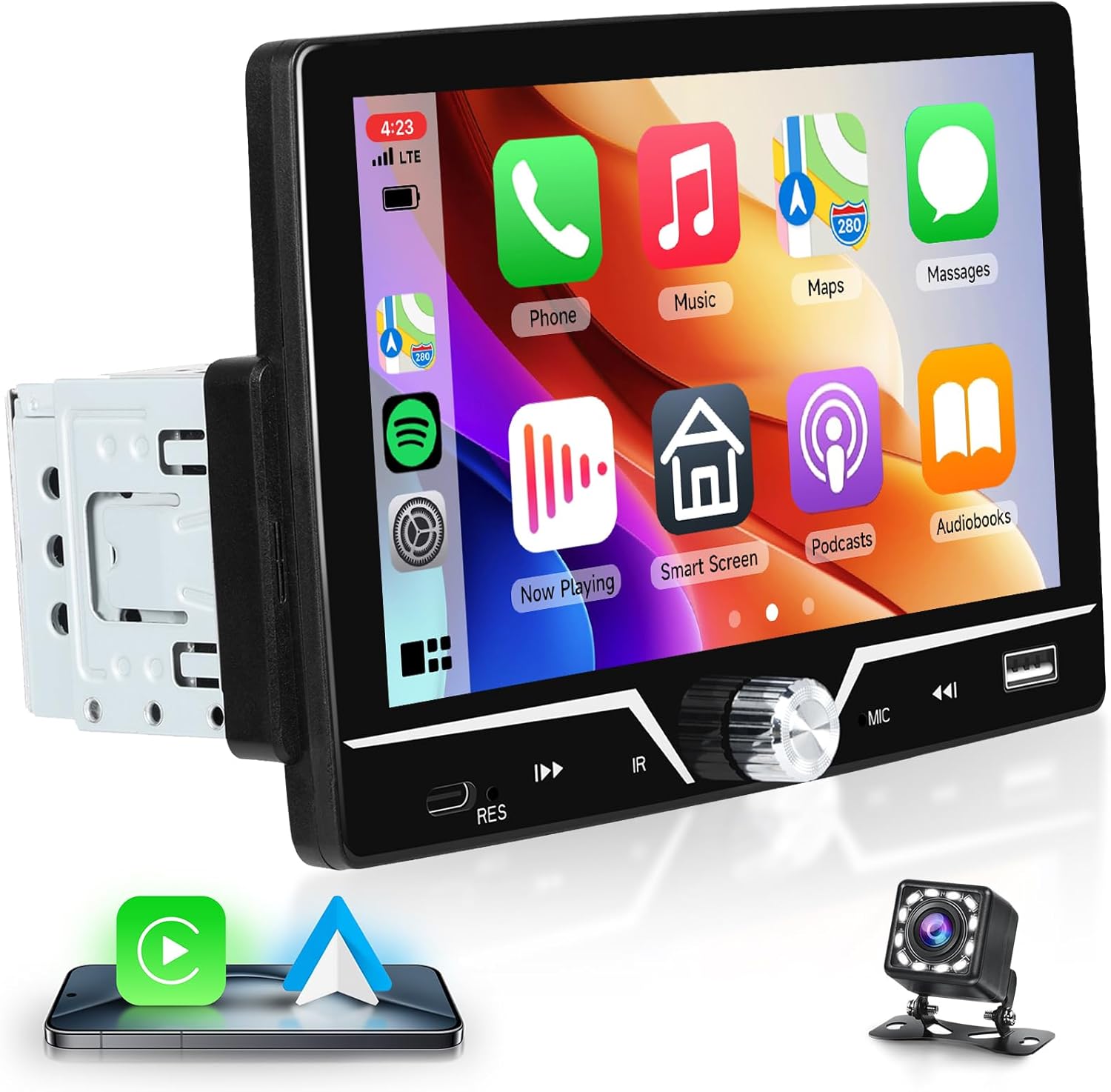
Image: Front view of the Driauto 7-inch HD touch screen car radio, displaying a CarPlay interface with various app icons. A backup camera and phone icons are shown below the unit.
Setup
1. Package Contents
Before installation, verify that all components are present in the package:
- Driauto 7 Inch Car Stereo Unit
- Power Cable
- Horn Cable
- User Manual (this document)
- Mounting Bracket
- Backup Camera
- Microphone
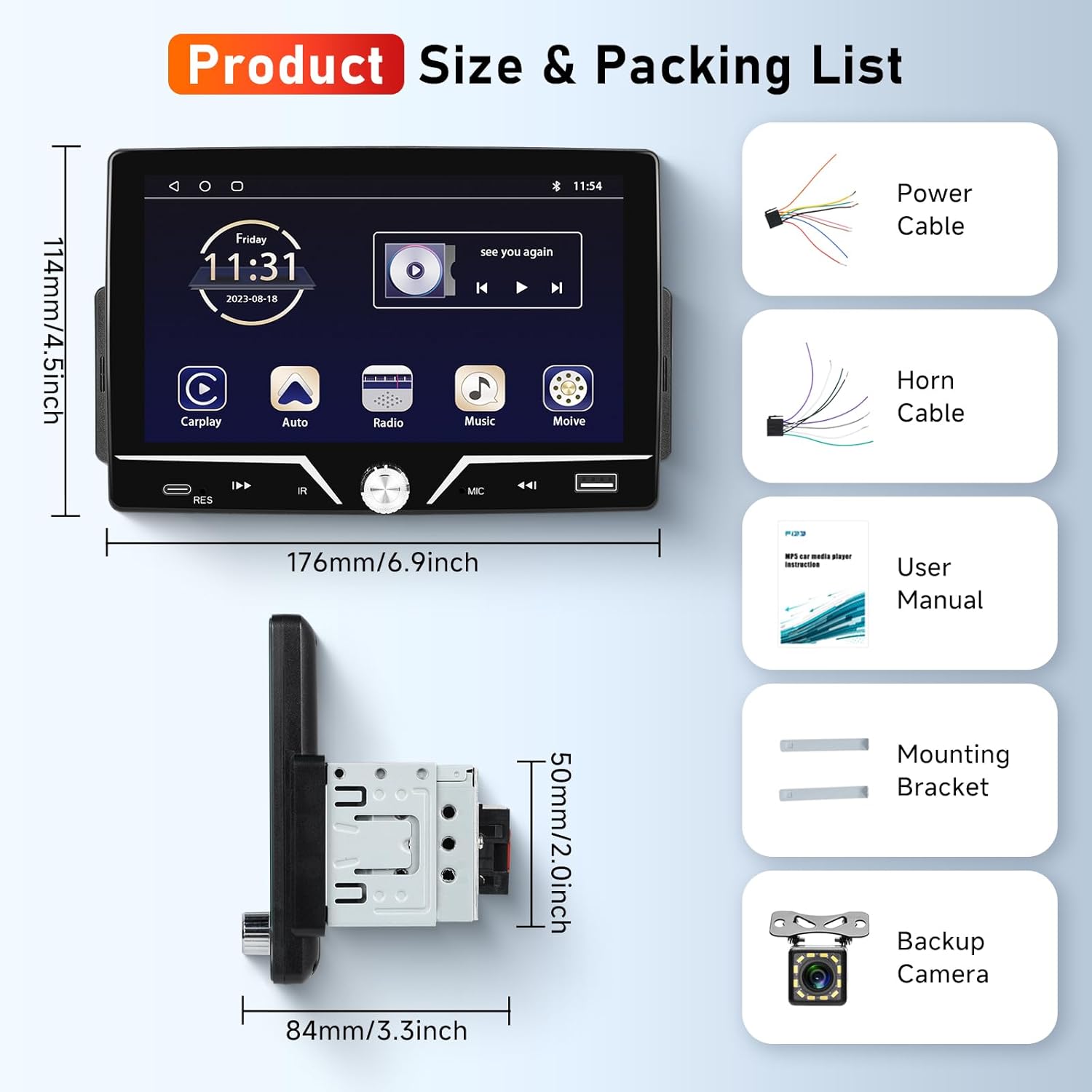
Image: Diagram showing the dimensions of the car stereo unit (17.6cm width, 11.4cm height, 8.4cm depth for the single DIN chassis) and a list of included accessories: Power Cable, Horn Cable, User Manual, Mounting Bracket, and Backup Camera.
2. Installation Guidelines
The installation size for this unit is 178mm x 50mm (7.0 inches x 2.0 inches), suitable for most 1 DIN car models. Professional installation is recommended. Ensure the vehicle's power is disconnected before beginning installation.
- Wiring Connections: Connect the power cable, horn cable, RCA cables, and antenna cable according to your vehicle's wiring diagram.
- Backup Camera: Connect the provided waterproof backup camera for rear view functionality. Ensure the camera's power is correctly wired to the reverse light circuit for automatic activation.
- Steering Wheel Control (SWC): If your vehicle supports OEM steering wheel controls, connect the SWC wires to enable control of songs, volume, and calls directly from your steering wheel.

Image: A diagram illustrating the rear wiring connections of the car stereo, including Power Cable, Horn Cable, RCA Cable, and ANT (antenna) port. Also shown are USB and Type-C charging ports and a display of the seven-color backlight options.
Operating Instructions
1. Basic Functions
- Power On/Off: Press the power button to turn the unit on or off.
- Volume Control: Use the physical volume knob or on-screen controls to adjust the audio level.
- Touch Screen: The 7-inch HD touch screen (1024x600 resolution) allows for intuitive control of all functions.
- Seven-Color Backlight: Customize the button backlight color through the system settings.
2. Apple CarPlay & Android Auto
Connect your smartphone via a USB cable to enable Apple CarPlay or Android Auto. This allows access to phone functions such as navigation, music, calls, messages, and notifications directly on the car stereo display.
- Connect your iPhone or Android phone to the USB port using its original USB cable.
- The system will automatically detect and launch CarPlay or Android Auto.
- Utilize voice commands for hands-free operation.

Image: An in-car view of the stereo displaying a CarPlay interface, with a smartphone connected via a USB cable, illustrating the wired connection for CarPlay, Android Auto, and Mirror Link functionality.
3. Mirror Link
The unit supports Mirror Link for both iOS and Android devices. Connect your phone via its original USB cable to synchronize your phone's screen content (maps, videos, music) to the car stereo display.
4. Bluetooth Functionality
The stereo features Bluetooth 5.0 for wireless connectivity.
- Pairing: Go to the Bluetooth settings on the stereo and your mobile phone. Search for available devices and select the car stereo to pair.
- Hands-free Calling: Make and receive calls directly through the stereo. The included microphone ensures clear audio.
- Bluetooth Music: Stream audio from your paired device to the car stereo.

Image: A multi-panel display showing the Bluetooth 5.0 interface for calls and music, the FM radio tuner with frequency display and station presets, and a Digital Sound Processor (DSP) interface for EQ adjustments.
5. FM Radio
Access local radio stations with the built-in FM tuner.
- Automatic Search: Use the auto-scan function to find and store available FM stations.
- Presets: Store up to 18 of your favorite stations for quick access.
6. Media Playback
The unit supports various media formats via USB and Type-C inputs.
- USB/Type-C: Connect high-capacity U disks to play music or videos. These ports also support mobile phone charging.
- Supported Video Formats: RM, RMVB, AVI, MP4, MKV, 3GP.

Image: A display demonstrating HD video playback on the car stereo screen, highlighting the TN-TP screen type and 1024x600 resolution.
7. EQ Settings
Customize your audio experience with the integrated equalizer.
- Multiple Equalization Modes: Choose from preset EQ modes (e.g., Rock, Pop, Classical, Live, Flat).
- Adjustable Sound: Fine-tune high and low frequencies for optimal sound quality.
- Bass Enhancement: Enhance bass output for a richer audio experience.
8. Backup Camera Functionality
When the vehicle is shifted into reverse, the screen will automatically display the rear view from the connected backup camera, aiding in safe parking and maneuvering.
- The camera is waterproof and provides a wide-angle view.
- Features include HD resolution and night vision capabilities.
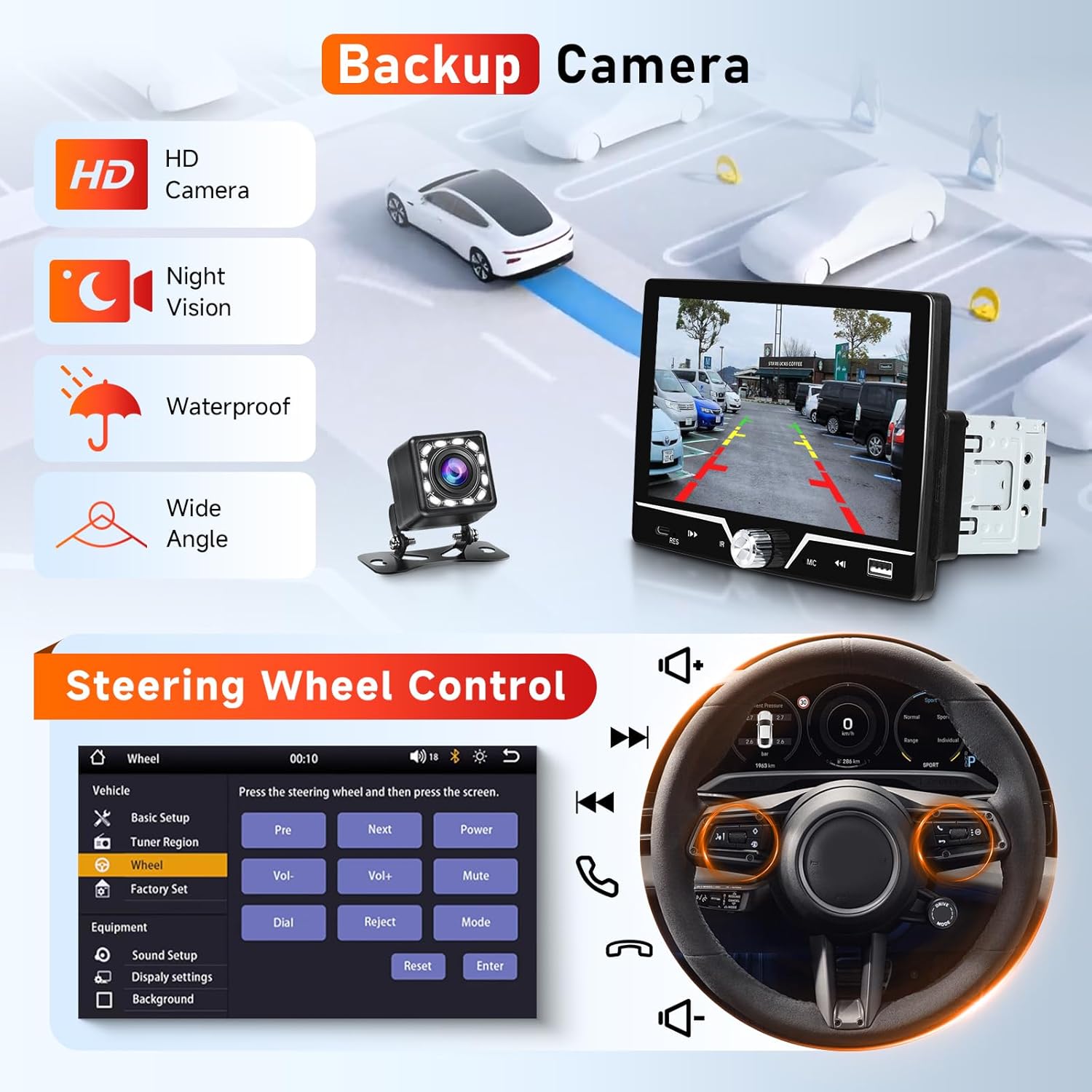
Image: A split image showing the backup camera view on the car stereo screen with a car reversing, and a separate panel detailing the steering wheel control setup interface, allowing users to map vehicle controls to stereo functions.
9. Steering Wheel Control
If connected, the original steering wheel controls can be used to manage various functions of the car stereo, enhancing driving safety.
- Easily switch songs, adjust volume, and answer/end calls without taking your hands off the steering wheel.
- Refer to the installation section for wiring details.
Maintenance
To ensure the longevity and optimal performance of your Driauto car stereo, follow these maintenance guidelines:
- Cleaning: Use a soft, dry cloth to clean the screen and exterior. Avoid abrasive cleaners or solvents that may damage the surface.
- Temperature: Avoid exposing the unit to extreme temperatures, direct sunlight for prolonged periods, or high humidity.
- Connections: Periodically check all wiring connections to ensure they are secure and free from corrosion.
- Software Updates: Check the manufacturer's website for any available software or firmware updates to improve performance and add new features.
Troubleshooting
If you encounter issues with your car stereo, refer to the following common problems and solutions:
| Problem | Possible Cause | Solution |
|---|---|---|
| No power/Unit does not turn on | Incorrect wiring; Blown fuse; Vehicle power issue | Check power cable connections; Inspect vehicle fuses; Consult a professional installer. |
| No sound | Volume too low; Speaker wires disconnected; Incorrect audio source selected | Increase volume; Check speaker wiring; Select correct audio input (FM, Bluetooth, USB). |
| CarPlay/Android Auto not connecting | Faulty USB cable; Phone not compatible; USB port issue | Use original, high-quality USB cable; Ensure phone OS is up-to-date; Try a different USB port if available. |
| Backup camera not displaying | Camera wiring incorrect; Reverse trigger wire not connected | Verify camera power and video signal connections; Ensure reverse trigger wire is connected to the vehicle's reverse light circuit. |
| Bluetooth pairing issues | Device not in pairing mode; Interference; Already paired to another device | Ensure both devices are in pairing mode; Move closer to the unit; Disconnect from other Bluetooth devices. |
| Screen dimming unexpectedly | Day/night mode settings; Wiring issue (e.g., illumination wire) | Check display settings for automatic dimming; Verify illumination wire connection. |
If the problem persists after attempting these solutions, please contact Driauto customer support.
Specifications
- Display: 7-inch HD Touch Screen (1024x600 resolution)
- Connectivity: Bluetooth 5.0, USB, Type-C
- Features: Apple CarPlay, Android Auto, Mirror Link, FM Radio, EQ Settings, Backup Camera Support, Steering Wheel Control (SWC)
- Audio Output Mode: Stereo
- Surround Sound Channel Configuration: 2.1
- Output Power: 180 Watts
- Supported Video Encoding: RM, RMVB, AVI, MP4, MKV, 3GP
- Installation Size: 178mm x 50mm (Single DIN)
- Item Weight: 1.76 pounds
- Package Dimensions: 11.22 x 6.18 x 4.76 inches
- Manufacturer: Driauto
- ASIN: B0F1D56SLS
Warranty and Support
Driauto is committed to product quality and customer satisfaction.
- Replacement Policy: This product includes a 2-year replacement policy from the date of purchase.
- Technical Support: Driauto provides lifetime technical support for this product.
For warranty claims, technical assistance, or any inquiries, please contact Driauto customer service through the official website or your purchase platform.
no relevant documents