
INPHIC IN10P
INPHIC IN10P Superlight Wireless Gaming Mouse User Manual
Model: IN10P | Brand: INPHIC
Introduction
This manual provides comprehensive instructions for the INPHIC IN10P Superlight Wireless Gaming Mouse. Learn about its features, setup, operation, maintenance, and troubleshooting to optimize your gaming and work experience.
What's in the Box
- IN10P Gaming Mouse x1
- 8K Nano USB Receiver x1
- Receiver Extension Adapter x1
- 1.8m Type-C Braided Paracord Cable x1
- User Manual x1
- Anti-slip Mouse Grip Tape x1 set
Setup
Initial Charging
Before first use, connect the mouse to a USB power source using the provided Type-C braided paracord cable. The mouse features a 400mAh high-efficiency battery, providing up to 120 hours of continuous use on a full charge. The RGB indicator system will provide charging status.
Connectivity Modes
The INPHIC IN10P supports three connectivity modes: 2.4G Wireless, Bluetooth 5.0, and Type-C Wired. Use the switch on the bottom of the mouse to select your desired mode.

Figure 1: Triple Mode Connectivity. The INPHIC IN10P mouse offers seamless switching between 2.4G Wireless, Bluetooth 5.0, and Type-C wired connections for versatile use across various devices.
2.4G Wireless Connection
- Locate the 8K Nano USB receiver stored in the compartment on the bottom of the mouse.
- Insert the USB receiver into an available USB port on your PC or laptop. For optimal signal, use the included receiver extension adapter.
- Switch the mode selector on the bottom of the mouse to "2.4G".
- The mouse will automatically connect.
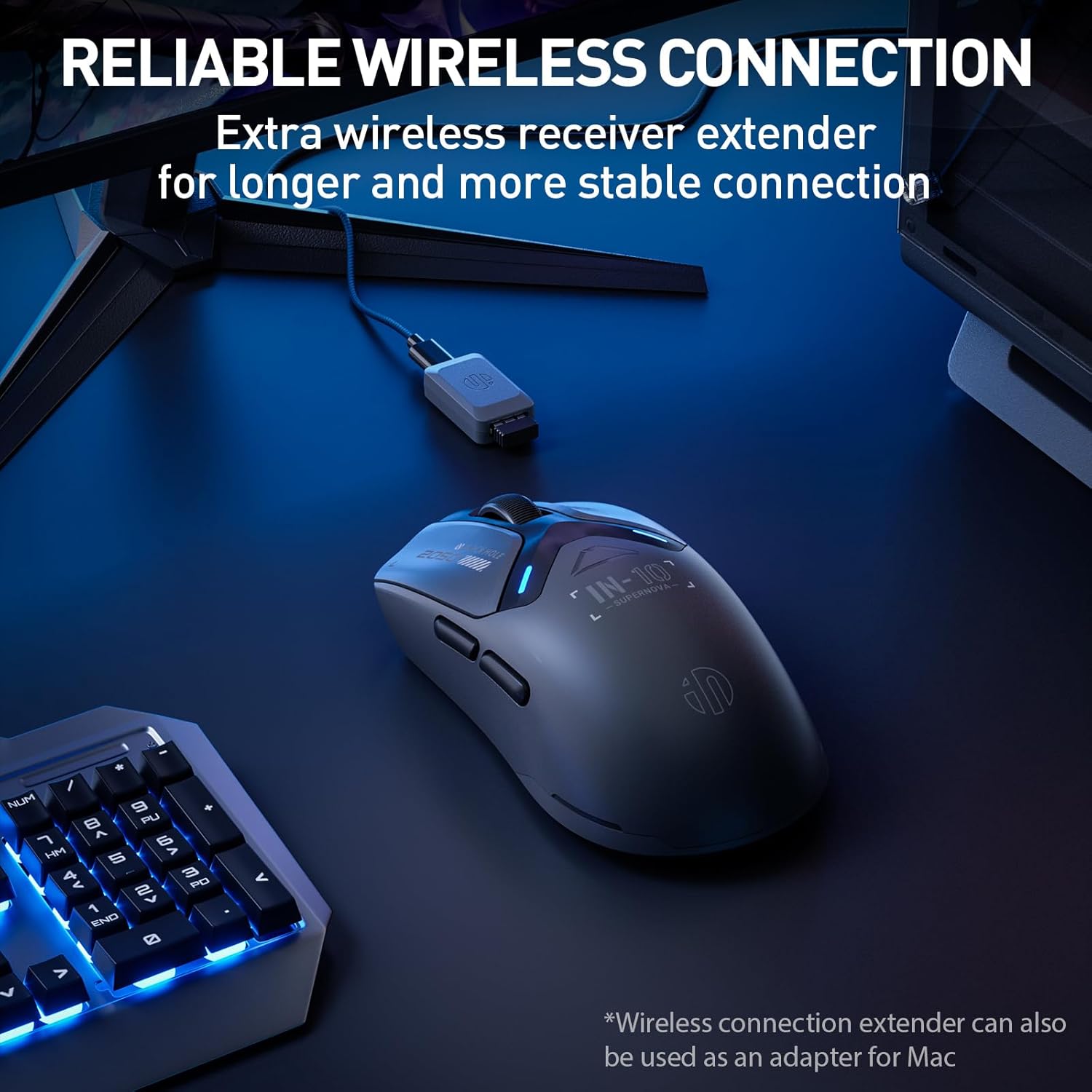
Figure 2: Reliable Wireless Connection. The mouse utilizes a 2.4G wireless connection with an included receiver extender for enhanced stability and range.
Bluetooth Connection
- Switch the mode selector on the bottom of the mouse to "BT".
- On your device (PC, laptop, tablet), go to Bluetooth settings and enable Bluetooth.
- Search for new devices and select "INPHIC IN10P" when it appears.
- Follow any on-screen prompts to complete pairing.
Type-C Wired Connection
- Connect the provided Type-C braided paracord cable to the front port of the mouse.
- Connect the other end of the cable to an available USB port on your device.
- The mouse will automatically switch to wired mode and begin charging.
Operating the Mouse
DPI Adjustment
The INPHIC IN10P features 6 adjustable DPI levels, ranging from 800 to 26,000 DPI, powered by the PixArt PAW3395 sensor. The DPI can be adjusted using the dedicated DPI/PAIR button on the bottom of the mouse or through the driver software. The built-in RGB indicator changes color to reflect the current DPI setting.

Figure 3: Pro-Grade Inner Core. The mouse is equipped with the PixArt PAW3395 sensor, offering high precision and responsiveness.
Polling Rate
Experience super-smooth tracking with up to an 8000Hz polling rate in 2.4G wireless mode. This high polling rate ensures minimal latency and razor-sharp accuracy, crucial for competitive gaming.

Figure 4: 8K Hz Wireless Polling. This feature provides an exceptionally smooth and precise tracking experience.
Programmable Buttons and Software
The IN10P features 5 programmable buttons. Utilize the INPHIC driver software to customize button functions, adjust DPI levels, manage RGB lighting modes, and configure macros. The software allows for full customization to suit your preferences.

Figure 5: INPHIC InCloud Macro Software. Customize your mouse settings, including button assignments, DPI, and lighting effects, for a personalized experience.
Battery and RGB Indicators
The mouse is powered by a 400mAh battery. The built-in RGB indicator system serves as both a low-power warning and a customizable DPI color indicator, providing intuitive visual feedback.

Figure 6: 400mAh Powerful Battery. The mouse is designed for extended use, offering over 100 hours of usage on a single charge.
Maintenance
- Cleaning: Use a soft, dry cloth to wipe the mouse surface. For stubborn dirt, a slightly damp cloth can be used, but ensure no moisture enters the internal components. Avoid harsh chemicals.
- Battery Care: To prolong battery life, avoid fully discharging the mouse frequently. Charge it when the low-power indicator activates. If storing for an extended period, charge it to about 50% and store in a cool, dry place.
- Mouse Feet: The mouse comes with zero-additive PTFE feet for smooth gliding. If the feet wear out, use the included anti-slip mouse grip tape or replacement feet for optimal performance.
Troubleshooting
Connectivity Issues
- Mouse not responding: Ensure the mouse is charged. Check the mode switch on the bottom (2.4G, BT, OFF).
- 2.4G Wireless not connecting: Ensure the USB receiver is securely plugged in. Try a different USB port. Ensure the mouse is set to 2.4G mode.
- Bluetooth not pairing: Ensure Bluetooth is enabled on your device and the mouse is in BT pairing mode. Remove previous pairings and try re-pairing.
- Lag or disconnections: Ensure the receiver is not obstructed. Use the receiver extension adapter to bring the receiver closer to the mouse. Reduce interference from other wireless devices.
Tracking Issues
- Erratic cursor movement: Clean the mouse sensor on the bottom. Ensure you are using the mouse on a suitable surface (e.g., a mouse pad).
- DPI not changing: Press the DPI button on the bottom of the mouse. If using software, ensure it is running and settings are applied.
Software and Customization
- Software not detecting mouse: Ensure the mouse is connected via 2.4G wireless or wired mode. Restart the software and/or your computer.
- Custom settings not saving: Ensure the software is running with administrator privileges.
Specifications
| Feature | Detail |
|---|---|
| Model | IN10P |
| Connectivity | Bluetooth 5.0, 2.4G Wireless, USB-C Wired |
| Sensor | PixArt PAW3395 Optical Sensor |
| DPI Range | 800 - 26,000 DPI (6 levels) |
| Polling Rate | Up to 8000Hz (2.4G Wireless) |
| IPS Speed | 650 IPS |
| Acceleration | 50G |
| Weight | 60g (approx. 2.05 ounces) |
| Buttons | 5 Programmable Buttons, 100 Million Click Switches |
| Battery | 400mAh (up to 120 hours continuous use) |
| Dimensions | 4.8 x 2.44 x 0.04 inches |
| Compatibility | Windows, macOS, Linux |
Warranty and Support
INPHIC products are designed for reliability and performance. For warranty information and technical support, please refer to the official INPHIC website or contact their customer service directly.
Manufacturer: Inphic
Seller: Inphic Electronics Co., Ltd.
Support Email: support@inphic.cn
Official Website: www.inphic.com
Ask a question about this manual
Ask about setup, troubleshooting, compatibility, parts, safety, or missing instructions. Manuals+ will review the question and use this page’s manual context to help answer it.