
hawkray cams QC6
Hawkray 360° Dual Lens Smart Security Camera User Manual
Model: QC6
1. Introduction
Thank you for choosing the Hawkray 360° Dual Lens Smart Security Camera. This manual provides essential information for setting up, operating, and maintaining your camera. Please read it thoroughly before use to ensure proper functionality and safety.
This camera is designed for indoor security, offering advanced features such as 2K HD resolution, dual-lens display, color night vision, motion detection, and two-way audio communication. It supports both 2.4G and 5G dual-band WiFi for stable connectivity.
2. Product Overview
2.1 Package Contents
- Hawkray 360° Dual Lens Smart Security Camera (Model: QC6)
- Power Adapter (Corded Electric)
- User Manual (this document)
2.2 Camera Features
- 2K 3MP High Resolution: Delivers clear and detailed video.
- Dual Lens & Dual Screens Display: One lens for fixed monitoring, the other for PTZ (Pan-Tilt-Zoom) monitoring.
- Wide Angle View: Both lenses feature 2.8mm for a wider field of view.
- Motion Detection & Auto Tracking: Intelligent human/pet motion detection with real-time alerts and automatic tracking.
- Color Night Vision: Provides clear, colorful images even in low-light conditions using built-in infrared and LED white lights.
- Two-Way Audio: Built-in high-quality speakers and microphones for communication.
- Flexible Storage: Supports cloud storage (1-day history included) and Micro SD card (up to 128GB, not included).
- PTZ Functionality: Rotates 355° horizontally and 90° vertically for comprehensive coverage.
- Dual-Band WiFi: Compatible with 2.4G and 5G WiFi networks.
- Multi-User Viewing: Supports simultaneous viewing by multiple users.
2.3 Product Diagram
Below are images illustrating the camera's design and key features.

Figure 2.3.1: Front view of the Hawkray 360 Dual Lens Smart Security Camera, showcasing its dome form factor and dual lens design.

Figure 2.3.2: Illustration of the camera's 2K 3MP resolution and PTZ capabilities, showing 355 degrees horizontal and 90 degrees vertical rotation, alongside a mobile app interface.

Figure 2.3.3: Depiction of the dual-lens functionality, allowing monitoring of two distinct areas simultaneously, with a Picture-in-Picture (PIP) live view.

Figure 2.3.4: An overview of the camera's key features, including WiFi connectivity, TF card support, 355° pan/tilt, voice intercom, mobile phone quick configuration, cloud storage, motion detection, and enhanced night vision.
3. Setup Guide
3.1 Initial Setup
- Unpack the Camera: Carefully remove the camera and all accessories from the packaging.
- Power On: Connect the provided power adapter to the camera's power port and plug it into a standard electrical outlet. The camera will power on and initiate its self-test.
- Download the App: Search for the "Hawkray Camera" app (or the app specified in the camera's packaging/QR code) on your smartphone's app store (iOS or Android) and install it.
- Register/Log In: Open the app and follow the on-screen instructions to register a new account or log in if you already have one.
3.2 Connecting to Wi-Fi
- Add Device: In the app, tap the "+" icon or "Add Device" to begin the pairing process.
- Select Camera Type: Choose the appropriate camera type, typically "Smart Camera" or "Wireless Camera".
- Network Configuration:
- Ensure your smartphone is connected to the 2.4GHz or 5GHz Wi-Fi network you intend to use for the camera.
- Enter your Wi-Fi network password when prompted by the app.
- Scan QR Code: The app will generate a QR code. Hold your smartphone screen approximately 15-20 cm (6-8 inches) in front of the camera lens until you hear a confirmation sound from the camera, indicating successful scanning.
- Connection Confirmation: The camera will attempt to connect to your Wi-Fi network. Once connected, the app will confirm the successful addition of the device.
- Name Your Camera: Assign a name to your camera (e.g., "Living Room Camera", "Baby's Room") for easy identification.
3.3 Micro SD Card Installation (Optional)
To enable local video storage, install a Micro SD card (up to 128GB, not included).
- Locate the Micro SD card slot on the camera (refer to the product diagram if available).
- Gently insert the Micro SD card into the slot with the gold contacts facing down until it clicks into place.
- In the app, navigate to the camera settings and format the Micro SD card for optimal performance.
4. Operating Instructions
4.1 Live View and PTZ Control
Access the live video feed and control the camera's movement through the Hawkray app.

Figure 4.1.1: Screenshot of the Hawkray mobile application interface, showing live view, tracking camera, panorama camera, and control options like motion detection, siren, white light, and PTZ.
- Open the Hawkray app and select your camera from the device list.
- The main screen will display the live video feed.
- Use the on-screen joystick or directional arrows to pan (horizontal 355°) and tilt (vertical 90°) the camera.
- Switch between the fixed panorama view and the tracking view for comprehensive monitoring.
4.2 Motion Detection and Alerts
The camera can detect motion and send alerts to your smartphone.
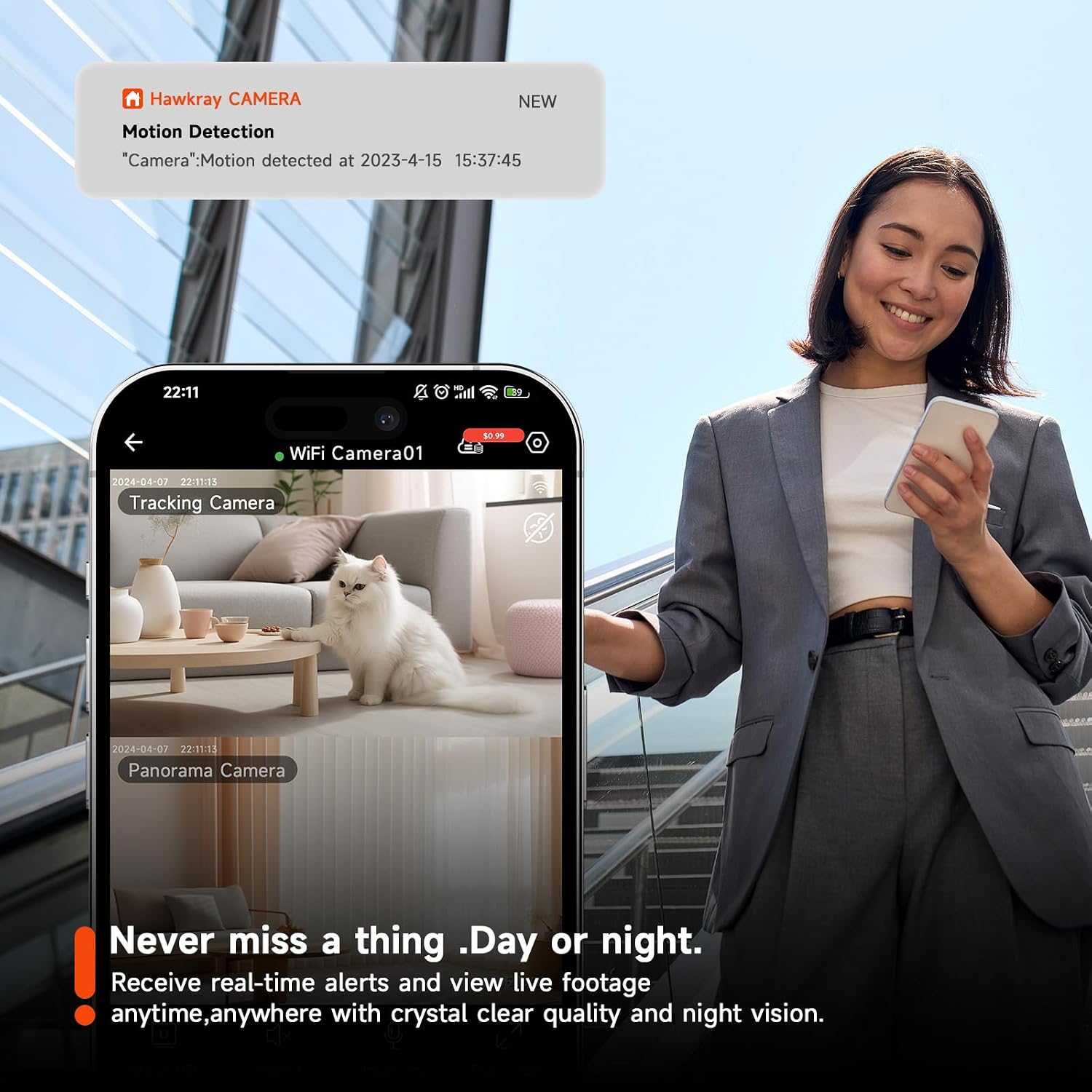
Figure 4.2.1: Example of a motion detection notification received on a smartphone, indicating an event captured by the Hawkray camera.
- Go to camera settings in the app.
- Enable "Motion Detection" and adjust sensitivity levels as needed.
- Configure alert notifications to receive real-time pushes to your phone.
- The camera will automatically track detected motion if "Auto Tracking" is enabled.
4.3 Two-Way Audio Communication
Use the two-way audio feature to communicate with individuals near the camera.

Figure 4.3.1: Illustration of the camera's two-way talk and night vision capabilities, showing a scenario where the camera is used to monitor children.
- While in live view, tap the microphone icon to speak through the camera's speaker.
- Tap the speaker icon to listen to audio from the camera's microphone.
4.4 Night Vision
The camera automatically switches to night vision mode in low-light conditions.
- The camera utilizes built-in infrared lights and LED white lights to provide clear images in the dark.
- Color night vision is available, offering more detail than traditional black and white night vision.
4.5 Recording and Storage
- Cloud Storage: The camera supports cloud storage for video history. Check app settings for subscription options and included free trial periods (e.g., 1 day of video history).
- Micro SD Card Storage: If an SD card is installed and formatted, the camera will record continuously or based on motion detection settings to the card.
- Playback: Access recorded footage via the "Playback" or "History" section in the app.
5. Maintenance
- Cleaning: Use a soft, dry cloth to clean the camera lens and body. Do not use liquid cleaners or aerosols.
- Firmware Updates: Regularly check the app for firmware updates. Keeping the camera's firmware up-to-date ensures optimal performance and security.
- Power Cycle: If the camera experiences issues, try unplugging it from the power source for 10 seconds and then plugging it back in.
- SD Card Management: Periodically check the status of your Micro SD card in the app. If the card becomes full, older footage may be overwritten, or recording may stop if loop recording is not enabled.
6. Troubleshooting
| Problem | Possible Cause | Solution |
|---|---|---|
| Camera fails to connect to Wi-Fi. | Incorrect Wi-Fi password; camera too far from router; 5GHz network selected but camera only supports 2.4GHz (or vice versa); network interference. |
|
| No live video feed. | Camera offline; poor network connection; app issue. |
|
| Motion detection alerts are not received. | Motion detection disabled; app notifications turned off; incorrect sensitivity settings. |
|
| SD card not recording or recognized. | SD card not inserted correctly; card not formatted; card faulty or full; unsupported card size. |
|
| Two-way audio quality is poor. | Network latency; microphone/speaker obstruction. |
|
7. Specifications
| Feature | Detail |
|---|---|
| Model Name | QC6 |
| Brand | hawkray cams |
| Indoor/Outdoor Usage | Indoor |
| Video Capture Resolution | 2K (3MP) |
| Connectivity Technology | APP, Wi-Fi (2.4G/5G Dual-Band) |
| Power Source | Corded Electric |
| PTZ Field of View | 355° Horizontal, 90° Vertical |
| Night Vision Range | 10 Meters (Color Night Vision) |
| Storage Options | Cloud Storage, Micro SD Card (Max 128GB) |
| Audio | 2-Way Audio (Built-in Speaker & Microphone) |
| Motion Detection | Yes, with Auto Tracking and Intelligent Alert Notification |
| Dimensions (L x W x H) | 3.1 x 3.1 x 4.7 inches |
| Item Weight | 11.7 ounces |
| UPC | 797457553295 |
8. Warranty and Support
Hawkray is committed to providing excellent customer service and offers a lifetime warranty for this product.
If you have any questions, require assistance with product setup, operation, or troubleshooting, please do not hesitate to contact our customer support team. For the most up-to-date contact information, please refer to the Hawkray app or the official Hawkray website.
Ask a question about this manual
Ask about setup, troubleshooting, compatibility, parts, safety, or missing instructions. Manuals+ will review the question and use this page’s manual context to help answer it.