
1. Introduction
This manual provides essential instructions for the proper installation, operation, and maintenance of your Generic TM104QDSG09 10.4-inch LCD Display Screen. Please read this manual thoroughly before using the product to ensure safe and efficient operation.
The TM104QDSG09 is a 10.4-inch LCD display designed for various applications requiring a reliable and clear visual interface. It features a glossy screen finish and supports a maximum display resolution of 640x480.
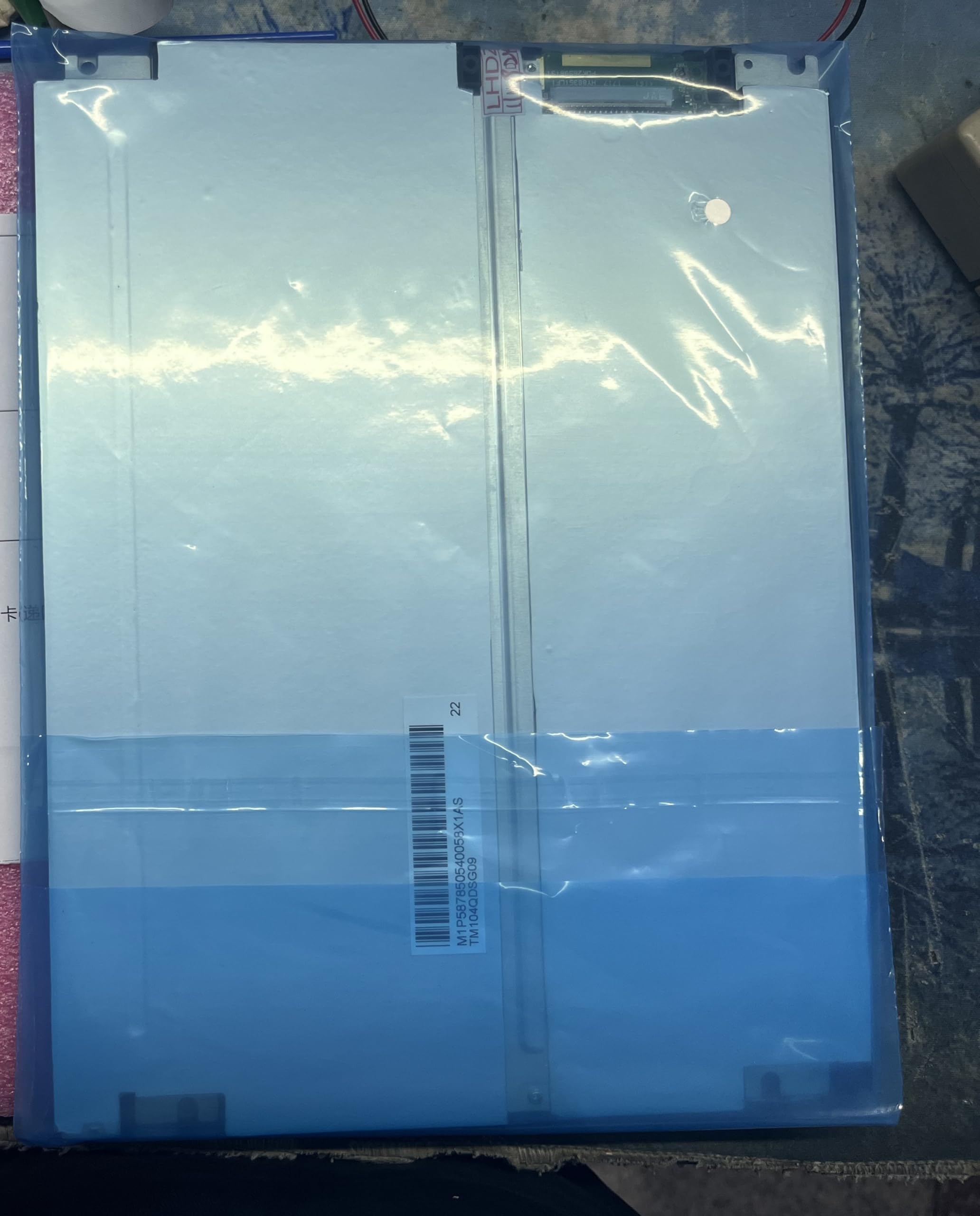
Figure 1: Generic TM104QDSG09 10.4-inch LCD Display Screen. This image shows the front view of the display unit, highlighting its compact design and screen area.
2. Safety Information
Observe the following safety precautions to prevent damage to the display and ensure user safety:
- Power Source: Use only the specified power adapter and ensure the power supply voltage matches the display's requirements.
- Ventilation: Do not block ventilation openings. Ensure adequate airflow around the display to prevent overheating.
- Liquid Exposure: Keep the display away from liquids. Do not expose it to rain or moisture.
- Cleaning: Disconnect power before cleaning. Use a soft, dry cloth. Avoid abrasive cleaners.
- Placement: Place the display on a stable, flat surface. Avoid areas with high humidity, extreme temperatures, or direct sunlight.
- Servicing: Do not attempt to service the display yourself. Refer all servicing to qualified personnel.
3. Package Contents
Please check the package contents upon receipt. If any items are missing or damaged, contact your supplier immediately.
- Generic TM104QDSG09 10.4-inch LCD Display Screen
- Power Adapter (if included with purchase)
- Video Cable (if included with purchase, e.g., VGA, HDMI)
- User Manual (this document)
4. Setup
4.1 Connecting the Display
- Positioning: Place the display on a stable, flat surface or mount it securely using compatible mounting hardware (not included).
- Video Connection: Connect the appropriate video cable (e.g., VGA, HDMI) from your source device (computer, media player) to the corresponding input port on the TM104QDSG09 display. Ensure the connection is secure.
- Power Connection: Connect the power adapter to the display's power input port, then plug the power adapter into a suitable electrical outlet.
4.2 Initial Power On
- Press the power button on the display. The power indicator light should illuminate.
- Turn on your source device. The display should automatically detect the input signal and show the image.
- If no image appears, refer to the Troubleshooting section.
5. Operating the Display
5.1 Power On/Off
To turn the display on or off, press the power button located on the display panel. The power indicator will show the current status.
5.2 Basic Display Adjustments
The TM104QDSG09 typically includes buttons for basic adjustments. These may include:
- Brightness: Adjusts the overall luminance of the screen.
- Contrast: Adjusts the difference between the lightest and darkest areas of the screen.
- Input Select: If multiple video inputs are available, this button allows you to switch between them.
Refer to the on-screen display (OSD) menu, if available, for more advanced settings. Navigation through the OSD is usually done via dedicated menu buttons.
6. Maintenance
6.1 Cleaning the Display
- Always disconnect the power cord before cleaning.
- Use a soft, lint-free cloth slightly dampened with water or a non-abrasive, ammonia-free, and alcohol-free glass cleaner.
- Do not spray cleaner directly onto the screen. Apply it to the cloth first.
- Avoid pressing hard on the screen surface.
6.2 Storage
When not in use for extended periods, store the display in a cool, dry place, away from direct sunlight and extreme temperatures. It is recommended to use the original packaging for protection during storage or transport.
7. Troubleshooting
| Problem | Possible Cause | Solution |
|---|---|---|
| No image on screen |
|
|
| Flickering or unstable image |
|
|
| Display does not power on |
|
|
8. Specifications
| Model Number | TM104QDSG09 |
| Screen Size | 10.4 inches |
| Maximum Display Resolution | 640x480 |
| Aspect Ratio | 1.27:1 |
| Screen Finish | Glossy |
| Refresh Rate | 60 Hz |
| Product Dimensions (D x W x H) | 30 x 10 x 20 cm (11.8 x 3.9 x 7.9 inches) |
| Country of Origin | China |
9. Warranty and Support
9.1 Warranty Information
This Generic TM104QDSG09 LCD Display Screen comes with a brand new one-year warranty from the date of purchase. This warranty covers manufacturing defects under normal use. It does not cover damage caused by misuse, accidents, unauthorized modifications, or improper installation.
9.2 Technical Support
For technical assistance or warranty claims, please contact the manufacturer directly:
- Manufacturer Contact: 008613922285218
Please have your product model number (TM104QDSG09) and purchase details ready when contacting support.