1. Introduction
This manual provides detailed instructions for the installation, operation, and maintenance of your ANKEWAY XBH-8802 Car Radio, specifically designed for Alfa Romeo Mito models manufactured between 2008 and 2012. This unit integrates advanced features such as wireless CarPlay and Android Auto, an Android operating system, GPS navigation, and a reversing camera to enhance your driving experience.
2. Package Contents
Before installation, please verify that all items listed below are present in your package:
- 1 x ANKEWAY XBH-8802 Car Radio Unit
- 1 x CANbus Decoder
- 2 x Power Cables
- 1 x Radio Antenna
- 2 x Camera Cables (Camera cable 1, Camera cable 2)
- 1 x AHD Reversing Camera
- 1 x Microphone
- 1 x GPS Antenna
- 1 x RCA Cable
- 1 x USB Cable
- 1 x Panel Removal Tool

Image 2.1: Overview of all components included in the ANKEWAY XBH-8802 car radio package. This image displays the main head unit, CANbus decoder, various power and signal cables, the reversing camera, microphone, GPS antenna, and a panel removal tool.
3. Setup and Installation
The ANKEWAY XBH-8802 car radio is specifically designed for the Alfa Romeo Mito (2008-2012) and integrates seamlessly with the vehicle's original configuration. No additional frames or accessories are typically required for installation beyond what is provided.
3.1 Pre-Installation Check
- Ensure the vehicle's ignition is off and the battery is disconnected before starting installation.
- Verify all package contents are present and undamaged.
3.2 Removing the Original Radio
Carefully use the provided panel removal tool to detach the trim surrounding the original car radio. Once the trim is removed, unscrew and pull out the existing radio unit.
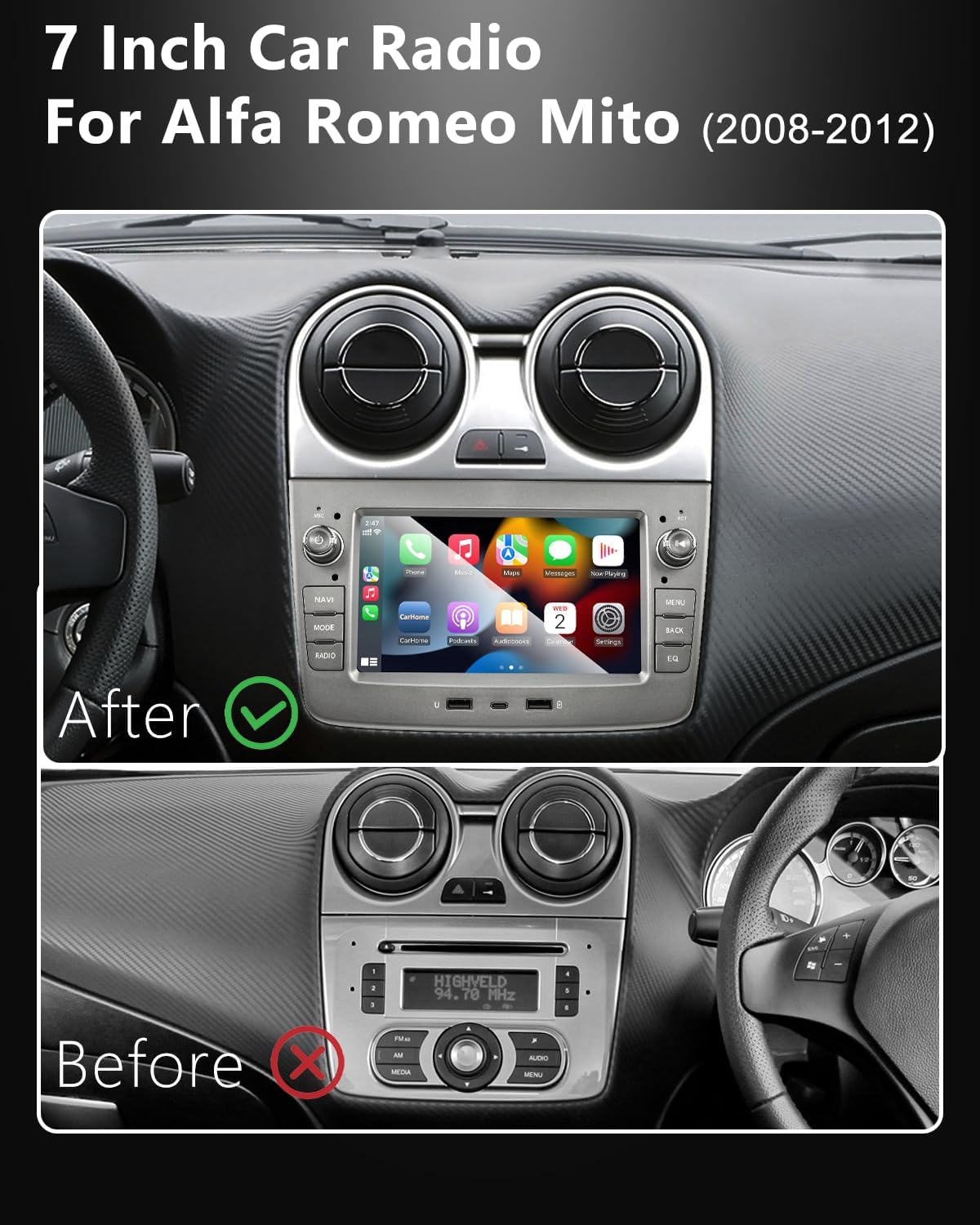
Image 3.1: Comparison showing the original car radio (Before) and the ANKEWAY XBH-8802 unit installed (After) in an Alfa Romeo Mito dashboard, highlighting the integrated fit.
3.3 Connecting the Wiring Harness
The included cables are pre-grouped for easy connection. Simply connect the provided power cables, radio antenna, and other accessory cables to the corresponding ports in your vehicle's wiring harness. The CANbus adapter is crucial for maintaining original steering wheel control functions and protocol compatibility; ensure it is correctly connected.
- Connect the main power harness.
- Connect the CANbus adapter to ensure steering wheel controls function correctly.
- Attach the radio antenna.
- Connect the GPS antenna and route it to a suitable location for optimal signal reception.
- Connect the external microphone and position it for clear voice capture.
3.4 Reversing Camera Installation
Install the AHD reversing camera at the rear of your vehicle. Connect the camera cable to the car radio unit and ensure the camera's power cable is connected to the reverse light circuit for automatic activation when reversing.
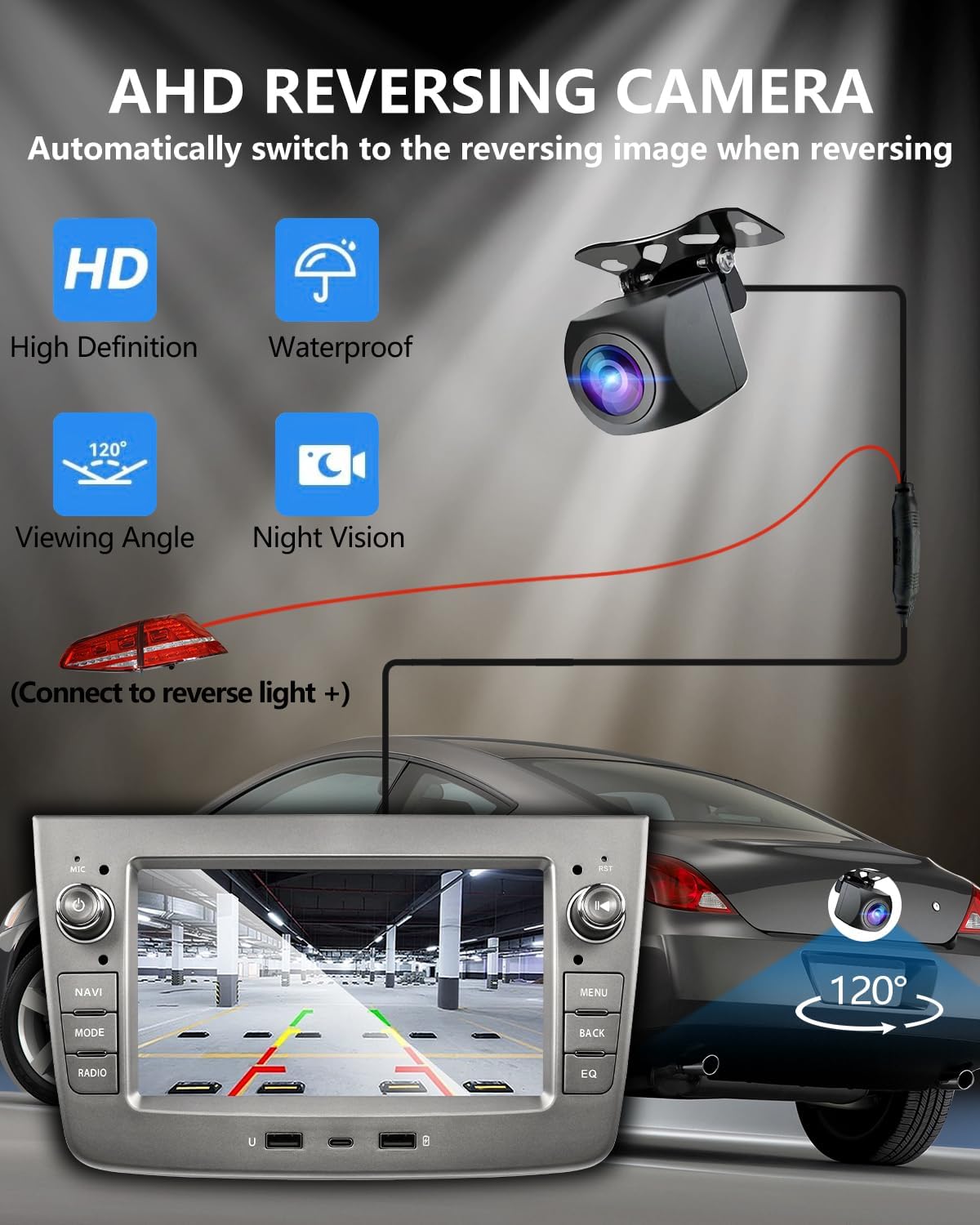
Image 3.2: Illustration of the AHD reversing camera installation, detailing its connection to the car radio and the vehicle's reverse light for automatic display activation.
3.5 Final Assembly
Once all connections are secure, carefully slide the new car radio into the dashboard opening and secure it with screws. Reattach the trim panel. Reconnect the vehicle's battery.
4. Operating Instructions
4.1 Powering On and Initial Setup
Turn on your vehicle's ignition. The car radio will power on automatically. Follow the on-screen prompts for initial setup, including language selection and time zone settings.
4.2 CarPlay and Android Auto (Wireless/Wired)
The unit supports both wireless and wired CarPlay for iOS devices and Android Auto for Android devices. This allows seamless integration of your smartphone's apps, navigation, and voice assistant features directly on the car radio display.
- Wireless Connection: Enable Bluetooth and Wi-Fi on your smartphone. On the car radio, navigate to the CarPlay/Android Auto application and follow the pairing instructions.
- Wired Connection: Connect your smartphone to one of the USB ports on the car radio using a compatible USB cable. The system should automatically detect and launch CarPlay or Android Auto.
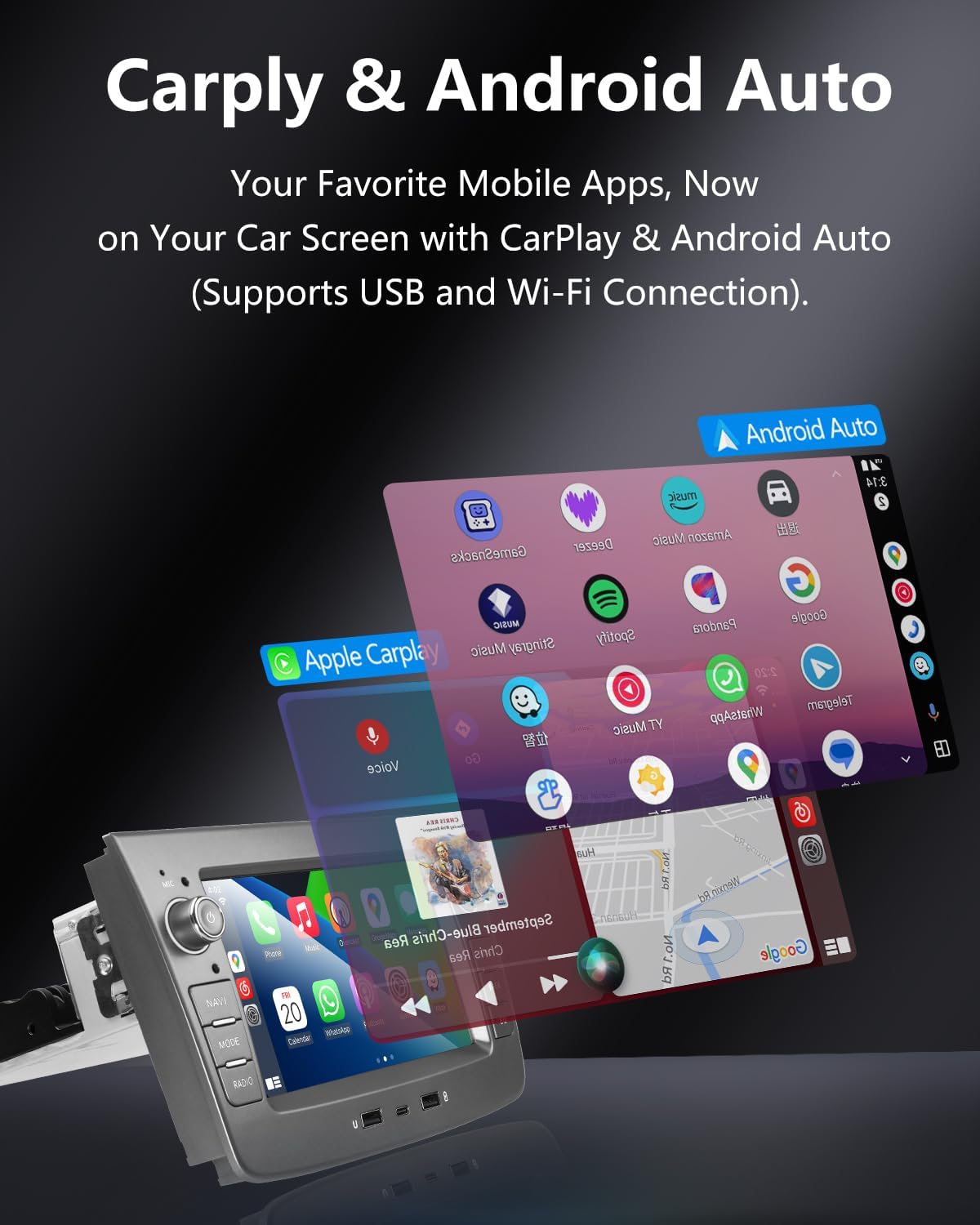
Image 4.1: Visual representation of Apple CarPlay and Android Auto running simultaneously, showcasing mobile app integration on the car radio display.
4.3 Android System and App Store
The car radio operates on an Android system, allowing you to connect to the internet via Wi-Fi and install various applications from the integrated App Store. It also supports a split-screen function for viewing two applications simultaneously.
- Wi-Fi Connection: Access the Wi-Fi settings in the Android system menu to connect to a mobile hotspot or available Wi-Fi network.
- App Installation: Use the pre-installed App Store to download and install compatible applications.
- Split Screen: Activate the split-screen feature from the recent apps menu to run two applications side-by-side.
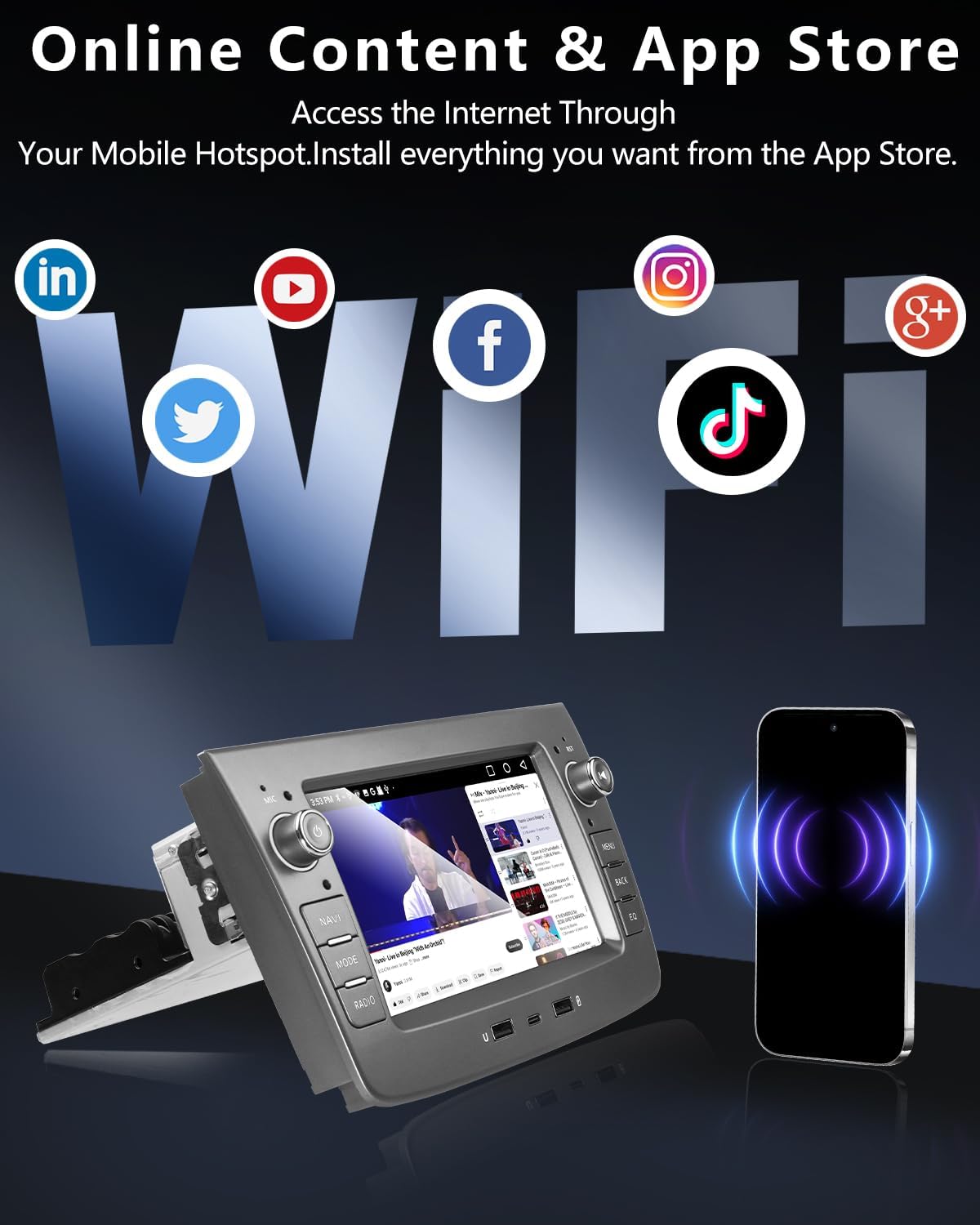
Image 4.2: The car radio display showing access to online content and various applications, enabled by Wi-Fi connectivity.
4.4 GPS Navigation and Voice Control
The unit supports GPS navigation with offline map capabilities. Utilize voice control features (e.g., "Hey Google" or "Hey Siri" via CarPlay/Android Auto) for hands-free navigation and command execution.

Image 4.3: The car radio displaying a navigation map with voice command prompts, illustrating the GPS and voice control functionality.
4.5 FM RDS Radio
Access the FM radio function to tune into your favorite stations. The radio supports RDS (Radio Data System) for displaying station information. Adjust sound settings using the DSP function and equalizer for optimal audio quality.
4.6 Steering Wheel Control
Thanks to the integrated CANbus adapter, the car radio maintains compatibility with your vehicle's original steering wheel controls. This allows you to manage audio playback, volume, and other functions without taking your hands off the wheel.

Image 4.4: Top panel shows the FM/RDS radio interface. Bottom panel illustrates the integration with steering wheel controls for convenient operation.
4.7 Reversing Camera Display
When the vehicle is shifted into reverse gear, the car radio will automatically display the feed from the high-definition AHD reversing camera. This feature includes night vision capabilities to assist with parking and maneuvering in low-light conditions.
4.8 USB Ports
The control panel features multiple USB ports (2 x USB-A, 1 x USB-C) for connecting external devices. These ports can be used for charging smartphones, playing media from USB flash drives, or connecting wired CarPlay/Android Auto devices.
5. Maintenance
To ensure the longevity and optimal performance of your ANKEWAY XBH-8802 car radio, follow these general maintenance guidelines:
- Cleaning the Screen: Use a soft, lint-free cloth to gently wipe the display screen. For stubborn smudges, slightly dampen the cloth with water or a screen-safe cleaner. Avoid abrasive materials or harsh chemicals.
- Software Updates: Regularly check for system updates. Updates often include performance improvements, bug fixes, and new features. Refer to the Support section for information on obtaining firmware updates.
- Environmental Conditions: Avoid exposing the unit to extreme temperatures, direct sunlight for prolonged periods, or excessive moisture.
6. Troubleshooting
This section addresses common issues you might encounter. If you experience problems not covered here, please contact customer support.
| Problem | Possible Cause | Solution |
|---|---|---|
| Unit does not power on. | Incorrect wiring; Blown fuse; Vehicle battery disconnected. | Check power cable connections. Inspect vehicle fuses. Ensure battery is connected. |
| No sound output. | Volume too low; Mute activated; Speaker wiring issue. | Increase volume. Check if mute is active. Verify speaker connections. |
| CarPlay/Android Auto not connecting. | Bluetooth/Wi-Fi off on phone; Incorrect USB cable; App not launched. | Ensure phone's Bluetooth/Wi-Fi is on. Use a certified USB cable. Launch CarPlay/Android Auto app on the head unit. |
| Steering wheel controls not working. | CANbus adapter not connected or faulty. | Verify CANbus adapter connection. Contact support if issue persists. |
| Reversing camera not displaying. | Camera cable loose; Power not connected to reverse light; Camera faulty. | Check camera cable connections. Ensure power is correctly wired to reverse light. |
7. Specifications
| Feature | Detail |
|---|---|
| Brand | ANKEWAY |
| Model | XBH-8802 |
| Compatible Vehicles | Alfa Romeo Mito (2008-2012) |
| Operating System | Android |
| Connectivity | USB, Wi-Fi, Bluetooth |
| Special Features | Wireless CarPlay, Android Auto, FM RDS Radio, Reversing Camera Support, CANbus Adapter, Multiple USB Ports, System Updates |
| Audio Output Mode | Stereo, Surround |
| Speaker Surround Sound Channel Configuration | 5.1 |
| Video Encoding | H.264, H.265/HEVC, MPEG-4 |
| USB Ports | 2 x USB-A, 1 x USB-C |
| Dimensions (Package) | 29.5 x 21 x 13 cm |
| Weight (Package) | 1.6 kg |
8. Support and Warranty
8.1 System Updates
Our development team regularly releases firmware updates to optimize the system experience. For the latest firmware upgrade package and instructions, please contact ANKEWAY customer support.
8.2 Customer Service
For technical assistance, warranty claims, or any other inquiries, please contact ANKEWAY customer support through the retailer where the product was purchased or visit the official ANKEWAY website for contact information.


