
Introduction
Welcome to the user manual for your new DRATSZTECH 7" IPS Touch Screen Portable Carplay Screen for Motorcycle. This manual provides detailed instructions on how to set up, operate, maintain, and troubleshoot your device. Please read this manual thoroughly before using the product to ensure proper functionality and safety.
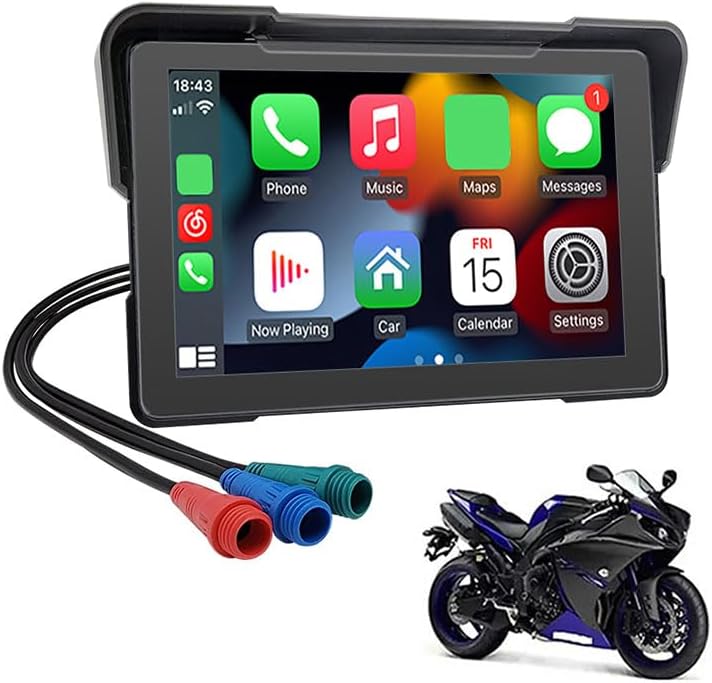
Image: The DRATSZTECH 7-inch IPS Touch Screen Portable Carplay Screen for Motorcycle, shown with its connecting cables and a motorcycle in the background.
Product Overview
The DRATSZTECH 7" IPS Touch Screen Portable Carplay Screen is designed to enhance your motorcycle riding experience by integrating smartphone functionalities directly onto your dashboard. It offers wireless CarPlay and Android Auto, dual Bluetooth connectivity, and a clear 7-inch IPS display, all within an IPX7 waterproof design.
Key Features
- Wireless CarPlay/Wireless Android Auto: Seamlessly connect your smartphone via Bluetooth for navigation, calls, and music.
- Built-in Dual Channel Bluetooth: Connect your phone for CarPlay/Android Auto and simultaneously pair your Bluetooth helmet or earphones for hands-free communication.
- 7 Inch Touch Screen: A large 1024*600 resolution display provides a comfortable and clear visual experience.
- IPX7 Waterproof: Designed to withstand various weather conditions, ensuring reliable performance even in rain.
- Fits Most Motorcycles: Comes with bracket kits for easy installation on 99% of motorcycles.
What's in the Box
Verify that all components are present in the package before proceeding with installation.
- Player
- Accessory Kit (includes mounting brackets, power cables, etc.)

Image: A visual representation of all items included in the product package, such as the main display unit, mounting hardware, and various cables.
Setup
Mounting the Device
Use the provided bracket kits to securely mount the 7-inch display unit onto your motorcycle's handlebars or a suitable flat surface. Ensure the mounting position does not obstruct your view or interfere with the motorcycle's controls. Tighten all screws firmly to prevent vibration and movement during rides.
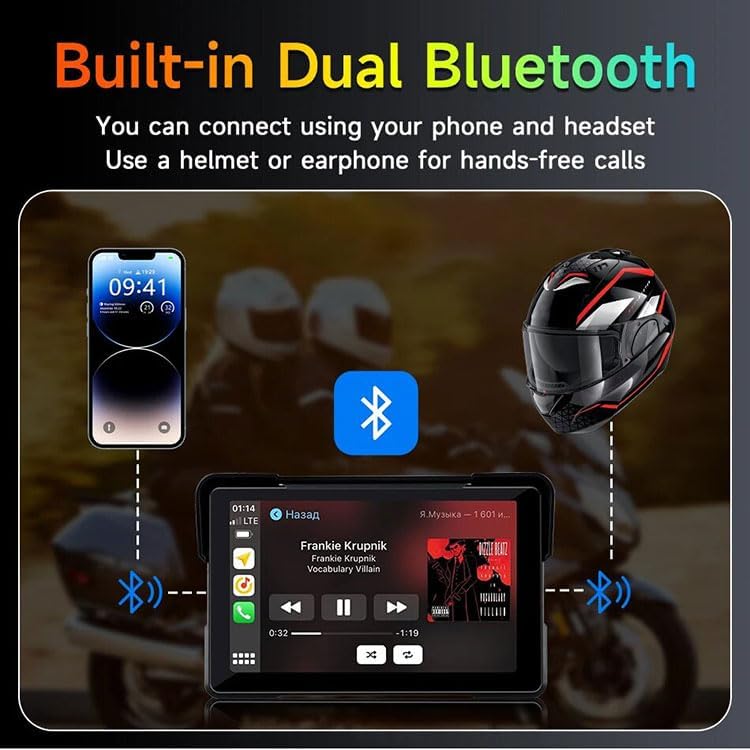
Image: The 7-inch display unit securely mounted on a motorcycle's handlebars, demonstrating a typical installation setup.
Power Connection
Connect the power cable from the device to your motorcycle's 12V power source. It is recommended to connect it to a switched power source that turns on and off with your motorcycle's ignition to prevent battery drain. Consult a professional if you are unsure about the wiring process.
Operating Instructions
Initial Power On
Once properly installed and connected to power, turn on your motorcycle's ignition. The device should power on automatically. Follow any on-screen prompts for initial setup, such as language selection.
Wireless CarPlay / Android Auto Connection
To use Wireless CarPlay or Android Auto, ensure Bluetooth is enabled on your smartphone. On the device, navigate to the CarPlay or Android Auto section. Search for and select your device from your phone's Bluetooth settings to pair. Once paired, the respective interface will appear on the screen, allowing access to navigation, music, and communication apps.

Image: The device displaying the Wireless CarPlay interface, showing various app icons like Phone, Music, Maps, and Messages, with a smartphone below demonstrating wireless connection.

Image: The device displaying the Wireless Android Auto interface, featuring app icons such as Google Maps, YT Music, and Spotify, with a smartphone below illustrating wireless connectivity.
Dual Bluetooth Connectivity
The device supports dual Bluetooth channels. After pairing your phone for CarPlay/Android Auto, you can simultaneously pair your Bluetooth-enabled helmet or earphones directly to the device. This allows for hands-free calls and audio playback through your helmet's speakers.

Image: A diagram illustrating the dual Bluetooth connection, showing a smartphone connected to the device and the device simultaneously connected to a motorcycle helmet, enabling hands-free communication and music.
Mirror Link Function
The Mirror Link feature allows you to mirror your smartphone's screen directly onto the 7-inch display via a wireless connection. This is useful for displaying apps or content not natively supported by CarPlay or Android Auto. Follow the on-screen instructions for activating Airplay for iPhone or Android Cast for Android devices.

Image: The device screen displaying a mirrored image of a motorcycle on a road, with smaller images below showing how an iPhone (Airplay) and Android (Android Cast) can mirror their screens.
Maintenance
Cleaning
To clean the screen and body of the device, use a soft, lint-free cloth. For stubborn smudges, slightly dampen the cloth with water or a screen-safe cleaner. Avoid using abrasive materials or harsh chemicals, as they may damage the screen or casing.
Waterproofing
The device features an IPX7 waterproof rating, meaning it can withstand immersion in water up to 1 meter for 30 minutes. While designed for all-weather riding, avoid prolonged submersion or high-pressure water jets. Ensure all cable connections are secure to maintain water resistance.

Image: The device shown with water droplets on its surface, illustrating its IPX7 waterproof, dustproof, and sandproof capabilities, emphasizing its durability in various weather conditions.
Troubleshooting
This section addresses common issues you might encounter with your device.
| Problem | Possible Cause | Solution |
|---|---|---|
| Device does not power on. | No power connection or faulty wiring. | Check power cable connection to motorcycle battery/ignition. Ensure fuses are intact. |
| Cannot connect to CarPlay/Android Auto. | Bluetooth not enabled on phone or device, or pairing issue. | Ensure Bluetooth is on for both devices. Forget previous pairings and try re-pairing. Restart both devices. |
| Audio issues (no sound, distorted sound). | Volume too low, incorrect audio output, or Bluetooth interference. | Adjust volume on device and phone. Ensure correct audio output (e.g., Bluetooth helmet). Check for other active Bluetooth connections. |
| Touch screen unresponsive. | Software glitch or physical damage. | Restart the device. If issue persists, contact customer support. |
Specifications
| Feature | Detail |
|---|---|
| Item Model Number | 7002P |
| Display Size | 7 Inches |
| Screen Resolution | 1024*600 |
| Connectivity Technology | Bluetooth (Dual Channel) |
| Special Features | Wireless CarPlay, Wireless Android Auto, Mirror Link, IPX7 Waterproof |
| Map Type | Worldwide (via connected smartphone) |
| Included Components | Player, accessory kit |
| UPC | 742970780765 |
Warranty and Support
All DRATSZTECH products undergo strict quality testing before shipment. This product comes with a 12-month warranty from the date of purchase, covering manufacturing defects.
If you have any questions, encounter issues with your device, or require technical assistance, please do not hesitate to contact our customer support team. We are committed to providing prompt assistance and will respond to your inquiries within 24 hours.
For support, please refer to the contact information provided with your purchase or visit the official DRATSZTECH website.