
Introduction
This manual provides detailed instructions for the setup, operation, maintenance, and troubleshooting of your Generic G70 Wired RGB 60% Mini Gaming Keyboard. Please read this manual carefully before using the product to ensure proper functionality and longevity.
Setup
To set up your G70 keyboard, follow these simple steps:
- Unpack the Keyboard: Carefully remove the keyboard from its packaging.
- Connect the USB Cable: Locate the USB-C cable attached to the keyboard. Plug the USB-A end of the cable into an available USB port on your computer or laptop.
- Driver Installation: The keyboard is plug-and-play. Your operating system should automatically detect and install the necessary drivers. No additional software installation is typically required.
- Verify Connection: Once connected, the keyboard's RGB backlighting should illuminate, indicating a successful connection. You can now begin using your keyboard.

Image: The Generic G70 Wired RGB 60% Mini Gaming Keyboard, showing its compact design and wired USB-C connection.
Operating Instructions
Basic Typing
The G70 keyboard functions as a standard QWERTY keyboard for all basic typing needs. Its 60% layout is designed for compactness while retaining essential keys.
RGB Backlight Control
The keyboard features dynamic RGB backlighting with multiple modes and brightness levels. Use the following key combinations to adjust the lighting:
- FN + U: Increase streamer speed (for dynamic lighting effects).
- FN + J: Decrease streamer speed.
- FN + O or FN + L: Adjust backlight brightness (5 levels).
- FN + I: Toggle backlight on/off or cycle through different stream light modes (4 kinds).
- FN + K: Switch between different backlight effects (8 kinds).
- FN + M: Cycle through solid color light options.

Image: Detailed diagram illustrating the FN key combinations for multimedia, function keys, and lighting controls.
Compound Key Functions (FN Combinations)
Due to its compact 60% layout, many standard keys are accessed via the Function (FN) key. Refer to the diagram above and the following list for common combinations:
- FN + Esc: Accesses the tilde (~) key.
- FN + 1: Accesses F1. Similarly, FN + 2 for F2, up to FN + 0 for F10, FN + - for F11, and FN + = for F12.
- FN + R: Volume down.
- FN + T: Volume up.
- FN + Y: Mute.
- FN + Backspace: Delete function.

Image: The G70 keyboard displaying its vibrant RGB colorful light effects in both black and white color variants.
Video: An official product video demonstrating the features and RGB lighting of the Wired RGB Gaming Keyboard.
Ergonomic Design
The G70 keyboard features an ergonomic high-low key design, providing a comfortable typing experience and reducing wrist strain during extended use. The arc button design contributes to a natural feel.
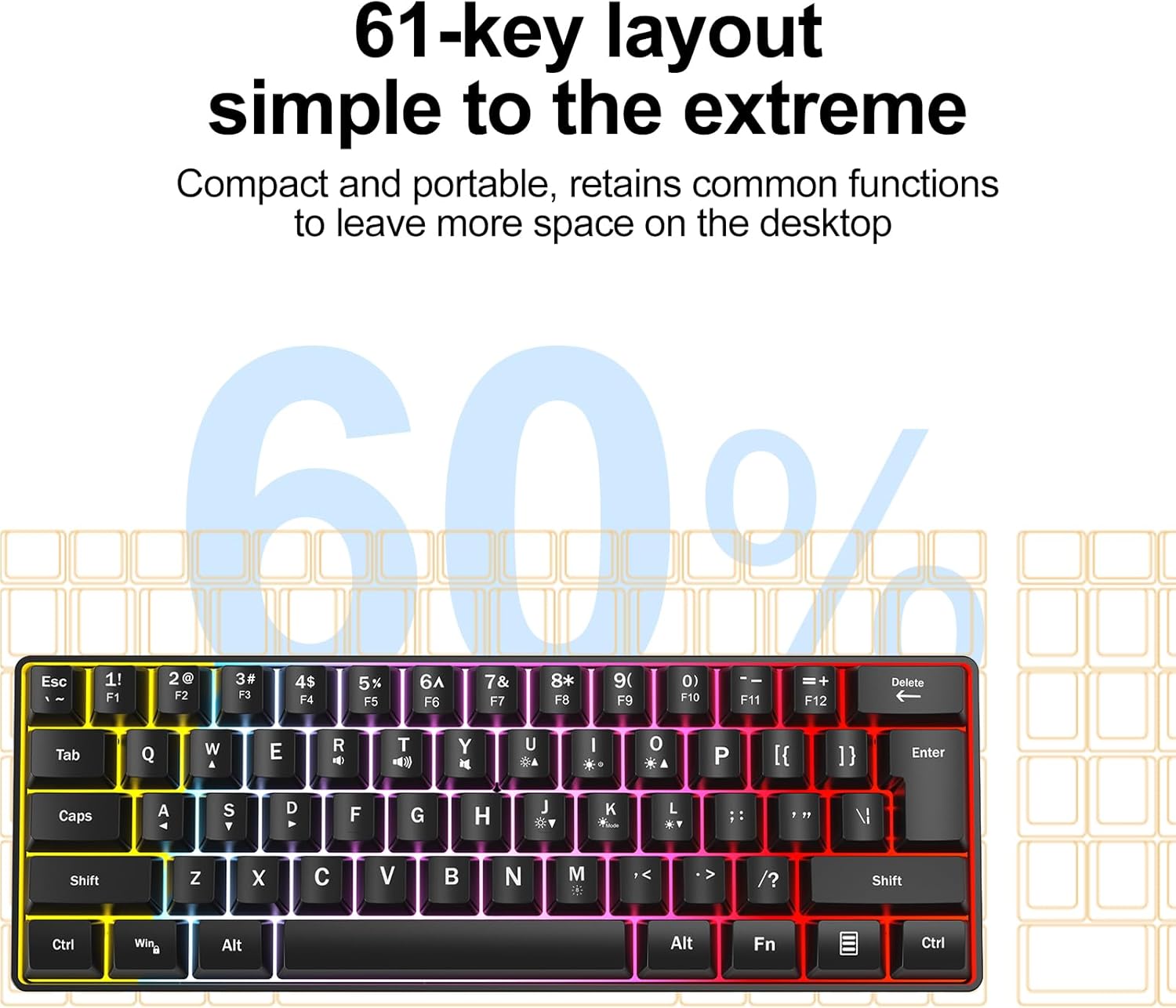
Image: A visual representation of the ergonomic high and low key design, demonstrating how it supports comfortable hand positioning.
Maintenance
To ensure the longevity and optimal performance of your keyboard, follow these maintenance guidelines:
- Cleaning: Use a soft, dry cloth to wipe the surface of the keyboard. For deeper cleaning, use a slightly damp cloth with a mild cleaning solution, ensuring no liquid enters the keyboard.
- Avoid Liquids: Do not spill liquids on the keyboard. If a spill occurs, immediately disconnect the keyboard and allow it to dry completely before reconnecting.
- Dust Removal: Use compressed air to remove dust and debris from between the keycaps.
- Storage: Store the keyboard in a cool, dry place away from direct sunlight and extreme temperatures.
Troubleshooting
If you encounter any issues with your G70 keyboard, please refer to the following common problems and solutions:
- Keyboard Not Responding:
- Ensure the USB cable is securely plugged into both the keyboard and the computer.
- Try plugging the keyboard into a different USB port on your computer.
- Restart your computer.
- RGB Backlight Not Working or Incorrect:
- Check if the backlight is turned off using the FN + I key combination.
- Cycle through different lighting modes and brightness levels using the FN key combinations described in the Operating Instructions section.
- Ensure your computer's USB port is providing sufficient power.
- Certain Keys Not Working:
- Clean around the affected key to remove any debris that might be obstructing its movement.
- For FN key combinations, ensure you are pressing the FN key simultaneously with the desired function key.
Specifications
Key technical specifications for the Generic G70 Wired RGB 60% Mini Gaming Keyboard:
| Feature | Detail |
|---|---|
| Brand | Generic |
| Model Number | G70 |
| Connectivity Technology | USB-C (Wired) |
| Keyboard Description | Membrane |
| Key Layout | 60% Mini (61-key) |
| Backlight | RGB (8 kinds backlight, 4 kinds stream light, 5 levels brightness) |
| Ergonomic Design | High-low key profile |
| Compatible Devices | Laptop, PC |
| Item Weight | 0.82 Pounds |
| Color | White Case + Grey Keycaps |

Image: The G70 keyboard with its dimensions clearly marked for reference.
Warranty and Support
Information regarding specific warranty terms and direct customer support contact details for the Generic G70 keyboard were not provided in the product data. For any quality problems or questions during use, please refer to the seller's return policy or contact the seller directly through the platform where the product was purchased.


