
Skrmooning R36S
R36S Retro Handheld Game Console User Manual
Model: R36S | Brand: Skrmooning
Introduction
The Skrmooning R36S Retro Handheld Game Console is designed to provide an immersive and portable gaming experience. Featuring a powerful 1.5GHZ 64-Bit Quad-core A35 CPU and Mali-G31MP dual-core GPU, it runs on a stable Linux game system, minimizing game freezes and ensuring smooth gameplay. With a 3.5-inch IPS display, over 15,000 pre-installed classic games, and support for more than 20 emulators, this console offers extensive entertainment for all ages. Its compact design and long-lasting 3200mAh battery make it an ideal companion for gaming on the go.
Package Contents
Upon opening your R36S Retro Handheld Game Console package, please verify that all the following items are included:
- R36S Handheld Game Console
- 64GB TF Card (pre-installed with games)
- USB Type-C Charging Cable
- User Manual
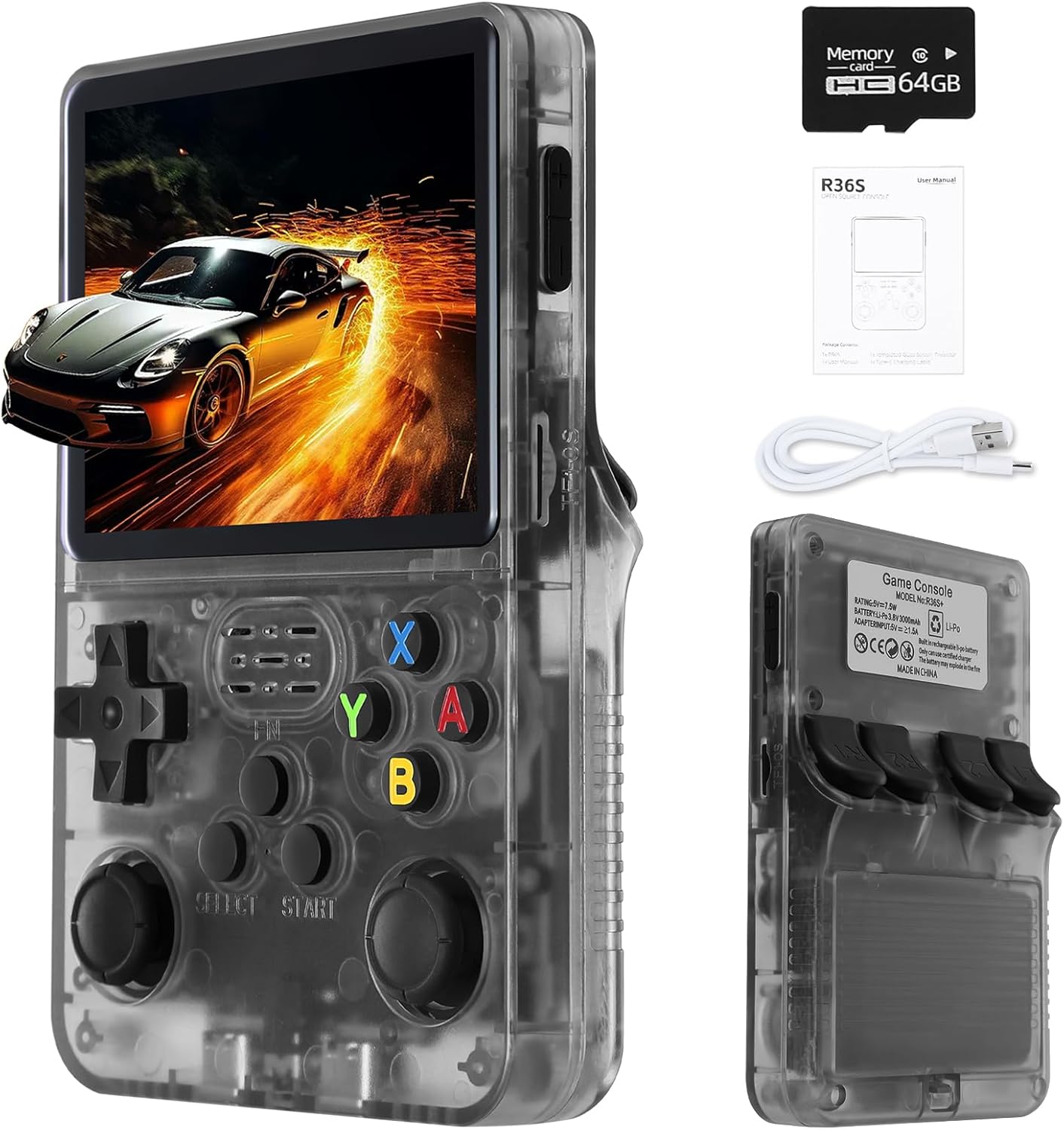
Image: The R36S console, a 64GB memory card, a user manual, and a USB-C charging cable, as typically found in the product package.
Setup
Initial Charging
Before first use, it is recommended to fully charge the R36S console. Connect the provided USB Type-C charging cable to the console's charging port and the other end to a compatible USB power adapter (5V/2A recommended, not included). The charging indicator will show the charging status.
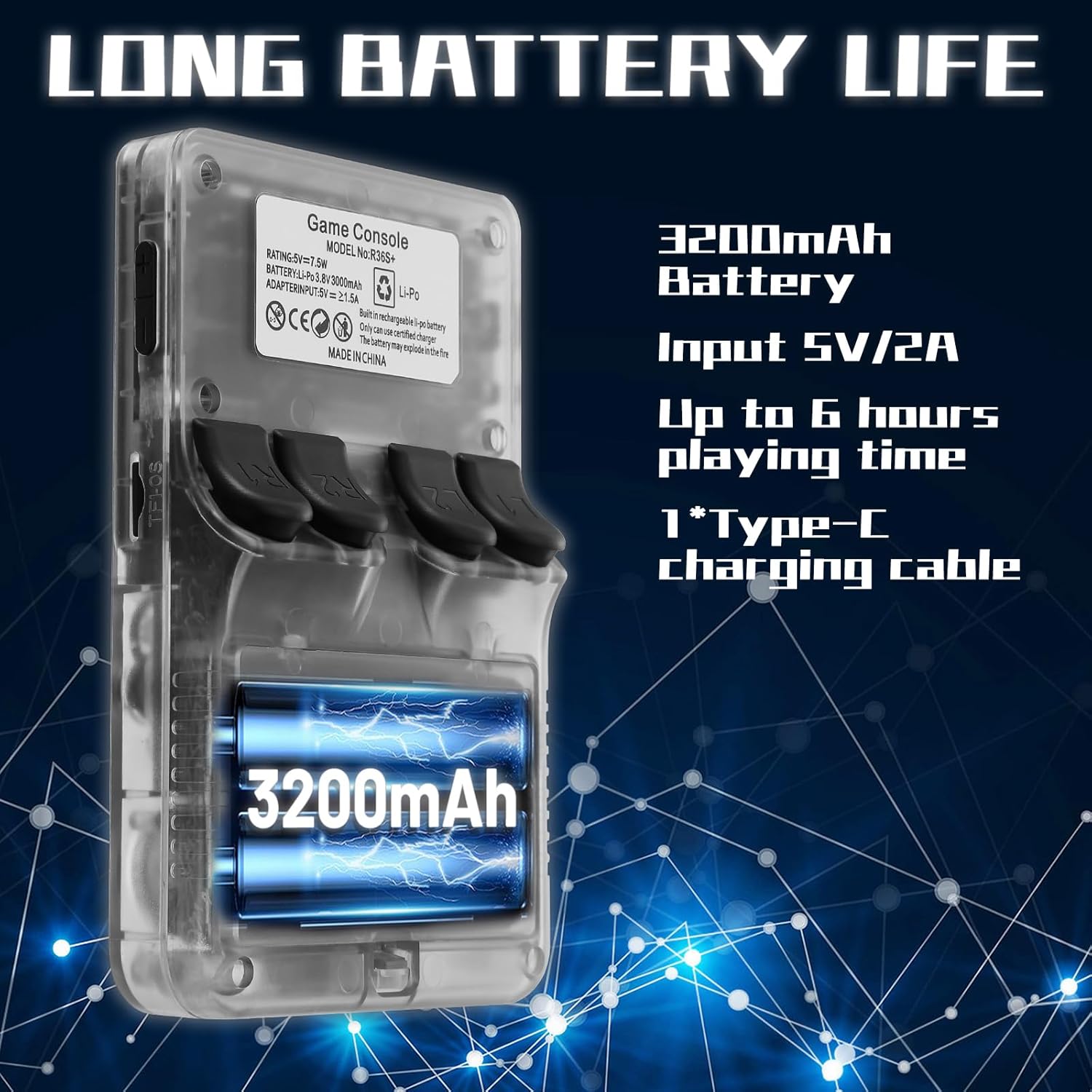
Image: A transparent view of the R36S console highlighting its 3200mAh battery and indicating up to 6 hours of playtime with a Type-C charging cable.
TF Card Installation
The R36S console comes with two TF card slots: TF1 (OS) and TF2 (Game). The operating system is pre-installed on TF1. The 64GB TF card containing 15,000+ games should be inserted into the TF2 (Game) slot. Ensure the card is inserted correctly until it clicks into place.

Image: The R36S console with an arrow indicating the slot for the pre-installed 64GB TF card containing over 1500 retro games.
Operating Instructions
Console Layout and Key Functions
Familiarize yourself with the buttons and ports on your R36S console:

Image: A detailed diagram illustrating the R36S console's front and top views, labeling Power, Reset, Volume Keys, R1/R2/L1/L2, TF1(OS), TF2(Game), FN, Select, Start, Left Joystick (L3), Right Joystick (R3), DC port, and 3.5mm Interforce (headphone jack). Below, a table outlines key function combinations for Save/Load Game, Pause Game, Exit Game, Restart Game, Adjust Brightness, and Save Position.
| Function | Key Combination |
|---|---|
| Save/Load Game | Select Button + L1/R1 |
| Pause Game | Select Button + A-Taste |
| Exit Game | Select Button + Start Button |
| Restart Game | Select Button + B-Taste |
| Adjust Brightness | Right Joystick (R3) + Up/Down on the D-Pad |
| Save Position | Select Button + Up/Down on the D-Pad |
Power On/Off
- To power on: Press and hold the Power button until the screen illuminates.
- To power off: Press and hold the Power button until the shutdown menu appears, then select "Shutdown".
- To reset: Use the Reset button (small pinhole) if the console becomes unresponsive.
Navigating the System
Use the D-Pad or Left Joystick to navigate through menus and game lists. The A button typically confirms selections, and the B button cancels or goes back.
Playing Games
The console comes pre-loaded with over 15,000 classic games across more than 20 emulators. Navigate to the desired emulator or game list and select a game to begin playing.
Image: The R36S console displaying a game on its screen, surrounded by icons representing various supported emulators like NES, GBA, MD, SFC, MAME, PSP, PS1, GB, NDS, N64, and CPS, indicating a vast library of over 1500 retro games.
Extended Functions (OTG & Wi-Fi)
The R36S supports OTG (On-The-Go) functionality, allowing connection to external devices such as a Type-C Wi-Fi receiver (not included) for online battles, or an HD connector adapter (not included) for sharing games on a larger screen. It also supports connecting external controllers.

Image: Two R36S consoles being held by hands, displaying a game scene, with text indicating support for Wi-Fi connection for online battles (requires a Type-C Wi-Fi receiver).

Image: A diagram illustrating the OTG port on the R36S console and its capabilities, including connecting to a large screen, an external controller, or a WiFi receiver (OTG port and accessories not included).
Maintenance
Battery Care and Charging
The R36S console is equipped with a 3200mAh rechargeable battery, providing up to 6 hours of playtime. To prolong battery life:
- Use the provided USB Type-C cable for charging.
- Avoid overcharging or completely draining the battery.
- Store the console in a cool, dry place when not in use for extended periods.
Cleaning
To clean the console, use a soft, dry cloth. For stubborn marks, a slightly damp cloth can be used, but ensure no moisture enters the ports or openings. Do not use harsh chemicals or abrasive cleaners.
Storage
When storing the console, especially for long periods, ensure it is powered off and stored in a protective case or bag to prevent scratches and damage.
Troubleshooting
| Problem | Possible Cause | Solution |
|---|---|---|
| Console does not power on. | Low battery; Power button not held long enough. | Charge the console for at least 30 minutes. Press and hold the Power button for 3-5 seconds. |
| Games are not loading or visible. | TF2 (Game) card not inserted correctly or corrupted. | Ensure the TF2 card is fully inserted. Try reinserting the card. If issues persist, the card may be corrupted. |
| Game freezes or crashes. | Software glitch; System overload. | Press the Reset button (small pinhole) to restart the console. Ensure the console is not excessively hot. |
| Cannot save game progress. | Incorrect save procedure; Insufficient storage on TF2 card. | Follow the "Save/Load Game" key combination (Select + L1/R1). Check available space on the TF2 card. |
| Screen is dim or too bright. | Brightness setting needs adjustment. | Adjust brightness using Right Joystick (R3) + Up/Down on D-Pad. |
If you encounter issues not listed here, please refer to the official Skrmooning support channels.
Specifications
| Feature | Detail |
|---|---|
| Model Number | R36S |
| CPU | 1.5GHZ 64-Bit Quad-core A35 |
| GPU | Mali-G31MP dual-core |
| Operating System | Linux |
| Screen Size | 3.5 Inches IPS |
| Screen Resolution | 640 x 480 pixels |
| Battery Capacity | 3200mAh |
| Battery Life | Up to 6 hours |
| Pre-installed Games | 15,000+ HD Classic Games |
| Emulators Supported | 20+ (e.g., NES, GBA, MD, SFC, MAME, PSP, PS1, GB, NDS, N64, CPS) |
| Connectivity | OTG (for Wi-Fi receiver, external controller, HD adapter) |
| Audio | Built-in speakers, 3.5mm headphone jack |
| Dimensions (L x W x H) | Approximately 5.1 x 3.2 x 1 inches |
| Material | Plastic |
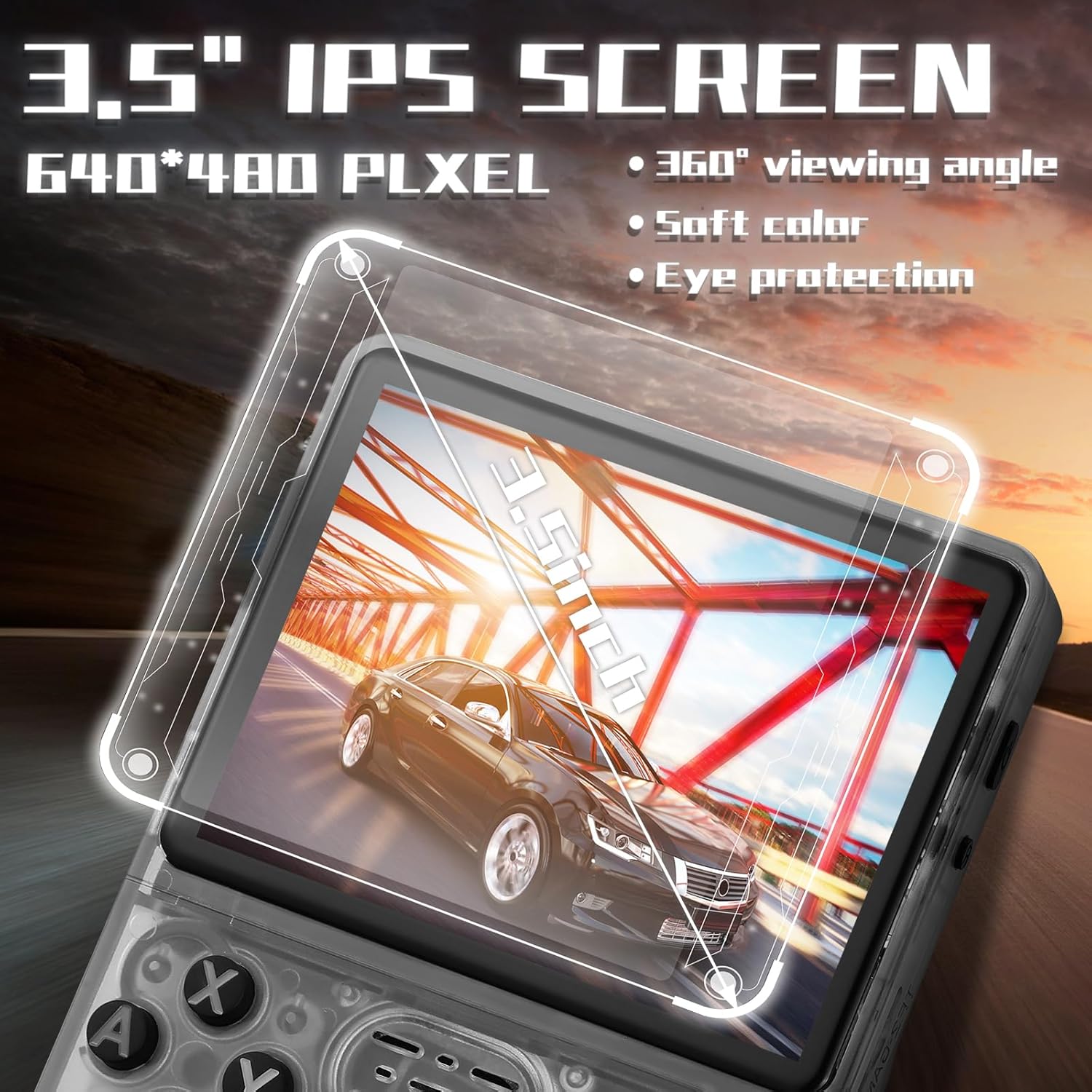
Image: A close-up of the R36S console's screen, emphasizing its 3.5-inch IPS display with 640x480 pixel resolution, 360° viewing angle, soft color, and eye protection features.

Image: The R36S console shown with its dimensions (5.1 inches height, 3.2 inches width, 1 inch thickness) and examples of its portability, fitting into a pocket or a small bag.
Warranty and Support
For warranty information and customer support, please refer to the documentation included with your purchase or contact Skrmooning customer service directly. Keep your proof of purchase for any warranty claims.
For further assistance or inquiries, please visit the official Skrmooning website or contact their support team through the contact information provided at the point of purchase.
Ask a question about this manual
Ask about setup, troubleshooting, compatibility, parts, safety, or missing instructions. Manuals+ will review the question and use this page’s manual context to help answer it.