
1. Product Overview
This manual provides essential information for the installation, operation, and maintenance of the MZK XP600 Motherboard, specifically designed for DTF (Direct-to-Film) printers. This motherboard facilitates fast data transfers, contributing to smoother and more efficient printing processes.
Important: Before installation or use, please consult customer service to confirm brand compatibility with your specific DTF printer model.
2. Safety Information
- Always disconnect power to the printer before installing or removing the motherboard.
- Handle the motherboard by its edges to avoid touching components, which can be sensitive to electrostatic discharge (ESD).
- Ensure proper grounding during installation to prevent ESD damage.
- Do not expose the motherboard to moisture or extreme temperatures.
- If you are unsure about any installation step, seek assistance from a qualified technician.
3. Package Contents
Verify that your package contains the following items:
- MZK XP600 Motherboard (1 unit)
- Heatsink (pre-installed or separate)
- Connecting cables (if applicable, check specific printer model requirements)
4. Setup and Installation
The installation of a printer motherboard requires careful attention to detail. It is recommended that this procedure be performed by experienced personnel or a certified technician.
- Preparation: Power off and unplug your DTF printer from the electrical outlet. Open the printer casing to access the existing motherboard.
- Remove Old Motherboard: Carefully disconnect all cables connected to the old motherboard, noting their positions for reinstallation. Unscrew and remove the old motherboard.
- Install New Motherboard: Position the MZK XP600 Motherboard in the designated slot. Secure it with screws, ensuring it is firmly seated.
- Connect Cables: Reconnect all cables to their appropriate ports on the new motherboard. Refer to your printer's specific wiring diagram if available. Ensure all connections are secure.
- Close Casing: Once all connections are verified, close the printer casing.
- Power On: Plug in the printer and power it on. Observe for any error indicators or unusual behavior.
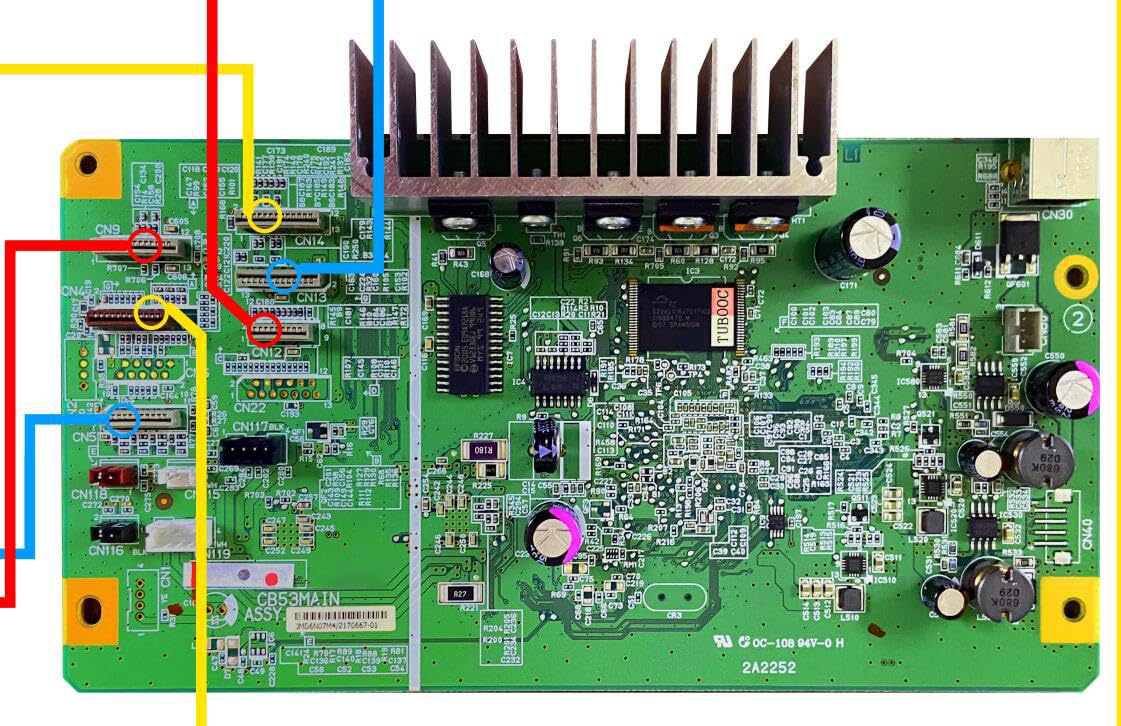
Figure 1: Top view of the MZK XP600 Motherboard, showing the main chip, connectors, and heatsink.

Figure 2: Close-up of the MZK XP600 Motherboard's top side, detailing component layout and connection points.

Figure 3: Bottom view of the MZK XP600 Motherboard, revealing the underside circuitry and mounting holes.
5. Operating Instructions
Once installed, the MZK XP600 Motherboard functions as the central control unit for your DTF printer. Its primary role is to process print data and manage printer operations, enabling efficient and high-quality output.
- Ensure all printer drivers and software are up-to-date and compatible with the new motherboard.
- Perform a test print after installation to confirm proper functionality and calibration.
- The motherboard's enhanced data transfer capabilities contribute to faster processing of print jobs.
6. Maintenance
To ensure the longevity and optimal performance of your MZK XP600 Motherboard, follow these maintenance guidelines:
- Keep the printer environment clean and free from dust and debris, which can accumulate on components and affect performance.
- Periodically inspect the motherboard for any loose connections or visible damage.
- Avoid exposing the printer to excessive humidity or direct sunlight.
- Do not attempt to clean the motherboard with liquids or abrasive materials. Use compressed air or a soft, dry brush for dust removal.
7. Troubleshooting
If you encounter issues after installing the MZK XP600 Motherboard, consider the following troubleshooting steps:
- Printer Not Powering On: Double-check all power connections to the motherboard and the printer's power supply. Ensure the power cable is securely plugged into the wall outlet.
- Error Codes Displayed: Refer to your DTF printer's specific user manual for the meaning of any displayed error codes. These codes can help pinpoint the issue.
- Printing Issues (e.g., poor quality, no output): Verify that all data cables (e.g., USB, network) are correctly connected to the motherboard and the computer. Ensure printer drivers are properly installed and updated.
- Intermittent Functionality: This could indicate a loose connection. Power off the printer, unplug it, and re-seat all cables connected to the motherboard.
- Compatibility Issues: If the printer is not recognized or functions incorrectly, re-verify that the motherboard is compatible with your specific printer model. Contact customer support for assistance.
8. Specifications
| Feature | Detail |
|---|---|
| Brand | MZK |
| Chipset Type | XP600 motherboard |
| Compatible Devices | Printer |
| Compatible Processors | R1390 motherboard |
| CPU Socket | L1800 |
| RAM Memory Technology | DDR |
| Memory Clock Speed | 2 |
| Memory Slots Available | 1 |
| Platform | Windows 8 |
| Manufacturer | MZK |
| Mfr Part Number | Motherboard |
| Unit Count | 1 Count |
| Number of Items | 1 |
| ASIN | B0F1843MXW |
9. Warranty Information
The MZK XP600 Motherboard comes with a 3-month warranty from the date of purchase. This warranty covers manufacturing defects under normal use. It does not cover damage caused by improper installation, misuse, accidents, unauthorized modifications, or external factors such as power surges.
For warranty claims or service, please retain your proof of purchase and contact MZK customer support.
10. Customer Support
For technical assistance, compatibility inquiries, or any other support needs, please contact MZK customer service through the following channels:
- Email: mzkservice@outlook.com
- Phone: +86 15874762852
- Remote Services: Available upon request for diagnostic and troubleshooting support.
- Live Chat: Contact an MZK technician via our official website or designated support platforms.