
1. Introduction
The MOLGRIA AJAZZ AK820 Pro is a high-performance 75% layout mechanical gaming keyboard designed for both enthusiasts and professionals. It features versatile triple mode connectivity (wired, 2.4GHz wireless, Bluetooth 5.1), vibrant RGB backlighting, and an interactive TFT smart screen display. This manual provides essential information for setting up, operating, and maintaining your keyboard to ensure optimal performance.
2. Product Overview
The AJAZZ AK820 Pro keyboard combines a compact 75% layout with advanced features for an enhanced typing and gaming experience. It includes Grey and Yellow PBT OEM profile keycaps and Ajazz Flying Fish switches mounted on a multi-layer gasket structure to reduce vibration and noise.
Key Features:
- Compact 75% Layout: Maximizes desk space while retaining essential keys.
- Triple Mode Connectivity: Supports USB-C wired, 2.4GHz wireless, and Bluetooth 5.1 for versatile use across multiple devices.
- Gasket-Mounted Design: Provides a cushioned and precise typing feel with reduced noise.
- RGB Backlighting: Offers superior shine-through capabilities with various customizable effects.
- TFT Smart Screen Display: An interactive interface for displaying time, date, battery status, connection mode, and custom GIFs.
- Programmable High Compatibility: Compatible with Mac and Windows operating systems, allowing key redefinition and RGB customization via software.
Package Contents:
- AJAZZ AK820 Pro Keyboard
- USB-C to USB-A Cable
- 2.4GHz USB Receiver (stored magnetically in the keyboard)
- Keycap Puller
- Switch Puller
- Spare Switches
- Instruction Manual

Figure 2.1: The AJAZZ AK820 Pro 75% Gaming Keyboard with its distinctive grey and yellow keycaps.
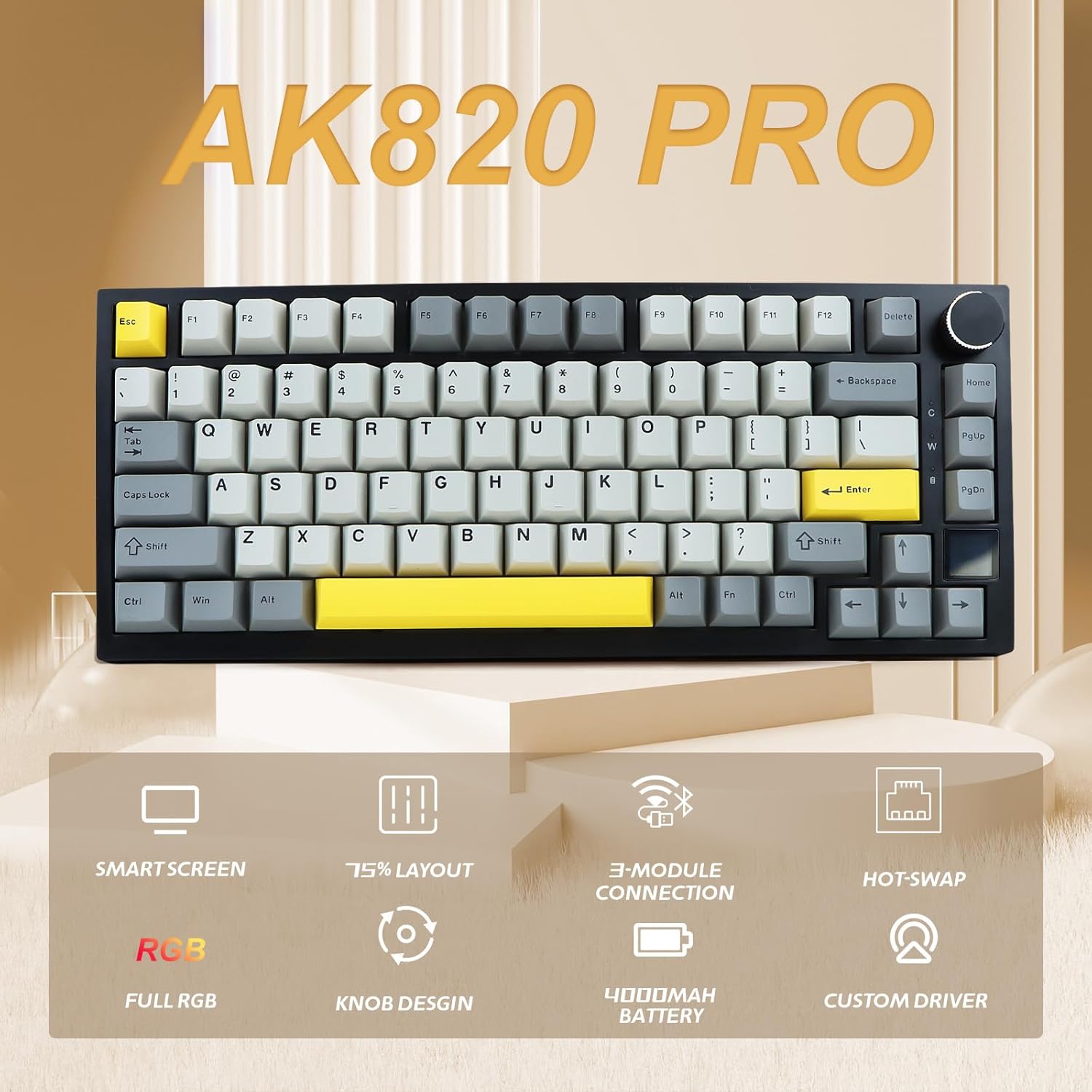
Figure 2.2: Included accessories: USB-C cable, keycap/switch puller, and spare switches.
3. Setup
3.1 Initial Connection
Your AK820 Pro keyboard offers three connection modes: wired, 2.4GHz wireless, and Bluetooth. Choose the mode that best suits your needs.
Wired Mode:
- Connect the provided USB-C cable to the keyboard's USB-C port.
- Connect the USB-A end of the cable to an available USB port on your computer.
- The keyboard will be automatically recognized and ready for use.
2.4GHz Wireless Mode:
- Locate the 2.4GHz USB receiver, typically stored magnetically in a slot on the back of the keyboard.
- Plug the USB receiver into an available USB port on your computer.
- On the back of the keyboard, slide the toggle switch to the '2.4G' position.
- The keyboard should connect automatically.
Bluetooth Mode:
- On the back of the keyboard, slide the toggle switch to the 'BT' position.
- Press and hold FN + Q, FN + W, or FN + E for 3-5 seconds to enter pairing mode for BT1, BT2, or BT3 respectively. The indicator light on the TFT screen will flash.
- On your device (computer, tablet, smartphone), search for Bluetooth devices and select 'AJAZZ AK820 Pro' to pair.
- Once paired, the indicator light will stop flashing and remain solid.

Figure 3.1: The keyboard supports 2.4G wireless, USB-C wired, and Bluetooth modes for multi-system compatibility.

Figure 3.2: Adjustable foot braces for ergonomic typing and magnetic storage for the 2.4G wireless receiver.
4. Operating Instructions
4.1 RGB Backlighting Control
The AK820 Pro features dynamic RGB backlighting with multiple effects and customizable colors.
- Change Lighting Mode: Press FN + \| to cycle through various RGB lighting effects.
- Adjust Brightness: Press FN + ↑ to increase brightness and FN + ↓ to decrease brightness.
- Adjust Speed: Press FN + ← to decrease effect speed and FN + → to increase effect speed.
- Static Color Mode: Some modes allow you to select a static color. Refer to the manual for specific key combinations.
4.2 TFT Smart Screen Display
The integrated TFT smart screen provides real-time information and customization options.
- Display Information: The screen typically shows time, date, battery level, and current connection mode.
- Customization: You can upload custom GIFs or images to the screen using the dedicated software.
- Access Settings: Press the multi-functional knob to enter the screen settings menu.

Figure 4.1: Examples of information and customization options available on the TFT smart screen.
4.3 Multi-functional Knob
The knob located on the top right of the keyboard serves multiple purposes:
- Volume Control: Rotate the knob to adjust the system volume.
- Mute/Unmute: Press the knob to mute or unmute audio.
- RGB Control: In some lighting modes, rotating the knob can adjust RGB brightness or cycle through effects. Pressing the knob can confirm selections within the TFT screen menu.
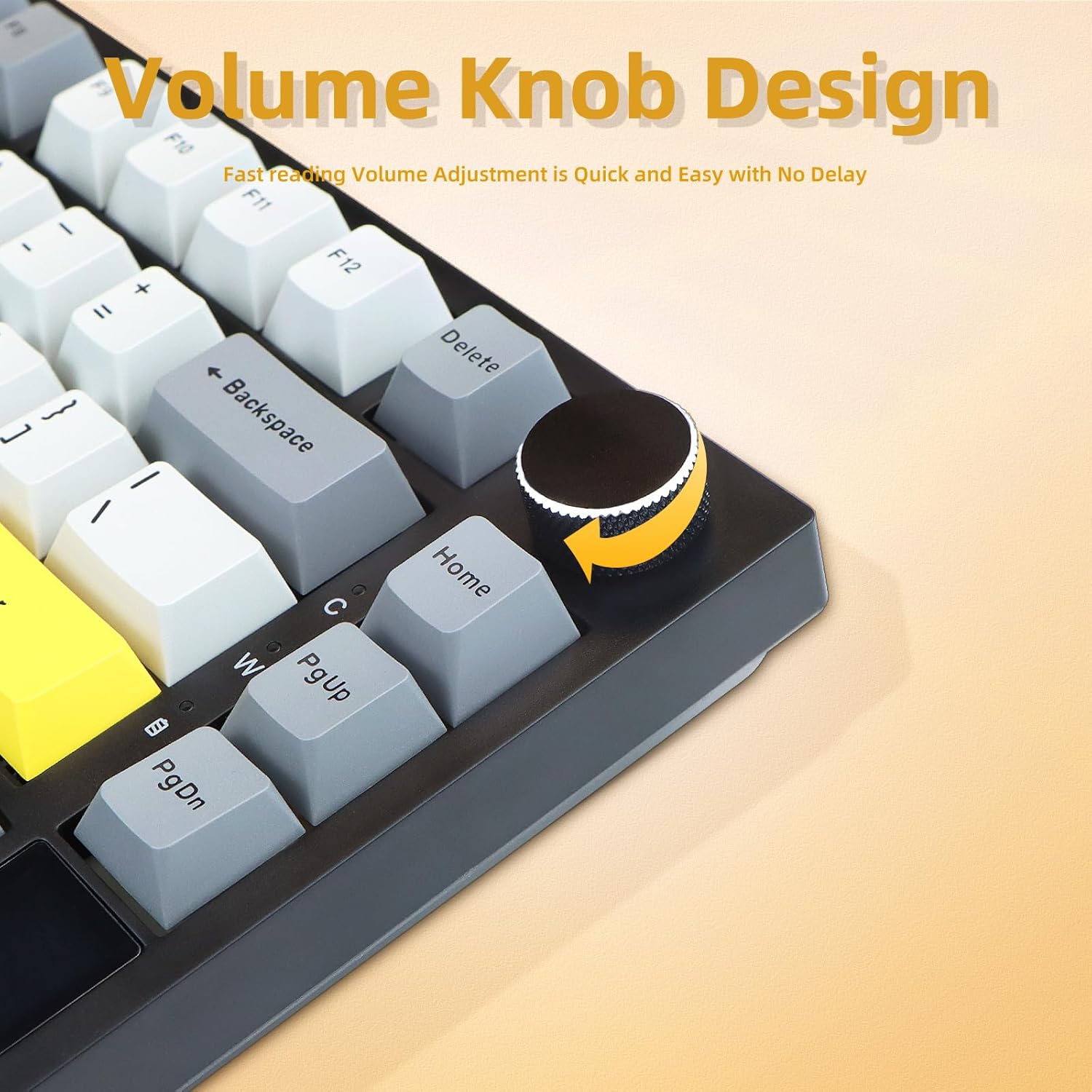
Figure 4.2: Close-up of the multi-functional knob for volume and RGB control.
4.4 Function Keys (FN Combinations)
The keyboard utilizes FN key combinations for various functions:
| Key Combination | Function |
|---|---|
| FN + F1 | Media Player |
| FN + F2 | Volume - |
| FN + F3 | Volume + |
| FN + F4 | Mute |
| FN + F5 | Stop / Playing |
| FN + F6 | Previous Song |
| FN + F7 | Play / Pause |
| FN + F8 | Next Track |
| FN + F9 | |
| FN + F10 | Browser |
| FN + F11 | My Computer |
| FN + F12 | Calculator |
| FN + Win | Lock/Unlock Win Key |
| FN + Space | Toggle RGB On/Off |
| FN + \| | Cycle RGB Modes |
| FN + ↑/↓ | Adjust RGB Brightness |
| FN + ←/→ | Adjust RGB Speed |
5. Maintenance
5.1 Cleaning the Keyboard
To maintain your keyboard's performance and appearance, regular cleaning is recommended:
- Dust Removal: Use a can of compressed air to blow away dust and debris from between the keycaps.
- Keycap Cleaning: Gently remove keycaps using the provided keycap puller. Clean them with a soft, damp cloth and mild soap if necessary. Ensure they are completely dry before reattaching.
- Surface Cleaning: Wipe the keyboard's surface with a soft, lint-free cloth. Avoid harsh chemicals.
5.2 Switch Replacement (Hot-Swappable)
The AK820 Pro features hot-swappable switches, allowing you to easily replace switches without soldering. This is useful for customizing your typing feel or replacing faulty switches.
- Remove Keycap: Use the keycap puller to gently remove the desired keycap.
- Remove Switch: Use the switch puller to clamp the buckles on the upper and lower sides of the switch body, then pull the switch straight up and out.
- Insert New Switch: Align the pins of the new switch with the holes on the PCB. Gently press the switch vertically until it clicks into place. Ensure the pins are not bent.
- Reattach Keycap: Place the keycap onto the new switch stem and press down firmly.

Figure 5.1: The keyboard features hot-swappable switches, allowing for easy customization and replacement.
6. Troubleshooting
If you encounter any issues with your AK820 Pro keyboard, please refer to the following common solutions:
- Keyboard Not Responding:
- Ensure the keyboard is fully charged or connected via USB-C.
- Check the connection mode switch (wired, 2.4G, BT) on the back of the keyboard.
- For 2.4GHz, ensure the USB receiver is properly plugged in.
- For Bluetooth, re-pair the device if necessary.
- RGB Lights Not Working/Incorrect:
- Press FN + Space to toggle RGB lighting on/off.
- Adjust brightness using FN + ↑/↓.
- Cycle through effects using FN + \|.
- If using software, ensure settings are correctly applied.
- TFT Screen Not Displaying:
- Ensure the keyboard is powered on.
- Check for any software updates for the keyboard.
- Keys Not Registering:
- If a specific key is not working, try replacing the switch using the hot-swappable feature.
- Ensure keycaps are properly seated.
- Factory Reset: To reset the keyboard to factory default settings, press and hold FN + DEL for 5 seconds. The backlight will flash 3 times to indicate a successful reset.
7. Specifications
| Feature | Detail |
|---|---|
| Model | AK820 Pro |
| Layout | 75% (81 keys) |
| Connectivity | USB-C Wired, 2.4GHz Wireless, Bluetooth 5.1 |
| Switches | Ajazz Flying Fish (Hot-swappable) |
| Keycaps | Grey and Yellow PBT OEM Profile |
| Backlighting | RGB LED |
| Special Features | TFT Smart Screen Display, Gasket-Mounted Design, Multi-functional Knob |
| Battery | 1 Lithium Polymer (included) |
| Item Weight | 2.2 pounds |
| Package Dimensions | 14.17 x 6.69 x 2.36 inches |
| Compatible Devices | MAC, PC, Smartphone, Tablet PC |
8. Warranty and Support
Your MOLGRIA AJAZZ AK820 Pro keyboard comes with a standard manufacturer's warranty. Please refer to the warranty card included in your package for specific terms and conditions. For technical support, troubleshooting assistance, or warranty claims, please contact MOLGRIA customer service through the retailer where you purchased the product or visit the official MOLGRIA website.
9. Official Product Videos
Ajazz AK820 PRO Gray Mechanical Keyboard
This video provides a brief overview of the Ajazz AK820 Pro Gray Mechanical Keyboard, showcasing its design and key features.
F75 Keyboard - Black
A short video demonstrating the F75 keyboard, highlighting its aesthetic and functionality.
AULA F75 Pro Side Engraved Tri-mode Mechanical Keyboard
This video showcases the AULA F75 Pro, a tri-mode mechanical keyboard with side-engraved keycaps, demonstrating its features and typing experience.
Super compact, cool RGB, worth it.
A user review highlighting the compact design and cool RGB lighting effects of a similar mechanical keyboard.