
OSALO OS-82ES PLUS II
OSALO Scientific Calculator OS-82ES PLUS II User Manual
Model: OS-82ES PLUS II
1. Introduction
This manual provides detailed instructions for the OSALO Scientific Calculator OS-82ES PLUS II. Designed for secondary students and professionals, this calculator features 252 functions, a 2-line written display, and dual power sources (solar and battery). Please read this manual thoroughly to understand all functions and ensure proper use.
2. Setup and Power
2.1 Power Source
The OSALO OS-82ES PLUS II calculator operates on both solar power and a backup battery. The solar panel is located at the top of the calculator. Ensure sufficient light exposure for solar operation. The battery provides power in low-light conditions.
2.2 Power On/Off
- To turn on the calculator, press the ON button.
- To turn off the calculator, press SHIFT then AC (OFF).
2.3 Initial Display
Upon powering on, the calculator will display the last calculation result or be ready for input. The 2-line display shows both the input expression and the calculation result simultaneously.

Image: The OSALO Scientific Calculator OS-82ES PLUS II, showcasing its design and display. Note the solar panel at the top and the key layout.
3. Operating Instructions
3.1 Display Features
The calculator features a "Textbook-Like Written Display" and "Full-do Display" for natural input and output, mimicking textbook expressions. This 2-line display allows for easy verification of input and results.
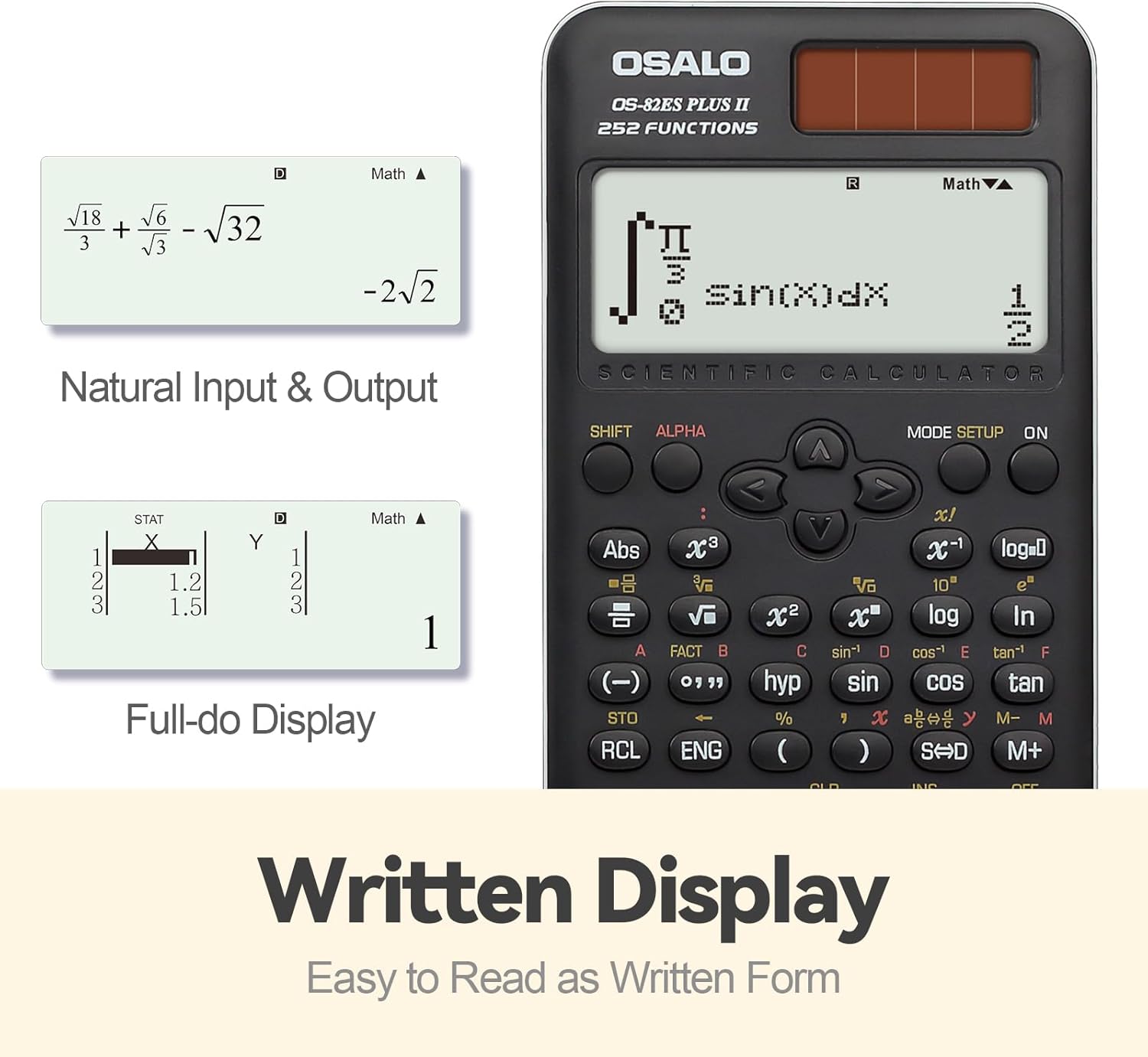
Image: Examples of the calculator's written display, showing natural input and output for mathematical expressions like fractions and square roots, and a full-dot display for statistical data.
3.2 Basic Operations
Perform standard arithmetic operations using the number keys and operators (+, -, ×, ÷). Press = to get the result.
3.3 Scientific Functions (252 Functions)
The OS-82ES PLUS II includes 252 functions covering a wide range of scientific and mathematical calculations. These functions are typically accessed directly or by using the SHIFT or ALPHA keys in combination with other buttons.

Image: An overview of the calculator's 252 functions, highlighting features such as multi-replay, combination and permutation, statistics (data editor, standard deviation, regression analysis), fraction calculation, and 9 variable memories.
- Basic Calculations: Includes arithmetic, powers, roots, logarithms, and trigonometric functions (sin, cos, tan).
- Variable Statistics: Access statistical calculations via the MODE SETUP key. Features include data editor, standard deviation, and regression analysis.
- Prime Factorization: Used to find the prime factors of a number.
- Differentiation and Integration: Perform calculus operations.
- Multi-replay Function: Allows reviewing and editing previous calculations.
- Combination and Permutation: Calculate combinations (nCr) and permutations (nPr).
- Fraction Calculation: Input and calculate with fractions directly.
- 9 Variable Memories: Store and recall values using the memory functions (STO, RCL).
3.4 Fraction-Decimal Conversion
To convert between fractions and decimal values, use the S↔D key. This key allows seamless conversion, ensuring accuracy for precise values.
3.5 Brightness Adjustment
The calculator features a brightness adjustment function for the display. This allows users to switch between a darker display (to relieve visual fatigue) and a brighter display (for clear and intuitive viewing). Refer to the calculator's on-screen menu or specific key combinations for this adjustment.

Image: Comparison of the calculator display in "Dark" mode (for visual comfort) and "Bright" mode (for enhanced clarity), demonstrating the brightness adjustment function.
3.6 Display and Keypad Details
The calculator features a clear LCD display for all calculations and results. The keys are designed for comfort, ensuring a pleasant tactile experience during prolonged use.
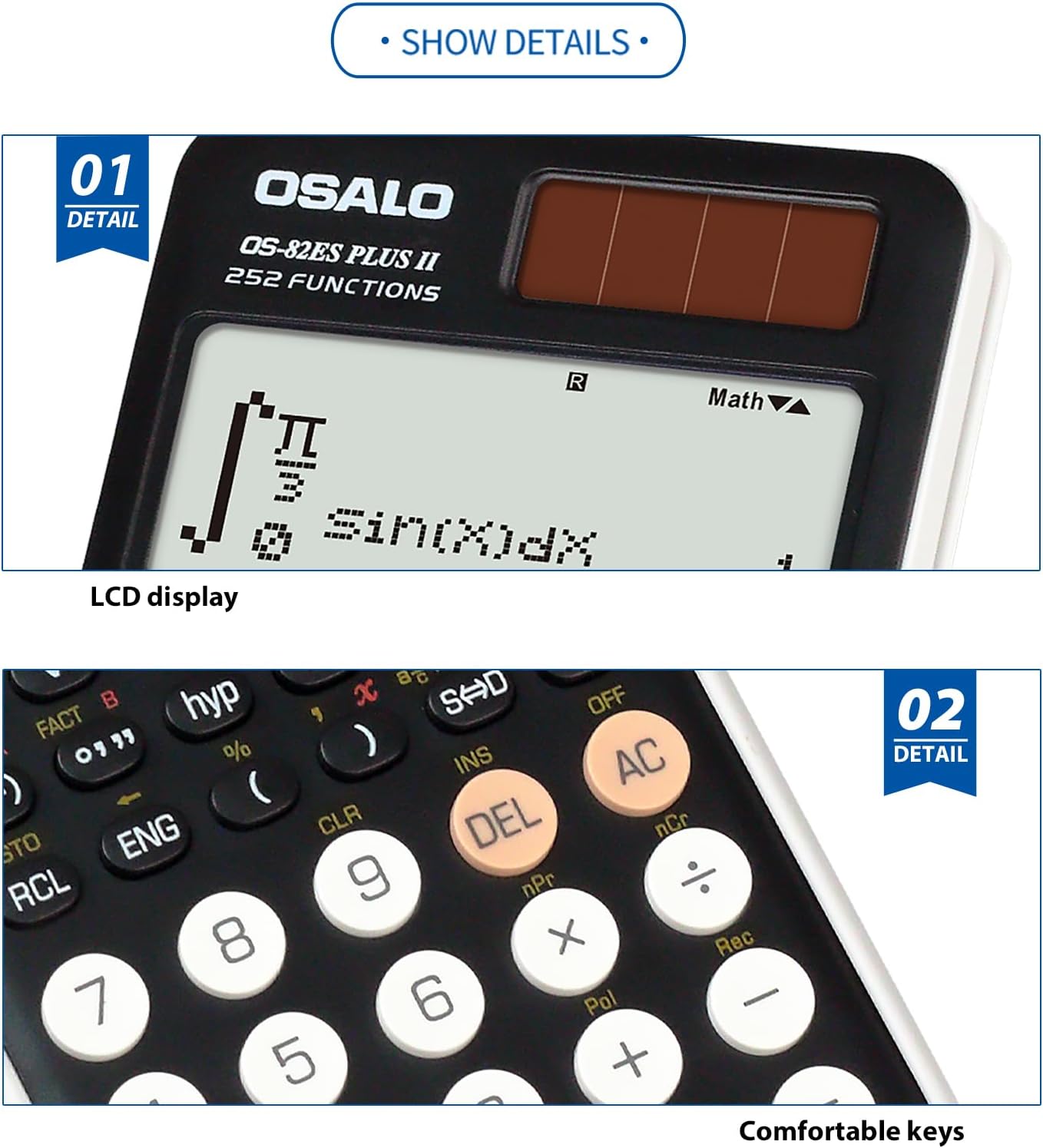
Image: Close-up details of the calculator's LCD display and the design of its comfortable keys, emphasizing readability and user interaction.
4. Maintenance
- Cleaning: Use a soft, dry cloth to clean the calculator. Do not use abrasive cleaners or solvents.
- Storage: Store the calculator in a cool, dry place away from direct sunlight and extreme temperatures.
- Battery Replacement: If the display becomes dim or erratic in low light, the battery may need replacement. Refer to the battery compartment for type and replacement instructions.
- Handling: Avoid dropping the calculator or subjecting it to strong impacts.
5. Troubleshooting
| Problem | Solution |
|---|---|
| Calculator does not turn on. | Ensure sufficient light for solar panel. Check battery condition and replace if necessary. Press the ON button firmly. |
| Display is dim or unreadable. | Adjust display brightness (refer to section 3.5). Ensure adequate lighting for solar operation. Replace battery if needed. |
| Incorrect calculation results. | Verify input values and function usage. Clear all memory and reset the calculator if necessary (consult advanced manual for reset procedure). |
| Keys are unresponsive. | Ensure no debris is lodged under the keys. If the issue persists, contact customer support. |
6. Specifications
- Model: OS-82ES PLUS II
- Functions: 252
- Display: 2-line Written Display, 12-digit LCD
- Power Source: Solar and Battery
- Dimensions (Approx.): 164mm (Length) x 80mm (Width) x 20mm (Thickness)
- Weight (Approx.): 140g (4.9 oz)
- Material: Metal panel and durable plastic
- Ergonomic Design: 30° viewing angle

Image: Visual representation of the calculator's dimensions (length, width, thickness) and net weight, illustrating its compact and lightweight design.

Image: Illustration demonstrating the 30-degree ergonomic design of the calculator, optimized for comfortable viewing during use.

Image: Close-up view of the calculator's concave design round buttons, highlighting their comfortable tactile feel for improved user experience.
7. Warranty Information
OSALO products are manufactured to high-quality standards. For specific warranty terms and conditions, please refer to the warranty card included with your product or visit the official OSALO website. Keep your purchase receipt as proof of purchase for any warranty claims.
8. Customer Support
If you encounter any issues or have questions regarding your OSALO Scientific Calculator OS-82ES PLUS II that are not covered in this manual, please contact OSALO customer support. Contact information can typically be found on the product packaging or the official OSALO website.
For further assistance, you may visit the OSALO Store on Amazon: OSALO Store
Ask a question about this manual
Ask about setup, troubleshooting, compatibility, parts, safety, or missing instructions. Manuals+ will review the question and use this page’s manual context to help answer it.