
Aiworth LD629
Aiworth LD629 Digital Voice Recorder User Manual
Model: LD629
1. Introduction
This manual provides detailed instructions for the operation and maintenance of your Aiworth LD629 Digital Voice Activated Recorder. Please read this manual thoroughly before using the device to ensure proper function and to maximize its capabilities.
Package Contents:
- Aiworth LD629 Digital Voice Recorder
- Tripod Stand
- Line-in Cable
- USB Cable (USB-C)
- 128GB Memory Card (pre-installed)
- After-sales Service Card

Image: The Aiworth LD629 Digital Voice Recorder shown with its accessories, including the tripod stand, USB cable, and memory card.
2. Safety Information
- Do not expose the device to extreme temperatures, direct sunlight, or high humidity.
- Avoid dropping or subjecting the device to strong impacts.
- Keep the device away from water and other liquids.
- Do not attempt to disassemble or repair the device yourself. Refer to qualified service personnel.
- Use only the provided or recommended charging cables and accessories.
- Dispose of the device and its battery responsibly according to local regulations.
3. Product Overview
The Aiworth LD629 features a user-friendly design with all primary operation buttons located on the front. It includes dual sensitive microphones for high-quality audio capture and a built-in speaker for playback.

Image: A detailed diagram illustrating the various ports and buttons on the Aiworth LD629 Digital Voice Recorder, including the dual mics, earphone jack, TF card slot, USB-C port, and control buttons.
Key Features:
- 1536Kbps PCM High-Quality Recording
- Dual Sensitive Microphones
- 128GB Internal Memory (via pre-installed TF card)
- 1000mAh Rechargeable Battery (up to 60 hours continuous recording)
- Voice Activated Recording (VOR)
- Power-on Password Protection
- Variable Play Speed (16 levels)
- A-B Repeat Function
- Line-in Recording
- Timed Automatic Recording
- Real-time Monitoring
- Tripod Stand Compatibility (standard 1/4" screw)
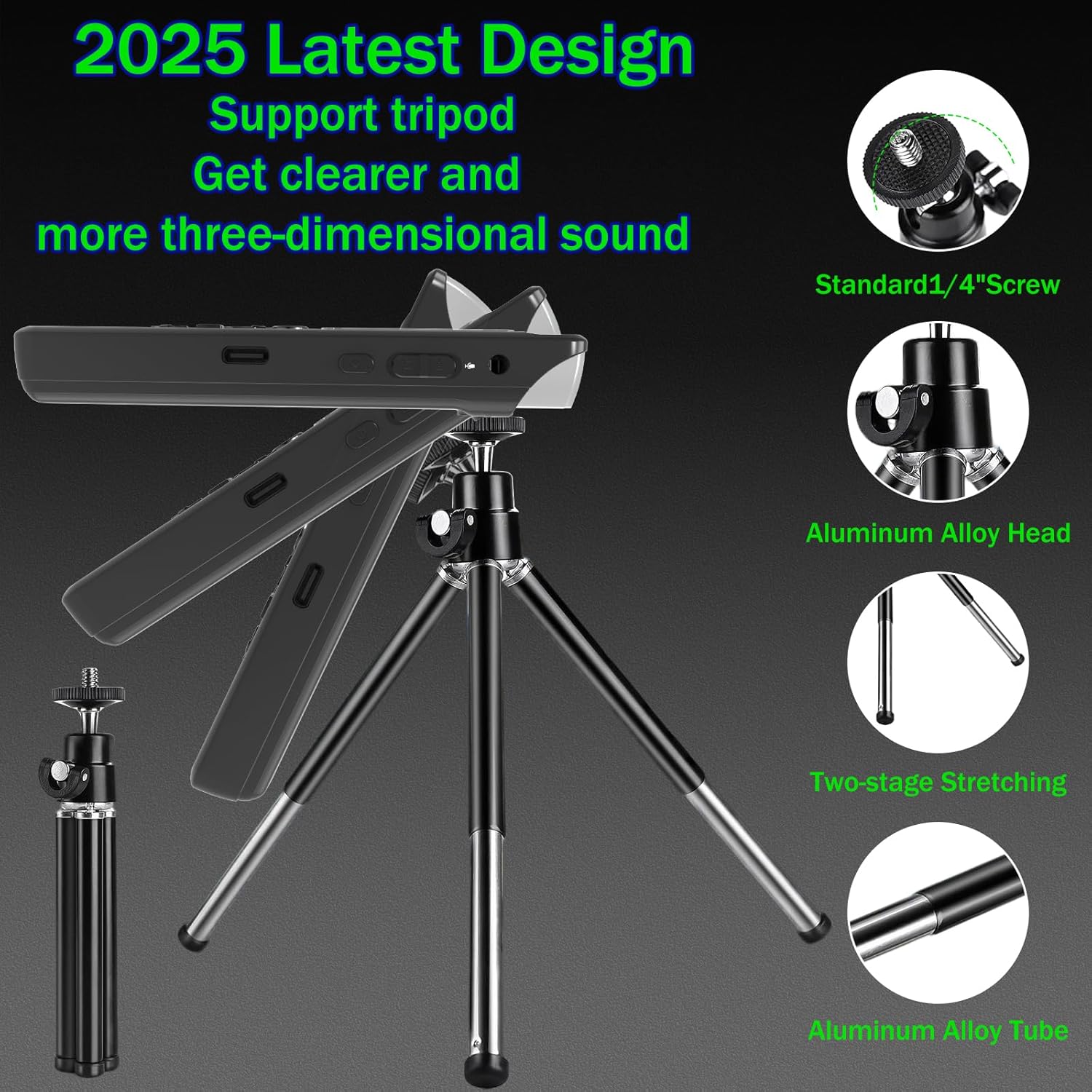
Image: The Aiworth LD629 Digital Voice Recorder shown attached to its included tripod stand, highlighting its stability and adjustable angles for optimal recording.
4. Setup
4.1. Initial Charging
Before first use, fully charge the device. Connect the included USB cable to the recorder's USB-C port and the other end to a USB power adapter (not included) or a computer's USB port. The battery indicator on the screen will show charging status. A full charge typically takes approximately 2-3 hours.

Image: The Aiworth LD629 Digital Voice Recorder displaying its 128GB memory capacity and a visual representation of its 1000mAh battery, indicating up to 60 hours of continuous recording.
4.2. Power On/Off
- To power on: Press and hold the Power button until the screen illuminates.
- To power off: Press and hold the Power button until the screen turns off.
4.3. Setting Date and Time
It is recommended to set the correct date and time for accurate file management. Refer to the on-screen menu for "System Settings" to adjust these parameters.
5. Operation
5.1. Basic Recording
- Ensure the device is powered on.
- Press the REC button to start recording. The recording indicator will appear on the screen.
- To pause recording, press the Play/Pause button. Press again to resume.
- To stop recording and save the file, press the STOP button.
The device supports 1536Kbps PCM recording with dual sensitive microphones, capturing clear audio from up to 60 feet away.

Image: The Aiworth LD629 Digital Voice Recorder's screen displaying recording in progress, with visual cues indicating its effective recording range of up to 60 feet using dual sensitive microphones.
5.2. Voice Activated Recording (VOR)
When VOR is enabled, the recorder will automatically start recording when sound is detected (above 60dB) and pause/save when silent. This conserves memory and battery life.
- Navigate to the "Recording Settings" menu.
- Select "VOR Mode" and set it to "ON".
- Adjust the VOR sensitivity level as needed.
- Press REC to enter VOR standby mode. The device will begin recording when sound is detected.

Image: The Aiworth LD629 Digital Voice Recorder illustrating its voice-activated recording feature, showing how it automatically starts recording when sound exceeds 60dB and saves when silent.
5.3. Playback
- From the main menu, select "Recordings" or "Music" to browse files.
- Use the navigation buttons to select a file.
- Press the Play/Pause button to start playback.
- Use the Volume +/- buttons to adjust playback volume.
- Use the Previous/Next buttons to skip tracks.
Variable Play Speed:
During playback, you can adjust the speed across 16 levels. This allows for faster review or slower, more detailed listening.

Image: A visual representation of the variable play speed function, explaining how users can adjust playback speed across 16 levels for faster review or detailed listening.
A-B Repeat Function:
This feature allows you to loop a specific segment of an audio file.
- During playback, press the A-B Repeat button at the desired starting point (A).
- Press the A-B Repeat button again at the desired ending point (B). The segment between A and B will loop.
- Press the A-B Repeat button a third time to exit the loop.

Image: A diagram explaining the A-B loop playback function, showing how to set start and end points to repeatedly play a specific audio segment.
5.4. Password Protection
The device supports a 3-digit power-on password for security, offering 8000 combinations. After three incorrect attempts, the device will automatically shut down.
- Navigate to "System Settings" and select "Password Protection".
- Enable the feature and set your desired 3-digit password.
- Remember your password, as there is no external reset pinhole.

Image: The Aiworth LD629 Digital Voice Recorder displaying its password input screen, illustrating the 3-digit password protection feature to secure recorded files.
5.5. Connecting to Computer/Phone (OTG)
Connect the recorder to a computer using the provided USB cable to transfer files. The device will appear as a removable disk. For phone connectivity via OTG, ensure your phone supports OTG functionality and use an appropriate adapter (not included).
5.6. Line-in Recording
The device supports direct recording from external audio sources like computers, radios, or other players using the line-in cable.
- Connect one end of the line-in cable to the audio output of the external device and the other end to the recorder's line-in jack.
- Start playback on the external device.
- Press the REC button on the recorder to begin recording the audio input.

Image: A diagram demonstrating the line-in recording capability, showing how the recorder can be connected to external devices like computers or radios to directly record their audio output.
5.7. Timed Automatic Recording
You can schedule the recorder to start and stop recording automatically at specific times.
- Access the "Timed Recording" option in the settings menu.
- Set the desired start time and stop time.
- Ensure the device is powered on and in standby mode for the timed recording to activate.

Image: A diagram explaining the timed automatic recording feature, showing how to set specific start and stop times for automated recording and saving.
5.8. Real-time Monitoring
Connect headphones to the earphone jack to monitor the audio being recorded in real-time.

Image: A diagram illustrating the real-time monitoring function, showing how users can connect headphones to listen to the audio being recorded as it happens.
6. Maintenance
- Clean the device with a soft, dry cloth. Do not use liquid cleaners or aerosols.
- Store the device in a cool, dry place when not in use.
- Regularly back up important recordings to a computer or cloud storage.
- Avoid exposing the device to strong magnetic fields.
7. Troubleshooting
| Problem | Possible Cause / Solution |
|---|---|
| Device does not power on. | Battery may be depleted. Charge the device fully. |
| Cannot record. | Memory full: Delete old files or transfer them to a computer. Device is locked: Check if the key lock function is enabled. |
| Poor recording quality. | Microphones obstructed: Ensure microphones are clear. Distance from source: Move closer to the audio source. High background noise: Use noise reduction settings if available, or record in a quieter environment. |
| Cannot connect to computer. | Faulty USB cable: Try a different USB cable. Driver issue: Ensure your computer's USB drivers are up to date. Incorrect mode: Ensure the recorder is in data transfer mode if prompted. |
| Forgot password. | There is no external reset pinhole. If you forget your password, contact Aiworth customer support for assistance. |
8. Specifications
| Feature | Detail |
|---|---|
| Model Number | LD629 |
| Memory Storage Capacity | 128 GB |
| Digital Recording Time | Up to 9280 hours |
| Battery Life (Recording) | Up to 60 hours (continuous) |
| Battery Type | 1000mAh Rechargeable (1 C battery included) |
| Recording Format | WAV (PCM up to 1536Kbps) |
| Microphone Form Factor | Built-In Dual Microphones |
| Hardware Interface | USB 3.0 Type C |
| Compatible Devices | Smartphone (via OTG), PC |
| Item Weight | 8.4 ounces |
| Package Dimensions | 5.71 x 4.72 x 1.26 inches |
| Manufacturer | Aiworth |
| Country of Origin | China |
9. Warranty and Support
Your Aiworth LD629 Digital Voice Recorder comes with a standard manufacturer's warranty. Please refer to the "After-sales Service Card" included in your package for specific warranty terms and conditions.
For technical support, troubleshooting assistance, or warranty claims, please contact Aiworth customer service through their official channels. You can often find contact information on the manufacturer's website or the service card.
Visit the official Aiworth Store on Amazon for more information: Aiworth Store
Related documentsLD629


Ask a question about this manual
Ask about setup, troubleshooting, compatibility, parts, safety, or missing instructions. Manuals+ will review the question and use this page’s manual context to help answer it.