Download PDFFree PDF. The Save button below keeps a bookmark and private notes in your account.
Unitek 2 Bay USB-C RAID External Hard Drive Enclosure User Manual
Model: S1308C
1. Introduction
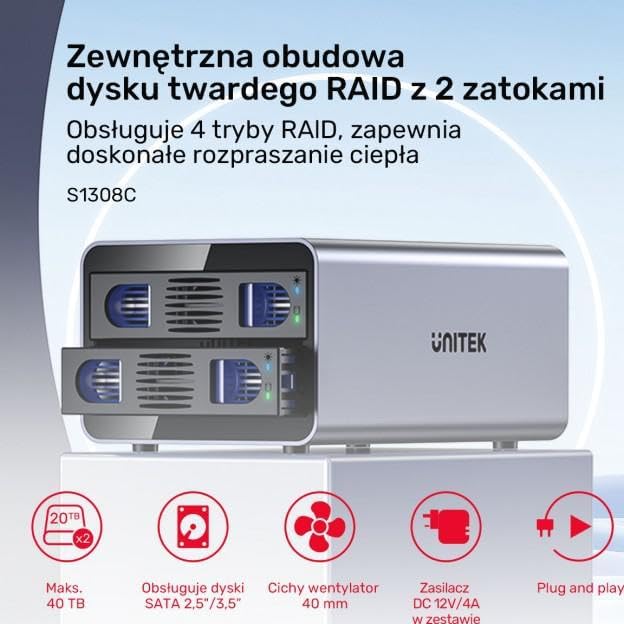
The Unitek 2 Bay USB-C RAID External Hard Drive Enclosure (Model S1308C) provides a reliable and stable storage solution for your data. This enclosure supports up to 40TB of total capacity and offers various RAID modes to suit your specific data management needs, including performance enhancement and data redundancy. It is compatible with both 2.5" and 3.5" SATA HDDs and features efficient heat dissipation for stable operation. This manual provides instructions for proper installation, configuration, and use of your Unitek enclosure.
Image 1.1: The Unitek 2 Bay USB-C RAID External Hard Drive Enclosure shown in its retail packaging.
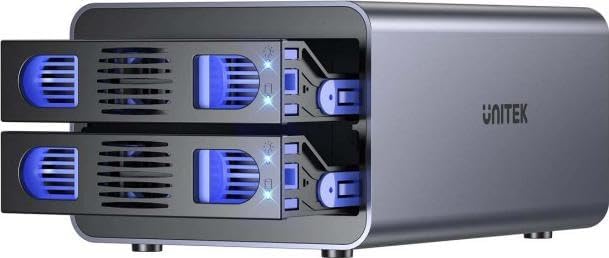
Image 1.2: Front view of the Unitek 2 Bay USB-C RAID External Hard Drive Enclosure, displaying the two drive bays with blue LED indicators.
2. Features
The Unitek 2 Bay USB-C RAID External Hard Drive Enclosure is equipped with several features designed for optimal performance and data protection:
RAID Modes: Supports RAID 0 (for speed), RAID 1 (for data safety), JBOD (for combined use), and PM (for normal operation).
HDD Compatibility: Accommodates both 2.5" and 3.5" SATA HDDs.
Data Transfer: Up to 10Gbps for model S1308C.
Cooling System: Features an efficient cooling fan and aluminum alloy housing for effective heat dissipation.
Power Safety: Includes triple protection features against overcurrent, short-circuit, and overvoltage.
Ease of Use: Tool-free installation for 3.5" HDDs; no additional drivers required for operation.
Image 2.1: Overview of key features, including maximum capacity, drive compatibility, cooling, power, and ease of use.
3. Setup and Installation
3.1. Installing Hard Drives
Ensure the enclosure is powered off and disconnected from your computer.
Gently pull out the drive trays from the front of the enclosure.
For 3.5" SATA HDDs: Insert the drive into the tray, aligning the SATA connectors. The tool-free design secures the drive.
For 2.5" SATA HDDs: Place the drive into the tray and secure it using screws (not included, typically provided with 2.5" drives) through the bottom of the tray.
Slide the loaded drive trays back into the enclosure until they click into place.
Image 3.1: The enclosure with both drive trays extended, illustrating the drive installation process.
3.2. Connecting to Your Computer
Connect the provided power adapter to the enclosure's DC IN port and then to a power outlet.
Connect the USB-C cable from the enclosure's USB-C port to an available USB-C port on your computer.
Power on the enclosure using the power switch. The drive indicator lights will illuminate.
Your operating system should detect the new storage device automatically. If the drives are new, they may need to be initialized and formatted through your computer's disk management utility before use.
Image 3.2: The enclosure connected to a computer, highlighting its high-speed data transfer capability.
4. Operating Modes (RAID Configuration)
The Unitek 2 Bay enclosure supports four operating modes: RAID 0, RAID 1, JBOD, and PM. Important: Changing RAID modes will erase all data on the installed hard drives. Back up your data before making any changes.
4.1. Mode Selection
The RAID mode is typically selected using DIP switches or a physical button on the back of the enclosure. Refer to the diagram on the back of your enclosure for specific switch positions for each mode. After setting the desired mode, you must press and hold the "RESET" button for approximately 5 seconds until the indicator lights confirm the change.
Image 4.1: Rear panel of the enclosure, showing the cooling fan, power input, USB-C port, and control buttons including the RESET button and mode selection switches (if present).
4.2. RAID Mode Descriptions
RAID 0 (Striping): Combines two drives into a single large volume, distributing data across both drives. This mode offers the highest performance and capacity but provides no data redundancy. If one drive fails, all data is lost.
RAID 1 (Mirroring): Creates an exact copy of data on both drives. This provides data redundancy; if one drive fails, your data is still accessible on the other drive. The total usable capacity is equal to the size of the smaller drive.
JBOD (Just a Bunch Of Disks): Presents the drives as a single, concatenated volume. Data is written sequentially to the first drive, then to the second. This increases total capacity but offers no performance or redundancy benefits.
PM (Port Multiplier / Individual Disks): Each drive is recognized as a separate, independent volume by the operating system. This is the default mode if no RAID configuration is desired.
5. Maintenance
Proper maintenance ensures the longevity and optimal performance of your Unitek enclosure:
Cleaning: Use a soft, dry cloth to clean the exterior of the enclosure. Avoid liquid cleaners. Ensure the cooling fan vents are free from dust and obstructions to maintain proper airflow.
Ventilation: Place the enclosure in a well-ventilated area. Do not block the air vents.
Temperature: Operate the enclosure within recommended environmental temperatures to prevent overheating.
Safe Removal: Always safely eject or unmount the drives from your operating system before disconnecting the enclosure or powering it off to prevent data corruption.
6. Troubleshooting
If you encounter issues with your Unitek enclosure, refer to the following common solutions:
Enclosure not detected:
Ensure the power adapter is securely connected and the enclosure is powered on.
Verify the USB-C cable is properly connected to both the enclosure and your computer.
Try a different USB-C port on your computer or a different USB-C cable.
Check your computer's Disk Management (Windows) or Disk Utility (macOS) to see if the drives are detected but uninitialized/unformatted.
Drives not appearing:
Confirm that the hard drives are correctly seated in their trays and fully inserted into the enclosure.
If new drives, they need to be initialized and formatted.
If existing drives, ensure they are healthy and recognized by another system if possible.
Slow data transfer:
Ensure you are using a USB-C port and cable that supports 10Gbps (USB 3.2 Gen 2) for optimal performance.
Check if your computer's USB drivers are up to date.
Performance can vary based on the type and speed of the installed hard drives.
RAID configuration issues:
Double-check the RAID mode switch settings on the back of the enclosure.
Ensure you have pressed and held the RESET button after changing RAID modes.
Remember that changing RAID modes will erase data.
Image 7.1: Diagram showing the approximate dimensions (196mm x 126mm x 92mm) and the location of the built-in cooling fan on the rear panel.
8. Warranty and Support
Unitek products are designed for reliability and performance. For specific warranty details, please refer to the warranty card included with your product or visit the official Unitek website. If you encounter any issues or require technical assistance, please contact Unitek customer support through their official website or the contact information provided in your product packaging.
Unitek Official Website:www.unitek-products.com (Note: This is a placeholder URL, please refer to your product documentation for the correct support website.)
Ask a question about this manual
Ask about setup, troubleshooting, compatibility, parts, safety, or missing instructions. Manuals+ will review the question and use this page’s manual context to help answer it.