
1. Introduction
This manual provides essential instructions for the safe and efficient operation, setup, and maintenance of your Generic Commercial Electronic Digital Computing Scale with Printer. This multi-purpose scale integrates weighing, pricing, and printing functionalities, making it suitable for various commercial environments such as vegetable shops, seafood markets, butcher shops, delicatessens, retail stores, snack bars, and bakeries.

Figure 1: Generic Commercial Electronic Digital Computing Scale with Printer. This image displays the complete scale unit with its display, weighing platform, and integrated printer, alongside various food items like meat, vegetables, and strawberries, indicating its use in fresh produce and meat markets.
2. Setup
2.1 Unpacking and Assembly
- Carefully remove all components from the packaging.
- Place the main scale unit on a stable, level surface.
- Attach the display pole and display unit to the main scale body. Ensure it is securely fastened.
- Connect the power cable to the scale and then to a suitable power outlet.

Figure 2: Scale components before assembly. This image shows the main scale body, the separate display unit, and the pole, illustrating the modular design that requires assembly.
2.2 Initial Power On and Calibration
- Plug in the power cord and press the power button.
- Allow the scale to warm up for a few minutes.
- Ensure the weighing platform is empty before use. The scale will typically perform a self-check and display "0.00" or "0.000".
- If calibration is required, refer to the on-screen prompts or the included software manual for specific steps.
2.3 Loading Printer Paper
Open the printer compartment cover, typically located on the side of the scale. Insert the thermal paper roll, ensuring the paper feeds correctly through the mechanism. Close the cover securely.
3. Operating Instructions
3.1 Basic Weighing
- Power On: Press the POWER button.
- Zero Function: If the display does not show zero with an empty platform, press the ZERO button to reset it.
- Tare Function: To weigh an item in a container, place the empty container on the platform and press the TARE button. The display will reset to zero. Then place the item in the container to weigh only the item.
- Weighing: Place the item directly on the weighing platform. The weight will be displayed. The scale supports flexible conversion between kilograms (kg) and pounds (lb).
3.2 Price Computing and PLU Management
The scale is equipped with 63 shortcut keys and can store up to 5,000 Product Look-Up (PLU) items. PLU information can be added or modified directly on the computer application or via the scale's interface.
- Entering Unit Price: After placing an item on the scale, use the numeric keypad to enter the unit price.
- Selecting PLU: Press the PLU button, then enter the PLU code or use one of the 63 shortcut keys for frequently sold items.
- The scale will automatically calculate the total price based on the weight and unit price.

Figure 3: Detailed view of the scale's keypad. This image highlights the 63 shortcut keys for PLU items on the left and the numeric keypad with function buttons like PLU, Cash/Print, Zero, and Tare on the right, essential for operation.
3.3 Printing Receipts and Labels
The scale supports switchable printing of stickers (labels) or receipts.
- After a transaction is complete and the total price is displayed, press the Cash/Print button to print a receipt or label.
- Ensure the correct paper type (receipt roll or label roll) is loaded for the desired output.

Figure 4: Example of printed receipt and label. This image shows a sample receipt detailing items, unit price, quantity, and total, alongside a sample barcode label, demonstrating the scale's printing capabilities.
3.4 Interface Connections
Multiple interfaces are located on the side of the scale for connectivity:
- RS232 Port: For connecting to computers or other serial devices.
- Ethernet Port: For network connectivity, allowing data transfer and remote management.
- Cash Drawer Port: For connecting to a compatible cash drawer for automated opening.
3.5 Language Customization
The scale's software can be customized for multiple languages, including English, French, Portuguese, Arabic, and Spanish. Refer to the system settings menu for language selection.
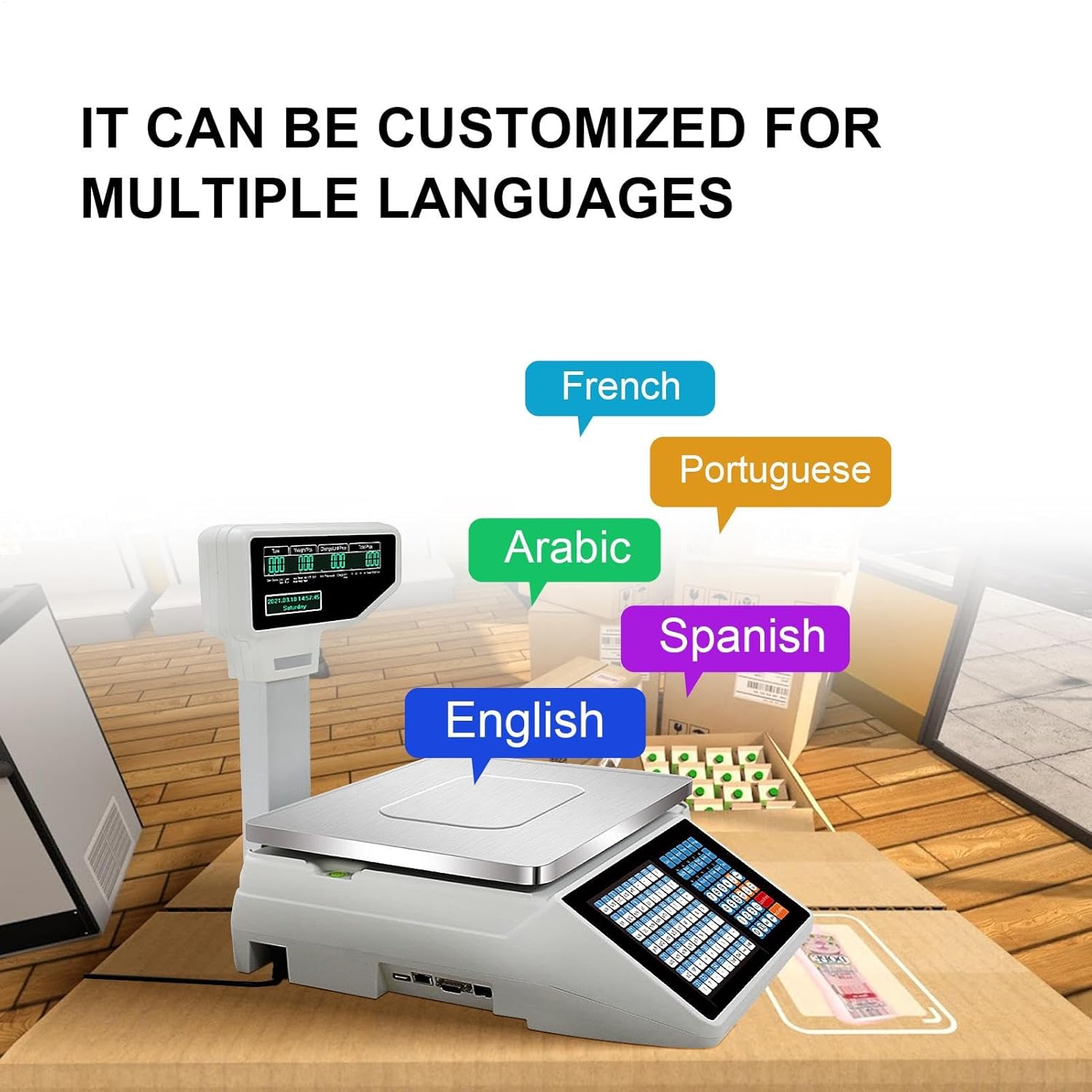
Figure 5: Illustration of multi-language support. This image shows the scale with speech bubbles indicating support for various languages like English, French, Portuguese, Arabic, and Spanish, highlighting its adaptability for diverse user bases.
3.6 Double-Sided Display
The scale features a double-sided display, providing clear visibility of transaction details for both the operator (Main Show) and the customer (Guest Show).
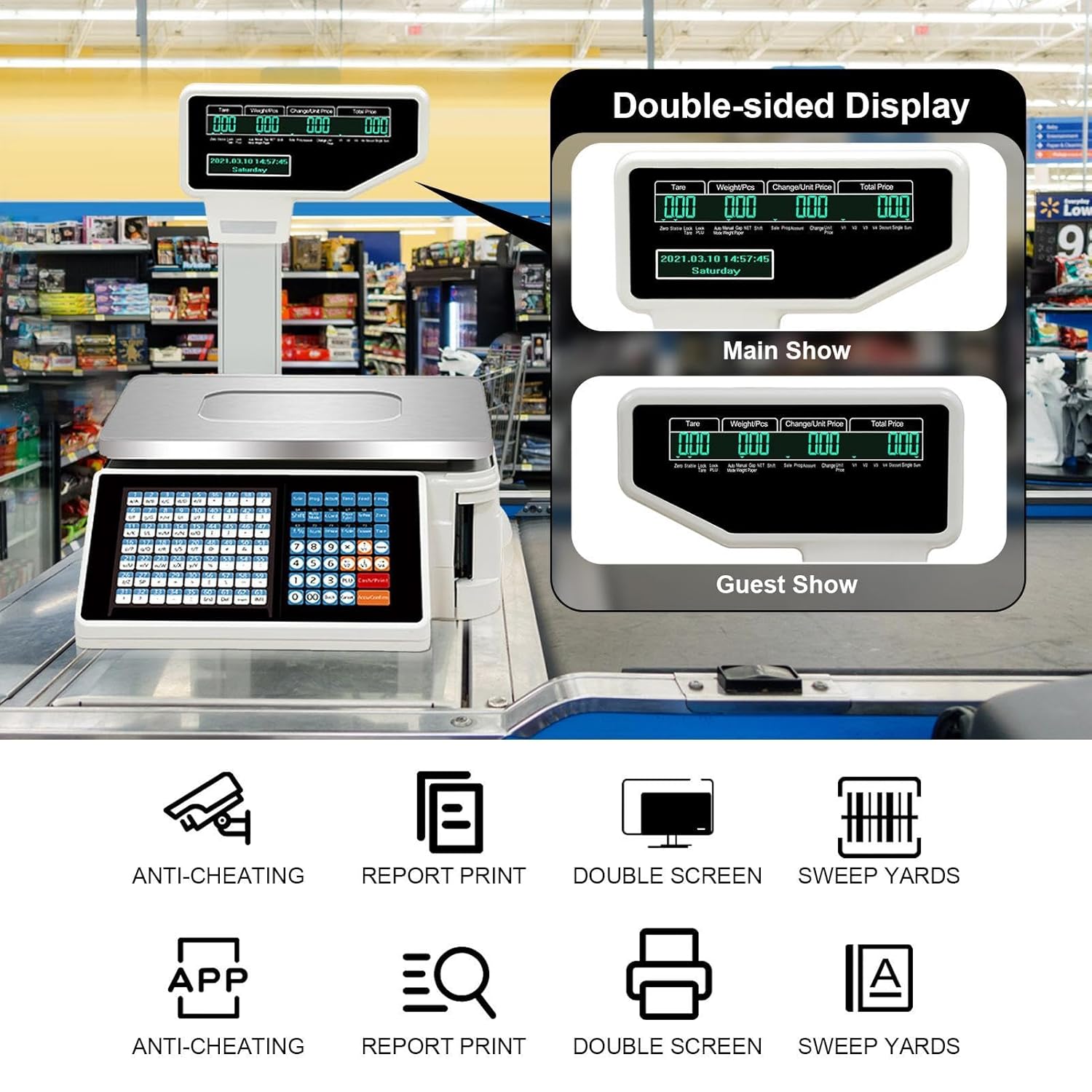
Figure 6: Double-sided display in action. This image illustrates the main display for the operator and a separate guest display, ensuring transparency for customers during transactions.
4. Maintenance
4.1 Cleaning
- Turn off and unplug the scale before cleaning.
- Wipe the stainless steel weighing platform and plastic body with a soft, damp cloth.
- Do not use abrasive cleaners, solvents, or immerse the scale in water.
- Ensure no liquids enter the display or keypad areas.
4.2 Printer Care
- Regularly check the paper roll and replace it when low.
- Keep the printer area free from dust and debris.
- If print quality degrades, gently clean the print head with a lint-free cloth and isopropyl alcohol (ensure scale is off and unplugged).
5. Troubleshooting
| Problem | Possible Cause | Solution |
|---|---|---|
| Scale does not power on. | Power cord disconnected; power outlet fault. | Check power cord connection; try a different outlet. |
| Inaccurate weight readings. | Scale not level; foreign object under platform; calibration needed. | Ensure scale is on a level surface; remove obstructions; perform calibration. |
| Printer not printing. | No paper; paper jammed; printer cover open. | Load new paper roll; clear jam; ensure cover is closed. |
| Display shows error message. | Overload; internal fault. | Remove excess weight; power cycle the scale. If persistent, contact support. |
6. Specifications
- Brand: Generic
- Model: Commercial Electronic Digital Computing Scale with Printer
- Material: Stainless Steel (weighing platform)
- Maximum Weighing Capacity: 30 kg (66 lb)
- Minimum Weighing Capacity: 10 g (0.02 lb)
- Increment Accuracy: 10 g (0.02 lb)
- Item Weight: Approximately 22.1 Pounds
- Color: Silver
- Dimensions (Approximate):
- Overall Height: 51 cm (20.1 in)
- Weighing Platform: 37 cm (14.6 in) x 27 cm (10.6 in)
- Base Unit: 39 cm (15.4 in) x 41 cm (16.1 in)
- Display Unit: 26 cm (10.2 in) x 11 cm (4.3 in)
- Interfaces: RS232, Ethernet, Cash Drawer Port
- PLU Storage: Up to 5,000 items
- Shortcut Keys: 63
- Display: Double-sided
- Printing: Receipts and Labels

Figure 7: Dimensional diagram of the commercial scale. This image provides key measurements for the scale's height, width, and depth for both the main unit and the display, useful for placement and space planning.
7. Support and Warranty
For technical assistance, warranty information, or service inquiries, please contact the retailer or manufacturer directly. Keep your purchase receipt as proof of purchase.


