
LG 34GX90SA-W.AUS
LG 34GX90SA-W UltraGear OLED Curved Gaming Monitor User Manual
Model: 34GX90SA-W.AUS
Product Overview
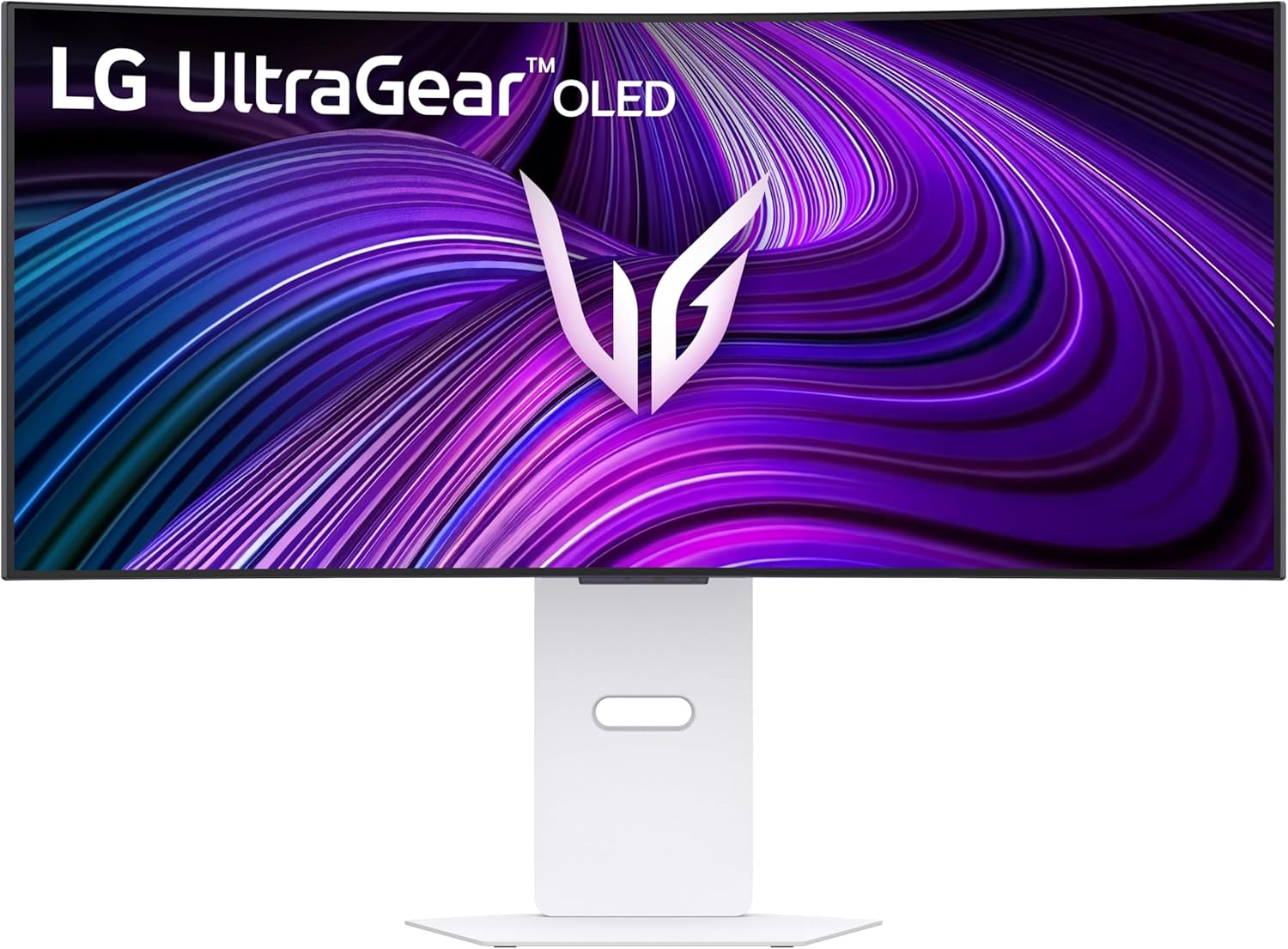
The LG 34GX90SA-W is a 34-inch UltraGear WQHD (3440 x 1440) OLED Curved Gaming Monitor designed for an immersive gaming experience. It features a 240Hz refresh rate, 0.03ms response time, NVIDIA G-Sync Compatibility, AMD FreeSync Premium, VESA DisplayHDR True Black 400, and integrated webOS for streaming and cloud gaming.

Front view of the LG 34GX90SA-W UltraGear OLED Curved Gaming Monitor, showcasing its curved screen and white stand.
What's in the Box
- Monitor
- Power Cable
- HDMI Cable
- Display Port Cable
- USB-C Cable
Setup Guide
1. Unpacking and Assembly
Carefully remove all components from the packaging. Assemble the stand to the monitor following the instructions provided in the quick setup guide included in the box. Ensure all connections are secure.
Rear view of the LG 34GX90SA-W monitor, illustrating the stand attachment point and cable management features.
2. Connecting to a Power Source
Connect the provided power cable to the monitor's power input and then to a wall outlet. Ensure the power outlet is easily accessible.
3. Connecting to a Computer or Device
Use the provided HDMI, DisplayPort, or USB-C cable to connect your computer or gaming console to the monitor. The monitor supports HDMI 2.1, DisplayPort 1.4, and USB Type-C (65W power delivery) for versatile connectivity.

Close-up of the LG 34GX90SA-W monitor's input ports, including HDMI, USB-C, and DisplayPort, for connecting various devices.
Operating Instructions
Powering On/Off
Press the power button located on the monitor to turn it on or off. The monitor will display the LG UltraGear logo upon startup.
Navigating webOS
The monitor features integrated webOS 24, allowing direct access to streaming services and cloud gaming platforms. Use the included remote control to navigate the webOS interface. The home screen provides quick access to apps like Netflix, Prime Video, Apple TV, Disney+, HBO Max, and cloud gaming services such as NVIDIA GeForce NOW, Amazon Luna, and Blacknut.

The LG 34GX90SA-W monitor displaying the webOS smart platform interface, showing various streaming and gaming application icons.
Adjusting Display Settings
Access the monitor's on-screen display (OSD) menu to adjust various settings, including brightness, contrast, color temperature, and game-specific features like Dynamic Action Sync, Black Stabilizer, FPS Counter, and Crosshair. These settings can be customized to optimize your viewing and gaming experience.
Adaptive Sync Technologies
The monitor supports both AMD FreeSync Premium and NVIDIA G-SYNC compatibility to eliminate screen tearing and stuttering, providing a smooth gaming experience across compatible PCs and consoles.

The LG 34GX90SA-W monitor showcasing FreeSync Premium and G-SYNC compatibility during a racing game, highlighting seamless frame synchronization.
Maintenance and Care
Cleaning the Monitor
To clean the screen, gently wipe it with a soft, lint-free cloth. For stubborn marks, slightly dampen the cloth with water or a mild, non-abrasive screen cleaner. Avoid using harsh chemicals or abrasive materials. For the monitor body, use a dry, soft cloth.
OLED Care Features
The monitor includes OLED Care tools, such as pixel cleaning, to help maintain display quality and prevent image retention over time. Refer to the monitor's OSD menu for specific OLED Care settings and recommendations.
Troubleshooting
| Problem | Possible Cause | Solution |
|---|---|---|
| No Power | Power cable not connected securely. | Check power cable connections at both the monitor and the wall outlet. Ensure the outlet is functional. |
| No Signal | Incorrect input source selected or display cable not connected. | Verify the display cable (HDMI, DisplayPort, USB-C) is securely connected to both the monitor and the source device. Select the correct input source via the monitor's OSD menu. |
| Screen Tearing/Stuttering | Adaptive Sync (FreeSync/G-Sync) not enabled or incompatible graphics card. | Ensure FreeSync Premium or G-SYNC compatibility is enabled in both the monitor's OSD and your graphics card settings. Verify your graphics card supports the technology. |
| Image Retention/Burn-in | Static images displayed for extended periods. | Utilize the monitor's OLED Care features, such as pixel cleaning. Avoid displaying static images for very long durations. |
Specifications
| Feature | Detail |
|---|---|
| Screen Size | 34 Inches |
| Panel Type | OLED |
| Resolution | WQHD (3440 x 1440) |
| Refresh Rate | Up to 240Hz |
| Response Time (GtG) | 0.03ms |
| Curvature | 800R |
| Brightness (Peak) | 1300 nits (APL 1.5%) |
| Color Gamut | 98.5% DCI-P3 |
| Contrast Ratio | 1,500,000:1 |
| HDR Support | VESA DisplayHDR True Black 400 |
| Adaptive Sync | NVIDIA G-Sync Compatible, AMD FreeSync Premium |
| Operating System | webOS 24 |
| Connectivity | HDMI 2.1, DisplayPort 1.4, USB Type-C (65W PD), USB 3.0 (2 ports) |
| Dimensions (LxWxH) | 11.49 x 30.87 x 22.85 inches |
| Weight | 22.9 pounds |
Warranty and Support
Warranty Information
The LG 34GX90SA-W UltraGear OLED Curved Gaming Monitor comes with a 2-year limited warranty that covers key components, including the OLED panel. For full warranty details, please refer to the official LG website or the warranty card included with your product.
Customer Support
For technical assistance, troubleshooting, or service inquiries, please visit the official LG support website or contact LG customer service. You can also find the official user manual in PDF format for detailed information: