
1. Introduction
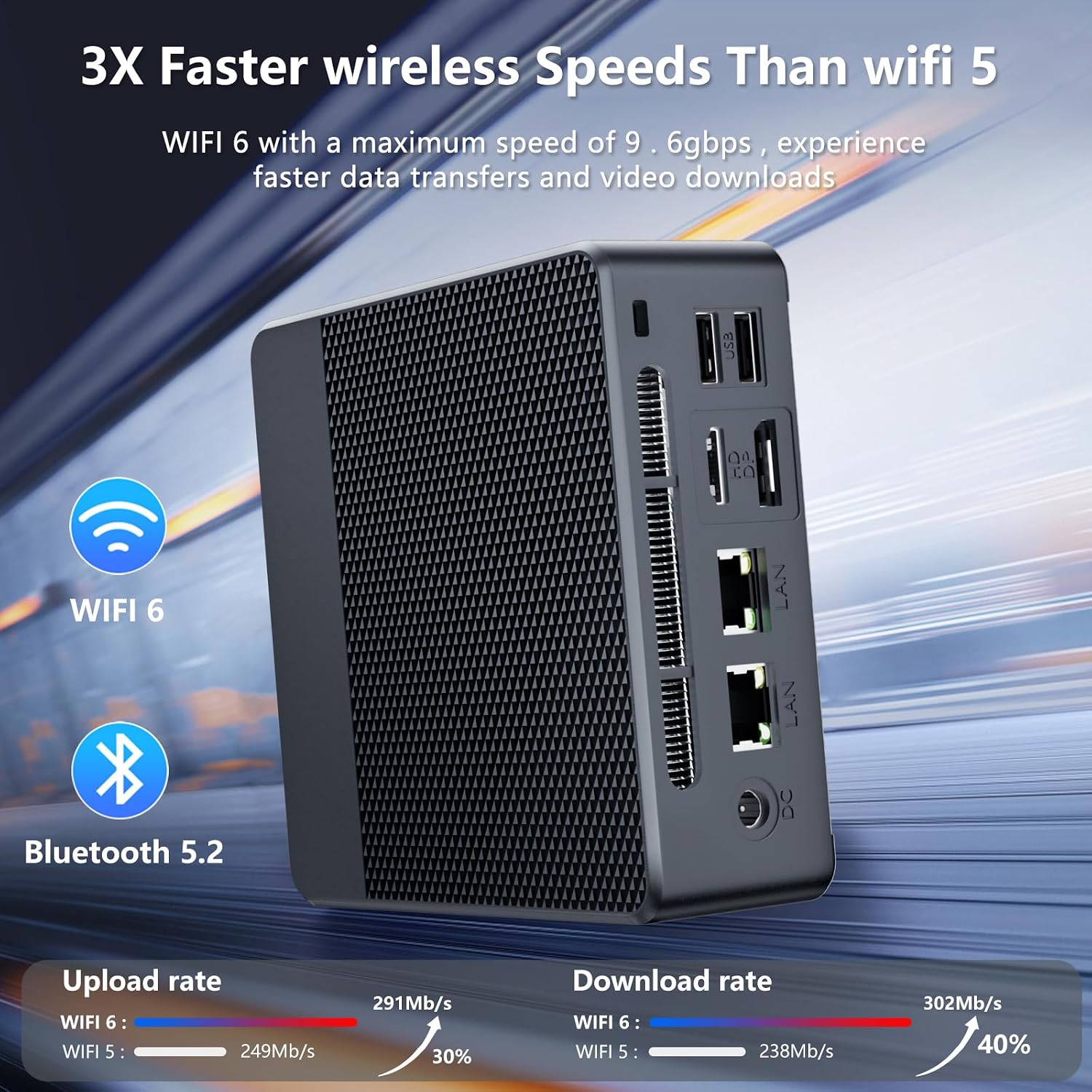
This manual provides instructions for the Tunhail Mini PC, model UNB-100. This compact desktop computer is designed for various tasks, including home entertainment, web browsing, and office work. It features an Intel Alder Lake-N N100 processor, 16GB of DDR4 RAM, and a 512GB SSD. The device supports 4K video output via HDMI 2.1 and offers multiple connectivity options including WiFi 6, Bluetooth 5.2, and several USB 3.0 ports.

2. What's in the Box
Please check the package contents upon unboxing. If any items are missing or damaged, contact customer support.
- Tunhail Mini PC UNB-100
- Power Adapter
- HDMI Cable
- User Manual
3. Product Overview
Familiarize yourself with the ports and components of your Tunhail Mini PC.

Front Panel
- Power Switch: Turns the device on or off.
- Earphone Hole: 3.5mm audio jack for headphones or speakers.
- Type-C (Full Function): USB Type-C port supporting data, video, and power delivery.
- USB 3.1 Ports (x2): High-speed USB ports for connecting peripherals.
Rear Panel
- USB 2.0 Ports (x2): Standard USB ports for connecting peripherals.
- HDMI 2.1 Port: Connects to a display for video and audio output, supporting up to 4K resolution.
- DP 1.4 Port: DisplayPort for connecting to a display, supporting high resolutions.
- RJ45 Ports (x2): Ethernet ports for wired network connection (1x 1000M, 1x 2.5G).
- DC Charging Port: Connect the power adapter here.
4. Setup Instructions
Follow these steps to set up your Tunhail Mini PC for the first time.
- Connect to a Display: Use the provided HDMI cable to connect the Mini PC to your monitor or TV. You can also use the DisplayPort for compatible displays.
- Connect Peripherals: Plug in your USB keyboard and mouse into the available USB ports.
- Connect to Network (Optional): For a wired connection, connect an Ethernet cable to one of the RJ45 ports. For wireless, you will configure WiFi after initial boot.
- Connect Power: Plug the power adapter into the DC charging port on the Mini PC, then plug the adapter into a power outlet.
- Power On: Press the power switch on the front panel. The system will boot up, and you will see the operating system (Windows 11 Pro) loading on your display.
- Initial Configuration: Follow the on-screen instructions to complete the Windows 11 Pro setup, including language, region, and network settings.
5. Operating Instructions
This section covers basic operation and usage tips for your Mini PC.
Power On/Off
- To Power On: Press the power switch on the front panel.
- To Shut Down: Click the Start button in Windows, then select Power > Shut down. Do not unplug the power adapter directly without proper shutdown to prevent data loss.
- To Restart: Click the Start button in Windows, then select Power > Restart.
Network Connectivity
- Wired Connection: Ensure an Ethernet cable is connected to one of the RJ45 ports. The system should automatically detect the connection.
- Wireless Connection (WiFi 6): In Windows, click the network icon in the taskbar, select your desired WiFi network, enter the password, and connect.
Bluetooth Devices (BT 5.2)
To connect Bluetooth devices like keyboards, mice, or headphones:
- Go to Windows Settings > Bluetooth & devices.
- Ensure Bluetooth is turned On.
- Put your Bluetooth device into pairing mode.
- Click "Add device" and select "Bluetooth". Choose your device from the list and follow any on-screen prompts.
Multi-tasking and 4K Video Playback
The Tunhail Mini PC is capable of handling multiple applications simultaneously and supports 4K video playback, making it suitable for various multimedia and productivity tasks.

6. Specifications
Detailed technical specifications for the Tunhail Mini PC UNB-100.
| Feature | Specification |
|---|---|
| Brand | Tunhail |
| Model Name | UNB-100 |
| Operating System | Windows 11 Pro |
| CPU Model | Intel Alder Lake-N N100 Processor (4 Cores, 4 Threads) |
| CPU Speed | Up to 3.4 GHz (Max Turbo Frequency) |
| Cache Size | 6 MB |
| Graphics Coprocessor | Intel UHD Graphics |
| RAM Memory | 16 GB DDR4 (2666 MHz) |
| Storage Capacity | 512 GB SSD |
| Connectivity Technology | Wi-Fi 6 (802.11ax), Bluetooth 5.2, Ethernet (1x 1000M, 1x 2.5G) |
| USB Ports | 4 (2x USB 3.1, 2x USB 2.0) |
| Video Output | 1x HDMI 2.1, 1x DisplayPort 1.4, 1x Type-C (Full Function) |
| Max Screen Resolution | 3840x2160 (4K) |
| Audio Interface | 3.5mm Combo Audio/Microphone Jack |
| Power Consumption | 6 Watts (typical) |
| Item Dimensions | 12.7 x 12.7 x 4.5 cm (5 x 5 x 1.8 inches) |
| Cooling Method | Passive |

7. Maintenance
Proper maintenance ensures the longevity and optimal performance of your Mini PC.
- Cleaning: Regularly clean the exterior of the Mini PC with a soft, dry cloth. Avoid using liquid cleaners directly on the device. Ensure ventilation holes are free from dust.
- Ventilation: Place the Mini PC in a well-ventilated area. Do not block the ventilation holes to prevent overheating.
- Software Updates: Keep your operating system and drivers updated to ensure security and performance.
- Data Backup: Regularly back up important data to an external drive or cloud storage to prevent data loss.
- Power Management: Use the proper shutdown procedure. Avoid sudden power cuts.
8. Troubleshooting
This section addresses common issues you might encounter and provides basic solutions.
- No Power:
- Ensure the power adapter is securely connected to both the Mini PC and a working power outlet.
- Check if the power outlet is functional by plugging in another device.
- Try a different power adapter if available and compatible.
- No Display:
- Verify that the HDMI or DisplayPort cable is securely connected to both the Mini PC and the monitor.
- Ensure the monitor is powered on and set to the correct input source (HDMI/DP).
- Try connecting to a different monitor or using a different cable.
- No Internet Connection:
- For wired connection, check the Ethernet cable and router status.
- For WiFi, ensure WiFi is enabled in Windows settings and you are connected to the correct network with the right password.
- Restart your router and modem.
- Slow Performance:
- Close unnecessary applications running in the background.
- Check for and install any pending Windows updates.
- Ensure there is sufficient free space on the SSD.
- Run a malware scan.
9. Warranty and Support
The Tunhail Mini PC UNB-100 comes with a two-year warranty.
For any questions, technical assistance, or warranty claims, please contact Tunhail customer support through the retailer where you purchased the product or refer to the contact information provided in your product packaging.