
Delmodes DV105
Delmodes 2.7K 56MP 16X Digital Zoom Vlogging Camera DV105 Instruction Manual
Model: DV105
Introduction
Thank you for purchasing the Delmodes 2.7K 56MP 16X Digital Zoom Vlogging Camera DV105. This manual provides detailed instructions on how to set up, operate, and maintain your new camcorder. Please read this manual thoroughly before use to ensure optimal performance and longevity of your device.
What's in the Box
Verify that all items are present in the package:
- 1 x Delmodes 2.7K Camcorder
- 1 x 32GB SD Card
- 1 x USB Cable
- 2 x Rechargeable Batteries
- 1 x User Manual (this document)
- 1 x Fabric Bag

Image: Delmodes DV105 Camcorder with its accessories, including two batteries, a 32GB SD card, and a USB cable, laid out for inspection.
Setup
1. Battery Installation
- Open the battery compartment cover located on the bottom of the camcorder.
- Insert the rechargeable battery, ensuring the correct polarity as indicated inside the compartment.
- Close the battery compartment cover securely.
- Charge the batteries fully before first use. Connect the camcorder to a power source using the provided USB cable. The charging indicator will illuminate.
2. SD Card Insertion and Formatting
- Locate the SD card slot, usually on the side or bottom of the camcorder.
- Insert the 32GB SD card into the slot until it clicks into place. Ensure the card is inserted in the correct orientation.
- Important: For optimal performance and to prevent data corruption, format the SD card using the camcorder's menu system the first time you use it, and periodically thereafter.
- To format: Turn on the camcorder, navigate to the 'Settings' menu, find 'Format SD Card' or 'Format Memory', and confirm the action. This will erase all data on the card.

Image: The Delmodes DV105 Camcorder with its flip-out screen displaying an image, accompanied by the included 32GB SD card, two rechargeable batteries, and a USB charging cable.
Operating Instructions
Power On/Off
Press and hold the Power button to turn the camcorder on or off. The LCD screen will illuminate.
Video Recording
- Ensure the camcorder is in video mode (usually indicated by an icon on the screen).
- Press the Record button (often marked with a red dot) to start recording. Press it again to stop.
- The camcorder supports 2.7K video resolution (2688x1520) and Full HD (1920x1080). Adjust resolution in the settings menu.

Image: Visual comparison demonstrating the clarity and detail difference between 2.7K video and 1080P, and between 56MP and 24MP still images.
Still Photography
- Switch the camcorder to photo mode.
- Frame your shot using the LCD screen.
- Press the Shutter button to capture a photo.
- The camcorder supports image resolutions up to 56MP.
16X Digital Zoom
Use the zoom lever (usually located near the top of the camcorder) to zoom in or out. The camcorder features up to 16X digital zoom.
Webcam Function
Connect the camcorder to your computer using the USB cable. Select "PC Camera" mode on the camcorder's screen when prompted. This allows you to use the camcorder for video calls or live streaming.

Image: Demonstrates the 16X digital zoom feature with progressive magnification examples, and shows the camcorder functioning as a webcam connected to a laptop for video conferencing or streaming.
Built-in LED Fill Light
Activate the built-in LED fill light for improved illumination in low-light conditions. This feature is particularly useful for night recording or dimly lit indoor environments. The control for the LED light is typically found on the camcorder's body or within the menu settings.
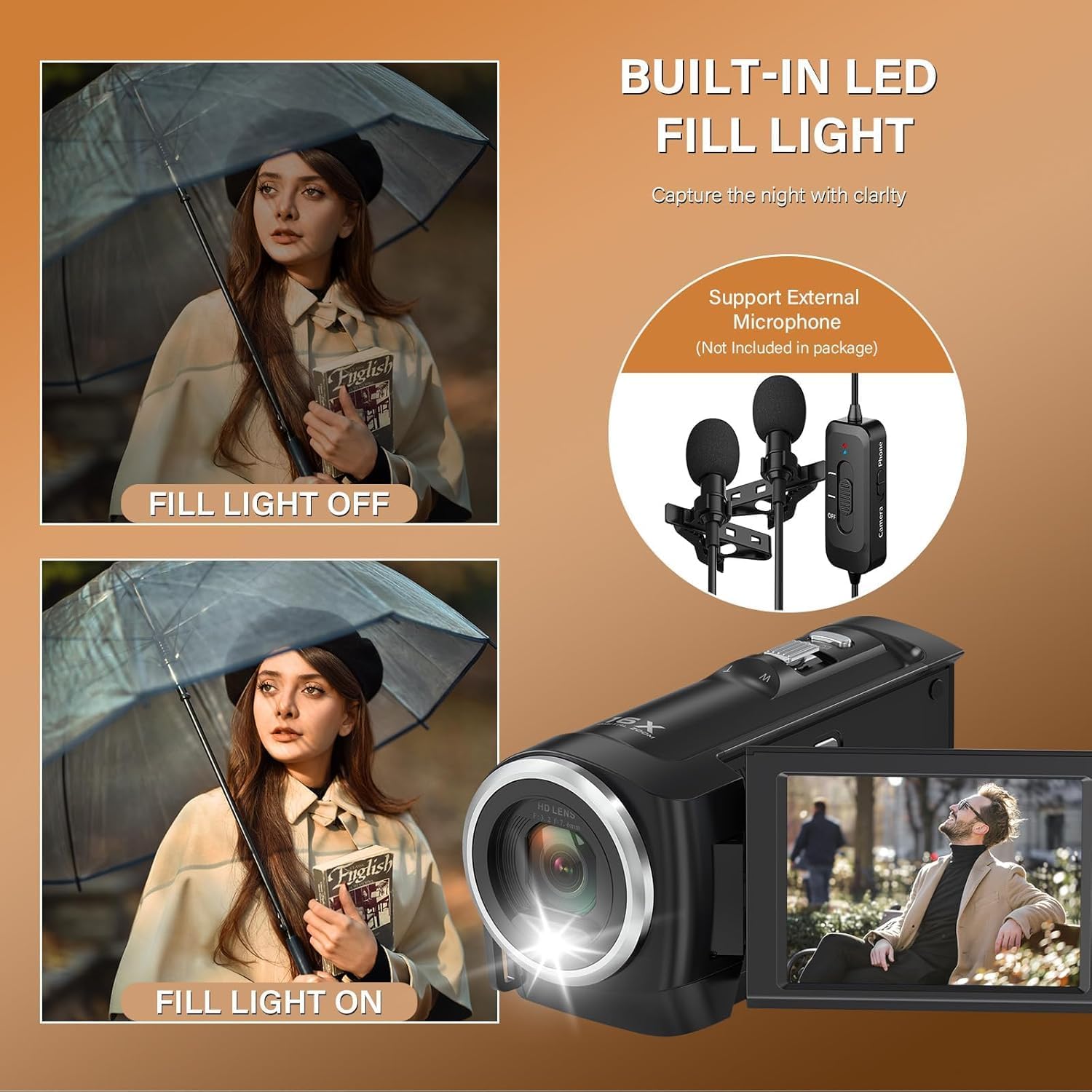
Image: A visual comparison illustrating the effect of the built-in LED fill light, showing a scene before and after activation, with enhanced brightness. The image also indicates support for an external microphone.
Recording While Charging
The camcorder supports recording while connected to a power source, allowing for extended shooting sessions without interruption. Ensure the camcorder is properly connected via the USB cable to a power adapter or computer.

Image: The Delmodes DV105 camcorder in use, demonstrating its ability to record while charging, with an emphasis on the two included 1500mAh rechargeable batteries. A tripod is shown for context but noted as not included.
Multi-Function Features
The camcorder offers various functions to enhance your recording and photography experience:
- Photo Mode: Standard still image capture.
- Face Detection: Automatically detects and focuses on faces.
- Selfie Mode: Optimized for self-portraits.
- Continuous Shooting: Captures multiple photos in quick succession.
- Date Stamp: Adds the date and time to your recordings.
- Timer Shooting: Set a delay before capturing a photo (e.g., 2s, 5s, 10s).
- Smile Capture: Automatically takes a photo when a smile is detected.

Image: A visual guide to the camcorder's multi-function capabilities, including examples of photo mode, face detection, selfie, continuous shooting, date stamp, timer shooting, and smile capture.
Maintenance
- Keep the camcorder clean by wiping it with a soft, dry cloth.
- Avoid exposing the camcorder to extreme temperatures, humidity, dust, or direct sunlight.
- Do not use harsh chemicals or abrasive cleaners.
- When not in use for extended periods, remove the batteries and store the camcorder in a cool, dry place.
- Regularly back up your photos and videos to a computer or external storage device.
Troubleshooting
| Problem | Possible Cause / Solution |
|---|---|
| Camcorder does not power on. |
|
| Cannot record or take photos. |
|
| Poor image/video quality. |
|
| Camcorder not recognized by computer in webcam mode. |
|
Specifications
| Feature | Detail |
|---|---|
| Image Format | JPG |
| Image Resolution | 56MP, 50MP, 48MP, 36MP, 30MP, 24MP, 20MP, 18MP, 16MP, 12MP, 8MP, 5MP |
| Video Format | AVI |
| Video Resolution | 2.7K (2688x1520), FHD (1920x1080), HD (1280x720) |
| Digital Zoom | 16X (Maximum) |
| LCD Screen | 2.8 inches |
| Lens | Fixed Lens F/3.2, f = 7.36mm |
| Focus Range | 1.0m ~ infinity |
| Memory Support | SD card up to 128GB |
| External Microphone | Supported (not included) |
| Languages | English (default), German, French, Italian, Spanish, etc. |
| Dimensions (L x H x W) | 145 x 15 x 85 mm |
| Weight | 450 g |
| Batteries | 2 x 1500mAh rechargeable batteries (included) |
Warranty and Support
For warranty information and customer support, please refer to the official Delmodes website or contact your point of purchase. Keep your proof of purchase for any warranty claims.
Note: The product description mentions "Please confirm the only authentic sales store [Trusher Trade EU]". This is a seller-specific note and not part of the general product warranty or support information.
Ask a question about this manual
Ask about setup, troubleshooting, compatibility, parts, safety, or missing instructions. Manuals+ will review the question and use this page’s manual context to help answer it.