
KU XIU X53
Adjustable Laptop Stand with 8-in-1 USB-C Hub User Manual
Model: X53
Brand: KU XIU
Product Overview
The KU XIU X53 Adjustable Laptop Stand with 8-in-1 USB-C Hub is designed to enhance your workspace ergonomics and connectivity. This versatile stand provides a stable and adjustable platform for laptops ranging from 10 to 17 inches, while integrating an 8-port USB-C docking station. It aims to reduce neck fatigue and back pain by allowing optimal screen positioning, and keeps your desk clutter-free by consolidating multiple peripherals through its built-in hub.
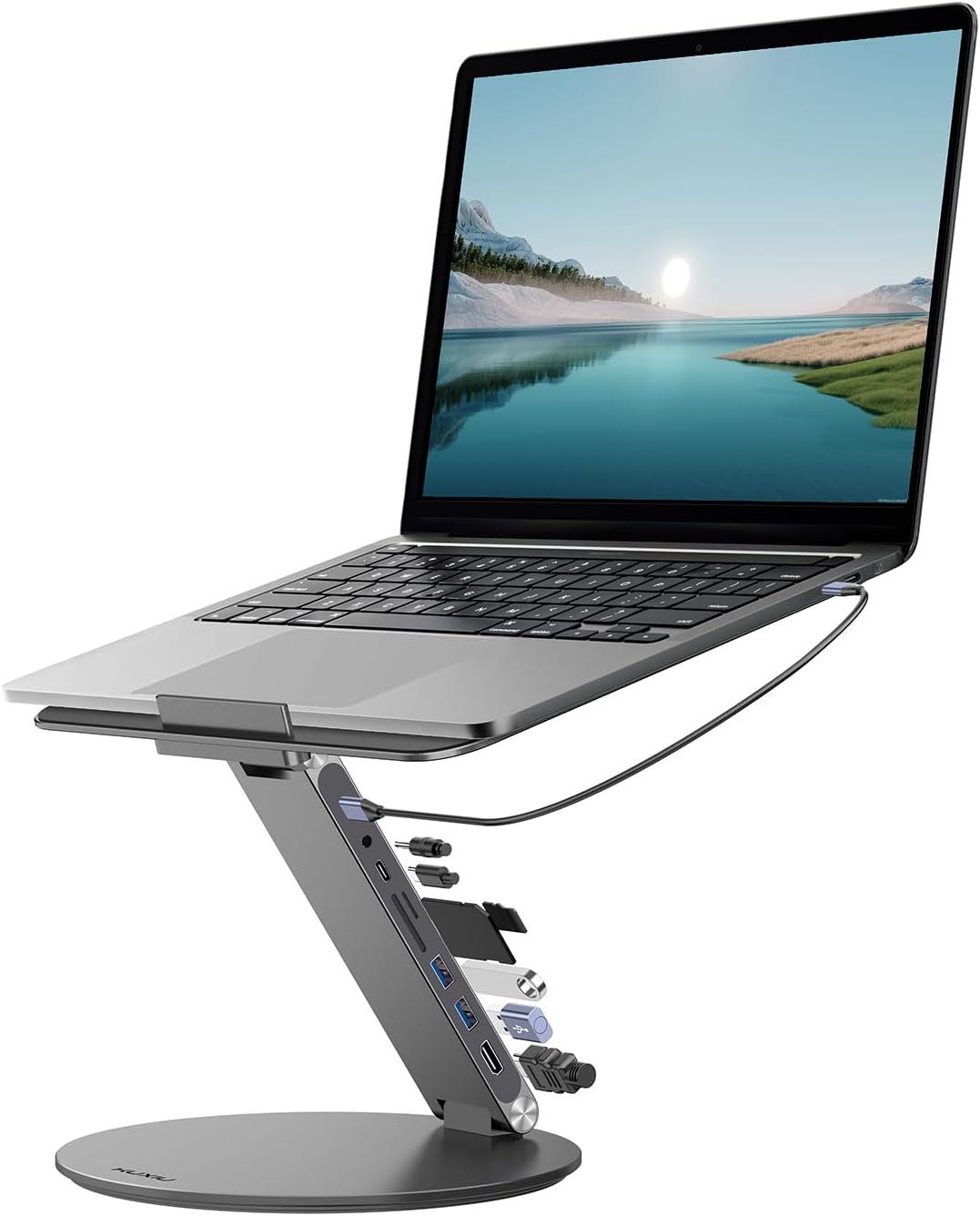
Image: The KU XIU X53 Laptop Stand in use, supporting a laptop and demonstrating its elevated and angled position for improved ergonomics.
Package Contents
Please check the package for the following items:
- 1x X53 Laptop Stand
- 1x USB-C Cable
- 1x User Manual

Image: A visual representation of the items included in the product packaging: the X53 Laptop Stand, a USB-C cable, and the user manual.
Key Features
8-in-1 USB-C Hub Functionality
The integrated USB-C docking station provides comprehensive connectivity for USB-C macOS and Windows laptops. It includes:
- 1x 4K HDMI port (up to 4K@60Hz resolution)
- 2x USB 3.0 ports (up to 5Gbps data transfer and charging)
- 1x USB-C PD 100W 3.0 port (for power delivery)
- 1x USB-C Data port (for data transfer)
- 1x SD Card Reader (supports up to 1TB SD cards, 5Gbps data transfer)
- 1x TF Card Reader (supports up to 1TB TF cards, 5Gbps data transfer)
- 1x 3.5mm Audio Interface (USB 2.0 audio, 8KHz-384KHz, 32-bit input/output)

Image: A detailed view of the 8-in-1 USB-C hub, highlighting each port and its specific function, such as HDMI, USB-A, USB-C PD, and card readers.

Image: A close-up showing the comprehensive multi-function interface of the stand, with various cables and storage devices connected to its ports.
Adjustable and Ergonomic Design
The stand offers adjustable height and angle settings to promote a comfortable posture, reducing neck fatigue, back pain, and eye strain during long work sessions. It folds flat for easy storage and portability.
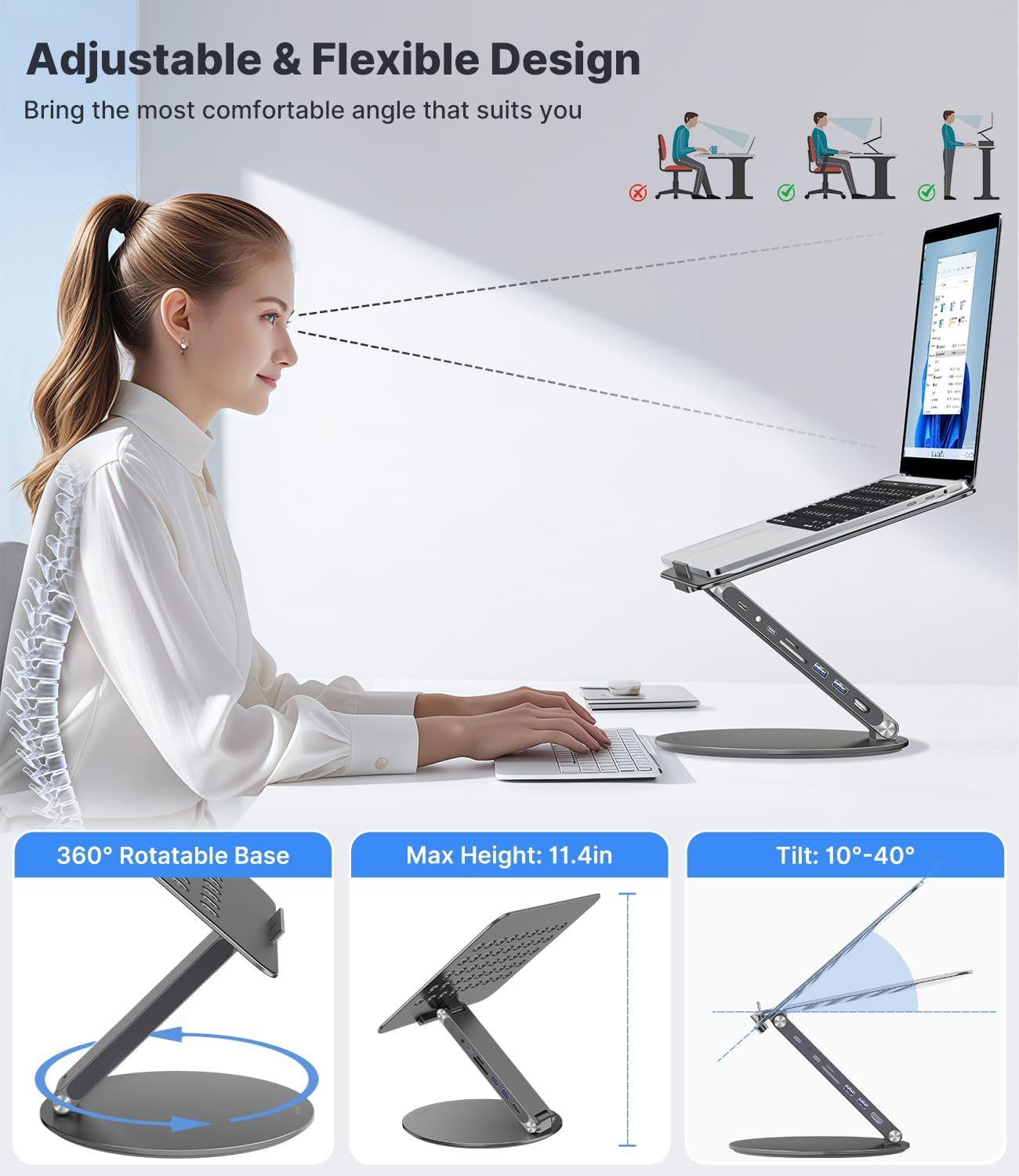
Image: An illustration demonstrating the ergonomic benefits of the adjustable stand, showing how it helps maintain proper posture and reduces strain.

Image: A series of images illustrating the stand's adjustable and flexible design, showing it in folded, sitting, standing, and screen-sharing configurations.
Sturdy Construction and Protection
Constructed from high-quality aluminum alloy, the stand can support up to 22 lbs (10kg). It features rubber mats on the sliding hook and anti-skid silicone pads on the top and bottom surfaces to prevent shaking, sliding, scratching, and falling of your device. Smooth edges ensure safe handling.

Image: Detailed views of the stand's anti-slip rubber pads, stable sliding structure, and demonstration of its strong load capacity, supporting the equivalent of multiple MacBook Pro laptops.

Image: The stand supporting a laptop, emphasizing its robust construction and ability to hold up to 22 lbs (10kg) securely.
Efficient Heat Dissipation
The stand features multiple ventilation holes that provide enhanced airflow, helping to cool your laptop and prevent overheating and system crashes.

Image: A visual representation of the heat dissipation design, showing air flowing through the perforated surface of the stand to cool the laptop.
Wide Device Compatibility
The laptop stand is compatible with all laptops ranging from 10 to 17 inches. It also supports tablets, smartphones, Nintendo Switch, and Steam Deck.

Image: The stand demonstrating its wide compatibility by holding different devices, including laptops, an iPad, and a smartphone, with dimensions indicated.

Image: A comprehensive display of the stand's compatibility with various devices, including MacBooks, other laptops, iPads, iPhones, and gaming consoles like Nintendo Switch and Steam Deck.
Setup Instructions
Follow these steps to set up your KU XIU X53 Laptop Stand and integrate it into your workspace:
- Unpack the Stand: Carefully remove the X53 Laptop Stand, USB-C cable, and user manual from the packaging.
- Position the Stand: Place the stand on a stable, flat surface. The 360° rotating base allows for flexible positioning.
- Adjust Height and Angle: Gently adjust the stand to your desired height and viewing angle. The hinges are designed to be firm to maintain stability.
- Place Your Laptop: Carefully place your laptop (10-17 inches) onto the stand's platform. Ensure it rests securely on the anti-slip silicone pads and against the sliding hook.
- Connect the USB-C Cable: Connect one end of the provided USB-C cable to the USB-C data input port on the stand's hub. Connect the other end to a compatible USB-C port on your laptop.
- Connect Peripherals: Utilize the various ports on the integrated 8-in-1 USB-C hub to connect your external monitor (via HDMI), USB devices (mouse, keyboard, external drives), SD/TF cards, and audio devices.
- Power Delivery (Optional): If your laptop supports USB-C power delivery, connect your laptop's power adapter to the USB-C PD 100W port on the stand to charge your laptop while using the hub.
Video: An official product video demonstrating the setup and various uses of the KU XIU X53 Laptop Stand, including connecting peripherals and adjusting its position for different tasks.
Operating the Laptop Stand
The KU XIU X53 Laptop Stand is designed for intuitive operation and maximum flexibility:
- Adjusting Height and Angle: To change the height or tilt of your laptop, gently hold the base and the laptop platform, then apply steady pressure to move the stand to your desired position. The robust hinges will hold the position firmly once set.
- Utilizing the 360° Rotating Base: The circular base allows for smooth 360-degree rotation. Simply rotate the laptop stand to share your screen with colleagues or adjust your viewing angle without moving the entire setup.
- Connecting External Displays: Use the HDMI port on the hub to connect an external monitor. Ensure your laptop's USB-C port supports video output (DisplayPort Alt Mode).
- Using USB Ports: Plug in your USB-A and USB-C data devices into the respective ports for high-speed data transfer.
- Card Readers: Insert SD or TF cards into the dedicated slots for quick access to your media files.
- Audio Connectivity: Connect headphones or speakers to the 3.5mm audio jack for enhanced sound.

Image: The laptop stand integrated into an efficient workspace, demonstrating how it elevates the laptop and connects to an external monitor and other peripherals, reducing desk clutter.

Image: The laptop stand facilitating a dual-screen setup, with the laptop on the stand connected to a second monitor via the integrated hub's HDMI port, enhancing productivity.
Maintenance and Care
To ensure the longevity and optimal performance of your KU XIU X53 Laptop Stand, please follow these maintenance guidelines:
- Cleaning: Wipe the aluminum alloy surfaces with a soft, dry cloth. For stubborn marks, a slightly damp cloth with mild soap can be used, followed by immediate drying. Avoid abrasive cleaners or solvents that may damage the finish.
- Silicone Pads: Periodically check the anti-slip silicone pads for dust or debris. Clean them gently with a damp cloth to maintain their grip.
- Hinges: The stand's hinges are designed to be firm and maintenance-free. Do not attempt to lubricate or disassemble them.
- Storage: When not in use or for transport, fold the stand flat to protect its components and save space.
- Avoid Overloading: Do not exceed the maximum weight capacity of 22 lbs (10kg) to prevent damage to the stand or your device.
Troubleshooting
If you encounter issues with your KU XIU X53 Laptop Stand, refer to the following common problems and solutions:
- No Display on External Monitor:
- Ensure your laptop's USB-C port supports DisplayPort Alt Mode for video output.
- Check that the HDMI cable is securely connected to both the stand and the monitor.
- Verify that the correct input source is selected on your monitor.
- Try restarting your laptop and reconnecting the cables.
- Important: Some users have reported that switching the USB-C to USB-C cord (the one connecting the laptop to the stand) can resolve monitor display issues. Ensure you are using the correct cable provided or a high-quality, fully-featured USB-C cable.
- USB Devices Not Recognized:
- Ensure the main USB-C cable connecting the stand to your laptop is firmly plugged in.
- Try connecting the USB device directly to your laptop to confirm it functions independently.
- If using a high-power device, ensure the stand is receiving sufficient power, especially if using the USB-C PD port.
- Stand is Difficult to Adjust:
- The hinges are designed to be stiff to provide stability and prevent accidental collapse. Apply firm, steady pressure when adjusting.
- Do not force the adjustment beyond its intended range.
- Laptop Sliding on Stand:
- Ensure the anti-slip silicone pads on the platform are clean and free of dust or oil.
- Verify that the sliding hook is properly extended and supporting the front edge of your laptop.
Product Specifications
| Brand | KU XIU |
| Model | X53 |
| Color | Gray |
| Material | Aluminum Alloy |
| Item Weight | 3.19 pounds |
| Package Dimensions | 10.83 x 10.47 x 1.89 inches |
| Max Load Capacity | 22 lbs (10kg) |
| Compatible Laptop Size | 10-17 inches |
| USB-C Hub Ports | 1x 4K HDMI, 2x USB 3.0, 1x USB-C PD 100W, 1x USB-C Data, 1x SD, 1x TF, 1x 3.5mm Audio |
| Rotation | 360° Rotating Base |
| Manufacturer | Shenzhen Kuxiu Communication Co.,Ltd |
| Country of Origin | China |
Warranty and Support
KU XIU products are manufactured with high-quality materials and undergo rigorous testing. For information regarding warranty coverage, technical support, or any product-related inquiries, please refer to the contact details provided on the product packaging or visit the official KU XIU website. Please retain your purchase receipt for warranty claims.
For further assistance, you may also contact the seller, Fiona Trading LTD, through the Amazon platform.
Ask a question about this manual
Ask about setup, troubleshooting, compatibility, parts, safety, or missing instructions. Manuals+ will review the question and use this page’s manual context to help answer it.