
1. Introduction
This manual provides comprehensive instructions for the Kangnice 200MP 1080P USB Camera Module. This compact camera module is designed for various embedded applications, offering clear visuals with its 2MP 1080P resolution and Wide Dynamic Range (WDR) capabilities. It is suitable for integration into systems such as advertising machines, PCs, industrial controllers, digital signage, interactive kiosks, and industrial automation systems.
2. Product Overview
2.1 Key Features
- High Resolution: 2MP 1080P (1920x1080) at 30FPS in MJPEG format.
- Wide Dynamic Range (WDR): Ensures superior picture quality even in challenging lighting conditions.
- Non-Distortion Lens: Available in various fixed focus lens options (76°, 88°, 100°, 160°).
- Compact Design: Small size for easy integration into embedded systems.
- PS5268 Chip: Integrated for reliable performance.
- Versatile Applications: Ideal for face recognition, digital signage, interactive kiosks, and industrial automation.
2.2 Package Contents
The package includes:
- 1x USB Camera Module

Image: The Kangnice USB Camera Module with its attached USB cable.
3. Setup
Follow these steps to set up your USB Camera Module:
- Unpack the Module: Carefully remove the USB Camera Module from its packaging.
- Identify Components: Ensure you have the camera module and its integrated USB cable.
- Connect to Host Device: Insert the USB connector of the camera module into an available USB port on your host device (e.g., PC, industrial controller, embedded board).
- Driver Installation (if necessary): Most modern operating systems will automatically detect and install the necessary drivers for a standard UVC (USB Video Class) camera. If automatic installation fails, refer to your host device's documentation or the operating system's device manager for manual driver updates.
- Verify Connection: Once connected, the camera should be recognized by your system. You can typically verify this through your operating system's device manager or a camera application.

Image: The USB Camera Module with its cable connected, ready for integration.
4. Operating Instructions
After successful setup, you can begin using your USB Camera Module:
- Access Camera Feed: Open a compatible camera application or software on your host device. This could be a built-in camera app, a video conferencing tool, or custom software developed for your embedded application.
- Select Camera: If multiple cameras are connected, ensure the Kangnice USB Camera Module is selected as the active video input device within your application settings.
- Adjust Settings (if applicable): Depending on your software, you may be able to adjust settings such as resolution, frame rate, brightness, contrast, and other image parameters. The module supports 1920x1080 resolution at 30FPS in MJPEG format.
- Positioning: Position the camera module to capture the desired field of view. The non-distortion lens provides a clear, wide perspective suitable for various monitoring or recognition tasks.
- Integration: For embedded applications, integrate the camera module's output into your system's software logic for tasks like face recognition, object detection, or general video streaming.

Image: Visual representation of the high-definition pixel capability of the camera module.
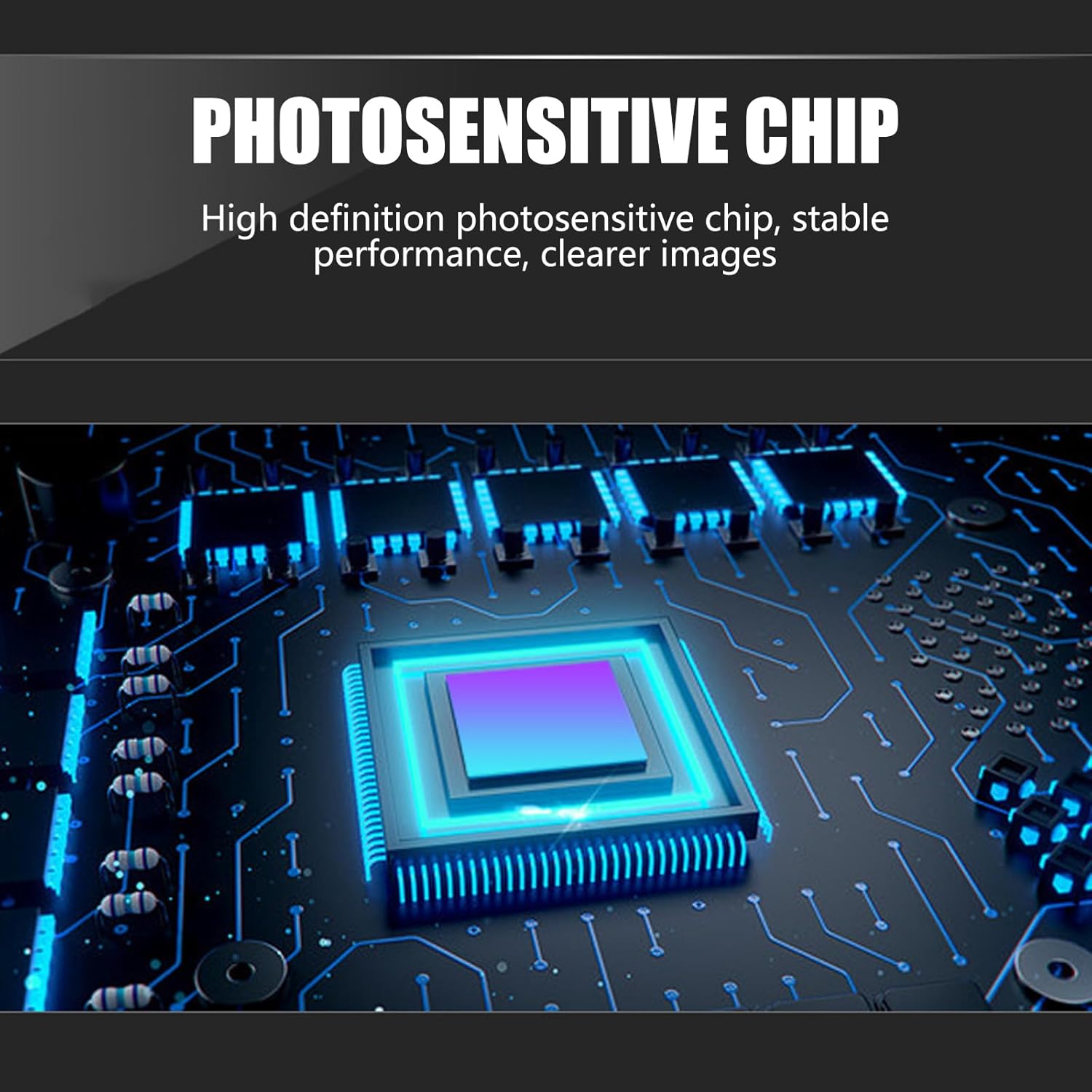
Image: Detailed view of the high-definition photosensitive chip, ensuring stable performance and clear images.
5. Specifications
Detailed technical specifications for the USB Camera Module:
| Feature | Description |
|---|---|
| Component Material | ABS |
| Chip | PS5268 (1/2.7 inch) |
| Resolution | 1920x1080 (1080P) |
| Frame Rate | 30 FPS (MJPEG format) |
| Lens Type | Non-distortion fixed focus lens |
| Available Lens Angles | 76°, 88°, 100°, 160° (option dependent) |
| Module Dimensions | Approx. 20mm x 14mm (0.79inch x 0.55inch) |
| Interface | USB |

Image: Physical dimensions of the camera module.

Image: Various lens angle options for the USB Camera Module.
6. Troubleshooting
If you encounter issues with your USB Camera Module, refer to the following common problems and solutions:
- Camera Not Detected:
- Ensure the USB cable is securely connected to both the module and the host device.
- Try connecting to a different USB port on your host device.
- Restart your host device.
- Check the device manager (Windows) or system information (macOS/Linux) to see if the camera is listed. If it has an error, try updating or reinstalling drivers.
- No Video Feed / Black Screen:
- Verify that the correct camera is selected in your application settings.
- Close any other applications that might be using the camera.
- Ensure there are no physical obstructions blocking the camera lens.
- Test the camera with a different application to rule out software issues.
- Poor Image Quality:
- Check lighting conditions; while the camera has WDR, extreme low light can still affect quality.
- Ensure the lens is clean and free of dust or smudges.
- Verify that the application is set to the highest supported resolution (1920x1080).
- Module Overheating:
- Ensure the module is in an environment with adequate ventilation.
- Prolonged high-resolution streaming can generate heat; this is often normal, but excessive heat may indicate an issue. Disconnect and allow it to cool.
7. Maintenance
To ensure the longevity and optimal performance of your USB Camera Module, follow these maintenance guidelines:
- Cleaning the Lens: Use a soft, lint-free cloth specifically designed for optical lenses to gently wipe the camera lens. Avoid using abrasive materials or harsh chemicals.
- Storage: When not in use, store the module in a clean, dry, and dust-free environment.
- Handling: Handle the module by its edges to avoid touching the lens or electronic components.
- Environmental Conditions: Avoid exposing the module to extreme temperatures, high humidity, or direct sunlight for extended periods.
8. Warranty and Support
For warranty information or technical support, please refer to the documentation provided at the point of purchase or contact Kangnice customer service. Keep your purchase receipt as proof of purchase.