
Introduction
This manual provides detailed instructions for the installation, operation, and maintenance of your WIZACE 4 Channel 360° View Dash Cam. Please read this manual thoroughly before using the product to ensure proper function and safety.
Product Overview
The WIZACE 4 Channel Dash Cam offers comprehensive 360° surveillance for your vehicle. Equipped with four 1080P FHD lenses, it simultaneously records the front, rear, left, and right views. Key features include advanced night vision, G-sensor for emergency recording, loop recording, and 24-hour parking monitoring.
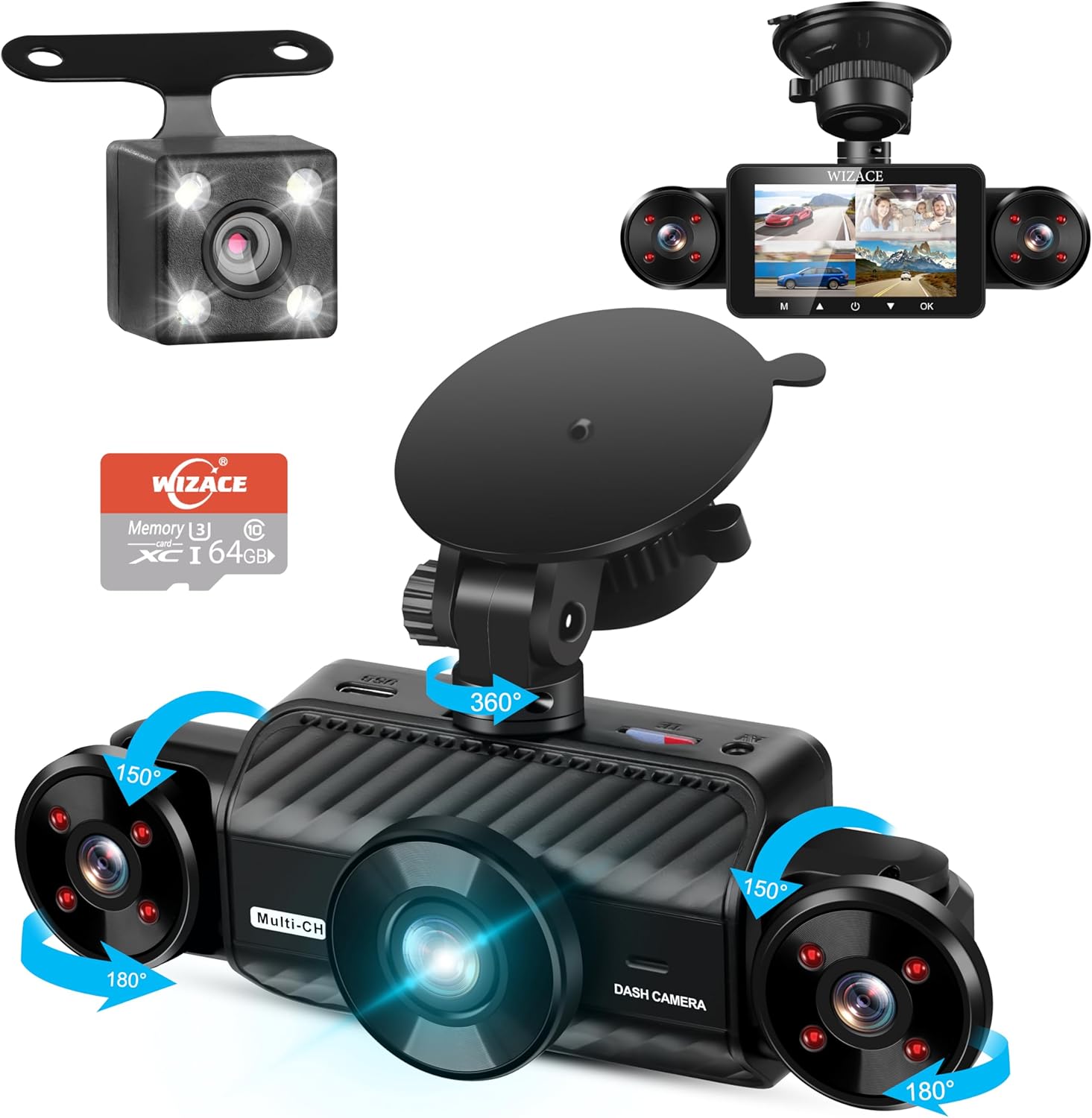
Image: The WIZACE 4 Channel Dash Cam, illustrating its multi-camera setup and included 64GB SD card.
- 4-Channel Recording: Simultaneous 1080P FHD recording from front, rear, left, and right cameras.
- Adjustable Lenses: Front three lenses allow for angle adjustment.
- Super Night Vision: Enhanced low-light recording with 8 IR lamps and Wide Dynamic Range (WDR).
- G-Sensor: Automatically detects collisions and locks footage to prevent overwriting.
- Loop Recording: Continuously records, overwriting the oldest files when the memory card is full.
- 24-Hour Parking Mode: Provides continuous surveillance when the vehicle is parked (requires hardwire kit or external battery).
- Included 64GB SD Card: Ready for immediate use.
Package Contents
Verify that all items listed below are included in your package:

Image: All components included in the WIZACE Dash Cam package.
- 1 x WIZACE 4 Channel Dash Cam
- 1 x Rear Camera
- 1 x 11.48ft Car Charger
- 1 x Adjustable Suction Mount
- 1 x 3M Adhesive Mount
- 1 x Car Charge with Type C-USB Cable
- 1 x User Manual
- 1 x Electrostatic Film for 3M Mount
- 1 x 64GB SD Memory Card (pre-inserted)
- 1 x 19.6ft Rear Camera Cable
- 2 x Screws
Setup
- Insert SD Card: The 64GB SD card is pre-inserted. If using a different card, ensure it is a micro-SD, Class 10 U3 speed, up to 256GB max. Format the card to FAT32 using a computer tool if necessary, as exFAT format will not work.
- Mount the Dash Cam:
Choose between the adjustable suction mount or the 3M adhesive mount. Attach the chosen mount to your windshield. The suction mount is designed for easy installation and removal.

Image: Easy installation of the dash cam on the windshield.
- Connect Power:
Plug the car charger into your vehicle's cigarette lighter socket and connect the Type C-USB cable to the dash cam. Route the cable neatly along the windshield trim to avoid obstruction.
Video: Demonstrates the unboxing and installation process of the WIZACE Dash Cam, including connecting the power and rear camera.
- Install Rear Camera:
Connect the rear camera to the main dash cam unit using the provided 19.6ft cable. Install the rear camera on your vehicle's rear window or near the license plate. Screws are provided for secure mounting if needed.
Operating Instructions
- Power On/Off:
The dash cam will automatically power on and begin recording when your vehicle's ignition is turned on. It will power off automatically when the ignition is turned off.
- Adjusting Camera Angles:
The front three lenses can be manually adjusted to capture desired angles, ensuring comprehensive coverage around your vehicle.

Image: Visual representation of the 360-degree coverage provided by the dash cam's multiple lenses.
- Loop Recording:
The dash cam records video in 3-minute segments. When the SD card is full, the oldest files will be automatically overwritten by new recordings. This ensures continuous recording without manual intervention.
- G-Sensor (Emergency Lock):
The built-in G-sensor detects sudden impacts or collisions. In such an event, the current video footage is automatically locked and saved to a separate 'Event' folder, preventing it from being overwritten by loop recording. This feature is crucial for preserving accident evidence.
- 24-Hour Parking Mode:
When your vehicle is parked and the ignition is off, the dash cam can switch to parking mode for continuous surveillance. This mode monitors the area around your car and automatically records video for 1 minute if motion or impact is detected. For this feature to function continuously, the dash cam must be connected to a hardwire kit or an external battery (not included).

Image: Illustration of the 24-hour parking monitoring feature, including theft protection and automatic video locking.
- Super Night Vision:
The dash cam features 8 LED infrared lights and Wide Dynamic Range (WDR) technology. This enhances recording clarity in low-light conditions, preventing overexposure from headlights and automatically adjusting brightness for clear nighttime footage.

Image: Demonstrates the effectiveness of Super Night Vision and WDR in different lighting conditions.
- Menu Navigation:
Use the buttons located on the bottom of the dash cam to navigate through the menu options. You can adjust settings such as video resolution, loop recording duration, exposure, motion detection, record audio, date/time, auto power off, and screen saver.
Maintenance
- SD Card Formatting: Regularly format your SD card (at least once a month) to maintain optimal performance and prevent data corruption. Always back up important files before formatting.
- Cleaning: Use a soft, dry cloth to clean the camera lenses and the display screen. Avoid using abrasive cleaners or solvents.
- Temperature: The dash cam is designed to withstand temperatures from -4°F to 140°F. Avoid exposing it to extreme temperatures outside this range for prolonged periods.
Troubleshooting
- Dash Cam Not Powering On: Ensure the car charger is securely plugged into both the dash cam and the car's lighter socket. Check if the car's lighter socket is receiving power.
- Recording Not Starting: Verify that the SD card is properly inserted and formatted. Check the loop recording settings in the menu.
- Poor Video Quality: Clean the camera lenses. Ensure the protective film is removed from the lenses. Check video resolution settings.
- Parking Mode Not Working: Confirm that the dash cam is connected to a continuous power source (hardwire kit or external battery) for 24-hour parking surveillance.
- Buttons Unresponsive: Try resetting the device by pressing the reset button (if available) or disconnecting and reconnecting power.
Specifications
| Product Dimensions | 3.3 x 2.2 x 1.5 inches |
| Item Weight | 1.5 ounces |
| Video Capture Resolution | 1296*1080p |
| Field Of View | 360 Degrees |
| Connectivity Technology | USB |
| Special Features | 360 Degree, Automatic Incident Detection, Blind Spot Detection, Built-In Microphone, Built-In Speaker, Compact Design, G-Sensor, Internal Memory, Loop Recording, Motion Sensing, Mute Function, Night Vision, Parking Monitor, Reverse Assist |
| Batteries | 1 Lithium Ion batteries required (included) |
| Color | Black |
| Mounting Type | Windshield Mount |
Warranty and Support
For warranty information, technical support, or further assistance, please refer to the official WIZACE website or contact their customer service directly. Details can typically be found on the product packaging or the manufacturer's official online channels.


