
1. Product Overview
The BASETEC 3-in-1 USB Flash Drive is a versatile storage solution designed for seamless data transfer between various devices. It features Lightning, Type-C, and USB 3.0 connectors, making it compatible with iPhones, iPads, Android smartphones, MacBooks, and PCs. This device allows for high-speed data transfer and direct storage/playback of media files without the need for a dedicated application or internet connection.

Image: The BASETEC 3-in-1 USB Flash Drive in a pink finish, showing its compact design and 128GB storage capacity. It features a swivel design to reveal different connectors.
Key Features:
- 3-in-1 Connectivity: Equipped with Lightning, Type-C, and USB 3.0 connectors for broad device compatibility.
- High-Speed Data Transfer: USB 3.0 interface enables rapid transfer of large files, including photos and videos.
- App-Free Operation: No dedicated application or Wi-Fi connection is required for data management.
- Direct Storage & Playback: Save files directly to the drive and play them back without consuming device storage or needing internet access.
- Compact & Lightweight Design: Portable and easy to carry, available in multiple colors and capacities.
2. Setup
The BASETEC 3-in-1 USB Flash Drive is designed for plug-and-play functionality, requiring minimal setup.
Initial Connection:
- Identify the Correct Connector: The drive features three types of connectors:
- Lightning: For Apple iPhones and iPads.
- Type-C: For Android smartphones, tablets, and modern MacBooks/PCs.
- USB 3.0: For traditional PCs and laptops.
- Connect to Device: Gently insert the appropriate connector into your smartphone, tablet, or computer's USB port. Ensure a secure connection.
- Device Recognition: Your device should automatically recognize the USB flash drive as external storage. On some mobile devices, you may need to navigate to a file manager application to access the drive.

Image: A silver BASETEC 3-in-1 USB Flash Drive displaying its three distinct connectors: Lightning, Type-C, and standard USB. This image highlights the device's broad compatibility.
3. Operation
This section details how to transfer and manage data using your BASETEC USB Flash Drive.
Data Transfer (Smartphone/Tablet to USB Drive):
- Connect the Drive: Plug the appropriate connector (Lightning or Type-C) into your smartphone or tablet.
- Access Files: Open your device's file manager or gallery application. Select the photos, videos, music, or documents you wish to transfer.
- Initiate Transfer: Use the "Share," "Move," or "Copy" option within your device's interface. Select the BASETEC USB drive as the destination.
- Confirm Transfer: Follow any on-screen prompts to confirm the data transfer.
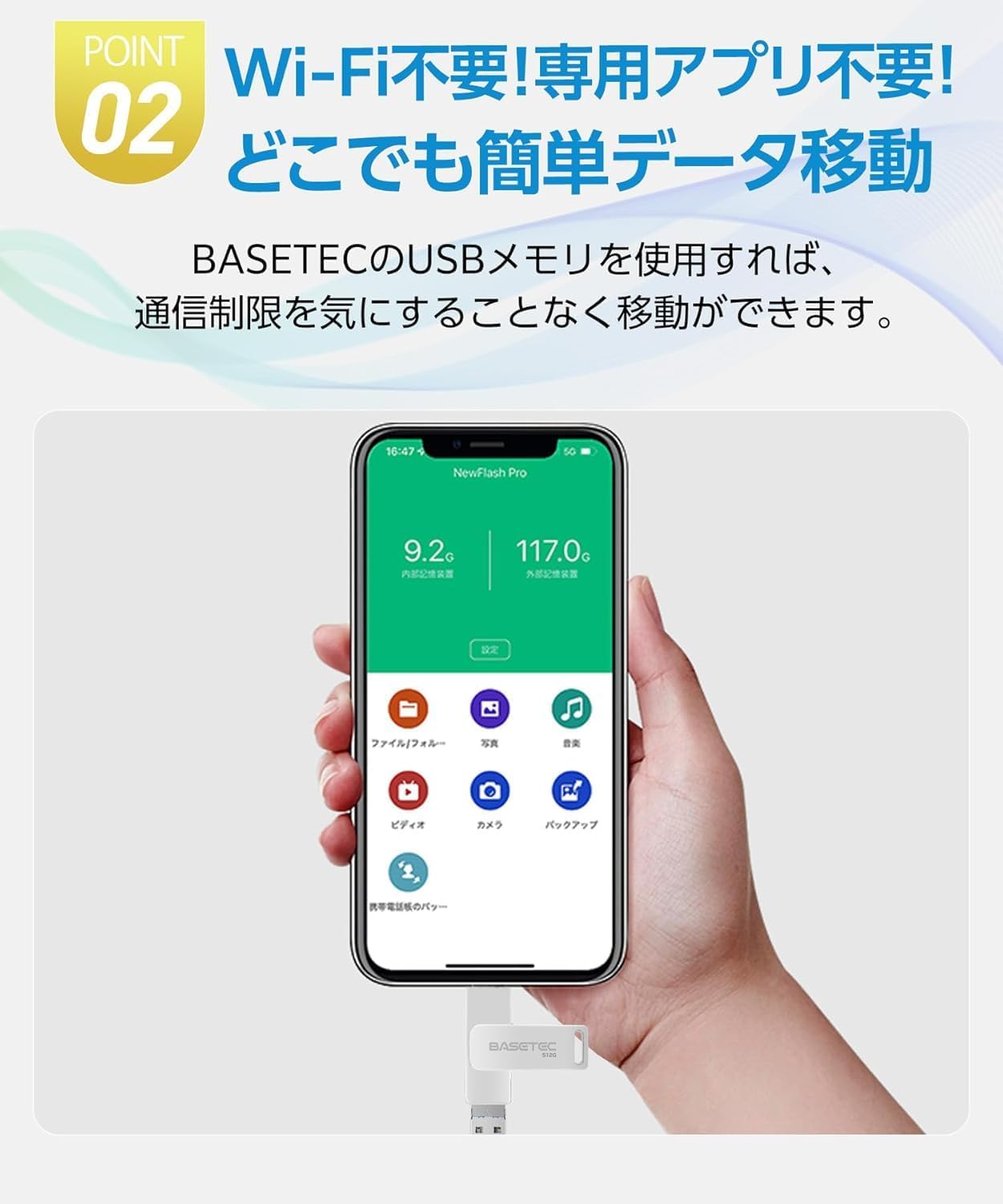
Image: A smartphone connected to the BASETEC USB drive, displaying a file management interface. This illustrates the process of accessing and transferring data directly from a mobile device without Wi-Fi or a dedicated app.
Data Transfer (USB Drive to PC/Mac):
- Connect the Drive: Plug the USB 3.0 or Type-C connector into your PC or MacBook.
- Access Drive: The drive will appear as a removable disk in "My Computer" (Windows) or on the desktop/Finder (Mac).
- Transfer Files: Drag and drop files between your computer and the USB drive, or use copy/paste functions.

Image: A BASETEC USB drive connected to a laptop, with a smartphone in the background. This visualizes the high-speed data transfer capability of the USB 3.0 interface, useful for backing up data or improving work efficiency.
Direct Playback:
You can play media files directly from the USB drive without transferring them to your device's internal storage. Connect the drive and navigate to the desired file using your device's file manager or media player.
4. Device Compatibility
The BASETEC 3-in-1 USB Flash Drive supports a wide range of devices due to its multi-connector design.
Supported Devices:
- iPhones: iPhone 11 series, 12 series, 13 series, 14 series, X/XS/8/8 Plus, 7/7 Plus, 6/6s/6s Plus, 5/5s/5c, SE, 15 series, 16 series.
- iPads: iPad Pro, iPad Air, iPad mini.
- Android Devices: Smartphones and tablets with Type-C ports.
- MacBooks: MacBook Pro, MacBook Air (models with USB-A or Type-C ports).
- PCs: Desktop and laptop computers with USB-A or Type-C ports.

Image: A diagram illustrating the BASETEC USB drive's compatibility with various device types, showing connections for Android/Mac via Type-C, PC via USB, and iPhone/iPad via Lightning connector.
5. Specifications
| Brand | BASETEC |
| Model Number | USBSV64 |
| Color | Pink |
| Memory Storage Capacity | 128 GB |
| Flash Memory Type | USB |
| Hardware Interface | USB 3.0 Type A, USB Type C, Lightning |
| Write Speed | 80 MB/s |
| Dimensions | 5 x 2 x 1.7 cm |
| Weight | 20 g |
| Special Features | Lightweight, 3-in-1 Connectivity |

Image: A diagram illustrating the compact dimensions (5 cm length, 2 cm width, 1.7 cm thickness) of the BASETEC USB drive. It also showcases the three available color options: Silver, Black, and Pink.
6. Maintenance
Proper care and maintenance will ensure the longevity and optimal performance of your USB flash drive.
- Physical Care: Keep the drive clean and free from dust and moisture. Avoid dropping the device or exposing it to extreme temperatures.
- Safe Removal: Always safely eject the USB drive from your computer or mobile device before physically removing it. This prevents data corruption.
- Storage: When not in use, store the drive in a protective case or a safe place to prevent damage to the connectors.
7. Troubleshooting
This section addresses common issues you might encounter with your USB flash drive.
Common Issues and Solutions:
- Drive Not Recognized:
- Ensure the drive is fully inserted into the port.
- Try connecting to a different USB port or a different device.
- Restart your computer or mobile device.
- For mobile devices, check if a file manager app is required to view external storage.
- Slow Data Transfer:
- Ensure you are using a USB 3.0 port on your computer for optimal speed.
- Avoid transferring many small files simultaneously; consolidate them into larger archives if possible.
- Close other applications that might be using system resources.
- Data Transfer Errors or Crashes:
- Important: If transferring large amounts of data (over 500MB) or large video files, it is recommended to transfer them in smaller segments to prevent potential transfer failures or system crashes.
- Ensure there is sufficient free space on the destination device and the USB drive.
- Safely eject the drive and reconnect it.
- Files Not Visible:
- Check your device's file manager settings to ensure hidden files are not enabled.
- Verify that the files were successfully transferred to the drive.
8. Important Notes and Safety Information
- Data Backup: Always back up important data before performing any data transfer operations. The manufacturer is not responsible for any data loss or damage that may occur during the use of this product.
- Large File Transfers: When transferring large amounts of data (e.g., over 500MB) or large video files, it is recommended to transfer them in smaller segments to prevent potential transfer failures or system crashes.
- Product Malfunction: The manufacturer is not responsible for any malfunction of equipment caused by the use of this product.
- Environmental Conditions: Avoid exposing the device to extreme temperatures, direct sunlight, or high humidity.

Image: A graphic titled "Important Notes" detailing precautions for data transfer, including recommendations for splitting large file transfers and a disclaimer regarding data loss or equipment malfunction.
9. Support and Warranty
For further assistance or detailed instructions, please refer to the official BASETEC resources.
- Online Manual: A detailed Japanese web manual is available by scanning the QR code found on the product packaging. This manual provides comprehensive usage instructions.
- Manufacturer's Website: Visit the official BASETEC website for product updates, FAQs, and customer support information.
- Warranty Information: Please refer to the warranty card included with your product or the official BASETEC website for details regarding warranty coverage and terms.