
FOSMET DG10
FOSMET DG10 Smart Watch User Manual
Model: DG10
1. Product Overview
The FOSMET DG10 Smart Watch is a versatile and durable wearable device designed for both Android and iPhone users. It features a 1.57-inch HD touchscreen with Gorilla Glass, offering a crisp visual experience and enhanced touch sensitivity. This smartwatch supports Bluetooth calling, smart notifications, and comprehensive health monitoring, including heart rate, blood oxygen, and sleep tracking. With over 100 built-in sports modes and IP68 waterproof protection, it is suitable for a wide range of activities and daily use. The DG10 also boasts a long-lasting battery, providing up to 4 days of heavy use and 20 days of standby time.
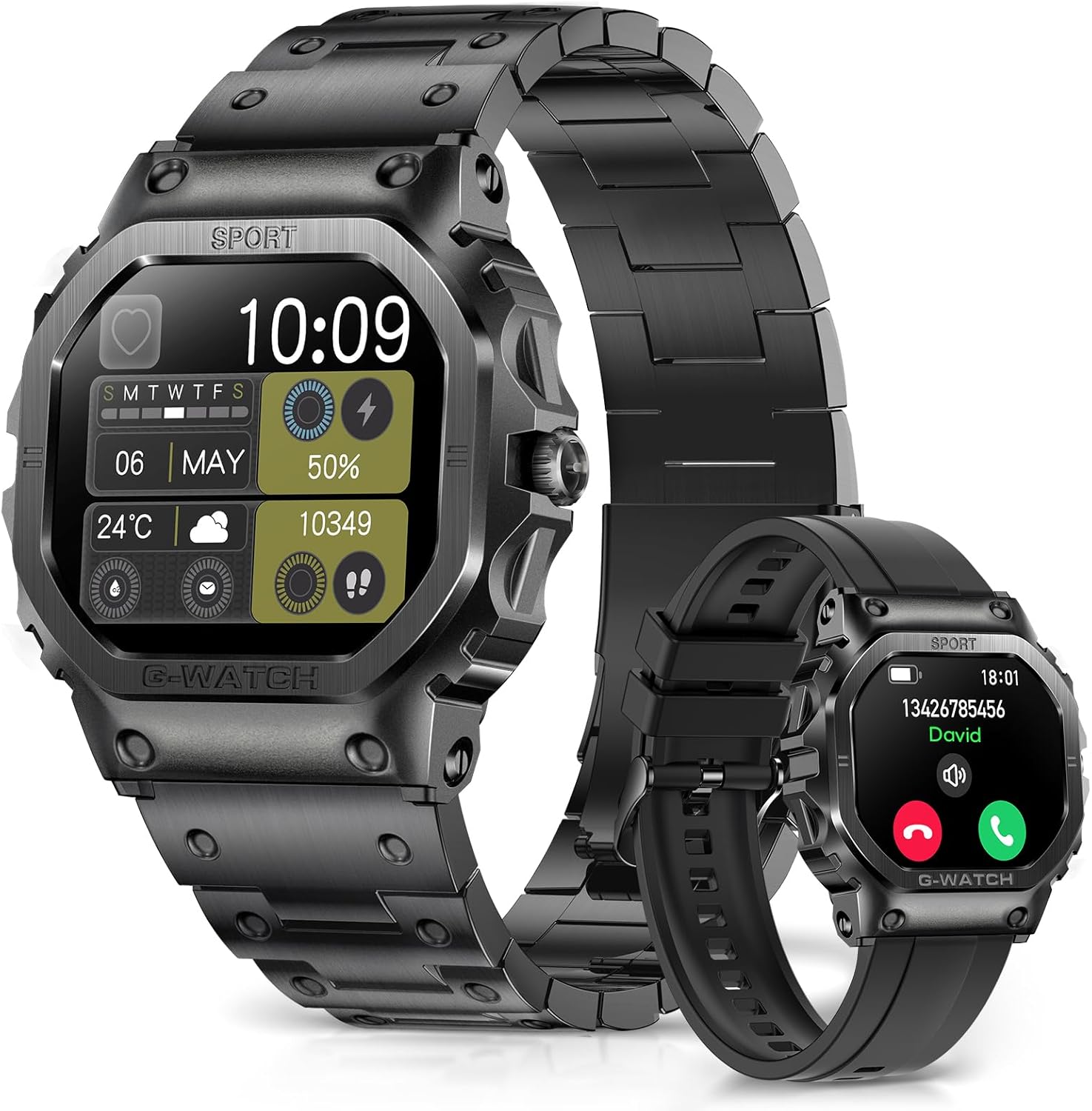
Image: The FOSMET DG10 Smart Watch, showcasing its robust design and the two included strap options: a sleek metal strap and a comfortable silicone strap.
2. Setup Guide
2.1 What's in the Box
- FOSMET DG10 Smart Watch
- Charging Cable
- User Manual
- Watch Band (typically includes both metal and silicone options)
2.2 Charging the Device
Before first use, fully charge your FOSMET DG10 Smart Watch. Connect the magnetic charging cable to the charging points on the back of the watch and plug the USB end into a compatible power adapter (not included) or a computer's USB port. A full charge typically takes approximately 2 hours. The watch can provide up to 4 days of heavy usage and up to 20 days of standby time on a single charge.

Image: The FOSMET DG10 Smart Watch connected to its magnetic charging cable, illustrating the charging process and highlighting its long battery life.
2.3 Powering On/Off
- Power On: Press and hold the side button until the FOSMET logo appears on the screen.
- Power Off: From the watch face, swipe down to access quick settings, or navigate to 'Settings' > 'System' > 'Power Off'. Confirm your selection.
2.4 App Installation and Pairing
To unlock the full functionality of your FOSMET DG10 Smart Watch, download and install the GloryFit app on your smartphone. The app is compatible with Android 8.0+ and iOS 10.0+ devices.
- Scan the QR code in the user manual or search for "GloryFit" in your phone's app store (Google Play Store for Android, Apple App Store for iOS).
- Install the app and create an account or log in.
- Ensure Bluetooth is enabled on your smartphone.
- Open the GloryFit app, navigate to the 'Device' section, and tap 'Add Device' or 'Bind Device'.
- Select "DG10" from the list of nearby devices.
- Confirm the pairing request on both your phone and the watch.
Once paired, the watch will synchronize data with the app, and you can customize settings, receive notifications, and view detailed health and activity data.

Image: The FOSMET DG10 Smart Watch displayed alongside a smartphone showing the GloryFit app interface, indicating compatibility with both iOS and Android operating systems.
3. Operating Instructions
3.1 Basic Navigation
- Swipe Up: Access notifications.
- Swipe Down: Access quick settings (e.g., brightness, DND, battery).
- Swipe Left/Right: Cycle through widgets (e.g., activity data, heart rate, weather, music control).
- Press Side Button: Return to the watch face or open the main menu.
3.2 Bluetooth Calling and Smart Notifications
The DG10 Smart Watch supports Bluetooth 5.3, allowing you to make and answer calls directly from your wrist when connected to your smartphone. You can also receive notifications from various apps like Twitter, Facebook, and more.
- Answering Calls: When a call comes in, tap the green phone icon on the watch screen.
- Rejecting Calls: Tap the red phone icon to reject a call.
- Making Calls: Access the dial pad or contact list through the watch's menu.
- Notifications: Swipe up from the watch face to view recent notifications.

Image: The FOSMET DG10 Smart Watch showing an incoming call and message notifications from various social media applications, demonstrating its communication features.

Image: A user checking a message notification on the FOSMET DG10 Smart Watch, illustrating the convenience of receiving information alerts directly on the wrist.
3.3 Watch Faces and Customization
The FOSMET DG10 offers a variety of pre-installed watch faces. You can also customize your watch face using the GloryFit app, including uploading your own photos.
- Changing Watch Face: On the watch face, press and hold the screen, then swipe left or right to select a new watch face. Alternatively, use the GloryFit app to browse and apply more options.
- DIY Watch Face: In the GloryFit app, navigate to the watch face settings to upload a custom image from your phone's gallery.

Image: The FOSMET DG10 Smart Watch showcasing multiple digital and analog watch face options, along with an example of a customized watch face using a personal photo.

Image: A collection of over 50 different watch face options for the FOSMET DG10 Smart Watch, demonstrating the variety available for personalization through the companion app.
3.4 Health Monitoring
The DG10 Smart Watch is equipped with advanced sensors for comprehensive health tracking:
- Heart Rate Monitoring: Continuously tracks your heart rate throughout the day. High heart rate alerts can be set in the app.
- Blood Oxygen (SpO2) Monitoring: Measures your blood oxygen levels.
- Sleep Tracking: Monitors your sleep patterns, including deep sleep, light sleep, and awake times, providing insights into your sleep quality.
All health data can be viewed in detail within the GloryFit app.
3.5 Sports Modes and Activity Tracking
With over 100 built-in sports modes, the DG10 Smart Watch can accurately track various activities, including running, cycling, hiking, and more. It records steps, distance, and calories burned.
- Starting a Workout: Navigate to the 'Workout' or 'Sports' menu on the watch, select your desired activity, and tap to start.
- Viewing Data: During a workout, the watch displays real-time metrics. After completing a workout, detailed summaries are available on the watch and in the GloryFit app.

Image: The FOSMET DG10 Smart Watch on a user's wrist during a run, with an overlay showing various sports modes and an exercise record displaying calories, distance, and time.

Image: A visual representation of the FOSMET DG10 Smart Watch's capability to track over 100 indoor and outdoor sports modes, with a user running and the app showing total distance and steps.

Image: The FOSMET DG10 Smart Watch tracking sports data, showing calorie, distance, and step counts, along with graphical representations of daily and weekly step data.
3.6 Practical Everyday Features
The DG10 Smart Watch integrates several features to enhance daily life:
- Alarm Clock: Set alarms directly on the watch or through the app.
- Weather Forecast: Get real-time weather updates (requires app connection).
- Calculator: Perform basic calculations on your wrist.
- Music Control: Control music playback on your smartphone (play, pause, skip tracks).
- Camera Control: Use the watch as a remote shutter for your phone's camera.
- Phone Finder: Locate your paired smartphone by making it ring.
- Sedentary Reminder: Receive alerts to move after periods of inactivity.
- Vibration Settings: Adjust vibration intensity for notifications and alarms via the watch settings.

Image: A collage of the FOSMET DG10 Smart Watch displaying various practical functions such as music control, digital business card, calculator, alarm clock, weather forecast, calendar, and camera control.

Image: A step-by-step guide on how to set vibration modes and intensity on the FOSMET DG10 Smart Watch, accessible through the watch's settings menu.
4. Maintenance
4.1 Cleaning Your Smart Watch
To maintain the appearance and functionality of your FOSMET DG10 Smart Watch, clean it regularly:
- Wipe the screen and watch body with a soft, lint-free cloth.
- For stubborn smudges, slightly dampen the cloth with water. Avoid using harsh chemicals or abrasive materials.
- Clean the charging contacts periodically to ensure proper charging.
4.2 Water Resistance (IP68)
The FOSMET DG10 Smart Watch has an IP68 waterproof rating, meaning it is protected against dust ingress and can withstand immersion in water up to 1.5 meters for up to 30 minutes. This makes it suitable for daily activities such as washing hands, showering, and swimming in shallow water.
- Do not use the watch in hot water, saunas, or steam rooms, as steam can penetrate the seals.
- Avoid prolonged immersion or high-pressure water activities like diving or high-speed water sports.
- After exposure to water, especially saltwater, rinse the watch with fresh water and dry it thoroughly.

Image: The FOSMET DG10 Smart Watch being submerged in water, illustrating its IP68 waterproof capability for daily ease and durability.
5. Troubleshooting
If you encounter issues with your FOSMET DG10 Smart Watch, try the following solutions:
| Problem | Possible Solution |
|---|---|
| Watch does not power on | Ensure the watch is fully charged. Connect it to the charger for at least 30 minutes. If it still doesn't turn on, try a different charging cable or power adapter. |
| Unable to pair with smartphone | Ensure Bluetooth is enabled on your phone. Make sure the watch is within range. Restart both the watch and your phone. Clear the Bluetooth cache on your phone. Ensure the GloryFit app has necessary permissions. |
| Notifications not received | Check if the watch is properly paired with the app. Ensure notification permissions are enabled for the GloryFit app in your phone's settings. Verify that app notifications are enabled within the GloryFit app itself. Disable 'Do Not Disturb' mode on both the watch and phone. |
| Inaccurate health data | Ensure the watch is worn snugly on your wrist, not too tight or too loose. Clean the sensors on the back of the watch. Avoid excessive movement during measurements. |
| Short battery life | Reduce screen brightness. Limit continuous heart rate monitoring or turn off features like 'Always-On Display' if available. Close unnecessary background apps on the watch. Ensure the watch is fully charged before use. |
If the problem persists, refer to the official FOSMET support resources or contact customer service.
6. Specifications
| Feature | Detail |
|---|---|
| Model Name | DG10 |
| Brand | FOSMET |
| Screen Size | 1.57 Inches |
| Standing Screen Display Size | 1.57 Inches |
| Shape | Square (Octagonal Design) |
| Operating System | Android, iOS (Compatible with Android 8.0+, iOS 10.0+) |
| Connectivity Technology | Bluetooth |
| Wireless Communication Standard | Bluetooth 5.3 |
| Battery Cell Composition | Lithium Ion |
| Batteries Required | 1 A battery (included) |
| GPS | GPS Via Smartphone (Connected GPS) |
| Waterproof Rating | IP68 |
| Item Weight | 8.4 ounces |
| Package Dimensions | 6.3 x 3.66 x 1.26 inches |
| Manufacturer | FOSMET |
| Date First Available | March 8, 2025 |
7. Warranty and Support
For warranty information, please refer to the documentation included with your product packaging or visit the official FOSMET website. Typically, products come with a limited manufacturer's warranty covering defects in materials and workmanship.
If you require technical assistance or have questions not covered in this manual, please contact FOSMET customer support through their official website or the contact information provided in your product's packaging. When contacting support, please have your product model number (DG10) and purchase details ready.
For additional resources and frequently asked questions, you may visit the FOSMET Store on Amazon.
Ask a question about this manual
Ask about setup, troubleshooting, compatibility, parts, safety, or missing instructions. Manuals+ will review the question and use this page’s manual context to help answer it.