
EnHomee 63" L Shaped Gaming Desk
EnHomee 63" L Shaped Gaming Desk with LED Lights & Power Outlets User Manual
Model: 63" L Shaped Gaming Desk (White)
Introduction
This manual provides comprehensive instructions for the assembly, operation, and maintenance of your EnHomee 63" L Shaped Gaming Desk. Please read this manual thoroughly before assembly and use to ensure proper function and safety. Keep this manual for future reference.

Image: The EnHomee 63" L Shaped Gaming Desk in a white finish, showcasing its LED lighting, monitor stands, and integrated storage.
Important Safety Information
Please observe the following safety guidelines to prevent injury or damage to the product:
- Always assemble the desk according to the provided instructions.
- Ensure the desk is properly anchored to the wall or floor to prevent tipping, if applicable.
- Be cautious when placing the desk in small spaces to avoid accidents.
- Do not place heavy items on the desk that could cause it to tip over.
- Keep all electrical components (LED lights, power outlets) away from liquids.
- Do not overload the power outlets.
Package Contents
Before beginning assembly, verify that all parts listed below are present and undamaged. If any parts are missing or damaged, please contact customer support.
- Desk Panels (Main desktop, L-shaped extension, monitor stand, printer stand, top shelf)
- Metal Frame Components (Legs, support bars)
- Hardware Pack (Screws, bolts, nuts, Allen wrench)
- LED Light Strip with Controller
- Integrated Power Hub (3 AC outlets, 1 USB port, 1 Type-C port)
- Headset Hook
- Assembly Manual
Setup and Assembly
Assembly is designed to be straightforward. Follow the step-by-step instructions provided in the included assembly manual. It is recommended to assemble the desk with two people for ease and safety.
1. Unpacking and Preparation
- Clear a spacious area for assembly.
- Lay out all components and hardware.
- Keep the included assembly manual handy for detailed diagrams.
2. Reversible Design
The L-shaped configuration of this desk is reversible, allowing you to install the longer section on either the left or right side to best suit your space and needs.

Image: Product dimensions and illustration of the reversible design, showing how the L-shape can be configured for left or right orientation.
3. Frame Assembly
- Attach the metal legs to the main desktop panels using the provided screws.
- Connect the L-shaped extension to the main desktop.
- Ensure all connections are secure but do not overtighten until the entire frame is assembled.

Image: Stability features of the desk, highlighting the enhanced H-shaped structure and double stable struts for durability.
4. Attaching Shelves and Accessories
- Install the monitor stand onto the main desktop.
- Assemble and attach the printer stand and PC case stand to the designated side.
- Mount the top shelf and grid pegboard as per the instructions.
- Attach the headset hook to a convenient location.
5. LED Light Strip and Power Hub Installation
- Carefully adhere the LED light strip to your desired location (e.g., under the monitor stand, along the top shelf).
- Connect the LED light strip to its controller and power source.
- Ensure the integrated power hub is securely installed and its power cord is accessible.
Operating Instructions
1. LED Lighting System
The desk features an adjustable LED light strip to enhance your environment. Use the included controller to manage the lighting.
- Power On/Off: Press the power button on the controller.
- Color Selection: Choose from 20 static color modes.
- Dynamic Modes: Select from 20 dynamic modes for various lighting effects.
- Brightness Adjustment: Adjust the intensity of the lights.

Image: Close-up of the RGB LED light strip and its control options, illustrating the variety of static and dynamic lighting modes available.
2. Integrated Power Outlets
The desk includes a built-in power hub for convenient device charging and power supply.
- AC Outlets: 3 standard AC outlets (125V/12A) for monitors, computers, and other electronics.
- USB Ports: 1 USB port (5V/2A) for charging smaller devices.
- Type-C Port: 1 Type-C port (5V/2A) for modern device charging.
- Power Cord: Connect the desk's power cord to a wall outlet.
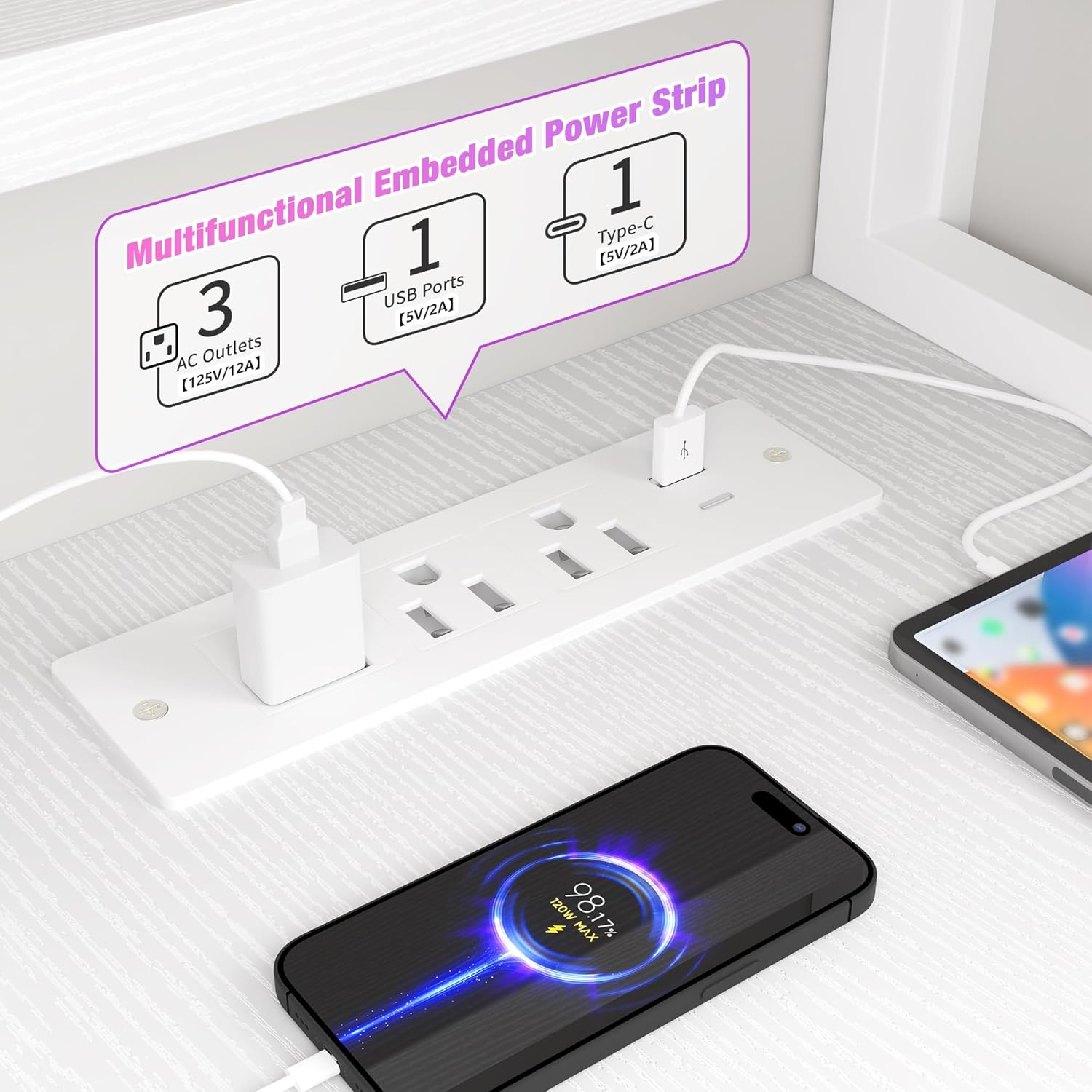
Image: Detail of the integrated power strip, featuring AC outlets, USB, and Type-C ports, demonstrating device charging capabilities.
3. Storage and Ergonomics
- Monitor Stand: Position your monitors on the elevated stand to promote ergonomic posture and reduce neck strain.
- Top Shelf & Grid Pegboard: Utilize the top shelf for decor or additional storage, and the grid pegboard for hanging accessories like headphones or cables.
- Printer Stand & PC Case Stand: The dedicated lower shelves provide space for your printer and PC tower, keeping your main desktop clear.
- Headset Hook: Use the hook to keep your headset or controllers organized and within easy reach.

Image: An annotated view of the L-shaped desk, pointing out its various storage and organizational features such as the top shelf, monitor stand, and printer stand.

Image: Visual guide demonstrating the ergonomic advantages of the monitor stand, promoting proper posture during use.

Image: A comparison showing the efficiency of the built-in printer shelf in freeing up valuable desktop space.

Image: Detailed view of the top shelf and grid shelf, showcasing their utility for organizing and displaying items.
Maintenance
- Cleaning: Wipe the desk surfaces with a soft, damp cloth. Avoid harsh chemicals or abrasive cleaners that may damage the finish.
- Dusting: Regularly dust the LED light strip and power outlets to ensure optimal performance and prevent dust buildup.
- Hardware Check: Periodically check all screws and bolts to ensure they remain tight. Retighten if necessary to maintain stability.
- Cable Management: Organize cables to prevent tangles and reduce strain on connections.
Troubleshooting
1. LED Lights Not Working
- Ensure the LED light strip is properly connected to the controller and power source.
- Check if the power adapter is securely plugged into a working wall outlet.
- Verify the controller batteries (if applicable) are functional.
2. Power Outlets Not Functioning
- Confirm the desk's main power cord is securely plugged into a working wall outlet.
- Check if the wall outlet itself is receiving power (test with another device).
- Avoid overloading the outlets; unplug some devices if too many are connected.
3. Desk Feels Unstable
- Ensure all assembly screws and bolts are fully tightened.
- Verify the desk is placed on a flat, level surface.
- Adjust any leveling feet on the desk legs, if present.
Specifications
| Feature | Detail |
|---|---|
| Brand | EnHomee |
| Model | 63" L Shaped Gaming Desk |
| Product Dimensions (D x W x H) | 31.5"D x 63"W x 53.2"H |
| Color | White |
| Material | Wood (Top Material), Metal (Frame) |
| Special Features | LED Lights, Power Outlets (3 AC, 1 USB, 1 Type-C), Reversible Design, Monitor Stand, Printer Shelf, PC Case Stand, Headset Hook |
| Required Assembly | Yes |
| Number of Shelves | 2 (Enclosed) |
Warranty and Support
Warranty Information
EnHomee products typically come with a limited manufacturer's warranty covering defects in materials and workmanship. Please refer to your purchase documentation or the official EnHomee website for specific warranty terms and conditions applicable to your product.
Customer Support
For assistance with assembly, missing parts, or any other inquiries, please contact EnHomee customer support:
- Online: Visit the official EnHomee Store on Amazon.
- Email: Refer to your product packaging or the EnHomee website for direct email contact.
Ask a question about this manual
Ask about setup, troubleshooting, compatibility, parts, safety, or missing instructions. Manuals+ will review the question and use this page’s manual context to help answer it.