
Introduction
This manual provides detailed instructions for the setup, operation, and maintenance of your OHY XVX HE68 Rapid Trigger Gaming Keyboard. Designed for gamers and professionals, this compact 65% wired keyboard features Hall Effect magnetic switches, rapid trigger technology, and customizable RGB lighting to enhance your computing experience.
Package Contents
Please verify that all items listed below are included in your package:
- OHY XVX HE68 Rapid Trigger Gaming Keyboard
- Keycap Puller
- USB Cable (Type-A to Type-C)
- User Manual (this document)
- 3x Magnetic Switches (extra)
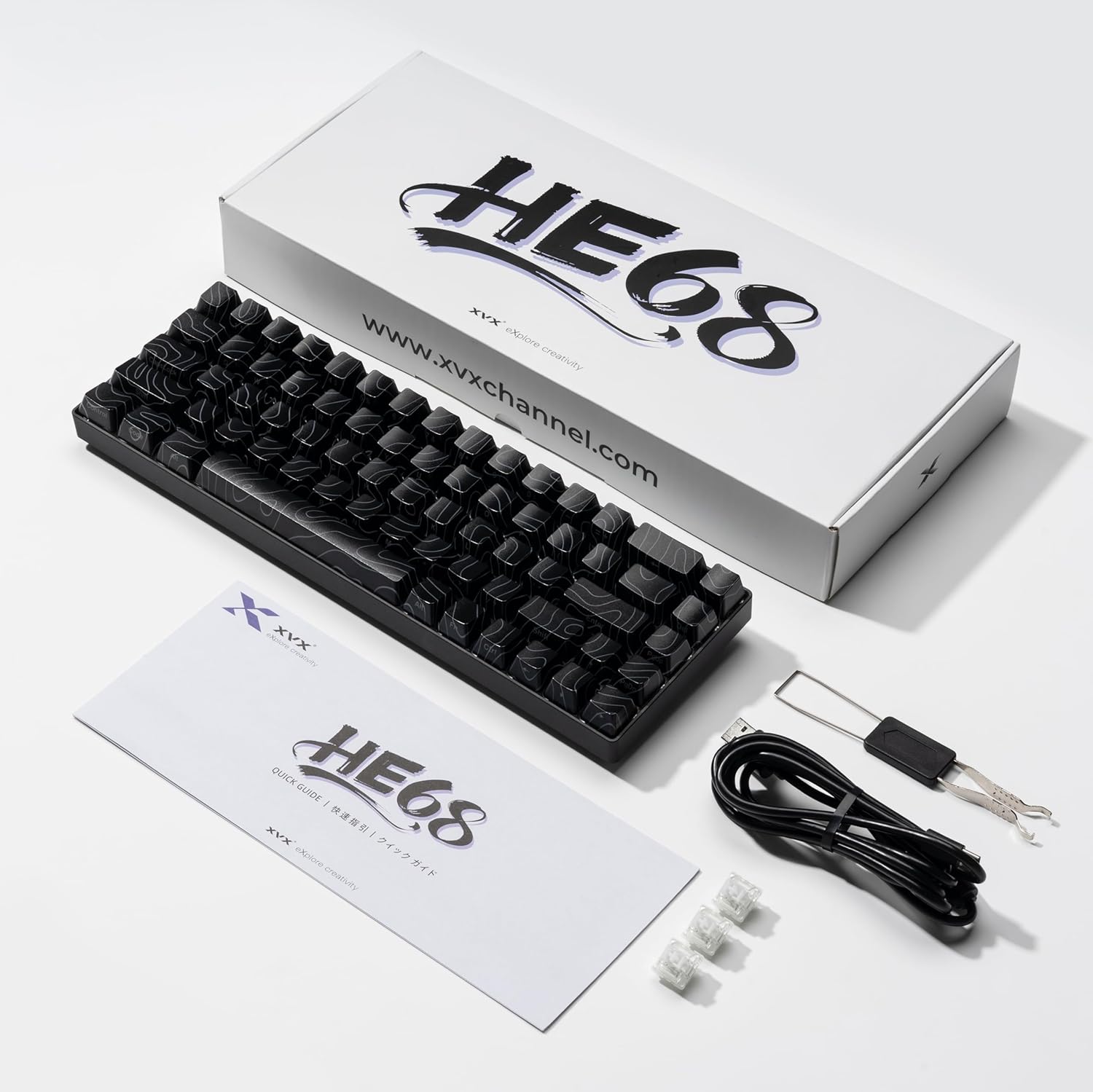
Image: The OHY XVX HE68 keyboard, its USB cable, keycap puller, extra switches, and user manual laid out on a surface.
Setup
- Connect the Keyboard: Connect the provided USB-C cable to the keyboard's USB-C port and the USB-A end to an available USB port on your computer or gaming console.
- Initial Power-On: The keyboard will automatically power on and its RGB lighting will illuminate upon successful connection.
- Access the Control Center: To customize settings, open your web browser and navigate to he68.xvxchannel.com. Click 'Connect Device' to link your keyboard to the web-based control center.

Image: A screenshot of the XVX web control center, highlighting the 'Connect Device' button for keyboard configuration.
Operating Instructions
1. Key Functions and Remapping
The web-based control center allows you to remap individual keys and manage multiple function layers. This is particularly useful for compact keyboards to expand functionality.
- Remap a Key: In the 'Key' section of the control center, select the key you wish to change on the virtual keyboard. Then, select the desired new function from the 'Basic Keys', 'Special Keys', 'Multimedia Keys', 'Lighting Functions', 'Layout Keys', or 'Mouse Functions' categories below.
- FN Key Layers: Holding down the FN key activates an additional layer of functions, effectively giving you a 'new keyboard' with different assignments. Releasing FN returns to the original settings.
- Profile Management: The upper-right corner of the control center offers profile settings. You can create new profiles, delete existing ones, rename them, and export/import configurations to save or share your custom layouts.

Image: A screenshot of the XVX web control center's 'Key' section, showing the keyboard layout and options for remapping keys.
2. Keyboard Calibration and Trigger Settings
Calibration enhances the stability and consistency of your keyboard's magnetic switches, allowing for precise control over actuation and release points.
- Full Calibration: To enter calibration mode, hold down the FN + Back keys. Press each key steadily to the bottom for one second, ensuring all keys return to their normal color before clicking 'Stop Calibration'.
- Partial Calibration: If only a few keys require calibration, simply click 'Start Calibration' in the 'Trigger' section of the control center and press only the specific keys steadily to the bottom for one second.
- Trigger Travel: In the 'Trigger' section, you can adjust the travel distance of the switch, with a minimum of 0.1mm. A smaller trigger travel results in faster triggering speed.
- Quick Trigger: This feature allows you to set the trigger sensitivity (actuation) and release sensitivity. For example, if actuation is 1.5mm and release is 0.04mm, pressing the switch 1.5mm will trigger the key, and releasing it by 0.04mm will stop it. It is recommended that release sensitivity is consistent with actuation sensitivity for optimal performance.
- Full Travel Quick Trigger: When activated, all key travel distances can achieve the Rapid Trigger (RT) function after the first triggering. When not turned on, only the initial triggered travel can use the RT function.
- Trigger Insurance (Dead Zone): This setting prevents accidental touches caused by hand shaking or other factors. The default dead zone is 0.1mm. Users can adjust this value according to their needs.

Image: A screenshot of the XVX web control center's 'Trigger' section, displaying options for adjusting trigger sensitivity, release sensitivity, and trigger insurance (dead zone).
3. Lighting Control
The HE68 keyboard offers extensive RGB lighting customization through its web control center.
- On/Off: Click the 'Backlight' toggle to turn the keyboard lights on or off.
- Effects: Choose from 23+ dynamic lighting effects, including 'Waves', 'Tide', 'Fountain', and more.
- Brightness: Adjust the brightness of the lighting effects using the 'Brightness' progress bar. Higher values result in brighter illumination.
- Speed: Control the flow speed of dynamic lighting effects using the 'Speed' progress bar. Higher values result in faster effects.
- Color: For partial lighting effects, you can adjust the color using the color palette on the right or by customizing RGB values with the sliders below.
- Direction: For directional effects, select 'Left' or 'Right' to determine the flow direction.
- Musical Rhythm Mode: This mode is currently only available through the client driver. Please download the client driver to utilize this feature.

Image: The XVX HE68 keyboard displaying various RGB lighting effects, with a diagram illustrating FN key combinations for lighting control.
4. Advanced Functions
The XVX HE68 keyboard supports several advanced functions for competitive gaming and enhanced productivity:
- DKS (Dynamic Keystrokes): Allows for multiple actions on a single key press based on press depth.
- MT (Mod-Tap): Enables a single key to serve dual roles; tap for a modifier function (e.g., Ctrl for combos) or hold for a regular key.
- TGL (Toggle): Toggles a function on or off with a single key press.
- SOCD Cleaning: Ensures flawless directional prioritization, preventing conflicting inputs (e.g., pressing left and right simultaneously results in neutral or a specific direction).
- N-Key Rollover: Guarantees that every key press is registered, even when multiple keys are pressed simultaneously.
- Adjustable Zero Dead Zones: Eliminates missed inputs by allowing precise control over the point at which a key registers.

Image: A diagram explaining the 'Rappy Snappy' function, which monitors selected keys and activates the furthest pressed key, enhancing strafing and combo timing.

Image: A diagram illustrating the 'Mod-Tap' function, where a single key can perform different actions based on whether it's tapped or held.
Video: A comprehensive guide to using the XVX HE68 Rapid Trigger Keyboard's driver program, demonstrating key remapping, trigger settings, and lighting customization.
Maintenance
- Cleaning: Use a soft, slightly damp cloth to clean the keyboard surface. Avoid using harsh chemicals or excessive moisture. For keycaps, a keycap puller can be used to remove them for deeper cleaning.
- Switch Replacement: The HE68 features hot-swappable sockets. Use the provided keycap puller and switch puller (if applicable) to carefully remove keycaps and switches. Align new compatible south-facing magnetic switches and press them gently into place until they click.

Image: A close-up view of a magnetic switch being carefully removed from the keyboard, demonstrating the hot-swappable feature.
Troubleshooting
- Keyboard Not Responding: Ensure the USB cable is securely connected to both the keyboard and the computer. Try a different USB port or cable.
- RGB Lights Not Working: Check the lighting settings in the web control center. Ensure the backlight is toggled on, and adjust brightness and effects.
- Keys Not Registering Correctly: Perform a keyboard calibration as described in the 'Keyboard Calibration and Trigger Settings' section. If a specific switch is faulty, it can be replaced due to the hot-swappable design.
- Web Control Center Connection Issues: Verify your internet connection. Ensure you are using the correct URL (he68.xvxchannel.com). Try disconnecting and reconnecting the keyboard, then click 'Connect Device' again.
Specifications
| Brand | OHY |
| Model Number | HE68 |
| Product Dimensions | 12.2 x 4 x 0.4 inches |
| Item Weight | 2.05 pounds |
| Compatible Devices | PC/Laptop/Xbox/PS4/PS5 |
| Connectivity Technology | USB-A, USB-C |
| Keyboard Description | Mechanical |
| Special Features | Backlit, Hotkeys and Media Keys, Magnetic Switch Rapid Trigger, Programmable Keys, Side-Printed PBT Keycaps |
| Keyboard Backlighting | RGB |
| Style | Classic |
Warranty and Support
Your OHY XVX HE68 Rapid Trigger Gaming Keyboard is covered by a manufacturer's warranty. For specific warranty terms, conditions, and duration, please refer to the warranty card included with your product or visit the official OHY website. For technical support or further assistance, please contact OHY customer service through their official channels.


