
Samsung EF-DX620BBGGDE
Samsung Book Cover Keyboard Slim EF-DX620 User Manual
Model: EF-DX620BBGGDE
1. Introduction
The Samsung Book Cover Keyboard Slim EF-DX620 is a versatile accessory designed to enhance the functionality and protection of your compatible Samsung Galaxy Tab S series tablet. This slim and lightweight one-piece cover features a full-fledged QWERTY keyboard, connecting via a POGO pin for seamless integration. It allows for productive work and comfortable media consumption on the go, combining protection, functionality, and design.

Figure 1: Samsung Book Cover Keyboard Slim in its closed position, protecting the tablet screen.
2. Package Contents
Please check the box for the following items:
- Samsung Book Cover Keyboard Slim EF-DX620
- Quick Start Guide (if included)
If any items are missing or damaged, please contact your retailer or Samsung customer support.
3. Setup
3.1 Attaching the Book Cover Keyboard
- Align your compatible Samsung Galaxy Tab S series tablet with the back panel of the Book Cover Keyboard Slim.
- The cover will magnetically attach to the back of your tablet, ensuring a secure fit.

Figure 2: Top view of the cover, illustrating the tablet alignment and S Pen compartment.
3.2 Connecting the Keyboard
- Once the tablet is securely attached to the back cover, unfold the keyboard section.
- Align the POGO pins on the keyboard with the corresponding connector on your tablet.
- Gently press the tablet onto the POGO pin connector until it clicks into place. The keyboard will automatically connect and be ready for use.

Figure 3: Tablet connected to the keyboard cover, ready for use.
4. Operating Instructions
4.1 Using the QWERTY Keyboard
The integrated QWERTY keyboard provides a familiar typing experience for increased productivity. It includes standard alphanumeric keys, function keys (F1-F12), and dedicated keys for quick access to tablet functions.
- Function Keys: Utilize the function keys (e.g., brightness control, volume control, media playback) by pressing them directly or in combination with the Fn key, depending on your tablet's settings.
- AI Button: If your tablet supports it, the dedicated AI button can be used to activate voice assistants or other smart features.

Figure 4: Detailed view of the QWERTY keyboard layout.
4.2 Using the S Pen Compartment
The Book Cover Keyboard Slim features a dedicated compartment for your S Pen, ensuring it is securely stored and easily accessible when not in use. Simply place the S Pen into the designated slot on the cover.

Figure 5: S Pen securely stored in its dedicated compartment.
4.3 Adjusting Viewing Angles
The Book Cover Keyboard Slim is designed to provide multiple viewing angles for comfortable typing, drawing, or media consumption. Simply fold the cover into the desired position to create a stable stand for your tablet.
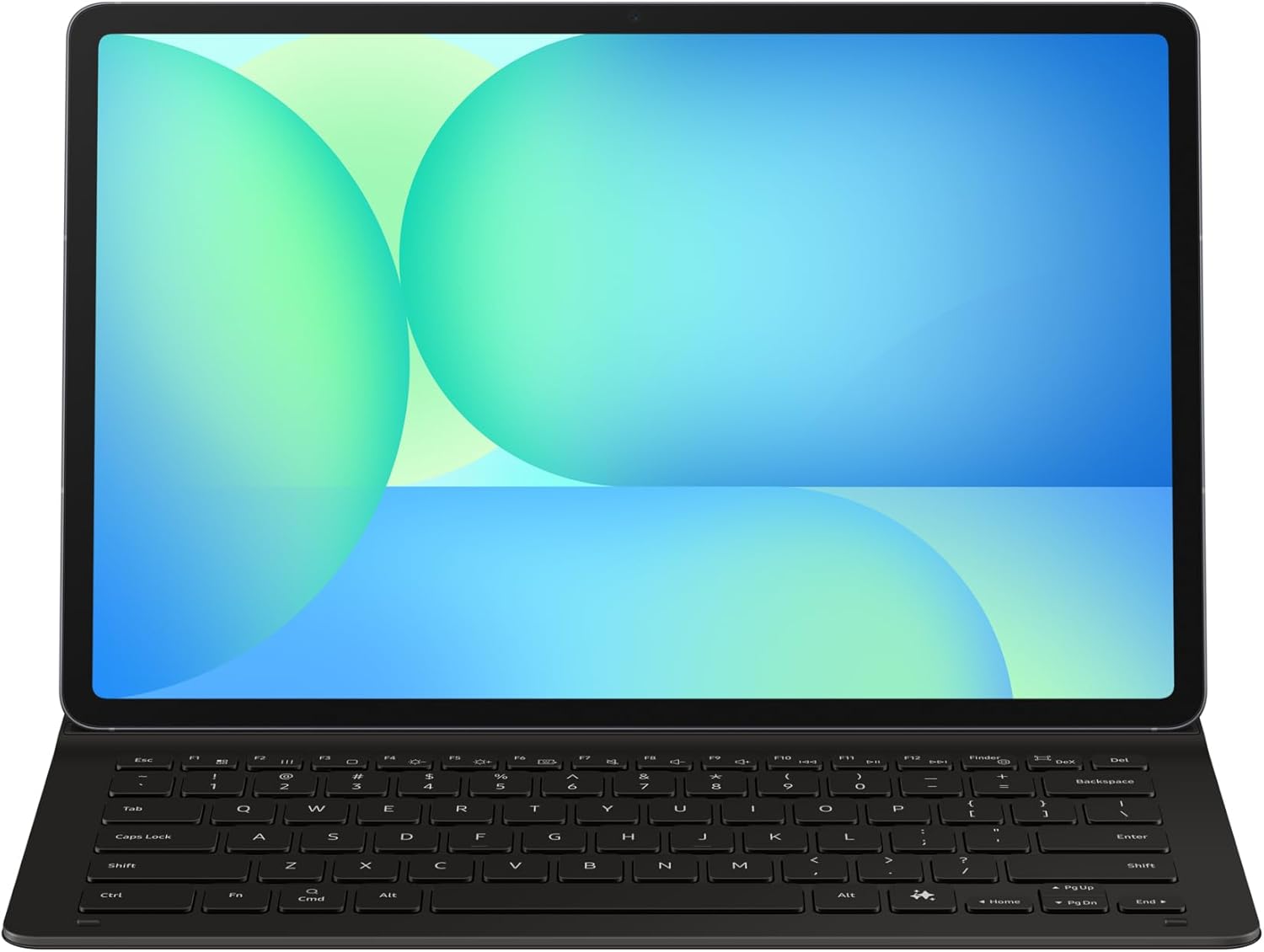
Figure 6: Tablet and keyboard cover configured for an optimal viewing angle.
5. Maintenance and Care
To ensure the longevity and optimal performance of your Samsung Book Cover Keyboard Slim, follow these care instructions:
- Cleaning: Use a soft, dry, lint-free cloth to clean the surface of the cover and keyboard. For stubborn marks, slightly dampen the cloth with water. Avoid using harsh chemicals, abrasive cleaners, or solvents.
- Liquid Exposure: Keep the keyboard cover away from liquids. In case of accidental spills, immediately disconnect the tablet and wipe the cover dry.
- Storage: When not in use, store the cover in a cool, dry place away from direct sunlight and extreme temperatures.
- Handling: Avoid bending or twisting the keyboard excessively, as this may damage the internal components or the POGO pin connector.
6. Troubleshooting
If you encounter issues with your Book Cover Keyboard Slim, refer to the table below for common problems and solutions.
| Problem | Possible Cause | Solution |
|---|---|---|
| Keyboard not responding | Loose POGO pin connection; Tablet software issue; Dirty POGO pins. | Ensure the tablet is securely connected to the POGO pins. Disconnect and re-attach the tablet. Restart your tablet. Clean the POGO pins on both the keyboard and tablet with a soft, dry cloth. |
| Keys are sticky or unresponsive | Debris under keys; Liquid damage. | Gently try to dislodge any debris. If liquid damage is suspected, discontinue use and contact support. |
| Tablet not fitting securely | Incorrect tablet model; Obstruction on magnetic surface. | Ensure your tablet is a compatible Samsung Galaxy Tab S series model. Check for any foreign objects between the tablet and the cover's magnetic surface. |
If the problem persists after trying these solutions, please contact Samsung customer support for further assistance.
7. Specifications
| Feature | Detail |
|---|---|
| Brand | Samsung |
| Model Number | EF-DX620BBGGDE |
| Dimensions (L x W x H) | 19.7 x 30.1 x 1.42 cm |
| Item Weight | 386 Grams |
| Colour | Black |
| Material | Polycarbonate, Polyurethane (PU), Magnet |
| Compatible Devices | Samsung Galaxy Tab S series (compatible models) |
| Keyboard Description | Compact, Wireless (via POGO pin), Multi Functional |
8. Warranty and Support
For information regarding warranty coverage, technical support, and service options for your Samsung Book Cover Keyboard Slim EF-DX620, please refer to the official Samsung website or contact Samsung customer service in your region. Keep your proof of purchase for warranty claims.
Online Support: Visit www.samsung.com/support