
1. Product Overview
The XUMO Stream Box Remote is designed to provide effortless navigation and control for your XUMO streaming experience. It offers quick access to channels, shows, and applications, enhancing your entertainment system.

Image 1.1: Front view of the XUMO Stream Box Remote, showcasing its button layout including power, input, volume, navigation, and dedicated app buttons.
Key Features:
- Universal Compatibility: Designed to work seamlessly with a range of smart TVs, allowing control of both your TV and streaming services.
- Long-Range Performance: Provides reliable connection and performance across the room.
- Sleek, Ergonomic Design: Crafted for comfort, lightweight, and fits comfortably in hand.
2. Setup Guide
2.1 Inserting Batteries
The XUMO Stream Box Remote requires 2 AAA batteries for operation. Follow these steps to insert them correctly:
- Locate the battery compartment cover on the back of the remote control.
- Slide the cover downwards or press the latch (if present) to open the compartment.
- Insert two AAA batteries, ensuring the positive (+) and negative (-) terminals align with the markings inside the compartment.
- Close the battery compartment cover by sliding it back into place until it clicks securely.

Image 2.1: Front and back view of the XUMO Stream Box Remote. The back view illustrates the location of the battery compartment.
2.2 Initial Pairing/Connection
In most cases, the XUMO Stream Box Remote is designed to connect automatically with your XUMO Stream Box or compatible smart TV upon battery insertion. If the remote does not respond immediately, follow these general steps:
- Ensure your XUMO Stream Box or TV is powered on.
- Point the remote towards the device.
- Press any button (e.g., the Home button or Power button) to initiate the connection.
- If the remote still does not respond, navigate to your TV's or Stream Box's settings menu (using an existing remote or on-device controls) and look for a 'Remote Control' or 'Bluetooth Devices' section to manually pair the new remote. Some users have reported success by pressing various buttons randomly around the center of the remote until a setup message appears on screen.
3. Operating Instructions
3.1 Button Functions
Familiarize yourself with the various buttons on your XUMO Stream Box Remote:
- Power Button: Turns the connected device on or off.
- Input Button: Cycles through available input sources (HDMI 1, HDMI 2, etc.).
- Volume Up/Down: Adjusts the audio volume.
- Mute Button: Mutes or unmutes the audio.
- Navigation Pad (Circular): Used to move up, down, left, and right within menus and content.
- OK/Select Button (Center of Navigation Pad): Confirms selections.
- Back Button: Returns to the previous screen or menu.
- Home Button: Returns to the main home screen of your XUMO Stream Box.
- Dedicated App Buttons (Netflix, Peacock, Prime Video, Xumo): Provides direct access to these streaming applications.
- Number Pad (0-9): Used for direct channel entry or other numerical inputs.
- Voice Control Button (Microphone Icon): Activates voice commands for search and control.
3.2 Basic Navigation
To navigate menus and select content:
- Use the Navigation Pad to move the cursor or highlight items on the screen.
- Press the OK/Select Button to open an app, select a movie, or confirm an action.
- Press the Back Button to go back one step in the menu hierarchy.
- Press the Home Button to return to the main XUMO home screen at any time.
3.3 Voice Control
To use voice commands:
- Press and hold the Voice Control Button (microphone icon).
- Speak clearly into the remote's microphone.
- Release the button when you have finished speaking.
Examples of voice commands include: "Open Netflix," "Search for action movies," "Go to channel 5," or "Turn up the volume."
4. Maintenance
4.1 Cleaning the Remote
To maintain the remote's appearance and functionality:
- Wipe the remote with a soft, dry cloth.
- For stubborn dirt, slightly dampen the cloth with water or a mild, non-abrasive cleaner.
- Do not use harsh chemicals or abrasive materials, as they may damage the remote's surface or internal components.
4.2 Battery Replacement
Replace the batteries when the remote's response becomes sluggish or it stops functioning. Refer to Section 2.1 for detailed instructions on inserting batteries.
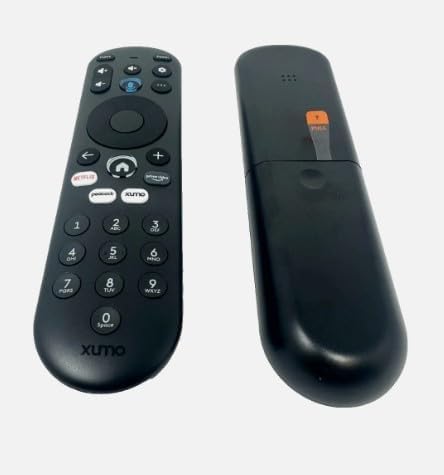
Image 4.1: Side view of the XUMO Stream Box Remote, illustrating its ergonomic design.
5. Troubleshooting
If you encounter issues with your XUMO Stream Box Remote, try the following troubleshooting steps:
| Problem | Possible Cause | Solution |
|---|---|---|
| Remote not responding | Dead or incorrectly inserted batteries; remote out of range; obstructed signal. | Replace batteries, ensuring correct polarity. Move closer to the device. Remove any objects blocking the line of sight between the remote and the device. |
| Remote not pairing/connecting | Initial pairing failed; interference. | Ensure the device is on. Try pressing various buttons on the remote to initiate connection. If necessary, manually pair through your TV/Stream Box settings (e.g., Bluetooth devices). |
| Limited functionality (e.g., only power works) | Partial pairing; device-specific settings. | Ensure the remote is fully paired. Check your TV/Stream Box settings for remote control options or universal remote setup. Some TVs may require manual power-on before the remote can control other functions. |
6. Product Specifications
| Specification | Detail |
|---|---|
| Product Dimensions | 7 x 2.5 x 7 inches |
| Item Weight | 4 ounces |
| Model Number | *Remote. SCXI11BEI |
| Batteries Required | 2 AAA batteries (not included) |
| Compatible Devices | Streaming Device (XUMO Stream Box, compatible Smart TVs) |
| Max Number of Supported Devices | 2 |
| Color | BLACK |
| Special Feature | Lightweight |
| Manufacturer | XUMO |
| Brand | Generic |
7. Warranty and Support
This product is manufactured by XUMO and sold under the Generic brand. For specific warranty information, please refer to the retailer or the original purchase documentation. For technical support or further assistance, please contact the seller or refer to the support resources provided with your XUMO Stream Box.
Please note that while this remote is designed for broad compatibility, specific features and pairing methods may vary slightly depending on your XUMO Stream Box model or connected smart TV.


