
1. Introduction
Thank you for choosing the electrosmart 9-inch Android 13 Car Radio. This manual provides essential information for the proper installation, operation, and maintenance of your new car stereo system. Please read this manual thoroughly before installation and use to ensure optimal performance and safety.

Image 1.1: The electrosmart 9-inch Android 13 Car Radio installed in a Nissan Altima dashboard, showcasing its integrated design.
2. Compatibility
This car radio is specifically designed for the following vehicle models:
- Nissan Altima (2008, 2009, 2010, 2011, 2012)
Important Note: This unit is only compatible with Nissan Altima models equipped with manual air conditioning. It is not compatible with vehicles that have automatic climate control or the original BOSE audio system.

Image 2.1: Visual guide for compatibility, showing the original dashboard configurations and the new unit installed. It indicates compatibility with manual AC models and incompatibility with automatic AC or BOSE audio systems.
3. Package Contents
Please verify that all items listed below are included in your package:
- Ultra-thin Radio Unit (9-inch Android 13 Head Unit)
- Power Cable
- RCA Cable
- 2 x USB Cables
- External Microphone
- GPS Antenna
- HD 1080P Backup Camera
- User Manual
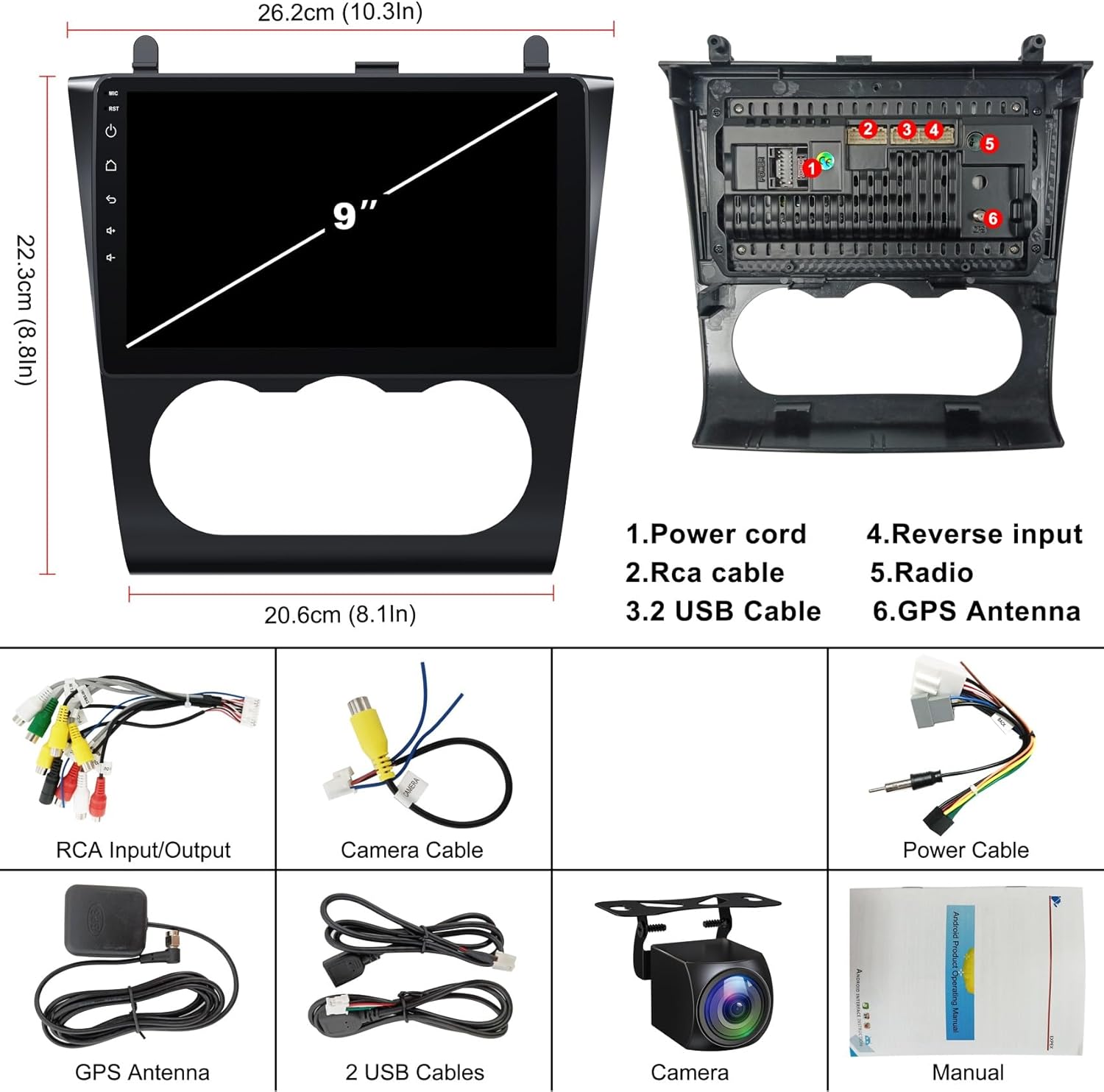
Image 3.1: A visual representation of all components included in the package, such as the head unit, various cables (power, RCA, USB), GPS antenna, external microphone, and backup camera.
4. Installation
Installation of the electrosmart car radio requires basic automotive electrical knowledge. If you are unsure about any steps, it is recommended to seek professional assistance.
General Installation Steps:
- Preparation: Disconnect the vehicle's battery to prevent electrical shorts.
- Remove Old Unit: Carefully remove the existing car radio and dashboard trim.
- Connect Wiring: Connect the provided power cable, RCA cables, USB cables, GPS antenna, and backup camera wiring to the new head unit. Ensure all connections are secure.
- Test Functionality: Before fully reassembling the dashboard, temporarily reconnect the battery and test the basic functions of the new radio (power, audio, touch screen, etc.).
- Mount Unit: Secure the new head unit into the dashboard opening.
- Reassemble: Reinstall all dashboard trim pieces.
- Final Check: Reconnect the battery and perform a comprehensive test of all features.
The unit is designed for direct plug-and-play installation with the provided wiring harness for compatible Nissan Altima models.
5. Operating Instructions
5.1 Wireless Apple CarPlay & Android Auto
Connect your smartphone wirelessly or via USB to access Apple CarPlay or Android Auto. This allows for seamless integration of your phone's navigation, communication, and entertainment features directly on the car radio's display.
- Features: Hands-free calls, messaging, turn-by-turn directions, music streaming, and voice assistant (Siri/Google Assistant).
- Connection: Follow the on-screen prompts on the head unit to pair your device via Bluetooth for wireless connection, or connect directly using a USB cable.

Image 5.1: The car radio screen showing both Apple CarPlay and Android Auto interfaces, demonstrating smartphone integration for navigation, calls, and music.
5.2 GPS Navigation
The unit features a built-in GPS module and comes with an external GPS antenna for accurate positioning. It supports both offline and online navigation.
- Offline Maps: Pre-installed maps allow navigation without an internet connection.
- Online Maps: Connect to WiFi or a mobile hotspot to use online navigation apps like Google Maps for real-time traffic updates and routing.
5.3 WiFi Connection
Connect the head unit to a WiFi network or your phone's hotspot to access online features, download apps, browse the internet, and stream content.

Image 5.2: The car radio screen displaying WiFi connectivity options and various GPS navigation applications, illustrating internet access and mapping capabilities.
5.4 Bluetooth 5.2
The integrated Bluetooth 5.2 module provides stable and fast wireless connectivity for your mobile devices.
- Hands-Free Calling: Make and receive calls safely using the built-in noise-canceling microphone or the external microphone.
- Audio Streaming: Play music, podcasts, and other audio content wirelessly from your paired smartphone.
5.5 FM Radio
Tune into your favorite FM radio stations with 18 preset options. The RDS (Radio Data System) feature provides additional information like station name and song title where available.
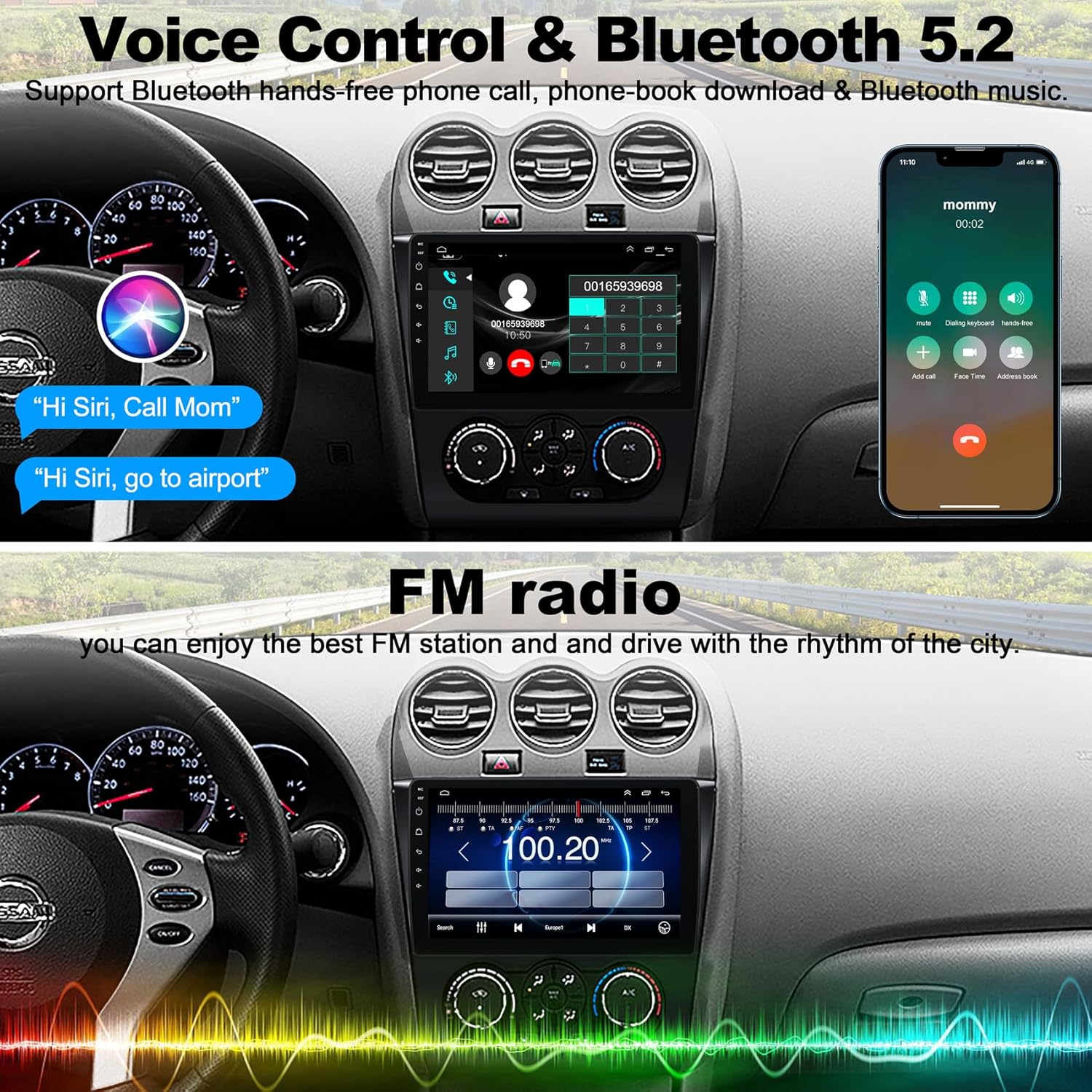
Image 5.3: The car radio screen showing a Bluetooth call in progress and the FM radio interface, demonstrating communication and entertainment functions.
5.6 Steering Wheel Control (SWC)
Retain the convenience of your vehicle's original steering wheel controls. The unit supports SWC, allowing you to manage audio functions (volume, track skip, mode) without taking your hands off the wheel.
5.7 Backup Camera
The included HD 1080P backup camera provides a clear, wide-angle (170°) view of the area behind your vehicle. The radio screen automatically switches to the reverse interface when the vehicle is put into reverse gear, enhancing safety during parking and reversing maneuvers.
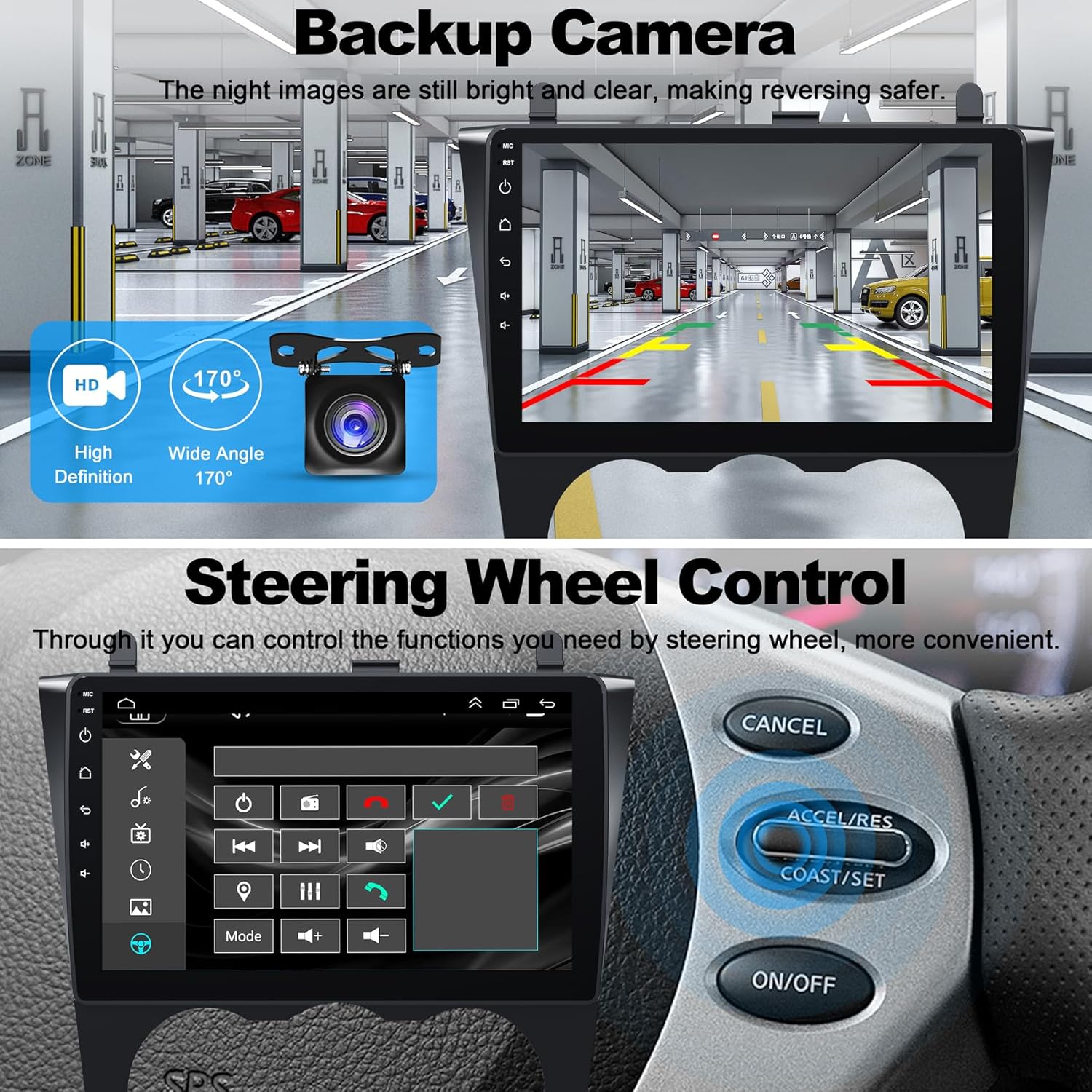
Image 5.4: The car radio screen showing the live feed from the backup camera with parking guidelines, and a separate image illustrating the on-screen controls for steering wheel functions.
5.8 Split Screen Function
Utilize the split-screen feature to run two applications simultaneously, such as navigation on one side and music playback on the other, for enhanced multitasking.
6. Specifications
| Operating System | Android 13.0+ |
| Processor | 4-core processor |
| Memory (RAM) | 2GB (or 4GB depending on variant) |
| Storage (ROM) | 32GB (or 64GB depending on variant) |
| Screen Size | 9-inch IPS HD Capacitive Touch Screen |
| Resolution | 1280*720 |
| Connectivity | Bluetooth 5.2, 5G WiFi (2.4Hz+5Hz) |
| Special Features | Wireless/Wired Apple CarPlay & Android Auto, GPS Navigation, FM/RDS Radio, DSP (48-band EQ), Mirror Link, Steering Wheel Control, 1080P Video Player, Split Screen |
| Audio Output | 4x50W, Full RCA Output |
| USB Ports | Dual USB 3.0 |
| Included Media | Backup Camera |
7. Troubleshooting
If you encounter any issues with your electrosmart car radio, please refer to the following common troubleshooting tips:
- No Power: Check all power connections and fuses. Ensure the vehicle's battery is properly connected and charged.
- No Sound: Verify speaker connections. Check volume levels and audio settings (EQ, balance, fader). Ensure the correct audio source is selected.
- Touch Screen Unresponsive: Try restarting the unit. If the issue persists, a factory reset might be necessary (refer to settings menu).
- GPS Signal Lost: Ensure the GPS antenna is properly installed and has a clear view of the sky. Check antenna connection to the unit.
- Bluetooth Pairing Issues: Ensure Bluetooth is enabled on both the head unit and your smartphone. Delete previous pairings and try reconnecting.
- Backup Camera Not Displaying: Check the camera's power and video signal connections. Ensure the reverse trigger wire is correctly connected.
- CarPlay/Android Auto Not Connecting: Ensure your phone's operating system is up to date. Try connecting with a different USB cable or re-pairing wirelessly.
For persistent issues, please contact customer support.
8. Warranty and Support
Your electrosmart car radio comes with a 1-year warranty from the date of purchase, covering manufacturing defects.
Extended Protection Plans:
Additional protection plans are available for purchase:
- 2-Year Protection Plan: Extends coverage for an additional year.
- 3-Year Protection Plan: Provides comprehensive coverage for three years.
For warranty claims, technical support, or any questions regarding your product, please refer to the contact information provided with your purchase documentation or visit the electrosmart official support website.