
moseiny HU-NOWPLA119
moseiny 7-inch Double Din Car Stereo Radio (Model HU-NOWPLA119) User Manual
For CT200H CT200 LHD 2011-2018 Vehicles
1. Setup and Installation
This section provides instructions for the initial setup and installation of your moseiny 7-inch Double Din Car Stereo Radio. Professional installation is recommended due to wiring requirements.
1.1 Package Contents
Verify that all items are present in the package:
- 1 x Car MP5 Player
- 1 x Power Cable
- 1 x GPS Antenna
- 1 x AHD Backup Camera
- 1 x RCA Input and Output
- 1 x External Microphone
- 2 x USB Cable
- 1 x Instruction manual

Figure 1.1: Included components in the moseiny car stereo package.
1.2 Wiring and Connection
Important Note: This unit is not plug-and-play. Wiring modifications may be required for installation, especially for vehicles with premium audio systems. Consult a professional installer if you are unsure about the wiring process.
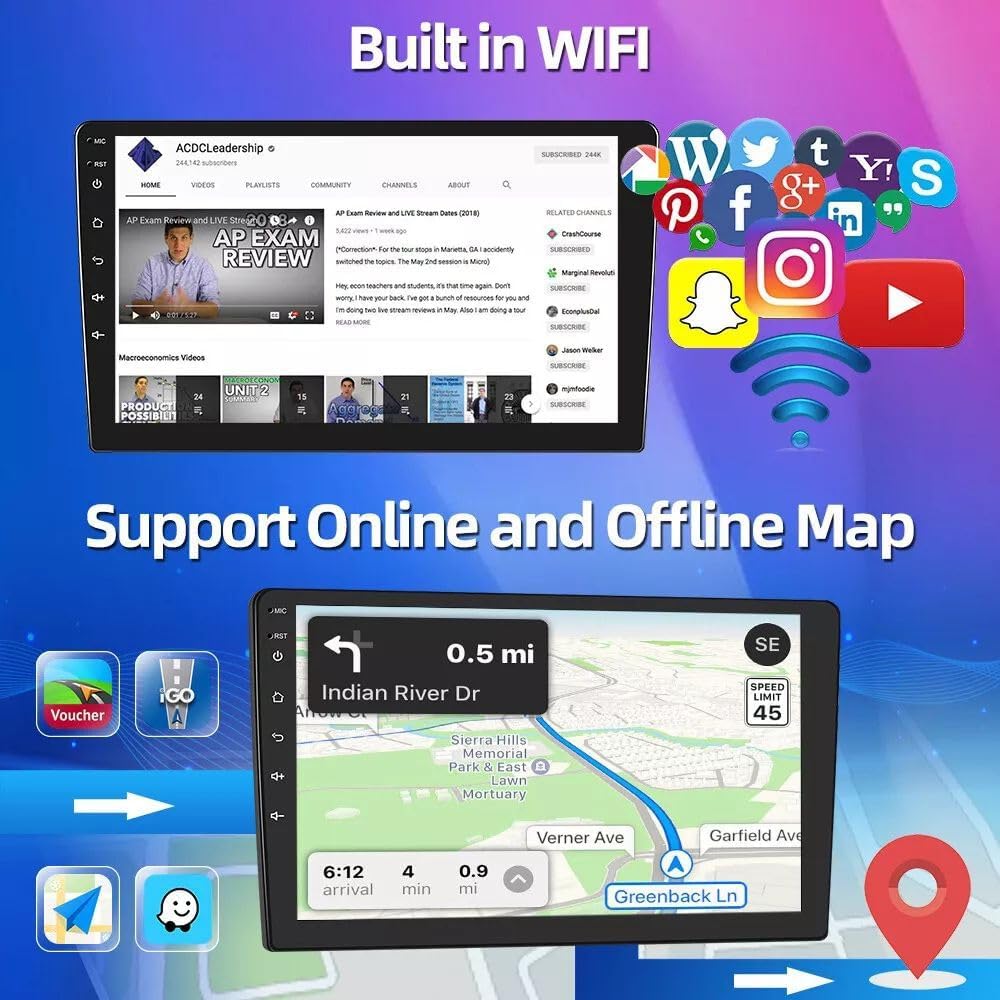
Figure 1.2: Rear connections of the car stereo unit.
1.3 Initial Power On
After successful wiring, turn on your vehicle's ignition to power on the car stereo. The unit will boot up to the main interface.
2. Operating Instructions
This section details the various functions and features of your moseiny car stereo.
2.1 Wireless Carplay & Android Auto & Mirrorlink
The car stereo supports wireless CarPlay for iOS devices and Android Auto for Android devices, along with Mirrorlink functionality. This allows for seamless integration of your smartphone for navigation, music, communication, and other apps.

Figure 2.1: Wireless CarPlay and Android Auto interface.

Figure 2.2: Phone Mirror Link functionality.
2.2 Bluetooth Connectivity
Pair your smartphone via Bluetooth for hands-free calling and audio streaming. Access your phone's contacts and music directly from the head unit.

Figure 2.3: Bluetooth hands-free calling and music playback.
2.3 GPS Navigation & WiFi
The unit features built-in GPS for navigation and WiFi connectivity for online services, app downloads, and real-time traffic updates. You can use both online and offline maps.
Figure 2.4: GPS Navigation and WiFi connectivity.

Figure 2.5: 5G WiFi connection for various applications.
2.4 Steering Wheel Control (SWC)
Control essential functions like volume, track changes, and calls directly from your vehicle's steering wheel buttons for enhanced safety and convenience.

Figure 2.6: Steering Wheel Control interface.

Figure 2.7: Steering Wheel Control functionality.
2.5 FM RDS Radio
Enjoy your favorite radio stations with FM RDS (Radio Data System) support, providing station information and enhanced audio quality.

Figure 2.8: FM RDS Radio interface with equalizer.

Figure 2.9: FM/RDS Radio features.
2.6 Split Screen Function
Utilize the split-screen feature to run two applications simultaneously, such as navigation and music playback, for improved multitasking.

Figure 2.10: Split Screen Functionality.
3. Maintenance
Proper maintenance ensures the longevity and optimal performance of your car stereo.
3.1 Cleaning the Screen
Use a soft, lint-free cloth to gently wipe the touchscreen. For stubborn smudges, slightly dampen the cloth with water or a screen-safe cleaner. Avoid abrasive materials or harsh chemicals.
3.2 Software Updates
Periodically check for software updates to ensure your system has the latest features and security enhancements. Refer to the manufacturer's website or the device settings for update procedures.
3.3 Environmental Considerations
Avoid exposing the unit to extreme temperatures, direct sunlight for prolonged periods, or excessive moisture. Ensure proper ventilation around the unit to prevent overheating.
4. Troubleshooting
This section addresses common issues you might encounter and provides solutions.
4.1 Power Issues
- No Power: Check all power connections and fuses. Ensure the vehicle's ignition is on.
- Unit Not Turning On: If the unit does not power on after checking connections, consult a professional installer to verify wiring.
4.2 Bluetooth Connection Problems
If you experience difficulty connecting your phone via Bluetooth:
- Ensure Bluetooth is enabled on both the car stereo and your smartphone.
- On the car stereo, navigate to the Bluetooth settings (usually found in the "Apps" or "Settings" menu).
- On your smartphone, search for available Bluetooth devices and select "CarBT".
- Enter the PIN "0000" if prompted.
- After successful connection, "phone audio, music audio" should be displayed. If not, restart the Bluetooth on both devices and try again.
Video 4.1: Demonstrates the process of connecting a smartphone to the car stereo via Bluetooth and ZLINK for CarPlay/Android Auto. This video also shows how to manually connect to WiFi if ZLINK fails.
4.3 Wireless CarPlay/Android Auto (ZLINK) Issues
If ZLINK connection is not successful:
- Ensure your phone's personal hotspot is enabled.
- On the car stereo, go to "Settings" > "Android Settings" > "Network & Internet" > "Hotspot & tethering" > "Wi-Fi hotspot" and turn it ON.
- Note the "Network name" (e.g., AndroidAP_B442) and "Password" from the car stereo's hotspot settings.
- On your smartphone, connect to the car stereo's Wi-Fi hotspot using the noted network name and password.
- Once connected, open the ZLINK app on the car stereo. It should automatically connect to CarPlay or Android Auto.
- If the connection still fails, delete the history record of the Wi-Fi connection on the vehicle unit and then click ZLINK again.
4.4 Sound Problems
- No Sound: Check volume levels on both the stereo and your phone. Verify speaker wiring connections.
- Distorted Sound: Check audio settings and equalizer. Ensure speaker impedance matches the unit's output.
5. Specifications
| Feature | Detail |
|---|---|
| Brand | moseiny |
| Model Number | HU-NOWPLA119 |
| Item Weight | 3.2 pounds |
| Product Dimensions | 14.17 x 8.27 x 4.72 inches |
| Connectivity Technology | Bluetooth, USB, Wi-Fi |
| Controller Type | Touch Screen |
| Special Feature | Touchscreen |
| Compatible Devices | Smartphone |
| Connector Type | RCA, USB |
| Audio Output Mode | Stereo |
| Surround Sound Channel Configuration | 2.0 |
| Video Encoding | MKV, MP4, AVI, RMVB, MDV |
6. Warranty Information
Specific warranty details for the moseiny 7-inch Double Din Car Stereo Radio are typically provided with your purchase documentation. Please refer to the warranty card or contact the retailer for precise terms and conditions. Generally, electronic products come with a limited manufacturer's warranty covering defects in materials and workmanship for a specified period from the date of purchase.
For extended protection, third-party protection plans may be available for purchase. Please check with your retailer for options.
7. Customer Support
If you require further assistance, have questions about installation, operation, or troubleshooting, please contact moseiny customer support or your authorized dealer.
- Online Support: Visit the official moseiny website for FAQs, support resources, and contact information.
- Email Support: Refer to your product packaging or the manufacturer's website for the customer service email address.
- Retailer Support: Your point of purchase may also offer support and assistance.
Ask a question about this manual
Ask about setup, troubleshooting, compatibility, parts, safety, or missing instructions. Manuals+ will review the question and use this page’s manual context to help answer it.