1. Introduction
This manual provides detailed instructions for the setup, operation, and maintenance of your helett AE240BT Wireless Thermal Label Printer. The AE240BT is a versatile and efficient thermal label printer designed for high-quality printing of shipping labels, barcode labels, and other labeling needs. It features 203 DPI resolution, 152 mm/s printing speed, and supports both USB and Bluetooth connectivity for various operating systems.

Figure 1.1: The helett AE240BT Wireless Thermal Label Printer actively printing a shipping label.
2. Box Contents
Please verify that all items listed below are included in your package.
- 1x helett AE240BT Thermal Label Printer
- Power Adapter
- USB Cable
- User Manual (this document)
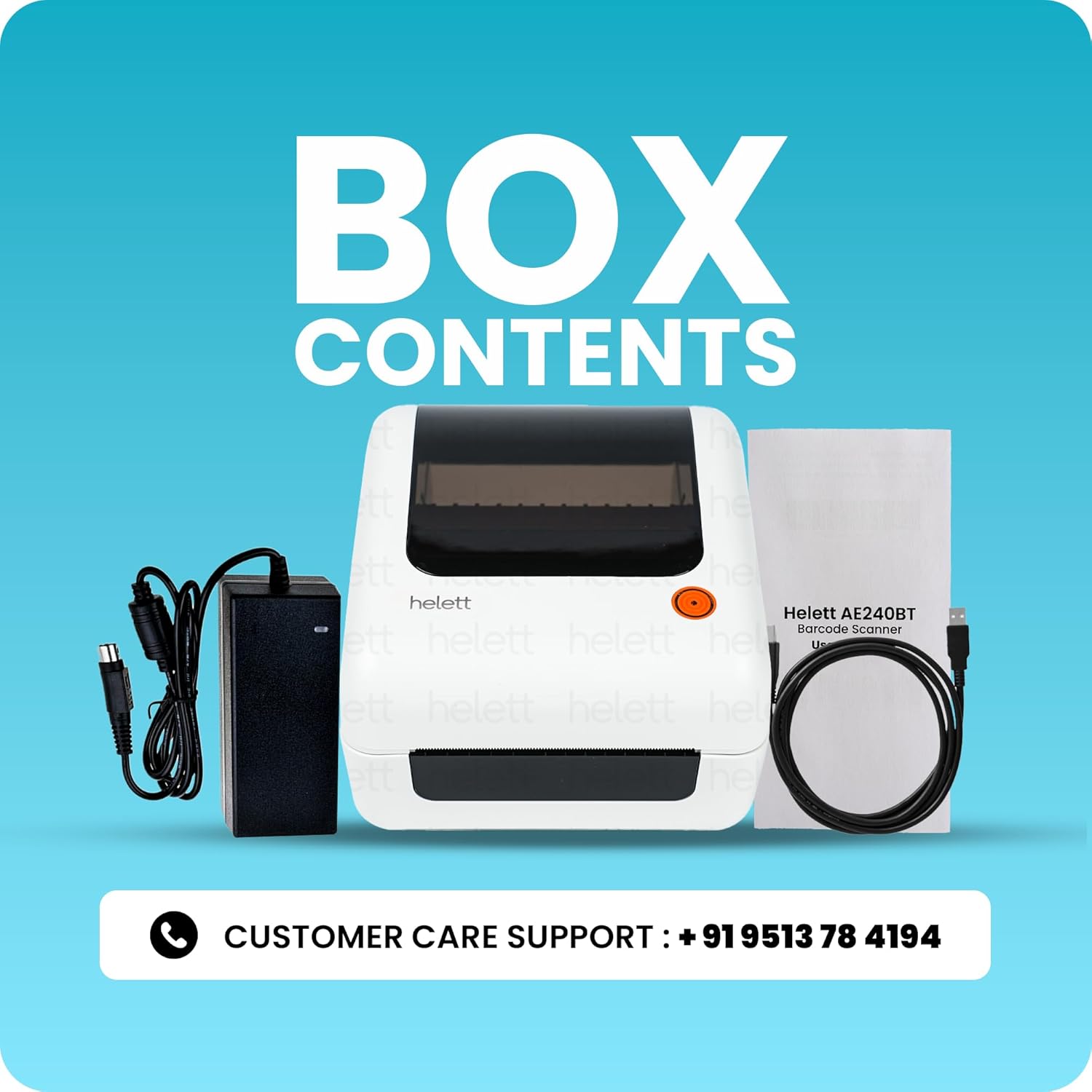
Figure 2.1: Contents of the helett AE240BT printer package, including the printer, power adapter, USB cable, and user manual.
3. Product Features
- High-Quality Printing: Features a sharp 203 DPI resolution for crisp and professional prints, suitable for shipping labels and MRP labels.
- Versatile Label Compatibility: Supports various direct thermal label types, including colorful, transparent, and silver labels, with shapes like circles, rectangles, and squares. Label widths range from 1 inch to 4 inches.
- Built-In Label Storage: Includes an internal paper holder compartment capable of storing up to 350 label sheets, promoting an organized workspace.
- Transparent Monitoring Window: A clear panel on the top allows users to monitor label usage without opening the printer.
- USB Direct Thermal Technology: Operates without the need for ink or toner, offering a cost-effective and low-maintenance printing solution.
- High-Speed Printing: Achieves a printing speed of 152 mm/s (6 inches per second), enhancing productivity for high-volume tasks.
- Multiple System Support: Connects via USB to Windows, Mac, ChromeOS, and Linux systems.
- Bluetooth Connectivity: Supports wireless printing from Android and iOS devices using dedicated applications.

Figure 3.1: The printer's 203 DPI print head ensures high-quality output.

Figure 3.2: The AE240BT printer operating at its high speed of 152 mm/s.

Figure 3.3: Examples of various label sizes and shapes supported by the printer, including 2"x2", 2"x1", 2.25"x1.25", 4"x6", and 4"x4".
4. Setup Instructions
4.1 Physical Connection
- Connect the power adapter to the printer's power port and then plug it into an electrical outlet.
- Connect the USB cable to the printer's USB port and the other end to your computer.
- Ensure the printer's power switch is in the 'On' position.
4.2 Driver Installation
For printing from a computer (Windows, Mac, ChromeOS, Linux), driver installation is required.
- Scan the QR code provided in the printer's box or on the Amazon product page to access the driver download link.
- Follow the on-screen instructions to install the appropriate driver for your operating system.

Figure 4.1: The printer connected via USB to a laptop, demonstrating compatibility with Windows, ChromeOS, Apple, and Linux operating systems.
4.3 Loading Labels
The helett AE240BT features a built-in compartment for label rolls.
- Open the printer's top cover.
- Place the roll of direct thermal labels into the built-in paper holder compartment. Ensure the labels feed from the bottom of the roll and the printable side is facing up.
- Adjust the label guides to fit the width of your labels snugly, without being too tight.
- Close the top cover.
- The printer will automatically detect and calibrate the label size. If not, refer to the driver software for manual calibration options.
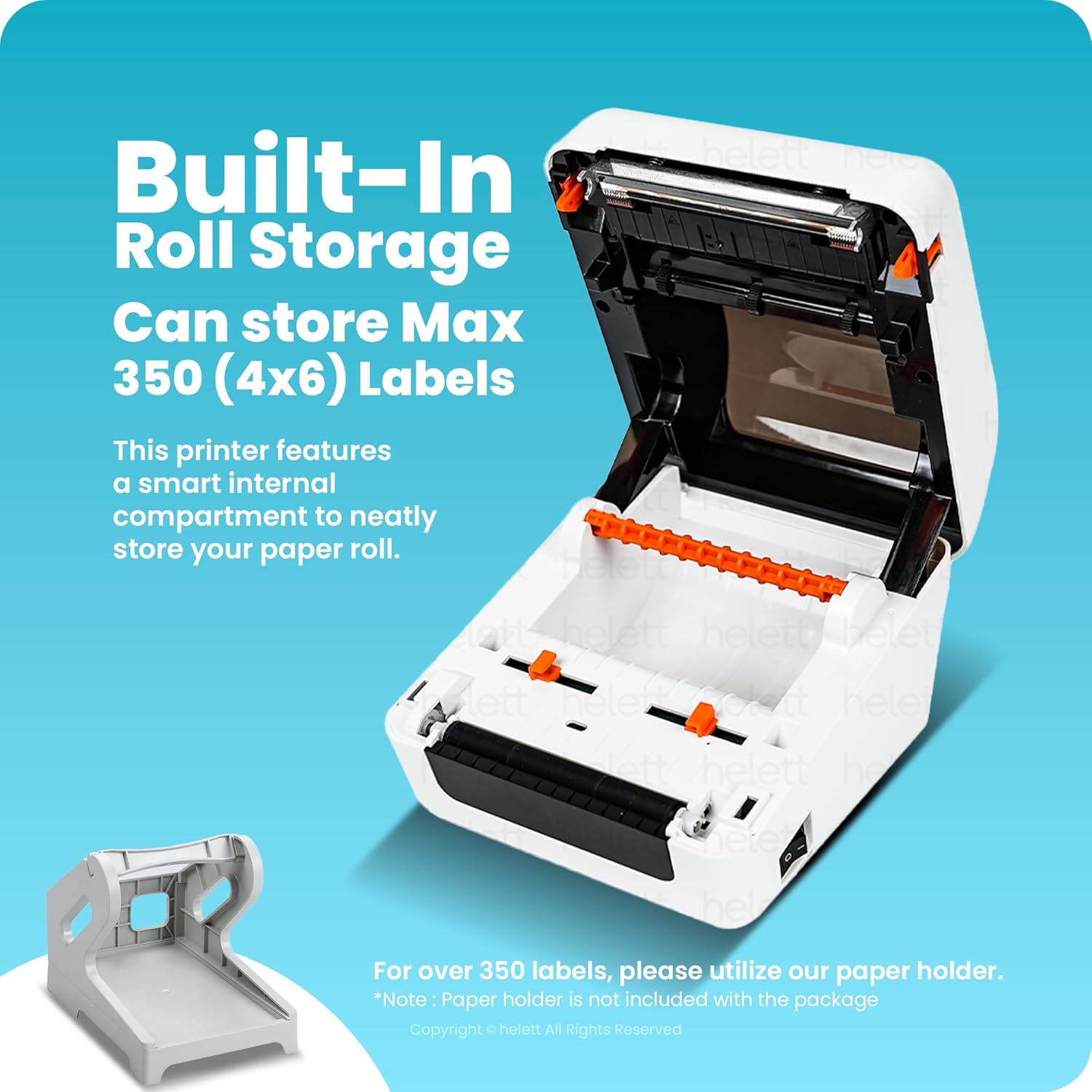
Figure 4.2: View of the printer's internal compartment designed to store up to 350 (4x6 inch) label sheets.
Note: For label rolls exceeding 350 sheets, an external paper holder (not included) may be required.
5. Operating Instructions
The helett AE240BT printer is compatible with various e-commerce and shipping platforms, allowing for seamless label printing.

Figure 5.1: The helett AE240BT printer supports printing 4"x6" shipping labels from platforms like Amazon, eBay, Shopify, Etsy, PayPal, FedEx, UPS, and more.
5.1 Printing from a Computer (USB)
- Ensure the printer is connected via USB and powered on.
- Open the document or application from which you wish to print (e.g., shipping software, word processor).
- Select "Print" from the application's menu.
- Choose "helett AE240BT" from the list of available printers.
- Adjust print settings such as label size, orientation, and density as needed within the print dialog.
- Click "Print" to send the job to the printer.
5.2 Printing via Bluetooth (Mobile Devices)
The helett AE240BT supports wireless printing from smartphones and tablets.
- Download the appropriate application:
- For Android: "Print Label" app
- For iOS: "ZLabel" app
- Ensure Bluetooth is enabled on your mobile device and the printer is powered on.
- Open the downloaded app and follow the in-app instructions to pair your device with the helett AE240BT printer.
- Design or select your label within the app.
- Adjust print settings as required and initiate printing from the app.

Figure 5.2: Demonstrates Bluetooth connectivity for printing from Android and iOS devices using dedicated apps.
6. Maintenance
Regular maintenance ensures optimal performance and extends the lifespan of your printer.
6.1 Cleaning the Print Head
- Turn off the printer and disconnect the power cable.
- Open the top cover and allow the print head to cool down if the printer has been recently used.
- Gently wipe the print head with a lint-free cloth moistened with isopropyl alcohol. Do not use water or abrasive cleaners.
- Allow the print head to dry completely before closing the cover and powering on the printer.
6.2 Cleaning the Exterior
Wipe the exterior of the printer with a soft, damp cloth. Avoid using harsh chemicals or solvents.
7. Troubleshooting
If you encounter issues with your helett AE240BT printer, refer to the following common problems and solutions.
- Printer Not Responding:
- Ensure the power cable is securely connected and the printer is turned on.
- Check USB or Bluetooth connection. For USB, try a different port or cable. For Bluetooth, ensure it's paired correctly.
- Restart the printer and your computer/mobile device.
- Poor Print Quality:
- Clean the print head as described in the Maintenance section.
- Ensure you are using direct thermal labels.
- Adjust print density settings in your printer driver or application.
- Check if the labels are loaded correctly and not expired or damaged.
- Labels Not Feeding Correctly:
- Verify that labels are loaded correctly and the label guides are adjusted to the label width.
- Ensure there are no obstructions in the label path.
- Perform a label calibration from the printer driver settings.
8. Specifications
| Feature | Detail |
|---|---|
| Model Name | AE240BT |
| Printing Technology | Thermal |
| Resolution | 203 DPI |
| Max Print Speed (Monochrome) | 152 mm/s (6 inches/second) |
| Connectivity Technology | USB, Bluetooth |
| Maximum Media Size | 4x6 inch |
| Supported Label Width | 1 inch to 4 inches (27mm - 116mm) |
| Built-in Label Storage | Up to 350 (4x6 inch) label sheets |
| Operating Systems | Windows, Mac, ChromeOS, Linux (USB); Android, iOS (Bluetooth) |
| Item Weight | 1.04 kg (2.29 lbs) |
| Product Dimensions (LxWxH) | 20.1 x 11.9 x 16 cm (7.9 x 4.7 x 6.3 inches) |
| Included Components | 1x Printer, Power Adapter, USB Cable, User Manual |
| Manufacturer | Shenzhen Helett Electronics co., ltd |
9. Customer Support
For further assistance or technical support, please contact helett customer service.
- Customer Care Support: +91 9513 78 4194
- Manufacturer: Shenzhen Helett Electronics co., ltd