
1. Introduction
This user manual provides essential instructions for setting up, operating, maintaining, and troubleshooting your Generic CPE 5G Router H155-383. Please read this manual thoroughly before using the device to ensure proper functionality and safety.
The H155-383 is a 5G router supporting both 4G and 5G networks, featuring the latest Wi-Fi 6 technology. It offers download speeds up to 3.6 Gbps and upload speeds up to 500 Mbps. With a wide coverage range of up to 250 meters, it provides a strong and stable signal throughout your home or office. It supports connecting up to 128 devices simultaneously across 2.4 GHz and 5 GHz Wi-Fi frequencies. An internal cooling fan ensures optimal performance and prevents overheating. Full control is available through an application, allowing easy changes to username and password for complete network settings management. It is powered by the advanced Balong 5000 processor, delivering an ideal user experience with 5G NR support up to 200 MHz.
2. Safety Information
- Ensure the router is placed on a stable, flat surface with adequate ventilation. Do not block any ventilation openings.
- Keep the device away from water, moisture, and extreme temperatures.
- Use only the power adapter provided with the device. Using an unauthorized adapter may damage the router and void the warranty.
- Do not attempt to open or repair the device yourself. Refer all servicing to qualified personnel.
- Keep the router away from strong magnetic fields.
3. Package Contents
Verify that all items are present in your package:
- Generic CPE 5G Router H155-383
- Power Cable
- User Manual (this document)
4. Product Overview
Familiarize yourself with the router's ports and indicators.
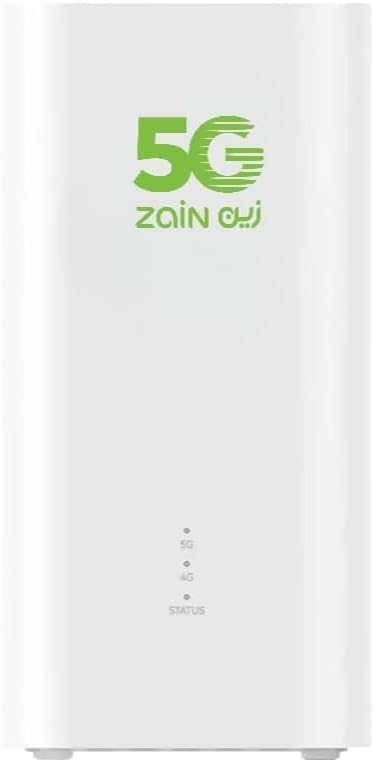
Figure 1: Rear panel of the H155-383 router, featuring three Ethernet ports, a power input, and a reset button.
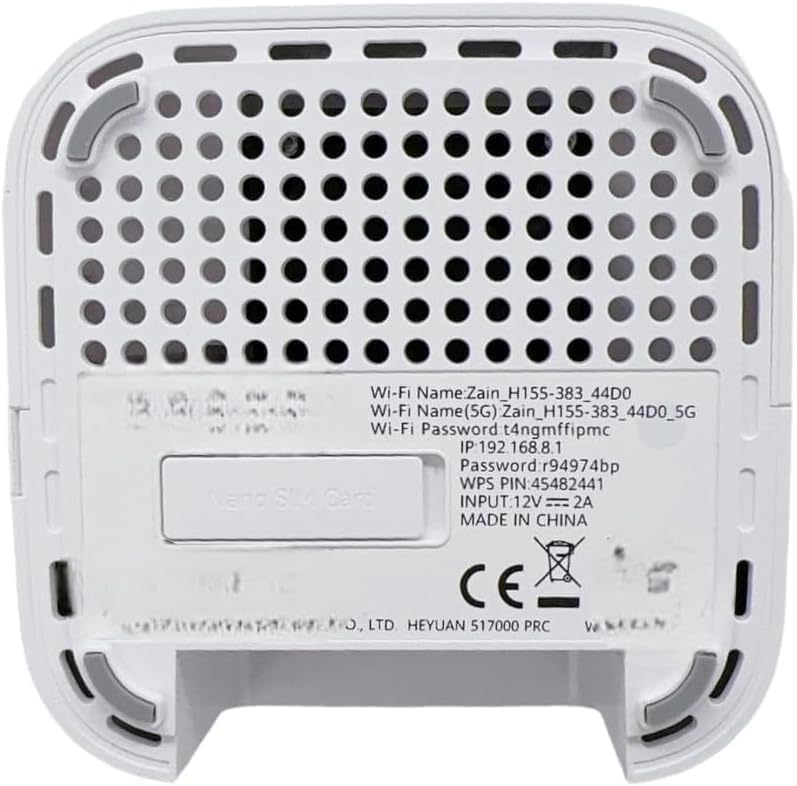
Figure 2: Bottom panel of the H155-383 router, displaying the product label with default Wi-Fi names (Zain_H155-383_44D0, Zain_H155-383_44D0_5G), Wi-Fi password, default IP address (192.168.8.1), and WPS PIN.
5. Setup Guide
5.1 SIM Card Insertion
- Ensure the router is powered off.
- Locate the Nano SIM card slot, typically on the bottom or side of the device (refer to Figure 2 for location on the bottom label).
- Insert a standard Nano SIM card into the slot with the gold contacts facing down and the notched corner aligned correctly. Push until it clicks into place.
5.2 Power Connection
- Connect the provided power adapter to the router's power input port (refer to Figure 1).
- Plug the other end of the power adapter into a wall outlet.
- The router will automatically power on. Wait for the indicator lights to stabilize, which usually takes a few minutes.
5.3 Connecting Devices
You can connect devices via Wi-Fi or Ethernet cable.
Wi-Fi Connection:
- On your device (smartphone, laptop, etc.), search for available Wi-Fi networks.
- Select one of the network names (SSIDs) found on the router's bottom label (e.g., Zain_H155-383_44D0 or Zain_H155-383_44D0_5G).
- Enter the Wi-Fi password provided on the router's bottom label.
Ethernet Connection:
- Connect one end of an Ethernet cable to an Ethernet port on the router (refer to Figure 1).
- Connect the other end of the Ethernet cable to the Ethernet port on your computer or other network device.
5.4 Accessing the Web Management Interface
To configure advanced settings, access the router's web interface:
- Ensure your device is connected to the router (via Wi-Fi or Ethernet).
- Open a web browser and enter the default IP address: 192.168.8.1 (as seen on the bottom label).
- You will be prompted for a username and password. Refer to the router's bottom label or the included quick start guide for default credentials.
- It is recommended to change the default login credentials for security purposes after your first login.
6. Operating Instructions
6.1 Indicator Lights
The router features indicator lights that provide information about its status. Consult the quick start guide for a detailed explanation of each light's meaning (e.g., power, signal strength, Wi-Fi status).
6.2 Changing Wi-Fi Settings
You can modify your Wi-Fi network name (SSID) and password through the web management interface or a dedicated mobile application (if available). Navigate to the Wi-Fi settings section to make these changes.
6.3 Dual-Band Operation
The router supports both 2.4 GHz and 5 GHz Wi-Fi bands. The 2.4 GHz band offers wider coverage, while the 5 GHz band provides faster speeds over shorter distances. You can choose which band to connect to based on your needs, or enable band steering if supported by the router's firmware.
7. Maintenance
7.1 Cleaning
Regularly clean the router's exterior with a soft, dry cloth. Do not use liquid cleaners or aerosols. Ensure ventilation openings remain free of dust and debris.
7.2 Firmware Updates
Periodically check for firmware updates through the router's web management interface. Firmware updates can improve performance, add new features, and enhance security. Follow the on-screen instructions carefully during the update process.
7.3 Restarting the Router
If you experience network issues, a simple restart can often resolve them. Power off the router, wait for 30 seconds, and then power it back on.
8. Troubleshooting
This section addresses common issues you might encounter.
8.1 No Internet Connection
- Check if the SIM card is correctly inserted and activated with your service provider.
- Verify that the router's signal indicator light is stable and shows a strong signal.
- Restart the router and your connected devices.
- Log into the web management interface to check the network status and ensure the APN settings are correct for your service provider.
8.2 Slow Internet Speeds
- Ensure the router is placed in an open area, away from obstructions and other electronic devices that might cause interference.
- If using Wi-Fi, try connecting to the 5 GHz band for faster speeds if your device supports it and is close to the router.
- Limit the number of connected devices or bandwidth-intensive activities.
- Check for firmware updates.
8.3 Cannot Connect to Wi-Fi
- Double-check the Wi-Fi network name (SSID) and password.
- Ensure your device's Wi-Fi is enabled.
- Try restarting both the router and your device.
8.4 Resetting to Factory Defaults
If issues persist, you may need to reset the router to its factory default settings. This will erase all custom configurations.
- With the router powered on, use a pointed object (like a paperclip) to press and hold the reset button (refer to Figure 1) for approximately 5-10 seconds until the indicator lights change.
- Release the button and wait for the router to restart. All settings will revert to their original factory defaults.
9. Specifications
| Feature | Description |
|---|---|
| Brand | Generic |
| Model Name | CPE 5 H155 383 |
| Model Number | H155-383 |
| Special Features | Internet Security, Quality of Service |
| Frequency Band Class | Dual-Band (2.4 GHz, 5 GHz) |
| Wireless Communication Standard | 802.11ax (Wi-Fi 6) |
| Compatible Devices | Personal Computer, Laptop, Smart Home IoT Device |
| Recommended Uses | Home |
| Included Components | User Manual, Power Cable |
| Connectivity Technology | 5G, Ethernet, Wi-Fi |
| Color | White |
| Operating System | RouterOS |
| Security Protocol | WPS2 |
| Data Transfer Rate | 3600 Mbps |
| Maximum Data Transfer Rate | 3600 Mbps |
| Wi-Fi Generation | Wi-Fi 6 |
| Communication Range | 250 meters |
| Modem Compatible | Yes |
| Manufacturer | China |
10. Warranty and Support
10.1 Warranty Information
This product comes with a 2-year warranty from the date of purchase. The warranty covers manufacturing defects and malfunctions under normal use. It does not cover damage caused by misuse, accidents, unauthorized modifications, or external factors.
10.2 Technical Support
For technical assistance, troubleshooting beyond this manual, or warranty claims, please contact your retailer or the manufacturer's customer support. Keep your purchase receipt and product serial number handy when contacting support.