
hnlife Hn202
Skydimo 27 Inch RGBIC LED Strip Lights User Manual
Model: Hn202 | Brand: hnlife
Introduction
This user manual provides comprehensive instructions for the Skydimo 27 Inch RGBIC LED Strip Lights, designed to enhance your monitor's visual experience with dynamic ambient lighting. This product integrates seamlessly with your PC or Mac to synchronize lighting effects with screen content or music, creating an immersive environment for gaming, work, or entertainment.
Important Safety and Usage Information
- Compatibility: This product is designed exclusively for PC and Mac. It is not compatible with TVs, Xbox, PlayStation, or other gaming consoles.
- Required Software: You must install the "Skydimo" application on your computer to control the light strip. The strip will not function without this software.
- Power Supply: If your USB port cannot supply enough power, you may notice flickering or intermittent disconnections. In such cases, connect through a powered USB hub or reduce the light strip's brightness until it operates smoothly.
What's in the Box
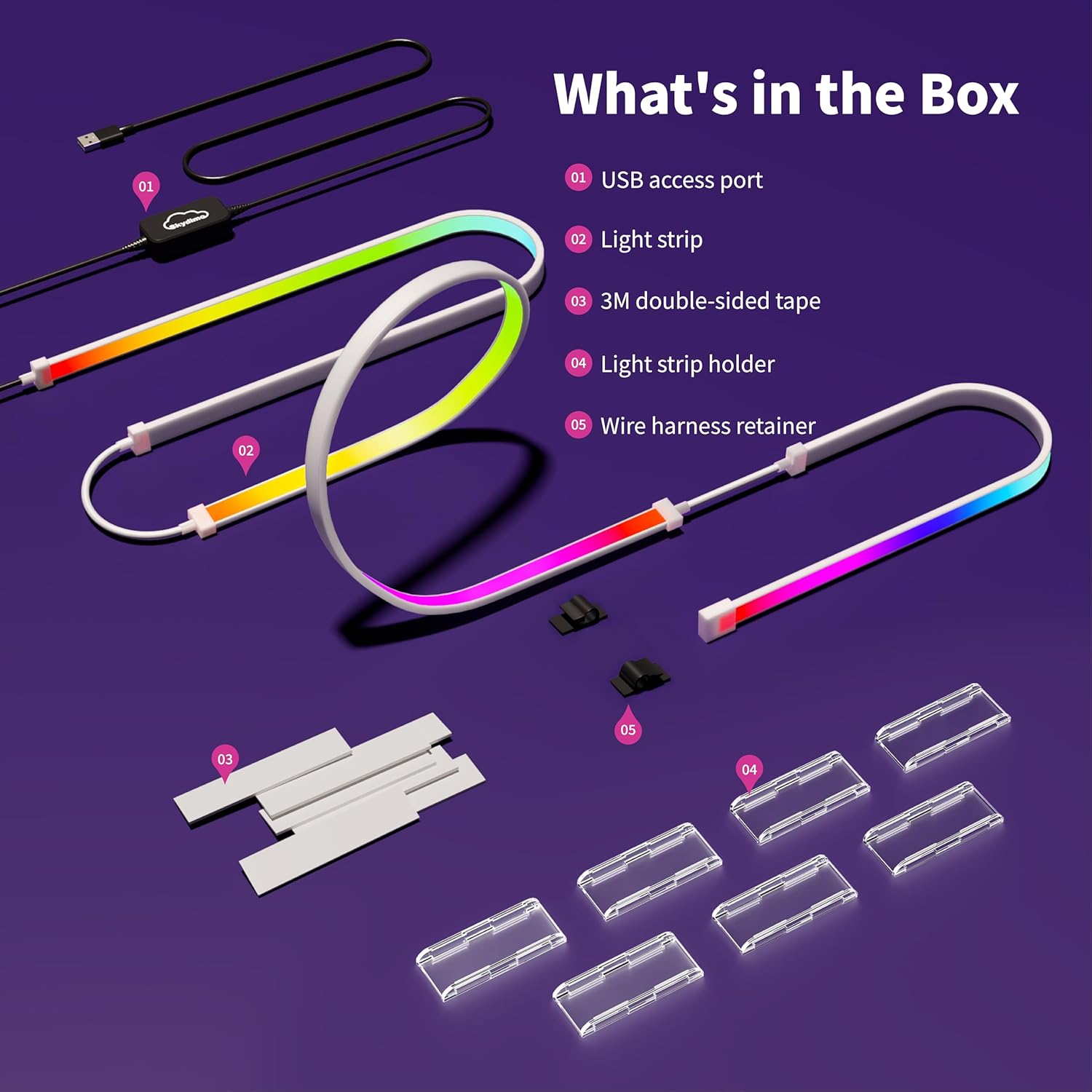
The Skydimo 27 Inch RGBIC LED Strip Lights package includes all necessary components for installation and operation:
- 1 x USB Access Port
- 1 x Light Strip (27 Inch)
- 10 x 3M Double-Sided Tape pieces
- 10 x Light Strip Holders (Buckles)
- Wire Harness Retainers
Setup and Installation
Follow these steps to properly set up and install your Skydimo RGBIC LED Strip Lights:
- Prepare Your Monitor: Ensure the back of your monitor is clean and free of dust or debris for optimal adhesion.
- Attach Mounting Tabs: Use the provided 3M double-sided tape to attach the light strip holders (buckles) to the back of your monitor. Place three tabs across the top and two down each side. Ensure they are evenly spaced and aligned for the 27-inch display.
- Install LED Strip: Gently snap the LED strip into the attached holders. The strip is designed to fit perfectly around a 27-inch display. The LED strip is removable from these tabs for easier cleaning or repositioning.
- Connect USB: Connect the USB cable from the light strip to an available USB port on your computer. For best performance and to avoid flickering, use a powered USB hub if your computer's USB ports cannot provide sufficient power.
- Cable Management: Use the included wire harness retainers to neatly manage any excess cable, ensuring a clean setup.
- Software Installation: Download and install the "Skydimo" application on your PC or Mac. This software is essential for controlling the light strip and enabling screen synchronization.
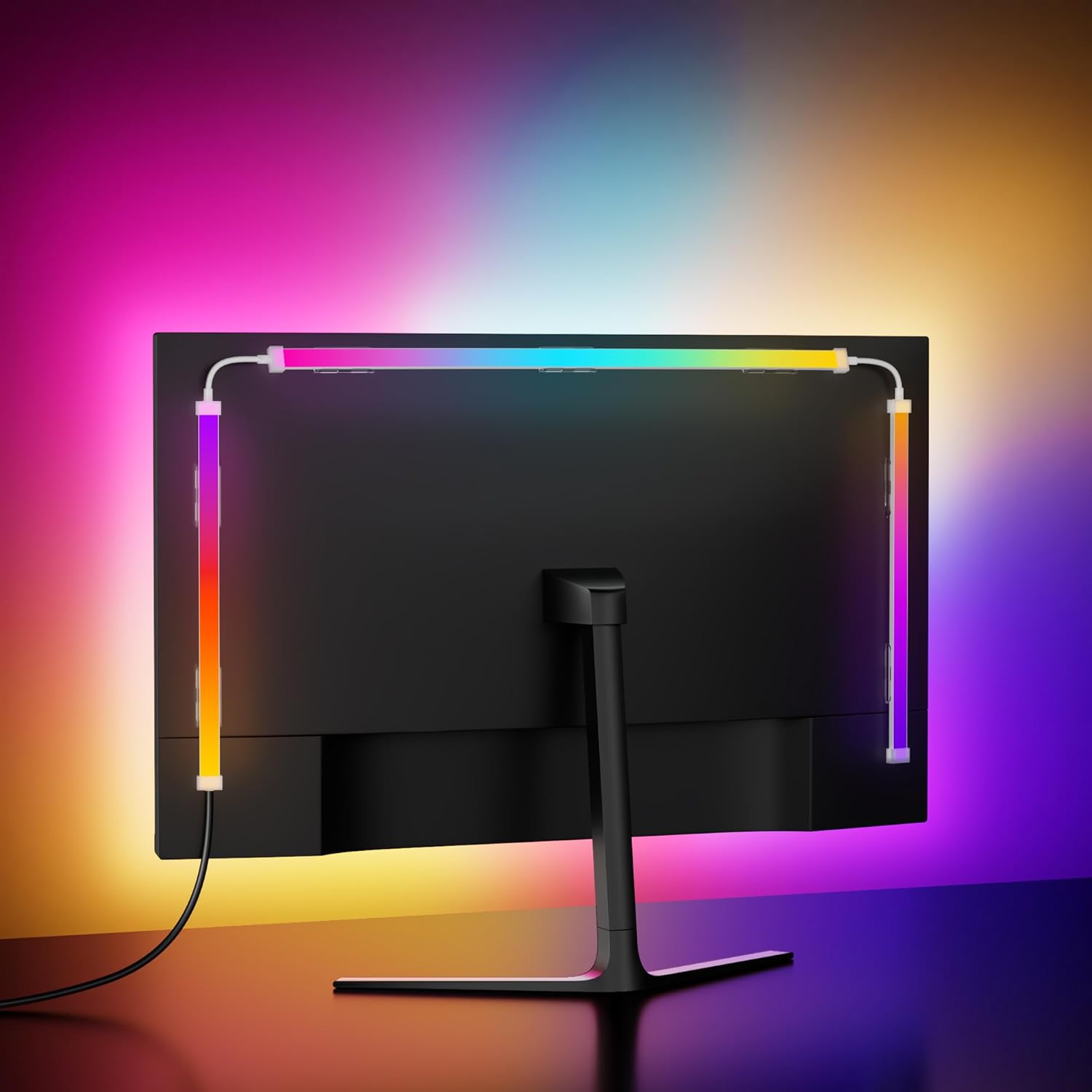
Image: Proper installation of the LED strip on the back of a monitor.

Image: Overview of the Skydimo LED strip components and the software interface for installation.
Operating Instructions
The Skydimo LED Strip Lights are controlled via the dedicated Skydimo software. Launch the application after installation to access various lighting modes and settings.
Software Control Modes:
- Screen Sync: Synchronizes the light strip colors with the content displayed on your monitor, creating an immersive ambient effect. This is ideal for gaming and movie watching.
- Rainbow: Displays a continuous, flowing rainbow color effect.
- Monochrome: Allows you to select a single static color for the entire light strip.
- Music: The lights react and change colors in sync with audio playback from your computer.
- Marquee: Provides dynamic, scrolling light patterns.
Advanced Software Settings:
Within the Skydimo software, you can fine-tune various parameters for optimal performance:
- Install Method: Adjust this setting to match the physical orientation of your light bar (e.g., "Left to Right" and "From Bottom to Top" if the cable is on the left and installed across the top).
- Operating Mode: Select your desired mode (e.g., Screen Sync, Music).
- Working Status: Ensure this is set to "On" for the lights to function.
- Brightness: Adjust the overall brightness level. A setting of 100% is recommended for full effect, but may need to be reduced if power supply issues occur.
- Input Source: If you use multiple displays, select the specific monitor to which the LED strip is attached. For single-monitor PCs, this usually auto-selects.
- Color Range: This setting controls how colors blend between individual LEDs. A value around 50% is often a good balance; lower values blend more, higher values make LEDs act more individually.
- Saturation: Adjusts the intensity of colors. A setting of 30% or below is recommended to maintain natural-looking whites and prevent color distortion.
- Submode (for Screen Sync):
- Fullscreen: Matches the edges of the entire screen, ideal for games and full-screen applications.
- Cinema: Creates a smaller detection box, useful for avoiding black or unlit LEDs when watching widescreen or 4:3 content.
- LED Alignment: The software allows you to enter your screen's dimensions and precisely adjust where each LED takes its color sample from. This ensures accurate synchronization regardless of minor variations in monitor size or strip placement.

Image: Skydimo software interface for controlling lighting modes and settings.

Image: Skydimo LED lights synchronizing with music playback.
Maintenance
To ensure the longevity and optimal performance of your Skydimo RGBIC LED Strip Lights, follow these simple maintenance guidelines:
- Cleaning: Periodically wipe the LED strip and its silicone shell with a soft, dry cloth to remove dust. If necessary, you can gently remove the strip from its buckles for a more thorough cleaning.
- Avoid Liquid Contact: The product is not water-resistant. Avoid exposing the LED strip or USB connector to liquids.
- Handle with Care: While durable, avoid excessive bending or pulling of the LED strip to prevent damage to the internal components.
- Software Updates: Regularly check for updates to the Skydimo software to ensure you have the latest features and bug fixes.
Troubleshooting
If you encounter issues with your Skydimo RGBIC LED Strip Lights, refer to the following common problems and solutions:
- Lights Not Turning On/Flickering:
- Ensure the Skydimo software is installed and running on your computer. The lights require the software to be active.
- Check the USB connection. Ensure it is securely plugged into a functional USB port on your PC or Mac.
- If flickering or intermittent disconnections occur, your USB port may not be supplying enough power. Try connecting the light strip through a powered USB hub. Alternatively, reduce the brightness setting in the Skydimo software until the lights operate stably.
- Lights Not Syncing with Screen:
- Verify that "Screen Sync" mode is selected in the Skydimo software.
- Ensure the correct monitor is selected as the "Input Source" within the software, especially if you have multiple displays.
- Check the LED alignment settings in the software to ensure the sampling areas are correctly mapped to your screen.
- Incorrect Colors/Dimness:
- Adjust the "Color Range" and "Saturation" settings in the Skydimo software. High saturation can distort colors, while low saturation can make them appear faded.
- Increase the "Brightness" setting in the software.
- Software Not Launching/Crashing:
- Ensure your operating system meets the minimum requirements for the Skydimo software.
- Try reinstalling the Skydimo application.
- Temporarily disable any antivirus or firewall software that might be blocking the application (re-enable after testing).
Specifications
| Feature | Detail |
|---|---|
| Model Number | Hn202 |
| Product Dimensions | Designed for 27 Inch Monitors |
| Light Source Type | RGBIC LED |
| Color | Multicolor, RGBIC |
| Control Method | App (Skydimo Software) |
| Power Source | Corded Electric (USB) |
| Voltage | 5 Volts |
| Wattage | 12 watts |
| Material | Silica Gel |
| Indoor/Outdoor Usage | Indoor Only |
| Water Resistance Level | Not Water Resistant |
| Included Components | LED Strip, USB Cable, 3M Glue, Buckles |
Warranty and Support
For warranty information or technical support, please refer to the contact details provided with your product packaging or visit the official hnlife website. Keep your purchase receipt for warranty claims.
Ask a question about this manual
Ask about setup, troubleshooting, compatibility, parts, safety, or missing instructions. Manuals+ will review the question and use this page’s manual context to help answer it.