
1. Introduction
This manual provides detailed instructions for the installation, operation, and maintenance of your Rimoody Android Car Stereo. This unit is specifically designed for Suzuki Swift models manufactured between 2011 and 2017, offering advanced features such as Wireless Carplay, Android Auto, GPS navigation, Bluetooth connectivity, and a backup camera input.
2. Safety Information
- Always ensure the vehicle is parked safely before operating the car stereo's advanced features.
- Do not attempt to disassemble or modify the unit. This may cause damage and void the warranty.
- Professional installation is recommended to prevent electrical damage or improper function.
- Keep the unit away from water and excessive heat.
3. Package Contents
Please verify that all items listed below are included in your package:
- Rimoody Android Car Stereo Unit
- Power Cable
- RCA Cable
- Camera Input Cable
- USB Cables (2)
- GPS Antenna
- Backup Camera
- Microphone
- Installation Tools
- User Manual
- Mounting Accessories (Brackets)
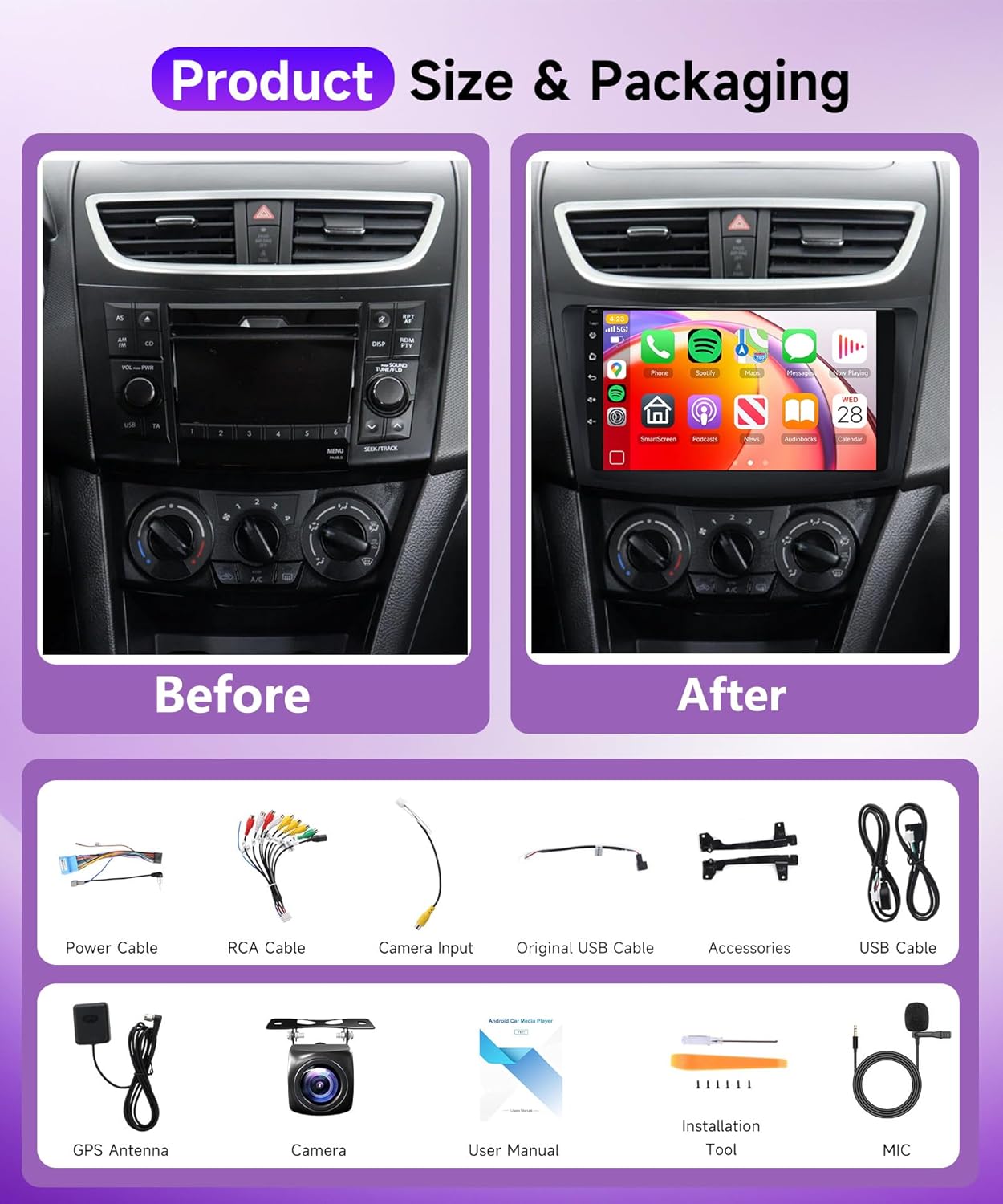
Image: Overview of the Rimoody Android Car Stereo unit and its included accessories, such as power cables, RCA cables, USB cables, GPS antenna, backup camera, microphone, and installation tools.
4. Installation
4.1 Pre-Installation Checks
- Ensure the vehicle's ignition is off and the battery is disconnected before starting installation.
- Confirm compatibility with your Suzuki Swift (2011-2017) model.
- Gather all necessary tools, including those provided in the package.
4.2 Wiring Diagram and Connections
Refer to the detailed wiring diagram provided in the separate installation guide for specific connections. Key connections include:
- Power Cable: Connect to vehicle's power supply (ACC, B+, Ground).
- RCA Cables: For audio output to external amplifiers or subwoofers.
- Camera Input: Connect the included backup camera.
- USB Ports: For data transfer, charging, and wired Carplay/Android Auto.
- GPS Antenna: Mount in a location with a clear view of the sky for optimal signal reception.
- Microphone: For hands-free calling and voice commands.
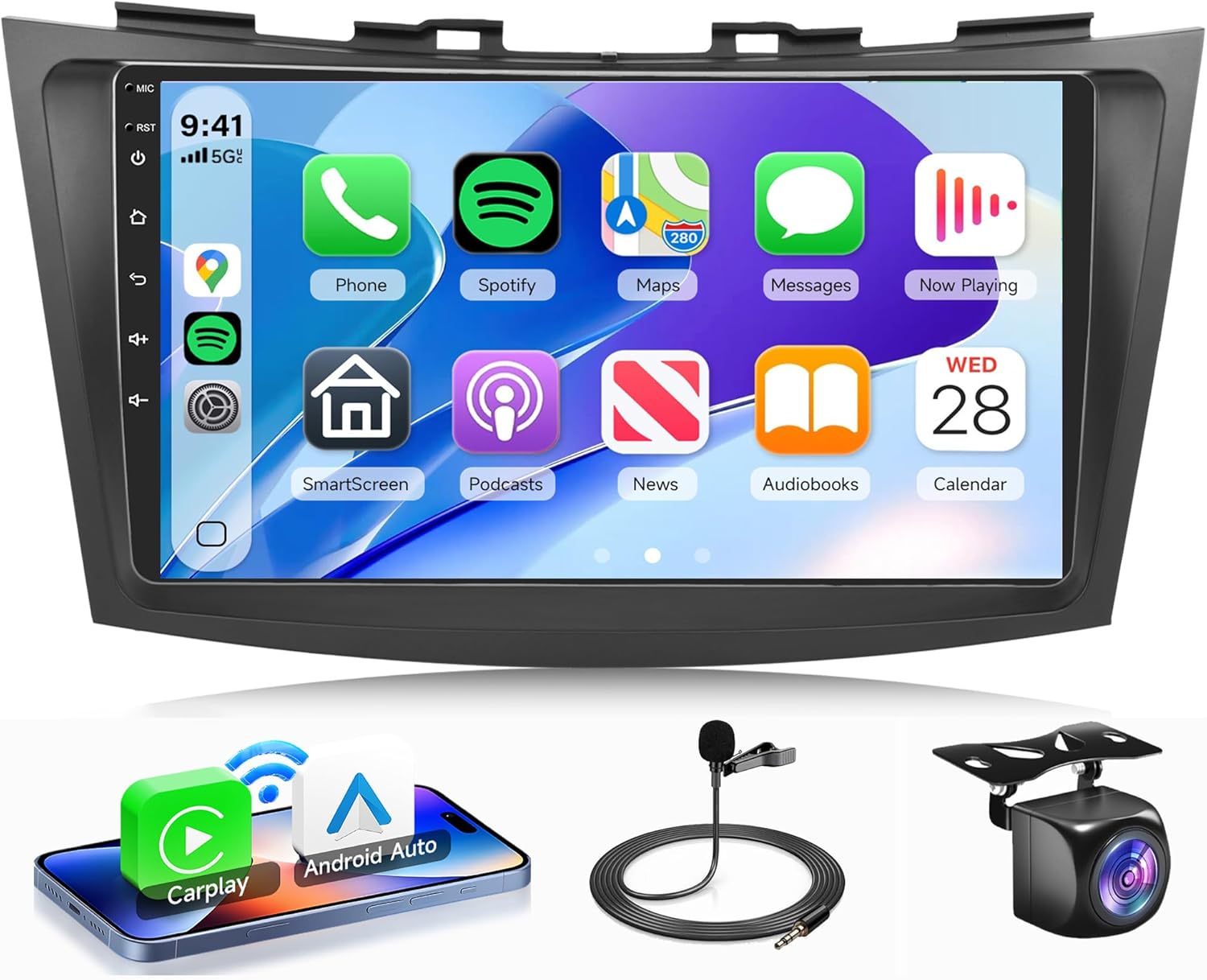
Image: The main Rimoody Android Car Stereo unit, showing its 9-inch display, along with the external microphone and backup camera accessories.
4.3 Physical Installation Steps
- Carefully remove the original car radio and trim panel from your Suzuki Swift.
- Connect the wiring harness from the new stereo to the vehicle's existing wiring. Ensure all connections are secure.
- Attach the GPS antenna and route its cable to an appropriate location.
- Install the backup camera (if applicable) and connect its video input cable to the stereo.
- Mount the new Rimoody car stereo into the dashboard opening using the provided brackets.
- Reconnect the vehicle's battery and test the unit's functionality before reassembling the trim panels.
5. Operating Instructions
5.1 Basic Operation
- Power On/Off: Press and hold the power button on the unit or steering wheel control.
- Volume Control: Adjust using the on-screen controls or steering wheel buttons.
- Touch Screen: The 9-inch HD touchscreen responds to taps, swipes, and pinches for navigation and control.
5.2 Wireless Carplay & Android Auto
Connect your iPhone or Android smartphone wirelessly to access navigation, music, calls, and messages directly on the car stereo display.
- Ensure Bluetooth and Wi-Fi are enabled on your smartphone.
- On the car stereo, select the Carplay or Android Auto application.
- Follow the on-screen prompts to pair your device.

Image: Visual representation of the wireless Carplay, Android Auto, and Mirror Link interfaces, showing how smartphones integrate with the car stereo.

Image: The Rimoody car stereo installed in a Suzuki Swift, showcasing the Carplay interface with various app icons like Phone, Spotify, Maps, and Messages.
5.3 GPS Navigation & WiFi
The unit features a built-in GPS module for navigation and supports both online and offline maps. Connect to Wi-Fi for online services and app downloads.
- GPS: Access pre-installed navigation apps or download others from the app store.
- WiFi: Connect to a mobile hotspot or home Wi-Fi network to access online content, stream videos, and download applications.
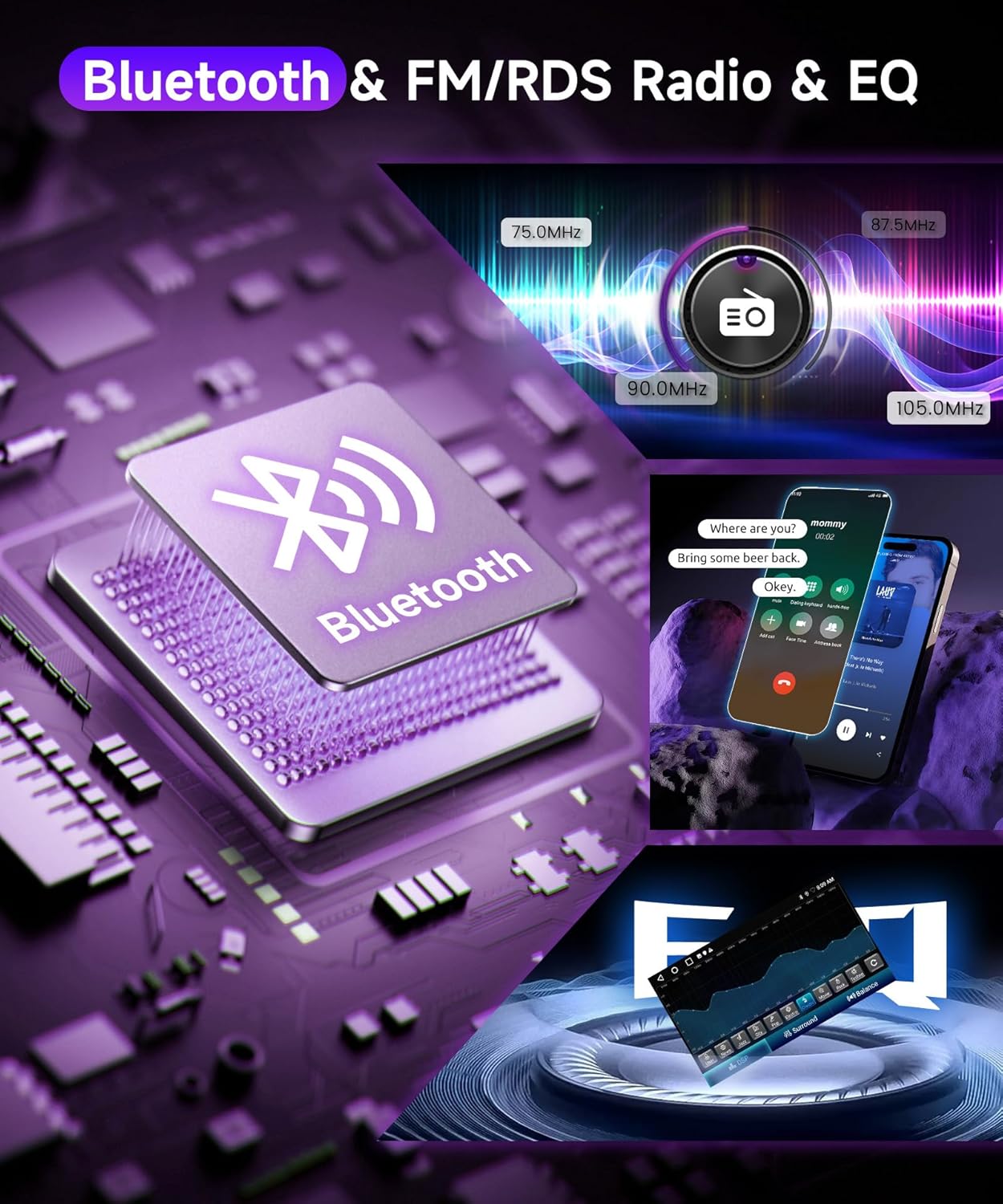
Image: The car stereo displaying both offline and online GPS maps, alongside an example of streaming video content, highlighting its navigation and multimedia capabilities.
5.4 Bluetooth & FM/RDS Radio & EQ
- Bluetooth: Pair your phone for hands-free calling, music streaming, and contact synchronization.
- FM/RDS Radio: Tune into FM radio stations. RDS (Radio Data System) provides station information and traffic announcements where available.
- EQ (Equalizer): Customize audio output with various preset equalizer settings or manually adjust frequencies for optimal sound quality.

Image: Depiction of the Bluetooth pairing process, the FM radio frequency display, and the graphical equalizer interface for sound customization.
5.5 Mirror Link
Mirror Link allows you to display your smartphone's screen directly onto the car stereo. This can be done via USB cable or Wi-Fi connection, enabling you to interact with your phone's apps, videos, and content on the larger display.
5.6 Reversing Camera & Steering Wheel Control (SWC)
- Reversing Camera: When the vehicle is shifted into reverse gear, the display automatically switches to the backup camera feed, assisting with safe parking and maneuvering.
- SWC: The unit supports learning functions for your original steering wheel controls. This allows you to map functions like volume, track skip, and mode selection to your existing steering wheel buttons for convenience.

Image: The car stereo screen displaying the rear view from the backup camera, with an overlay of virtual steering wheel control buttons for various functions.
5.7 Split Screen Functionality
The split-screen feature allows you to run two applications simultaneously on the display. For example, you can have navigation running on one side while controlling music playback on the other.

Image: The car stereo screen demonstrating the split-screen feature, with a navigation map on one side and a media player interface on the other.
5.8 Optional Accessories
The Rimoody car stereo supports various optional accessories (sold separately) to enhance functionality:
- DVR (Digital Video Recorder): For recording driving footage.
- DAB+ (Digital Audio Broadcasting): For higher quality digital radio reception.
- OBD2 (On-Board Diagnostics): For vehicle diagnostics and real-time data monitoring.
- U Disk: For playing media from USB flash drives.
6. Troubleshooting
| Problem | Possible Cause | Solution |
|---|---|---|
| Unit does not power on | Incorrect wiring; Blown fuse; Loose power connection | Check power cable connections; Inspect vehicle fuses; Ensure secure wiring. |
| No sound output | Speaker wires disconnected; Volume too low; Mute function active | Verify speaker connections; Increase volume; Disable mute. |
| GPS signal weak or lost | GPS antenna improperly placed; Obstruction blocking signal | Relocate GPS antenna to a clear area; Ensure antenna is securely connected. |
| Bluetooth pairing fails | Bluetooth not enabled on phone/stereo; Device out of range | Ensure Bluetooth is active on both devices; Move devices closer; Restart Bluetooth. |
| Steering wheel controls not working | SWC wiring incorrect; SWC learning not completed | Check SWC wiring; Perform SWC learning procedure in settings. |
7. Specifications
- Display Size: 9 Inches
- Resolution: 1280*720 (HD Touch Screen)
- Operating System: Android
- CPU: 4-Core
- Memory: 4GB RAM + 64GB ROM
- Connectivity: Wireless Carplay, Wireless Android Auto, Bluetooth, WiFi, USB, Mirror Link
- Radio: FM/RDS
- Navigation: Built-in GPS module, supports online and offline maps
- Audio Output Mode: Stereo
- Special Features: Reversing Camera Input, Steering Wheel Control (SWC), EQ Sound Effect, Split Screen
- Compatible Vehicle Service Type: Suzuki Swift 2011-2017
- Item Weight: Approximately 2.65 pounds (1200 Grams)
- Package Dimensions: 11.02 x 9.45 x 4.72 inches
8. Warranty and Support
Your Rimoody Android Car Stereo comes with a 2-year manufacturer's warranty. For any technical assistance, troubleshooting, or warranty claims, please contact Rimoody customer support. The manufacturer also offers a 90-day free return for refund or exchange and lifetime technical support.
For further assistance, please visit the official Rimoody store or contact their customer service department.