
Avantree AS90K
Avantree Opera Plus & AS90K Bundle Wireless Headphones User Manual
Model: AS90K
Product Overview
The Avantree Opera Plus & AS90K Bundle provides a comprehensive wireless audio solution for TV watching, featuring comfortable over-ear headphones and a versatile transmitter with a charging dock. This system is designed to deliver clear audio with enhanced volume, offering specialized sound modes for dialogue clarity and immersive cinema experiences. The AS90K headphones are intended as an add-on to the Opera Plus system.

Image: The Avantree Opera Plus headphones on their charging dock, alongside an additional AS90K headphone unit, showcasing the complete bundle.

Image: Illustration showing the AS90K headphones as an add-on component to the Opera Plus system, clarifying compatibility.
Setup Guide
1. Unboxing and Components
Before beginning, ensure all components are present in the package:
- Avantree Opera Plus Wireless Headphones
- Avantree AS90K Add-on Wireless Headphones
- Transmitter / Charging Dock
- Power Adapter
- Audio Cables (Optical, AUX 3.5mm)
- USB Charging Cable
2. Connecting the Transmitter to Your TV
The transmitter supports multiple audio input options. Choose the one compatible with your TV or audio source.

Image: Diagram of the multifunction base, highlighting the AUX and Optical input ports, volume boost, and passthrough options.
- Optical (Recommended for Digital Audio):
- Connect one end of the optical cable to the "OPTICAL OUT" port on your TV.
- Connect the other end to the "OPT" input on the Avantree transmitter.
- Ensure your TV's audio output is set to "PCM" or "Stereo" and not "Dolby Digital" or "DTS".
- AUX 3.5mm (Analog Audio):
- Connect one end of the 3.5mm audio cable to the "AUDIO OUT" or "HEADPHONE OUT" port on your TV.
- Connect the other end to the "AUX" input on the Avantree transmitter.
- Power Connection:
- Connect the power adapter to the "DC IN" port on the transmitter.
- Plug the power adapter into a wall outlet. The transmitter's indicator light will illuminate.
3. Charging the Headphones
Place the headphones onto the charging dock. The LED indicator on the headphones will show charging status (e.g., red for charging, blue for fully charged). A full charge typically takes approximately 3 hours.
The headphones come pre-paired with the transmitter for immediate use upon setup.
Operating Instructions
1. Powering On and Off
- Power On: Press and hold the Power button on the headphones for 3 seconds until the LED indicator lights up.
- Power Off: Press and hold the Power button for 3 seconds until the LED indicator turns off.
2. Volume Control
Adjust the volume using the volume control buttons located on the headphones. The transmitter also features a volume boost function for increased loudness, particularly beneficial for users with hearing difficulties.

Image: Visual representation of "Extra Loud Volume" and "Clear Dialogue Mode" features, emphasizing enhanced audio clarity and volume.
3. Sound Modes (EQ Modes)
The headphones offer three distinct sound modes to optimize your listening experience:

Image: Diagram illustrating the three available EQ modes: Clear Dialogue, Cinema Mode, and Well-Balanced, with a waveform graphic.
- Clear Dialogue Mode: Enhances speech clarity, making conversations and vocals easier to understand. Ideal for news, talk shows, and users with hearing challenges.
- Cinema Mode: Provides an immersive audio experience with enhanced bass and surround sound effects, suitable for movies and action-packed content.
- Well-Balanced Mode: Offers a neutral and balanced sound profile for general listening.
Switch between modes using the dedicated EQ button on the headphones.
4. Bluetooth Mode (Headphones Only)
When detached from the transmitter, the Opera Plus and AS90K headphones can function as standard Bluetooth headsets, allowing direct connection to smart TVs (e.g., Samsung), phones, tablets, and other Bluetooth-enabled devices.

Image: Graphic showing the flexibility of usage, allowing switching between 2.4GHz wireless (with transmitter) and Bluetooth connectivity.
- Ensure the headphones are powered off.
- Press and hold the Power button for approximately 5-7 seconds until the LED indicator flashes blue and red alternately, indicating pairing mode.
- On your device (TV, phone, tablet), enable Bluetooth and search for "Avantree Opera Plus" or "Avantree AS90K" in the list of available devices.
- Select the headphones to connect. The LED will turn solid blue once connected.
5. Soundbar Pass-Through Function
The transmitter features a pass-through function, allowing audio to be simultaneously output to your headphones and an external soundbar or speaker system. This enables shared TV watching without compromising individual listening preferences.
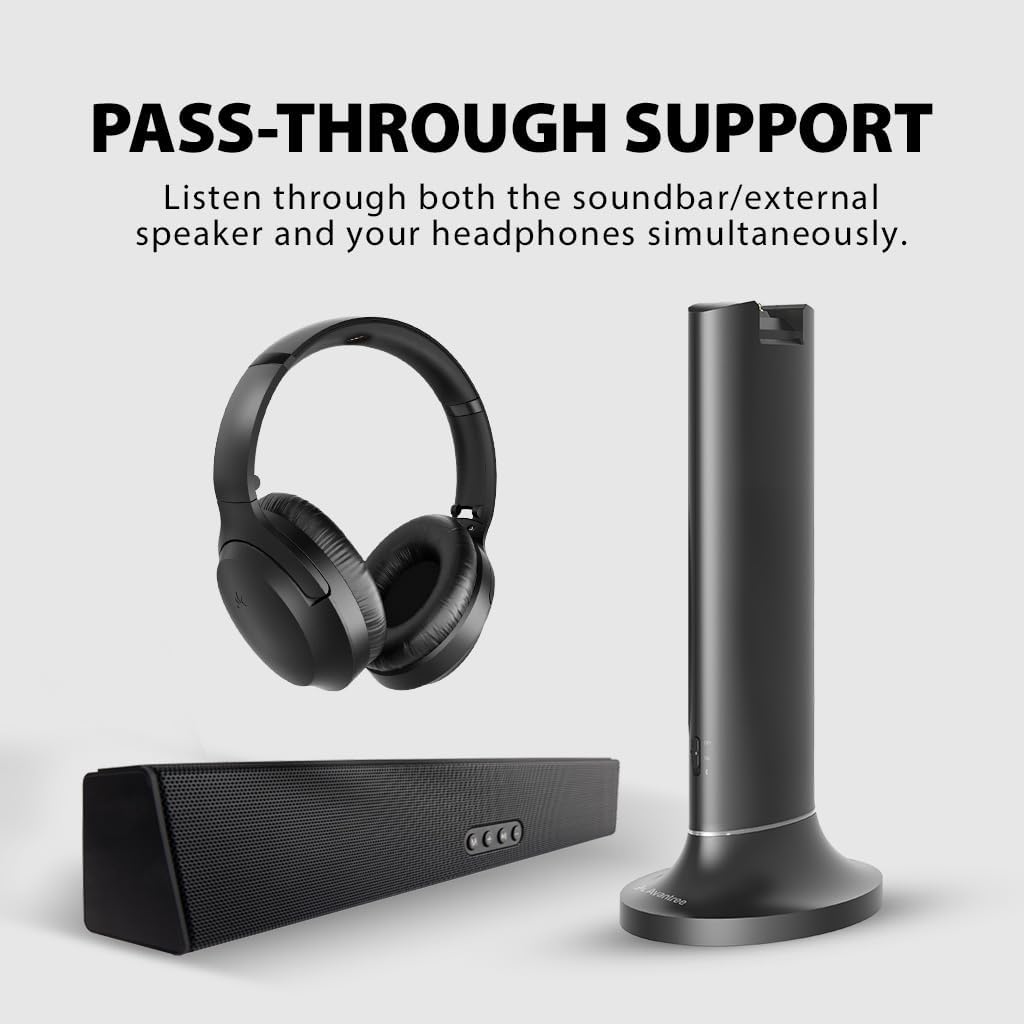
Image: Visual representation of the pass-through feature, showing audio simultaneously going to headphones and a soundbar from the transmitter.
- Connect your soundbar or external speaker to the "OUTPUT" port on the Avantree transmitter using an appropriate audio cable (e.g., optical or 3.5mm AUX).
- Ensure the transmitter is connected to your TV as described in the Setup section.
- Audio will now be output to both the headphones and the connected soundbar/speaker.
Maintenance
1. Cleaning
- Wipe the headphones and transmitter with a soft, dry, lint-free cloth.
- Do not use abrasive cleaners, alcohol, or chemical solvents.
- Avoid exposing the devices to excessive moisture.
2. Battery Care
- For optimal battery life, fully charge the headphones before first use.
- Avoid completely draining the battery frequently.
- If storing for an extended period, charge the headphones to approximately 50% every few months.
3. Earpad Replacement
The headphones feature soft, replaceable earpads for long-term comfort and hygiene. Refer to Avantree's official website or support resources for instructions on how to replace the earpads when necessary.

Image: Close-up of the soft, comfortable earpads, highlighting the design for all-day wear.
Troubleshooting
No Sound from Headphones
- Check Connections: Ensure the transmitter is correctly connected to your TV's audio output and powered on.
- TV Audio Settings: Verify your TV's audio output is set to "PCM" or "Stereo" if using optical, or that the correct audio output port is selected for AUX.
- Headphone Power & Pairing: Ensure headphones are powered on and successfully paired with the transmitter (indicator light should be solid blue).
- Volume Levels: Increase volume on both the headphones and your TV.
Sound Distortion or Static
- Interference: Move the transmitter away from other wireless devices (Wi-Fi routers, cordless phones) that might cause interference.
- Distance: Ensure you are within the operational range of the transmitter.
- Audio Source Quality: Check if the distortion is present directly from the TV speakers or other audio outputs.
Lip-Sync Delay
The Avantree Opera Plus system is designed for ultra-low latency (less than 30ms) to prevent lip-sync delays. If you experience any delay:

Image: A person happily watching TV with headphones, illustrating the absence of lip-sync delays due to low latency.
- Direct Connection: Ensure the transmitter is connected directly to the TV's audio output, not through an AV receiver or soundbar that might introduce additional processing delay.
- TV Settings: Some TVs have audio delay settings; check your TV's audio menu.
Headphones Not Charging
- Proper Placement: Ensure the headphones are correctly seated on the charging pins of the dock.
- Power Supply: Verify the charging dock is powered on and connected to a working outlet.
- Clean Contacts: Check for any debris on the charging contacts of both the headphones and the dock.
Specifications
| Model Name | Opera Plus |
| Item Model Number | AS90K |
| Connectivity Technology | Wireless (2.4GHz, Bluetooth) |
| Wireless Communication Technology | Bluetooth |
| Compatible Devices | Television, Smartphones, Tablets, Other Bluetooth Devices |
| Frequency Range | 20 Hz - 20,000 Hz |
| Audio Driver Type | Dynamic Driver |
| Earpiece Shape | Over Ear |
| Color | Black |
| Noise Control | Sound Isolation |
Warranty and Support
Avantree products typically come with a manufacturer's warranty. Please refer to the warranty card included in your product packaging or visit the official Avantree website for detailed warranty terms and conditions specific to your region.
For technical support, troubleshooting assistance, or to inquire about replacement parts, please contact Avantree Customer Support through their official website or the contact information provided in your product documentation. When contacting support, please have your product model number (AS90K) and purchase details ready.
Online Resources: www.avantree.com/support
Ask a question about this manual
Ask about setup, troubleshooting, compatibility, parts, safety, or missing instructions. Manuals+ will review the question and use this page’s manual context to help answer it.