
1. Introduction
Welcome to the Katalia Smart Wi-Fi Plug. This manual provides comprehensive instructions for setting up and operating your smart plug, enabling remote control, voice commands, energy monitoring, and scheduling for your connected devices. Please read this manual carefully before use and retain it for future reference.
2. Package Contents
- 1 x Katalia Smart Wi-Fi Plug
- 1 x Instruction Manual (This document)
3. Product Overview
3.1 Key Features
- Remote Control: Manage connected devices from anywhere via the Tuya Smart or Smart Life app.
- Voice Control: Compatible with Amazon Alexa and Google Home for hands-free operation.
- High Power Capacity: Supports up to 16 Amperes (3680 Watts) for various appliances.
- Energy Monitoring: Track real-time and historical power consumption.
- Scheduling & Timer: Set custom schedules and countdown timers for automated control.
- Safety Features: Overload protection and fire-retardant casing.
3.2 Product Components

Image 3.2.1: Front view of the Katalia Smart Wi-Fi Plug, showing the power button with an illuminated green ring and a smartphone displaying the control app interface.

Image 3.2.2: Various angles of the Katalia Smart Wi-Fi Plug, highlighting its compact design and listing features such as EU model, 16A-3680W, compatible apps (Tuya, Smart Life), connectivity (Wifi, Bluetooth, Zigbee), compatibility (Amazon Alexa, Google Home), security protection, energy measurement, programming, overload protection, and LED indicator.
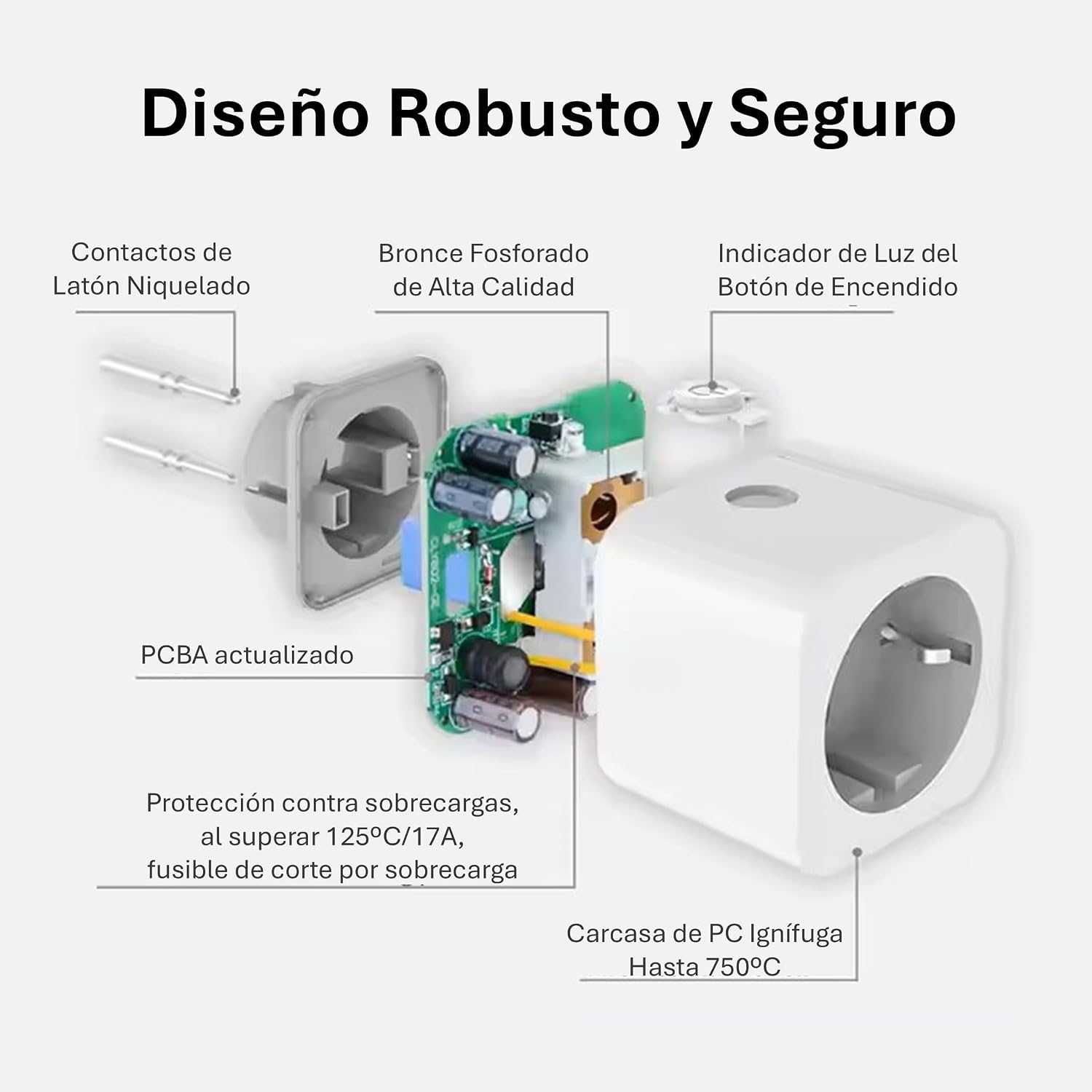
Image 3.2.3: An exploded view of the Katalia Smart Wi-Fi Plug, illustrating its internal components including nickel-plated brass contacts, high-quality phosphor bronze, an updated PCBA, an indicator light for the power button, overload protection up to 125°C/17A, and a fire-retardant PC casing resistant up to 750°C, emphasizing its robust and secure design.
4. Setup
4.1 App Installation
- Scan the QR code provided in the product packaging or search for "Tuya Smart" or "Smart Life" in your mobile app store (Google Play Store for Android, Apple App Store for iOS).
- Download and install the app.
- Register a new account or log in if you already have one.
4.2 Device Pairing
- Plug the Katalia Smart Wi-Fi Plug into a standard power outlet. The indicator light on the plug should start blinking rapidly, indicating it's in pairing mode. If not, press and hold the power button for 5-10 seconds until it blinks rapidly.
- Open the Tuya Smart or Smart Life app on your smartphone.
- Tap the "+" icon in the top right corner to add a new device.
- Select "Electrical Outlet" or "Socket (Wi-Fi)" from the device list.
- Confirm that the indicator light on the plug is blinking rapidly.
- Enter your Wi-Fi network name and password. Ensure your Wi-Fi network is 2.4GHz. (5GHz networks are not supported).
- Follow the on-screen instructions in the app to complete the pairing process. Once successfully paired, the indicator light will stop blinking and remain solid.
5. Operating Instructions
5.1 Manual Control
You can manually turn the connected device on or off by pressing the physical power button on the Katalia Smart Wi-Fi Plug.
5.2 Remote Control (App)
After successful pairing, open the Tuya Smart or Smart Life app. You will see your Katalia Smart Wi-Fi Plug listed. Tap on the device icon to toggle its power state (on/off) from anywhere with an internet connection.

Image 5.2.1: A man using a smartphone to remotely control a device, with a modern house in the background, illustrating the remote control capability of the smart plug.
5.3 Voice Control (Amazon Alexa / Google Home)
To enable voice control, link your Tuya Smart or Smart Life account to Amazon Alexa or Google Home:
- Open the Amazon Alexa app or Google Home app.
- Navigate to the "Skills & Games" section (Alexa) or "Works with Google" section (Google Home).
- Search for "Tuya Smart" or "Smart Life" and enable the skill/service.
- Link your Tuya Smart/Smart Life account using your app credentials.
- Discover devices. Your Katalia Smart Wi-Fi Plug should appear.
You can now use voice commands such as:
- "Alexa, turn on [device name]."
- "Hey Google, turn off [device name]."
- "Alexa, set [device name] to 50% (if applicable)."

Image 5.3.1: A bedroom setting featuring a smart plug connected to a lamp and a voice assistant device, illustrating hands-free voice control with commands like "Hello Alexa, turn on the lights" and the response "Okay!".
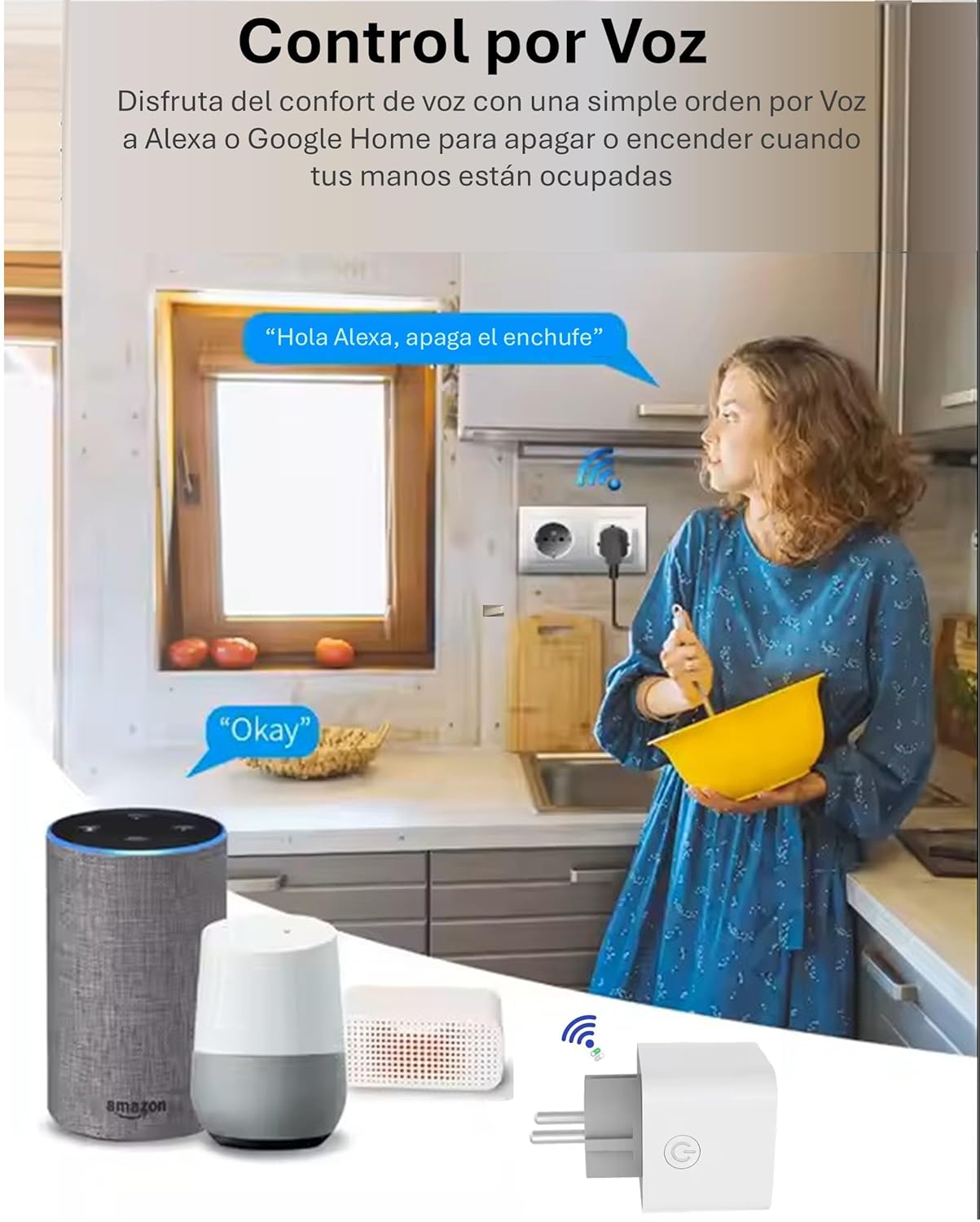
Image 5.3.2: A kitchen scene where a person is interacting with a smart plug via voice commands, with Amazon Alexa and Google Home devices visible, demonstrating the comfort of voice control with phrases like "Hello Alexa, turn off the plug" and the response "Okay!".
5.4 Scheduling and Timer Functions
Within the Tuya Smart or Smart Life app, you can set up various automation rules:
- Schedules: Program the plug to turn on or off at specific times on specific days.
- Countdown Timer: Set a timer for the plug to turn off after a set duration.
- Circulate Timer: Set the plug to cycle on and off at regular intervals.
5.5 Energy Monitoring
The Katalia Smart Wi-Fi Plug features an integrated energy meter. Access the device details in the Tuya Smart or Smart Life app to view:
- Real-time power consumption (Watts).
- Historical power consumption data (daily, monthly).
- Voltage and current readings.
This feature helps you monitor and optimize your energy usage.
6. Safety Information
- Do not exceed the maximum load of 16 Amperes or 3680 Watts. Overloading can cause overheating and fire hazards.
- For indoor use only. Avoid exposure to water, high humidity, or extreme temperatures.
- Do not disassemble, repair, or modify the device. Contact qualified personnel for service.
- Ensure the plug is fully inserted into the wall socket.
- Keep out of reach of children.
- Do not use with medical or life-support equipment.
7. Specifications
| Parameter | Value |
|---|---|
| Model Number | CLY802M-GE |
| Rated Current | 16 Amperes |
| Operating Voltage | 230 Volts AC |
| Maximum Load | 3680 Watts |
| Dimensions (L x W x H) | 5.2 x 5.2 x 8.2 cm |
| Weight | 60 g |
| Wireless Type | Wi-Fi 2.4GHz (IEEE 802.11 b/g/n) |
| Operating Mode | Automatic and Manual |
| Connector Type | Type F (Schuko) |
| Circuit Type | AC |
| Manufacturer | JuminaTech |
| Country of Origin | China |
8. Troubleshooting
- Device not connecting to Wi-Fi:
- Ensure your Wi-Fi network is 2.4GHz. 5GHz networks are not supported.
- Check your Wi-Fi password for accuracy.
- Make sure the smart plug is within range of your Wi-Fi router.
- Reset the smart plug by unplugging it and plugging it back in, or by holding the power button until the indicator light blinks rapidly, then attempt pairing again.
- Voice control not working:
- Verify that your Tuya Smart/Smart Life account is correctly linked to Amazon Alexa or Google Home.
- Ensure the device name in the app matches the name you are using in voice commands.
- Check your internet connection.
- App not responding:
- Close and reopen the app.
- Check for app updates in your mobile app store.
- Ensure your smartphone has a stable internet connection.
9. Maintenance
- Clean the device with a soft, dry cloth.
- Do not use abrasive cleaners or solvents.
- Ensure the device is unplugged before cleaning.
10. Warranty and Support
As a Spanish company, Katalia guarantees product quality. If you are not satisfied with your purchase, we offer a refund without obligation. For further support or inquiries, please refer to the contact information provided with your purchase or visit the official Katalia website.