1. Setup
1.1 Unboxing
Carefully unbox the DTF printer and all its components. Ensure all items listed in the packing list are present and undamaged. The printer is shipped in a wooden crate for protection. Unlock the latches and lift the top cover. Remove the accessory boxes and the main printer unit from the packaging.
Video: A3 DTF Printer Unboxing. This video demonstrates the process of unboxing the A3 DTF printer from its wooden crate and identifying the included accessories.

Image: All components of the DTF printer laid out after unboxing, including the printer unit, ink bottles, film roll, and various tools and cables.
1.2 Assembly and Installation
Attach the film feeding mechanism to the printer. Connect the necessary cables, including the power cable and the sensor cable for the film roll. Ensure all connections are secure.
Video: A3 DTF Printer Unboxing and Setup Guide. This video provides a detailed guide on assembling the printer components and preparing it for first use.
1.3 Ink Filling
Uncap the ink bottles and carefully pour the corresponding colors into the printer's ink tanks. Ensure the white ink tank is filled first, as it requires circulation. Use the provided syringes to fill the print head cartridges with ink, ensuring no air bubbles are present.

Image: Diagram illustrating the white ink automatic mixing and circulation system, crucial for maintaining ink fluidity and preventing clogs.
1.4 Initial Power On and Self-Test
After assembly and ink filling, connect the power cable and turn on the printer. The machine will perform a self-test. Observe the print head movement and ensure no unusual noises or errors occur. The display will show temperature readings.
1.5 Print Head Reset
If the print head requires resetting, follow the specific instructions provided in the USB manual or consult the seller. This process typically involves accessing the print head mechanism and performing a reset sequence.
Video: A3 DTF PRINTER Reset the print head. This video guides you through the steps to reset the print head, which may be necessary for optimal performance.
2. Operating
2.1 Printing Process
The DTF printing process involves several steps:
- Computer Setting: Prepare your design using the provided software.
- Print on PET Film: Load the PET film into the printer and initiate the print job.
- Spread Hot Melt Powder: After printing, evenly spread hot melt powder onto the wet ink on the PET film.
- Oven Baking: Cure the powder and ink by baking the film in an oven.
- Heat Press to Garment: Use a heat press to transfer the design from the film to the desired garment or material.

Image: A visual guide detailing the five main steps of the DTF printing process, from computer design to heat pressing onto a garment.
2.2 Software Settings
Utilize the Hosonsoft software for print job management. Key settings include Head Select (e.g., 2H XP600_WCV), Print Speed (High for faster output), Print Direct (Bidirect for bidirectional printing), Pre-Print Flash (On), and Auto Clean (Close). Adjust ColorBar and Eclosion settings as needed for optimal print quality. The software also allows for nozzle checks and cleaning functions.
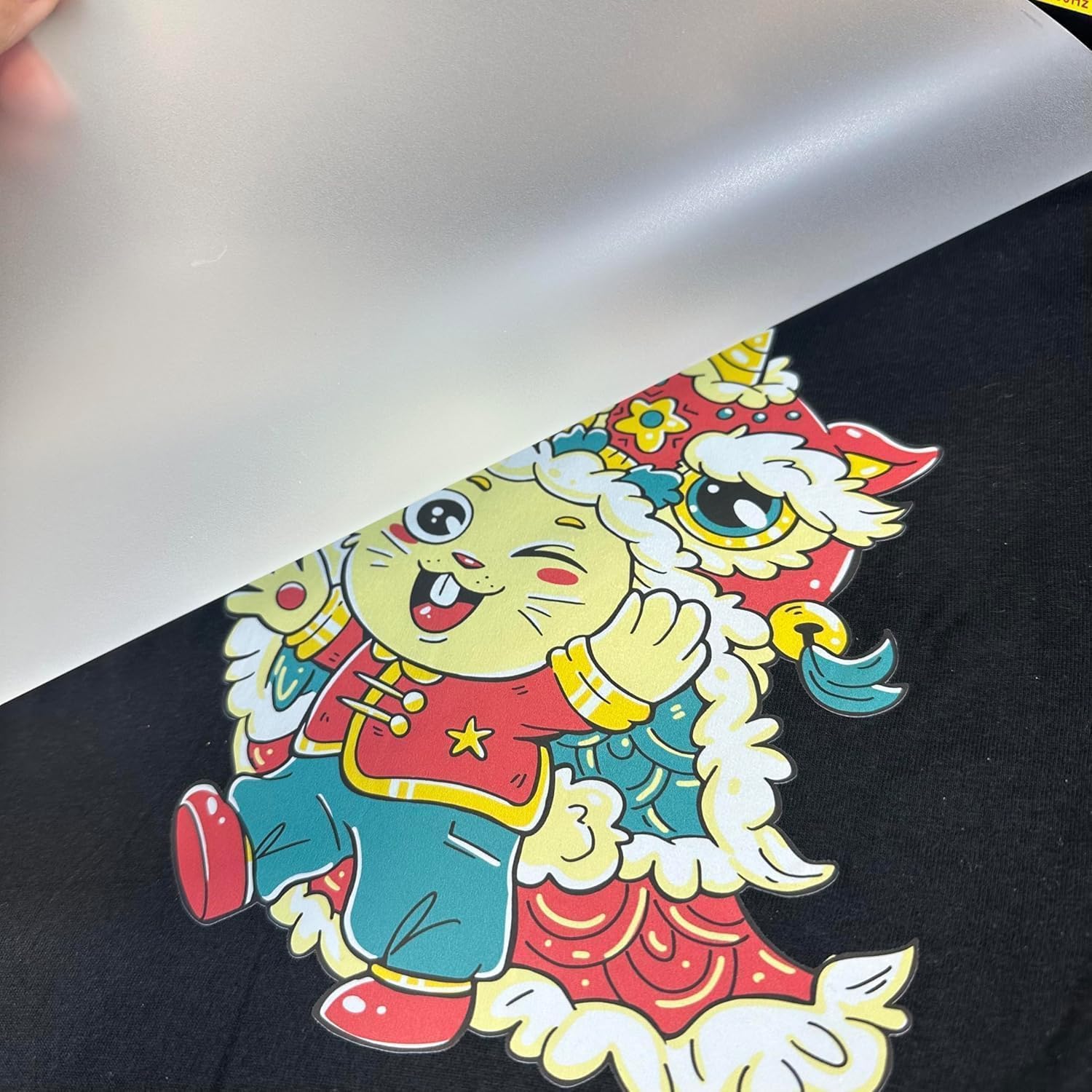
Image: A close-up of a vibrant, high-definition design successfully transferred onto a dark fabric using the DTF printer.
2.3 Media Loading
The printer supports two paper feeding methods: roll film or sheet film printing. Ensure the film is loaded correctly and securely to prevent misfeeds or print errors.

Image: Illustration of the two available film feeding modes: sheet film and roll film, demonstrating the versatility of the printer.
3. Maintenance
3.1 White Ink Circulation System
The printer features a white ink circulation system designed to maintain ink fluidity and prevent pigment precipitation. This system monitors ink usage in real-time, ensuring even distribution throughout the nozzle and preventing clogging. Regular operation of this system is crucial for consistent print quality.
Image: Diagram illustrating the white ink automatic mixing and circulation system, crucial for maintaining ink fluidity and preventing clogs.
3.2 One-Click Cleaning Function
Utilize the automatic cleaning system to prevent nozzle blockages and ensure smooth ink flow. This feature simplifies maintenance and helps prolong the life of the print head.
Image: Diagram showing the one-click cleaning function in action, designed to prevent nozzle blockages and ensure smooth ink flow.
3.3 Daily Maintenance
Perform daily maintenance routines as outlined in the product's USB manual. This typically includes cleaning the print head and surrounding areas to prevent ink buildup and ensure optimal performance.
Video: A3 DTF PRINTER Daily Maintenance. This video demonstrates essential daily maintenance procedures to keep your printer in optimal condition.
4. Troubleshooting
4.1 Print Quality Issues
If you experience issues with print quality, such as missing lines or inconsistent colors, perform a nozzle check using the Hosonsoft software. If the nozzle check pattern shows defects, a print head cleaning or reset may be required.
Image: A visual guide detailing the five main steps of the DTF printing process, from computer design to heat pressing onto a garment.
4.2 Nozzle Clogging
The white ink circulation system helps prevent nozzle clogging. However, if clogging occurs, utilize the one-click cleaning function. For persistent clogs, a manual cleaning procedure or print head reset might be necessary. Refer to the USB manual for detailed instructions.
4.3 Software and Installation Problems
If you encounter difficulties opening or installing the software from the USB drive, or any other installation-related problems, please contact the seller for assistance. They are prepared to help resolve such issues.
5. Specifications
| Feature | Detail |
|---|---|
| Maximum Media Size | 11.7*6.7in |
| Included Components | Inkjet Cartridges |
| Print Media | Back print film |
| Max Input Sheet Capacity | 50 |
| Maximum Colour Print Resolution | 1440 x 1440 dpi |
| Sheet Size | A3 |
| Maximum Black and White Print Resolution | 1440 x 1440 dpi |
| Dual-sided Printing | No |
| Manufacturer | SIHAO |
| Model | B31 L1800 |
| Part Number | B31 L1800 |
| Hardware Interface | USB |
| Ink Color | white |
| Scanner Resolution | 1440 x 1440 dpi |
| Special Features | Portable |
| Number of Items | 1 |
| Total USB Ports | 1 |
| Form Factor | All-in-One |
| Item Model Number | B31 L1800 |
| Product Dimensions | 66.04 x 66.04 x 50.8 cm |
| ASIN | B0DZ65P3G6 |
| Date First Available | March 4 2025 |
| Brand | Generic |
| Connectivity Technology | Bluetooth |
| Printing Technology | DTF files |
| Colour | B30 R1390 |
| Printer Output | Color |
| Maximum Print Speed (Colour) | 5.0 |
| Max Print Speed Monochrome | 5.0 |
| Product Dimensions (D x W x H) | 35.6D x 81.3W x 38.1H Centimetres |
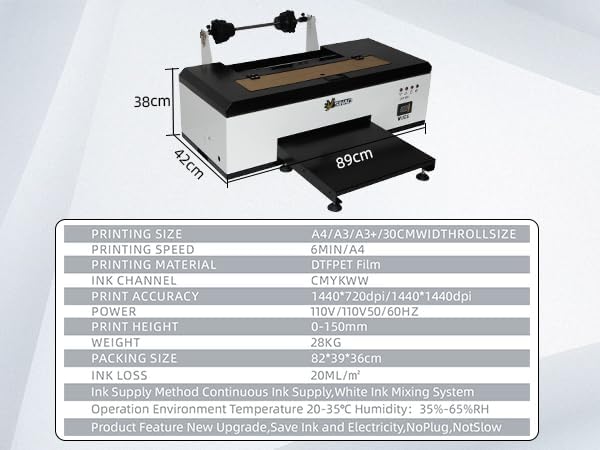
Image: A visual representation of the printer's dimensions and a table summarizing key specifications like printing size, speed, material, and ink channels.
6. Warranty and Support
For any issues regarding instructions, software installation, or general troubleshooting, please do not hesitate to contact the seller. They are available to provide support and resolve any problems you may encounter with your DTF printer.


