
MOJO-HOME MJ-189
MOJO Pro Performance Silent Gaming Mouse User Manual
Model: MJ-189
1. Introduction
Thank you for choosing the MOJO Pro Performance Silent Gaming Mouse. This manual provides detailed instructions for setting up, operating, customizing, and maintaining your new gaming mouse. Designed for precision and quiet operation, this mouse features a high-performance sensor, programmable buttons, and an ergonomic design to enhance your gaming experience.
2. Package Contents
- MOJO Pro Performance Silent Gaming Mouse (Model: MJ-189)
- User Manual (this document)
- (Optional: Software download instructions, if not pre-installed)
3. Product Overview
The MOJO Pro Performance Silent Gaming Mouse is engineered for optimal gaming performance with a focus on silent operation and customizable features. Familiarize yourself with its components:

Figure 3.1: Top view of the MOJO Pro Performance Silent Gaming Mouse, highlighting its ergonomic shape and central DPI buttons.

Figure 3.2: Side view of the MOJO Pro Performance Silent Gaming Mouse, showing the programmable side buttons and the 'Fn' key.
Key Features:
- Silent Click Buttons: Engineered for quiet operation, minimizing audible clicks.
- 9 Programmable Buttons: Customize functions for various gaming and productivity tasks.
- Sniper Key: Dedicated button for instant DPI reduction, ideal for precision aiming.
- High Precision Sensor: PMW3336 sensor with up to 12000 DPI.
- Fast Polling Rate: 1000 Hz polling rate for responsive tracking.
- Ergonomic Design: Hand-sculpted for comfortable extended use.
- Customizable RGB Lighting: Personalize the mouse's LED effects.
4. Setup
- Connect the Mouse: Plug the USB connector of the MOJO Pro Performance Silent Gaming Mouse into an available USB port on your computer. The mouse is a wired device and does not require batteries.
- Driver Installation: Your operating system (Windows 7 or above is required) should automatically detect and install the necessary drivers.
- Software Installation (Optional but Recommended): For full customization, download and install the MOJO customization software from the official MOJO website. This software allows you to configure buttons, DPI settings, LED lighting, and create custom profiles.

Figure 4.1: The MOJO gaming mouse connected and in use with a computer setup.
5. Operating Instructions
Basic Operation:
- Left Click: Primary action.
- Right Click: Secondary action/context menu.
- Scroll Wheel: Scroll up/down. Pressing the scroll wheel acts as a middle click.
- DPI Adjustment: Use the dedicated DPI buttons (usually located below the scroll wheel) to cycle through preset DPI levels. The LED indicator may change color to reflect the current DPI setting.
- Side Buttons: Default functions typically include forward/back in web browsers. These can be customized via software.
- Sniper Key: Activates a temporary low DPI setting for precise movements, often located on the side of the mouse.

Figure 5.1: A hand demonstrating the ergonomic grip of the MOJO gaming mouse during use.
6. Customization
The MOJO Pro Performance Silent Gaming Mouse offers extensive customization options through its dedicated software. This software allows you to tailor the mouse to your specific needs and preferences.
Software Features:
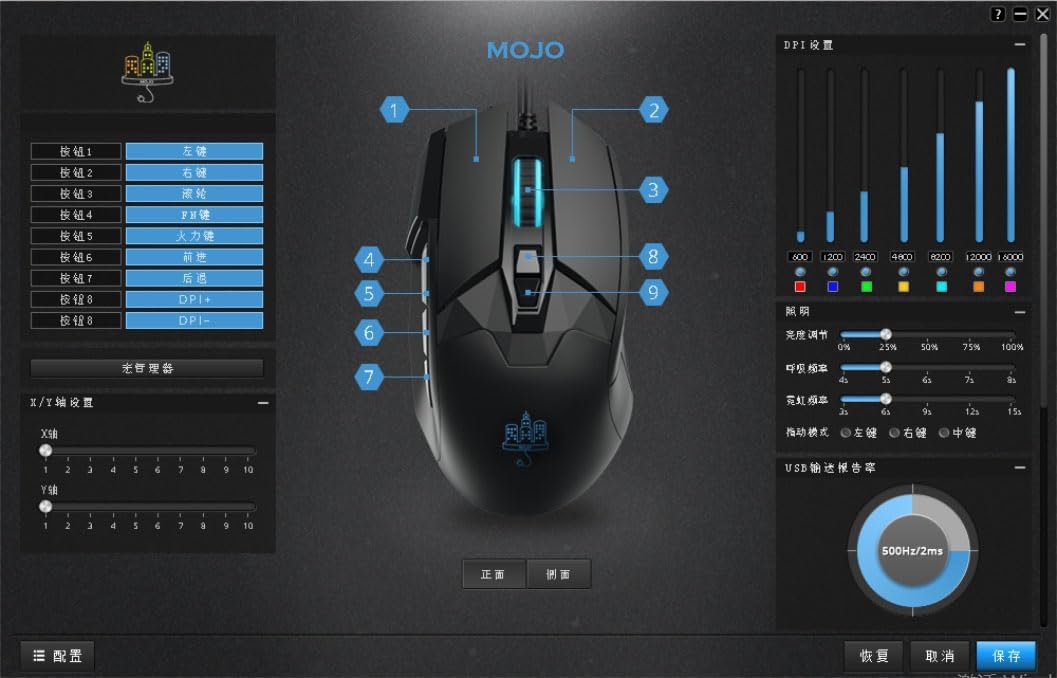
Figure 6.1: Screenshot of the MOJO customization software interface, showing options for button assignment, DPI settings, and LED control.
- Button Assignment: Reassign functions to any of the 9 programmable buttons, including the sniper key.
- Macro Editor: Create and assign complex macro sequences to simplify in-game actions or repetitive tasks.
- DPI Settings: Adjust DPI levels from 200 up to 12000 DPI, and configure multiple DPI stages to switch between on-the-fly.
- Polling Rate: Select polling rates up to 1000 Hz for optimal responsiveness.
- LED Control: Customize RGB lighting effects, colors, and brightness.
- Profile Management: Create and save multiple profiles for different games or applications, allowing quick switching between configurations.
- Force Adjustable Buttons: Fine-tune the actuation force of certain buttons for personalized feedback.
Refer to the software's built-in help or the official MOJO website for detailed instructions on using the customization software.
7. Maintenance
Proper maintenance ensures the longevity and optimal performance of your MOJO gaming mouse.
- Cleaning: Use a soft, dry cloth to wipe the mouse surface. For stubborn dirt, slightly dampen the cloth with water. Avoid harsh chemicals or abrasive materials.
- Sensor Care: Keep the optical sensor on the bottom of the mouse clean and free from dust or debris to ensure accurate tracking.
- Cable Management: Avoid sharp bends or excessive pulling on the USB cable to prevent damage.
- Storage: When not in use, store the mouse in a clean, dry environment away from extreme temperatures.
8. Troubleshooting
| Problem | Possible Solution |
|---|---|
| Mouse not responding |
|
| Inaccurate tracking or cursor lag |
|
| Buttons not working or not programmable |
|
| LED lights not working or incorrect colors |
|
9. Specifications
- Model: MJ-189
- Sensor: PMW3336 Optical Sensor
- DPI: Up to 12000 DPI
- Polling Rate: 1000 Hz
- Buttons: 9 Programmable Buttons (including Sniper Key)
- Connectivity: Wired USB
- Dimensions: 130 x 72 x 41 mm (5.1 x 2.8 x 0.1 inches)
- Weight: 127g (4.5 ounces)
- Cable Length: 1.8 meters
- Operating System Requirements: Windows 7 or Above
- Special Features: Ergonomic Design, LED Lights, Programmable Buttons, Soundless Clicks
10. Warranty and Support
MOJO-HOME products are manufactured to high quality standards. For warranty information, technical support, or further assistance, please visit the official MOJO-HOME website or contact customer service through the retailer where the product was purchased.
Please retain your proof of purchase for warranty claims.
11. Product Video Overview
Video 11.1: An overview of the MOJO Pro Performance Silent Gaming Mouse, demonstrating its silent clicks, programmable buttons, and high-precision sensor. This video highlights key features and benefits for users.