
hogance HKRC004
hogance HKRC004 Kindle/Tablet Stand with Remote Page Turner Instruction Manual
Model: HKRC004 | Brand: hogance
Introduction
This manual provides instructions for the setup, operation, and maintenance of your hogance HKRC004 Kindle/Tablet Stand with Remote Page Turner. This product is designed to enhance your reading experience by providing a stable, adjustable stand for your e-reader or tablet, coupled with a remote control for hands-free page turning. Please read this manual thoroughly before use to ensure proper functionality and longevity of the device.
Package Contents
Verify that all items listed below are present in your package:
- 1x Tablet/Kindle Stand
- 1x Remote Control
- 1x Receiver (Page Turner Clip)
- 1x USB Charging Cable
- 1x Wrist Strap
- 1x User Manual (this document)
Specifications
| Model | HKRC004 |
| Material | ABS + PC Plastic |
| Compatible Device Sizes | 4.7 to 10.5 inches (12-21 cm) |
| Remote Control Technology | RF (Radio Frequency) |
| Remote Control Range | Up to 30 meters |
| Charging Port | USB-C |
| Battery Composition | Lithium Ion |
| Product Weight | 560 g |
Setup Instructions
- Assemble the Stand: Attach the flexible arm to the clamp base. Secure the clamp base to a stable surface such as a bedside table, desk, or headboard. Ensure the clamp is tightened securely to prevent movement.
- Mount Your Device: Extend the device holder and carefully place your Kindle, tablet, or smartphone into the holder. The holder features thickened silicone anti-slip protective pads to secure your device. Adjust the holder to fit your device size (4.7 to 10.5 inches).
- Adjust Viewing Angle: The stand features a 360° rotatable clip and a flexible arm, allowing you to adjust your device to any desired viewing angle for optimal comfort.
- Prepare the Page Turner:
- Charge the Receiver and Remote: Before first use, ensure both the remote control and the receiver are fully charged using the provided USB-C cable. A full charge takes approximately 1.5 hours.
- Activate the Receiver: Press the active button on the receiver.
- Attach the Receiver: Clip the receiver onto the screen of your e-reader or tablet. Position it carefully to avoid obstructing text. The receiver simulates a finger tap on the screen.

Figure 1: Stand setup with a Kindle and remote page turner.

Figure 2: Detailed view of the stand's clamp and device holder.
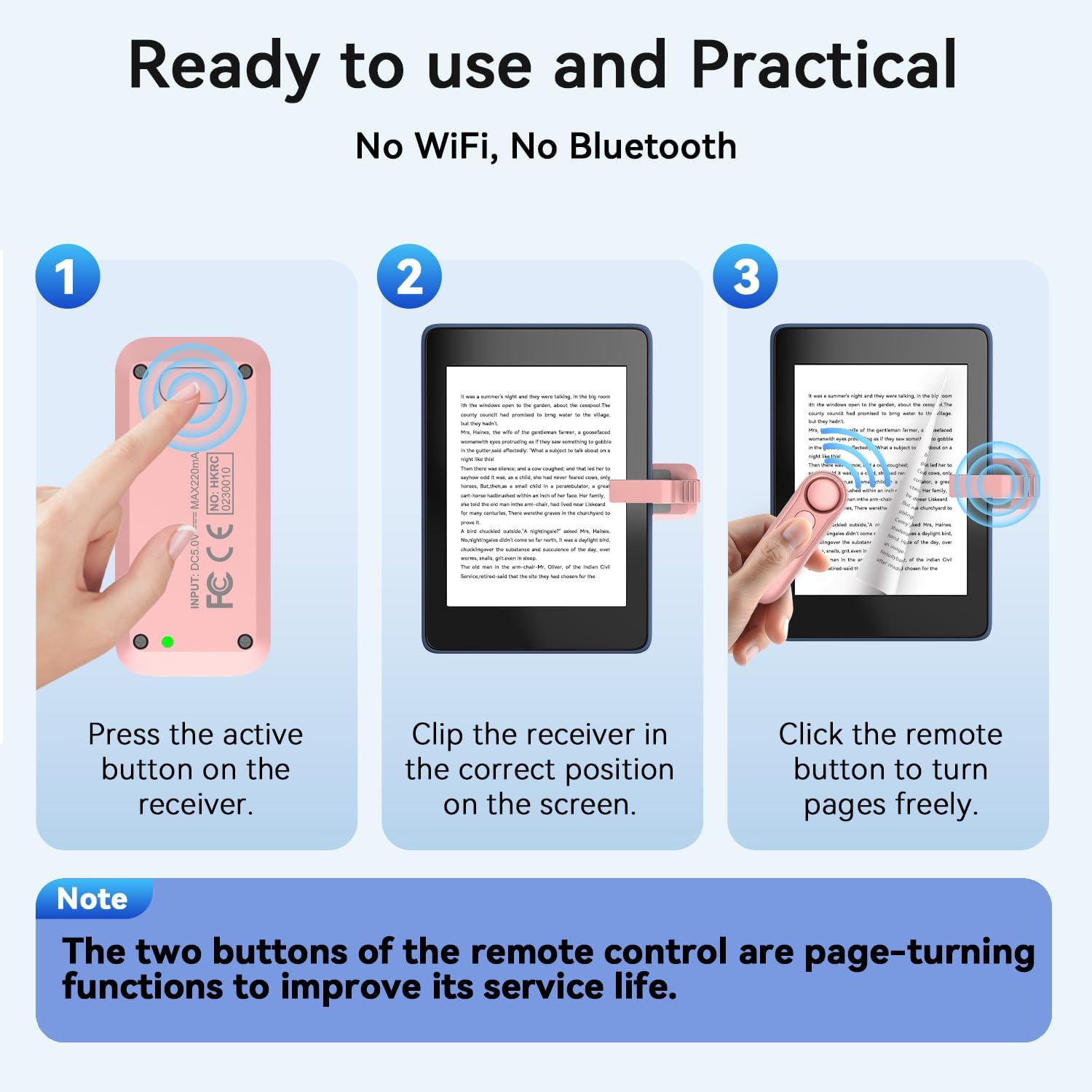
Figure 3: Steps for setting up and using the remote page turner.
Operating Instructions
Using the Stand
Once your device is securely mounted, you can freely adjust the flexible arm and the 360° rotatable clip to achieve your preferred viewing angle and height. The stand is designed to hold your device stably, allowing for comfortable, hands-free reading.
Using the Remote Page Turner
The remote page turner operates using RF technology, eliminating the need for Bluetooth or Wi-Fi pairing. Simply press either button on the remote control to turn pages on your device. The remote has two buttons, typically for forward and backward page navigation, depending on the application and receiver placement. The signal can cover all directions up to 30 meters.
Note: If your reading application has a scrolling function enabled, it may interfere with the page turner. Disable any scrolling functions within your reading app for optimal performance.

Figure 4: Remote page turning for comfortable reading.
Charging
Both the remote control and the receiver are equipped with rechargeable Lithium Ion batteries and USB-C charging ports. Use the provided USB-C cable to charge them. A full charge takes approximately 1.5 hours.
- The receiver can last 30-60 days on a full charge.
- The remote control can last 2-3 months on a full charge.
- The receiver has a 10-minute standby mode to conserve energy. If it enters standby, press the activation button again to reactivate it.

Figure 5: Battery life information for the remote and receiver.
Compatibility
The hogance HKRC004 stand and page turner are compatible with a wide range of devices:
- Stand: Suitable for devices from 4.7 to 10.5 inches, including Kindles, tablets, and smartphones.
- Page Turner: Compatible with all capacitive screen e-readers and devices, such as:
- Kindle 10, Kindle 11, Kindle Scribe, Kindle Paperwhite (1-5), Kindle Oasis (1-3), Kindle Kids Edition, Kindle Voyage
- iPad and other tablets
- iPhone and Android smartphones
- Kobo e-readers
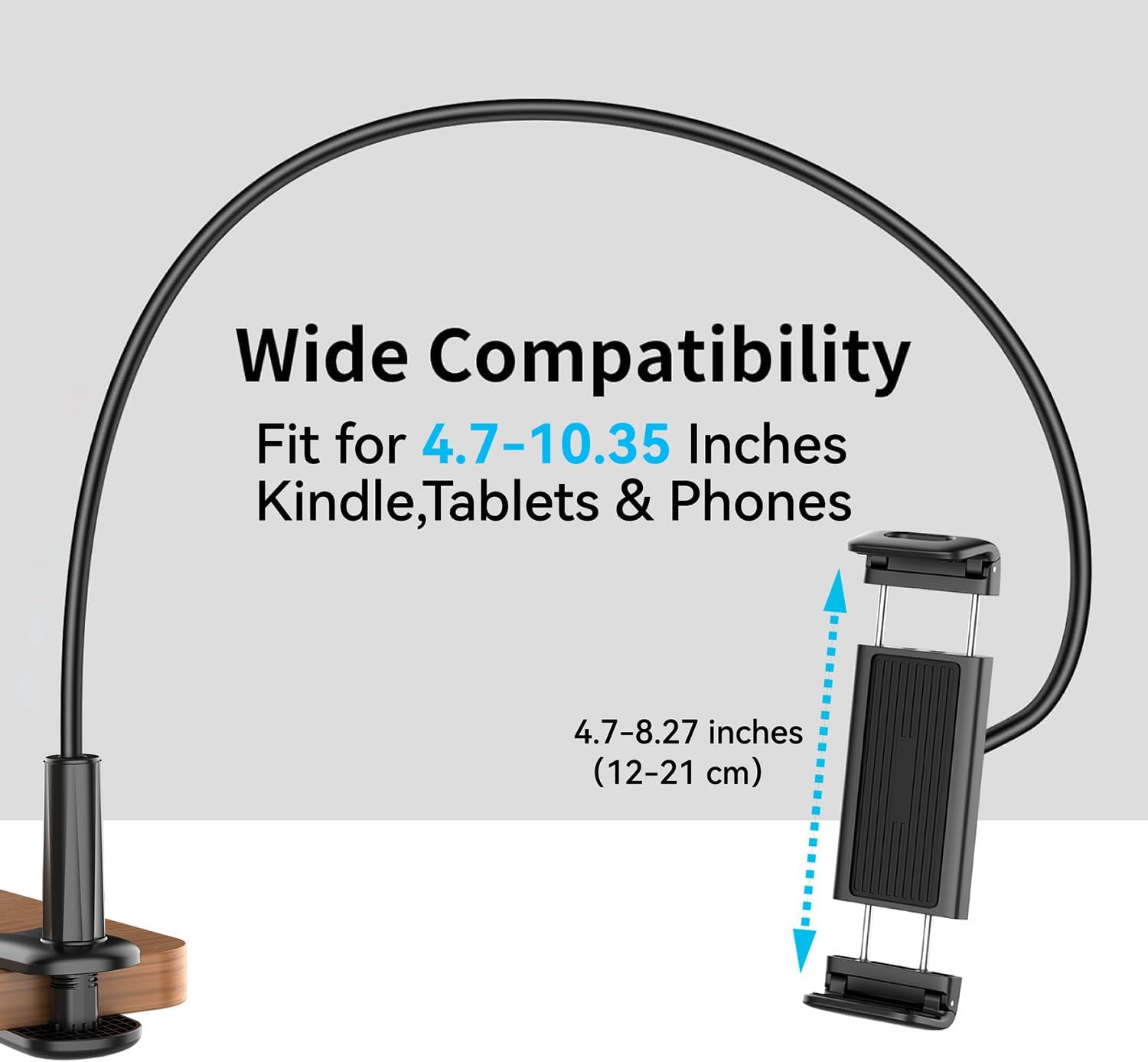
Figure 6: Device compatibility range.
Maintenance
- Keep the stand and accessories clean by wiping them with a soft, dry cloth.
- Avoid using abrasive cleaners or solvents.
- Store the product in a cool, dry place when not in use.
- Do not expose the electronic components (remote, receiver) to water or extreme temperatures.
Troubleshooting
| Problem | Possible Cause | Solution |
| Page turner not responding. | Low battery on remote or receiver. Receiver in standby mode. Scrolling function enabled in reading app. Receiver not properly clipped. | Charge both the remote and receiver. Press the activation button on the receiver to wake it up. Disable scrolling in your reading application settings. Ensure the receiver is securely clipped to the screen and making proper contact. |
| Stand is unstable. | Clamp not tightened sufficiently. Device not centered or too heavy. | Ensure the clamp base is securely tightened to the surface. Verify your device is within the supported size and weight limits and is centered in the holder. |
| Remote buttons feel stiff or unresponsive. | Normal wear or minor debris. | The remote is designed with two page-turning buttons to extend its lifespan. If one button becomes less responsive, try using the other. Clean around the buttons with a soft cloth. |
Warranty and Support
Specific warranty information for the hogance HKRC004 is not provided in this manual. For warranty details or technical support, please refer to the product packaging or contact the retailer or manufacturer directly. Keep your purchase receipt as proof of purchase.
Ask a question about this manual
Ask about setup, troubleshooting, compatibility, parts, safety, or missing instructions. Manuals+ will review the question and use this page’s manual context to help answer it.